
A bootable USB drive is an essential operation for technology enthusiasts, IT personnel, or anyone who likes to physically install the operating system. Remember the old days when there were CDs and DVDs used to do this, though? But now, USB drives have revolutionised the game with their efficiency and reliability. However, with so many tools available, how do you choose the right one for you? In this article, we’ll guide you top 10 Best tools to create a bootable USB drive, detailing each tool’s features, benefits, and best use case.
Common uses for bootable USB drives
Let’s discuss why you might need a bootable USB drive in the first place before delving into the tools.
- Install a New Operating System: Install ultimate Windows, Linux or macOS in your PC.
- Bootstrap Recover: Use a USB drive with recovery tools when my computer refuses to boot.
- Portable Operating Systems: Some tools let you carry a lightweight OS on your USB, so you can plug it into any computer and start working.
- Multiboot Drives: A single USB can hold multiple operating systems, tools, and utilities.
Benefits of using bootable USB drives
- Faster than CDs or DVDs
- More storage capacity
- Portable and easy to carry
- Reusable and updatable
- Works on computers without optical drives
Now that you know the why it is useful, let’s look at the best tools to create a bootable USB drive.
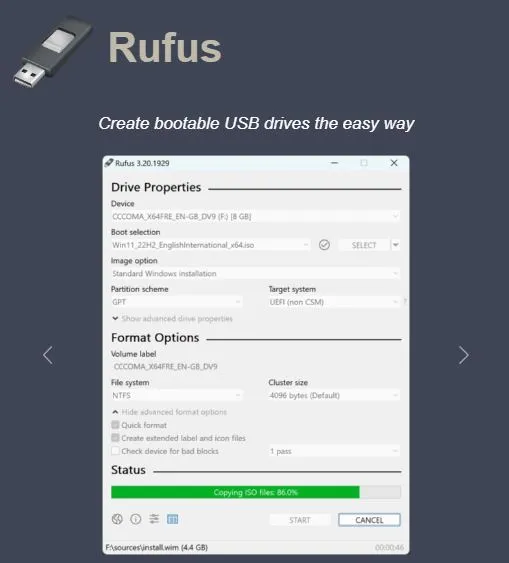
1. Rufus
Rufus is a well-known utility to build bootable USB drives. It is fast, lightweight, and can be used to create bootable drives for Windows, Linux, or any ISO.
Advantages:
- Extremely lightweight (less than 1 MB).
- Highly compatible with Windows, Linux, and other OS ISOs.
- Provides advanced features like creating bootable drives for UEFI and BIOS systems.
- Can create FreeDOS bootable drives.
- Works without installation—just download and run.
Limitations:
- Windows-only tool, no support for macOS or Linux.
- The interface may feel slightly technical for beginners.
Rufus is a great option if you need speed and reliability. It’s widely recommended for its prowess at running just about any ISO with ease.
2. Balena Etcher
Etcher is an easy to use program with a modern, clean interface. Overall, it seamlessly works on Windows, macOS, and Linux, making it a great option for cross-platform users.
Advantages:
- Easy interface designed for beginners.
- Operates with all major operating systems.
- Verifies the integrity of the written data to avoid corrupted installations.
- Open-source and free to use.
Limitations:
- Lacks advanced features like persistence or multiboot creation.
- Slower compared to other tools for certain tasks.
If you prefer simplicity, Balena Etcher makes the process of creating a bootable USB drive seem like a stroll in the park. It’s perfect for anyone looking for zero-fuss.

3. UNetbootin
It is a tool that is loved by the Linux fans. It’s great for creating live USBs of various Linux distributions.
Advantages:
- Allows you to download Linux distributions directly within the tool.
- Supports creating Live USB drives for most Linux distros.
- Lightweight and easy to use.
- Cross-platform (Windows, macOS, and Linux).
Limitations:
- Limited to Linux and FreeDOS ISOs; not ideal for Windows users.
- No support for UEFI boot systems.
If you’re diving into the Linux ecosystem, UNetbootin is a go-to tool for trying out new distros or running live sessions.

4. Universal USB Installer
This versatile tool is perfect for Linux users who want the ability to save changes during a live session using persistence.
Advantages:
- Provides persistence for saving changes in live Linux sessions.
- Easy to use, even for beginners.
- Supports a wide range of Linux distributions.
- Compact and doesn’t require installation.
Limitations:
- Limited support for Windows ISOs compared to other tools.
- Persistence is only available for select Linux distributions.
If you’re playing around with Linux, Universal USB Installer is the tool for you when it comes to saving your work.

5. YUMI (Your Universal Multiboot Installer)
YUMI stands out for its ability to create multiboot USB drives, allowing you to add multiple ISOs for different operating systems and tools.
Advantages:
- Supports multiboot USB drives with multiple ISOs.
- Compatible with both Windows and Linux ISOs.
- Ideal for creating a portable toolkit with various utilities.
- Intuitive interface for advanced users.
Limitations:
- Requires technical knowledge to manage multiple ISOs effectively.
- May not work seamlessly with all UEFI systems.
YUMI is a powerful tool for tech enthusiasts looking for a USB drive to do everything.

6. Ventoy
Ventoy is an open source tool to create bootable USB drive in a different way. Rather than actually writing an ISO to the USB, it allows you to simply copy multiple ISO files to the drive.
Advantages:
- No need to reformat for every new ISO.
- Supports over 1,000 ISO files, including Windows, Linux, and macOS.
- Works with UEFI and BIOS systems.
- Open-source and regularly updated.
Limitations:
- Slightly confusing for beginners due to its unique workflow.
- Some older systems may not be compatible.
Ventoy is ideal for power users that boot various ISOs from time to time. It’s efficient and time-saving.

Ventoy is perfect for managing multiple ISOs without reformatting your drive. If you’d like to learn how to create a multiboot USB drive, don’t miss my guide on How to Create a Multiboot USB Drive with Multiple Bootable ISO
7. PowerISO
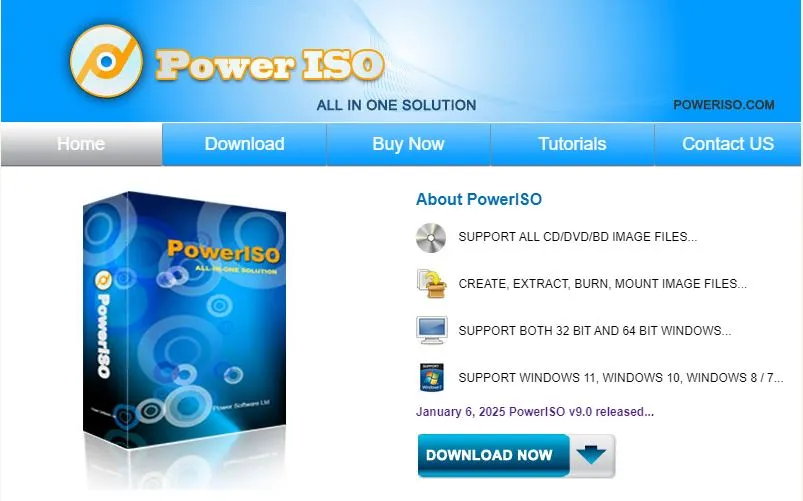
PowerISO is a powerful disk image utility that can create, extract, burn, mount, and edit ISO files. It also has the ability to create bootable USB drives.
Advantages:
- Allows you to create, edit, and extract ISO files.
- Supports creating bootable drives for both Windows and Linux.
- Can handle a wide range of disk image formats.
Limitations:
- Paid software; free version has limitations.
- Interface may feel overwhelming for beginners.
PowerISO is a versatile tool that’s perfect for advanced users who want more control over their ISOs.
8. WinToUSB
WinToUSB specializes in creating portable Windows USB drives, allowing you to carry a fully functional Windows OS in your pocket.
Advantages:
- Lets you install and run Windows directly from a USB drive.
- Great for creating Windows To Go drives.
- Supports cloning existing Windows installations.
Limitations:
- Only supports Windows operating systems.
- Free version has limited features.
If you need a portable Windows environment, WinToUSB is an excellent option.
9. DiskMaker X
Specifically designed for macOS, DiskMaker X is a macOS-specific tool that makes creating the USB for a macOS installation easy.
Advantages:
- Tailored for macOS users.
- Easy to use, even for beginners.
- Works with macOS installation and recovery files.
Limitations:
- Limited to macOS; not useful for Windows or Linux.
- Requires macOS to run the tool.
For mac OS users, DiskMaker X is the perfect solution for creating bootable USBs.

10. LinuxLive USB Creator (LiLi)
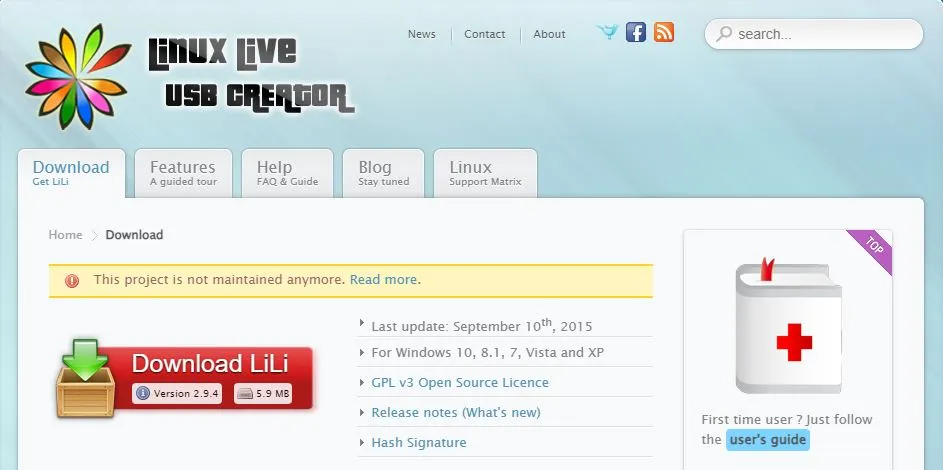
LinuxLive USB Creator (LiLi) is designed for Windows users who want to try Linux without installing it on their PC.
Advantages:
- Creates portable Linux USB drives with persistence.
- Allows running Linux directly from the USB.
- User-friendly and beginner-friendly.
Limitations:
- Limited to Linux distributions.
- Persistence only works with certain Linux distros.
If you’re interested about Linux, LiLi is a great way to get started.
How to Choose the Right Tool?
With so many options, you may be wondering which tool is right for you. Here’s a quick guide:
- For Beginners: Start with Balena Etcher or Rufus.
- For Linux Users: UNetbootin, Universal USB Installer, or Ventoy are excellent choices.
- For Advanced Users: YUMI or PowerISO offers more flexibility.
- For Mac Users: DiskMaker X is your best tool.
Step-by-Step Guide to Create a Bootable USB Drive
All the tools have a similar process as mention below:
- Download the Tool: Visit the official website of your chosen tool and download it.
- Get the ISO File: Download the ISO file of the OS or tool you want to boot.
- Insert USB Drive: Plug in your USB drive (make sure it’s empty or backed up).
- Launch the Tool: Open the tool and select the ISO file and USB drive.
- Start the Process: Click “Start” or “Create” to begin the process.
- Boot from USB: Restart your computer, enter the boot menu (usually by pressing F12), and select the USB drive.
Conclusion
Making a bootable USB drive may sound complicated, but it actually isn’t, provided you have the right tools like Rufus and Balena Etcher basics to the more advanced tools like YUMI and Ventoy.
Just pick the tool right for These tools help you out when you reinstall your OS, troubleshoot your PC or try out Linux. Just pick the tool right for you and get started!
Which tool do you plan to use? Let me know in the comments below!