
For working with databases, Microsoft SQL Server Express 2022 is a good free option to get started. It is a lightweight version of SQL Server, perfect for small applications, development, and for learning. This guide will show you how to install SQL Server Express 2022 and SSMS step by step on Windows 11.
But before you can start using it you’ll need to install SQL Server Express and SSMS (SQL Server Management Studio) which will be tool you use to easily manage your databases.
System Requirements
Before anything else, ensure that your system meets the minimum requirements for install Microsoft SQL Server Express 2022:
- Operating system: Windows 8 or later, Windows Server 2012 or later
- Memory: Minimum 512 MB RAM
- Disk Space: Minimum of 6 GB for installation
- Processor: x64 CPU: 1.4 GHz or faster
- . NET Framework: Version 4.6 or later
Step 1: Download Microsoft SQL Server Express 2022
Let’s go ahead and download the SQL Server Express Installer.
- Open your web browser and go to the official Microsoft SQL Server Express download page.
- Click on the Download now button under the SQL Server 2022 Express edition.
- After the installer is downloaded, open the file to start the setup process.
Step 2: Install SQL Server Express 2022
Now that we have the installer, let’s go through the installation process.
- Run the downloaded file (SQLServer2022-SSEI-Expr.exe).
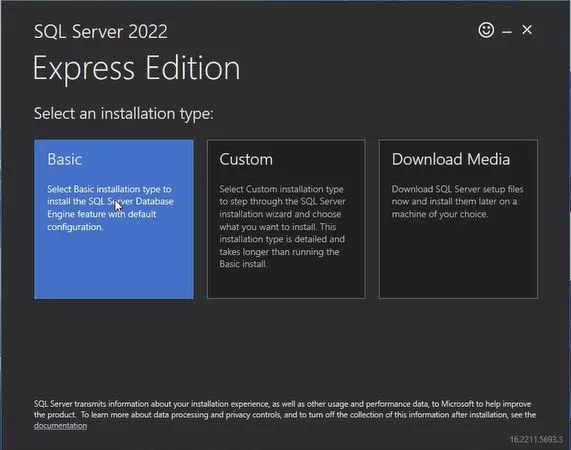
- Select Basic installation for a quick setup or Custom if you want more control over the installation settings.
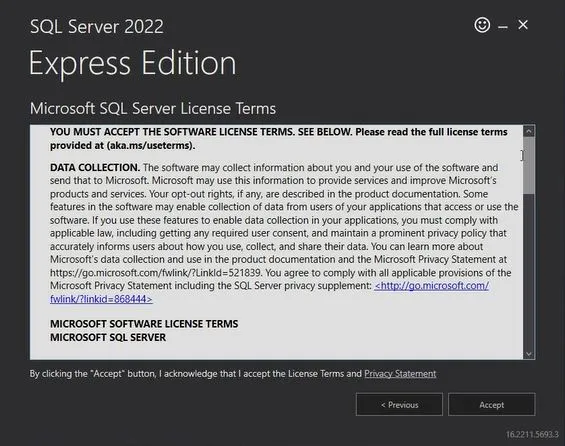
- Accept the license terms and click Next
- Choose the installation directory or leave it as default.
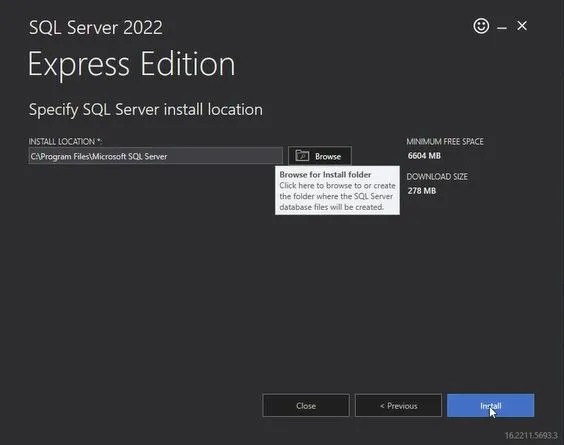
- Click Install and wait for the installation to complete. This may take a few minutes.
- Once done, you will see a success message. Click Close.
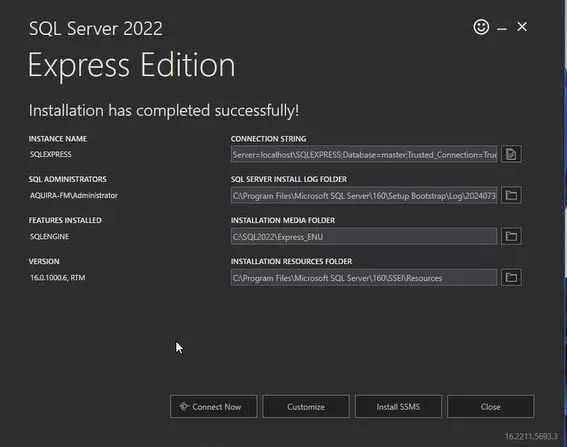
Note: Choose the “Custom” option if you want to add the directories and other advanced settings, useful for those who know SQL configurations.
Tip: If you are setting SQL Server on your system just for your personal use, you can skip the Azure Extension for SQL Server option while custom installation.
Step 3: Install SSMS (SQL Server Management Studio)
To manage your databases visually, you need SQL Server Management Studio (SSMS). Here’s how to install it:
- Go to the official Microsoft SSMS download page.
- Click Download SQL Server Management Studio (SSMS).
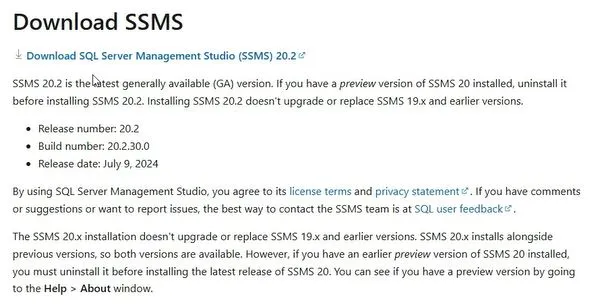
- Once downloaded, open the installer (SSMS-Setup-ENU.exe).
- Click Install and wait for the process to end.
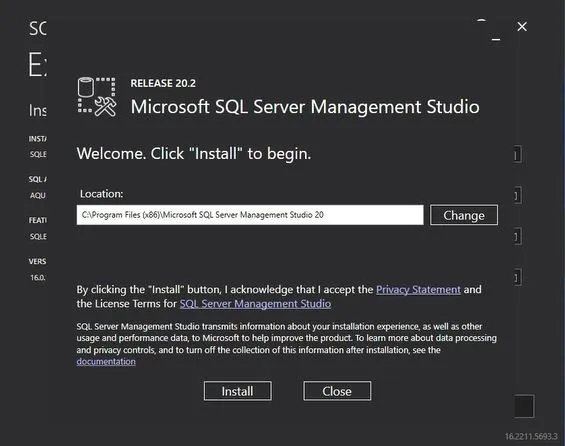
- Then, restart your computer and the changes will take effect.
Connection and Configuration
Both SQL Server Express and SSMS are now installed and it is time to connect to the server.
- Launch SSMS from your start menu.
- Enter your server name (use your computer name followed by \SQLExpress if you chose the default naming).
- Use “Windows Authentication” for a start, especially if you’re new. For more security, setting up SQL logins is recommended.
- Click “Connect” and voilà—you’re ready to manage your databases with SSMS!
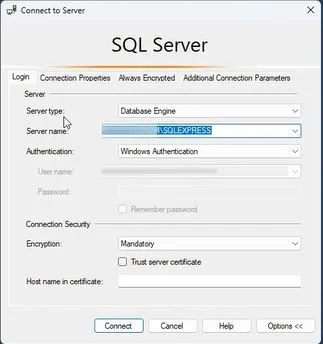
That’s it! You are now connected to your SQL Server Express instance and can create and manage databases (dbs)
Conclusion
Installing Microsoft SQL Server Express 2022 and SSMS on Windows 11 is not as difficult as it may seem. By following these simple steps, you can have everything up and running in no time. So if you are a student, a developer, or just want to try your hand at database management, SQL Server Express is a good place to start.
Now you can create databases, run queries and manage your data. Let me know in the comments below if you found the guide helpful!
Frequently Asked Question (FAQ)
Is SQL Server Express 2022 free to use?
Yes, SQL Server Express 2022 is completely free to download and use.
Can I install SQL Server Express 2022 on Windows 11?
Yes, SQL Server Express 2022 is fully compatible with Windows 11.
Can I use SQL Server Express without SSMS?
You do not need SSMS (SQL Server Management Studio) however it is strongly recommended to manage the databases easily
How to connect to SQL Server Express after installation?
Windows Authentication, and then Connect. Open SSMS → server name: localhost\SQLEXPRESS →
How much disk space is required for SQL Server Express 2022?
Minimum of 6 GB of free disk space is recommended for installation.