
If you updated to Windows 11 24H2 recently but so far everything is not quite working out, don’t worry! You can also roll back to Windows 11 23H2. This guide is how to rollback Windows update safe and easy. If your system is dealing with bugs, compatibility issues, or performance, this guide will help you go back to the previous version easily.
Reason for Rollback Windows Update
Now before we move to how to rollback Windows update, you should know why you would want to do that:
- Performance Issues: Your PC might be running slower after the update.
- Software Compatibility Problems: Some applications may not work properly with Windows 11 24H2.
- Bugs and Glitches: Unexpected crashes, display errors, or missing features.
- Battery Drain Issues: Your laptop battery may drain faster than before.
- Personal Preference: You just liked the previous version better!
If you are facing any of these issues, reverting to 23H2 might be the best option.
Preparing for the Rollback
Before we start roll back Windows update, follow these important steps:
Verify your version of Windows: Press Win + R on your keyboard, and type winver, and press Enter. A window will appear showing your Windows version. If it says Version 24H2, you’re on the latest update.

Back up Your Data: While personal files won’t be deleted rolling back, it’s always safe to back up any valuable documents and files.
Plug in Your Device: There is going to be a process and it takes a while, so ensure your laptop is plugged in or has enough battery.
Uninstall Any New Apps Installed After the Update: Software that was installed after the upgrade may not work after the rollback.
Now, let’s get into how to rollback Windows update step by step.
Method 1: How to Rollback windows update within 10 Days (Using Windows Settings)
If you upgraded to Windows 11 24H2 within the last 10 days, you can easily rollback that Windows update through the settings.
Step 1: Open Recovery Settings
- Click on Start and go to Settings.
- Select System, then click on Recovery.
- Under Recovery options, find Go back option and click it.
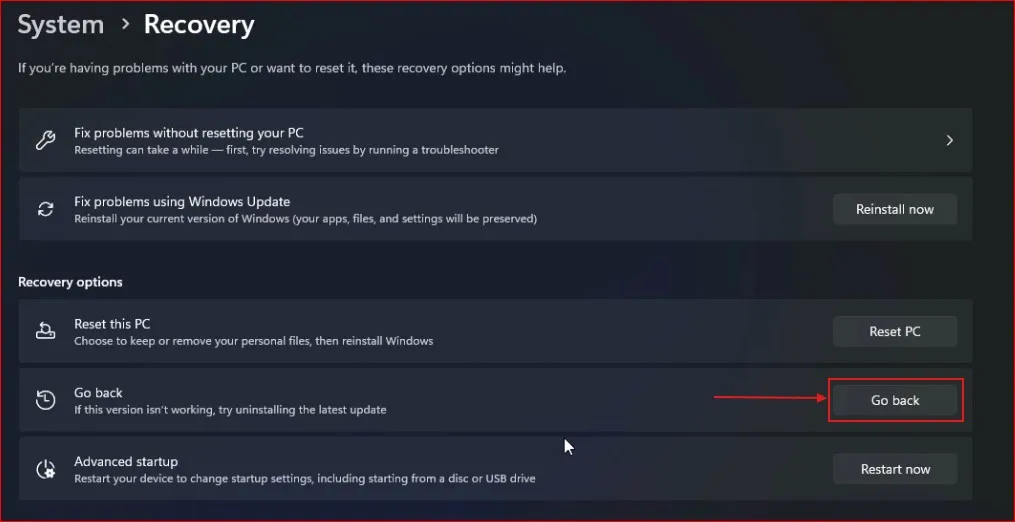
Step 2: Follow the On-Screen Instructions
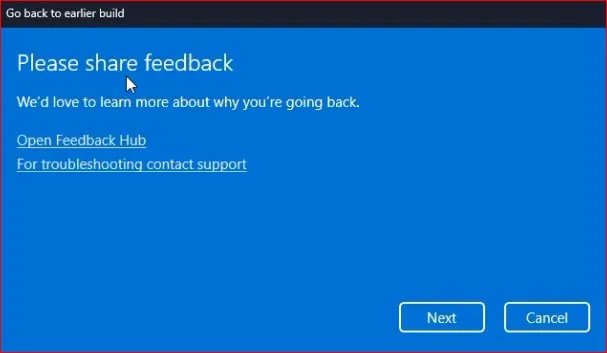
- Windows will then query why you want to rollback Windows update—choose any reason and click on Next.
2. If it suggests checking for updates instead, click No, thanks.
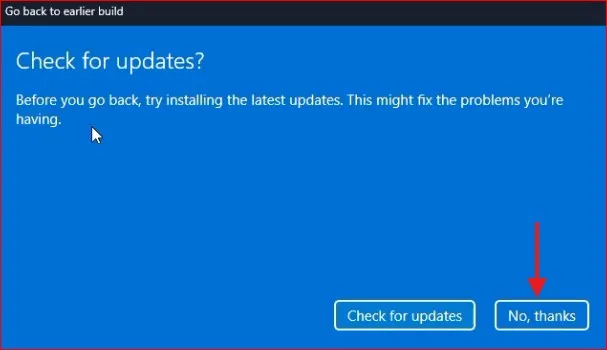
3. Follow the prompts until you see Go back to earlier build, then click it.

Your computer will restart and begin the downgrade process. When it’s all done, you’ll be back on Windows 11 23H2.
Note: Anything updated after upgrade (new apps or settings) will be lost.
Method 2:How to Rollback windows update after 10 Days (Using a System Restore Point)
If the Go back option isn’t available, but you created a system restore point before updating, you can use it to rollback Windows update.
Step 1: Open System Restore
- Press Win + R on your keyboard, and type rstrui, and hit Enter.
- The System Restore window will open.
- Click Next to see available restore points.

Step 2: Select the Restore Point
- Choose the restore point created before updating to Windows 11 24H2.
- Click Next, then Finish to begin the process.
- It will restart you device and restore it to the selected restore point.
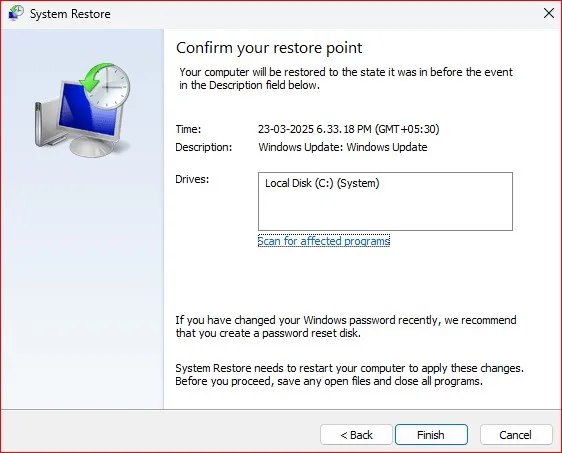
Note: This method removes any apps or system changes made after the update but won’t delete personal files.
Method 3: Clean Install Windows 11 23H2 (If No Other Options Work)
If both methods above don’t work, you’ll need to rollback Windows update by doing a clean install of Windows 11 23H2.
Step 1: Download Windows 11 23H2 ISO
Microsoft does not offer direct download links for older versions of Windows anymore, with their clear priority on the latest editions, as you may have observed. Nonetheless, you can still download and install older builds such as Windows 11 23H2 using unofficial tools like UUPdump. net, which downloads the setup files directly from the Microsoft servers and assembles the ISO for you.
Step 2: Create a Bootable USB Drive
- Download Rufus or use the Media Creation Tool.
- Insert a USB drive (at least 8GB) into the computer and use the tool to create a bootable USB.
Step 3: Install Windows 11 23H2
- After putting your USB in, reboot your PC
- Press the boot menu key (F12, F2, DEL, or ESC depending on your PC brand).
- Choose the USB drive in order to boot from it.
- Follow the on-screen instructions to install Windows 11 23H2.
Warning: This will format your C drive. Just make sure you back up important files first.
After Downgrading: Verify Your Windows Version
When you’ve properly rolled back Windows update, verify your version by executing winver command one more time:
- Press Win + R on your keyboard, and type winver, and hit Enter.
- You should now see Windows 11 Version 23H2.
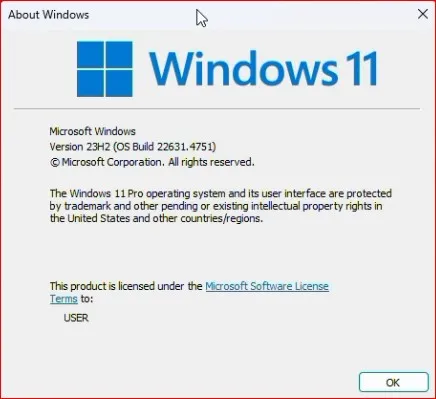
Congratulations! You have successfully downgraded from Windows 11 24H2 to 23H2.
Final Thoughts
So, this was all about how to rollback Windows update! If it’s still within 10 days of updating, the process is straightforward. But even if you can’t revert, you could instead use a system restore point or even do a clean install.
Just inform me in the below comments if you found this guide useful.Rollback Windows Update can be used in different situations. Share your experience!
Frequently Asked Question (FAQ)
Can I roll back Windows 11 24H2 to 23H2 without losing my files?
Yes, if you use the Go back option in Windows settings within 10 days of updating. However, a clean install will erase all data.
What if the ‘Go back’ option is missing in Windows 11?
You can try using a System Restore Point or perform a clean install of Windows 11 23H2.
How do I check my current Windows version?
Press Win + R, type winver, and hit Enter to see your Windows version.
Will rolling back affect my installed apps?
Yes, any apps installed after updating to 24H2 may be removed. Be sure to back up important data.
How long does it take to roll back Windows 11 to 23H2?
The process can take 15-30 minutes, depending on your system speed and rollback method.
Do I need a product key to reinstall Windows 11 23H2?
No, if your PC originally had Windows 11 activated, it will automatically activate after installation.