
While Windows updates are meant to bring new features, they may sometimes result in unwanted bugs, such as slow performance, compatibility issues, and even crashes. If you want to stick to your stable version, like 23H2, you can definitely do that.If you love Windows 11 23H2 and want to avoid an update to 24H2, you’ve come to the right place.
In this article, I will demonstrate two practical methods to block Windows 11 24H2 update and remain on 23H2 version as long as you would like.
Why Block Windows 11 24H2 Update?
Before talking about how you can do that, let’s discuss briefly why you may want to remain on Windows 11 23H2 and not go to 24H2:
- Stability: If your system works well on 23H2, you may not want to chance instability with a new update.
- Compatibility: Some types of software or drivers might not function as intended with newer updates.
- Control: You should have the choice to update when you want, not when Microsoft forces you to.
Now, let’s get into the methods to stop Windows 11 from updating to 24H2.
Method 1: Pause Updates for Up to 35 Days
The easiest way to stop updates temporarily is by using the built-in Pause Updates option.
Steps to Pause Updates:
- Right-click on the Start Menu and select Settings.
- In the left panel, click on Windows Update.
- Look for the option that says Pause updates.
- Click on the dropdown, and you will see options like Pause for 1 week, 2 weeks, and up to 5 weeks (35 days).
- Select 35 days to stop updates completely for the maximum available duration.
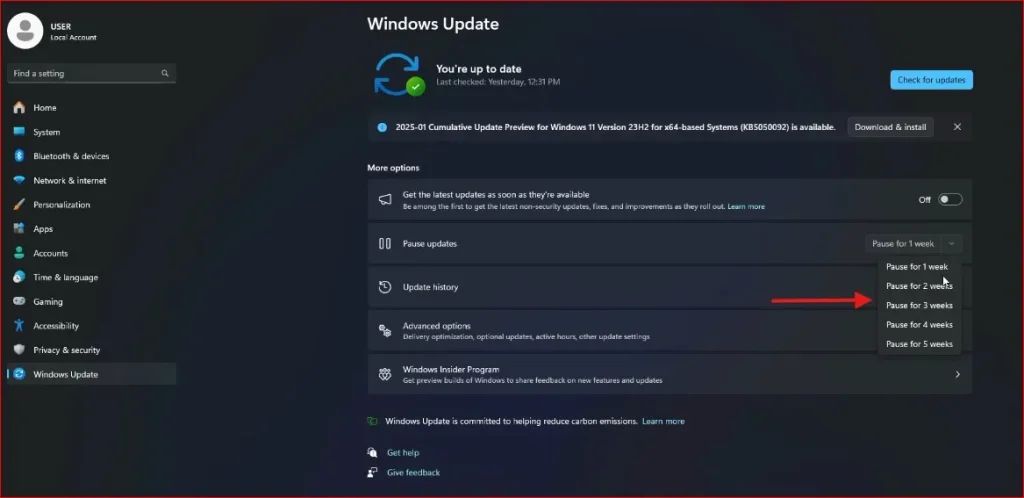
That’s it! Your system won’t update for 35 days. However, keep in mind that once this time is up, Windows will automatically start updating again.
You can also check Microsoft’s official Windows Update Support Page for the latest information on updates.
If you want to block updates permanently, move on to Method 2.
Method 2: Use Group Policy Editor to Block Windows 11 24H2 update Permanently
If you want complete control over updates and specifically want to block Windows 11 24H2, this method is for you.
Step 1: Open Group Policy Editor
- Click the Start button and type gpedit.msc.
- Press Enter to open the Local Group Policy Editor.
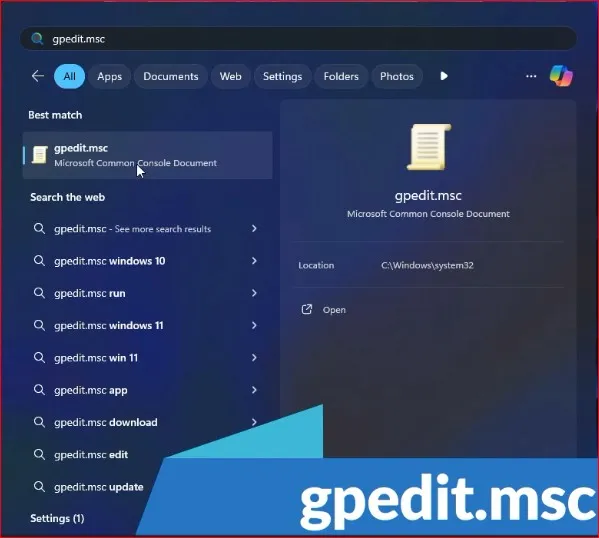
Step 2: Navigate to Windows Update Policy
- In the left panel, go to Computer Configuration → Administrative Templates → Windows Components → Windows Update.
- Click on Manage updates offered from Windows Update.
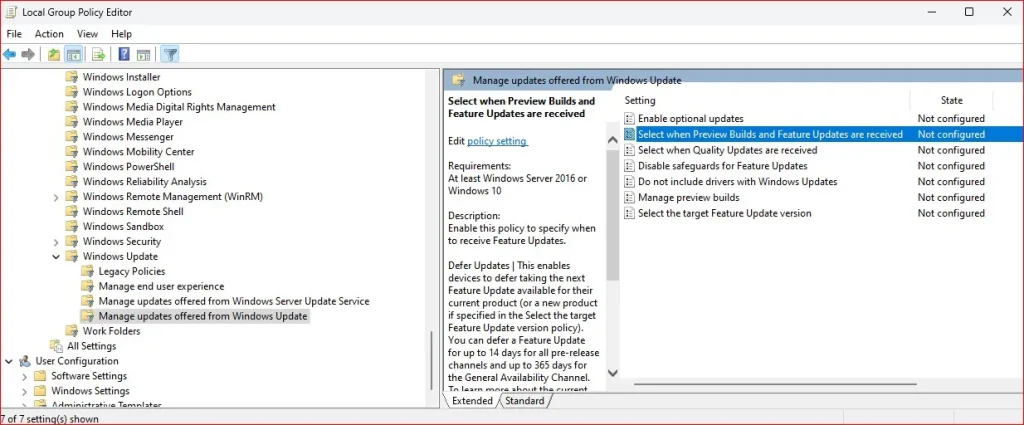
Step 3: Defer Feature Updates for 365 Days
- In the right-hand panel, find Select when Preview Builds and Feature Updates are received.
- Double-click on it, and a new window will open.
- By default, it is set to Not Configured. Change this to Enabled.
- You will see an option that says: How many days after a feature update is released would you like to defer the update?
- Set this to 365 days. Now, we can pause the preview and feature updates starting from today’s date.
- You’ll need to enter the year, month, and day exactly as it shows on the screen right here — that’s really important; otherwise, it won’t work.
- Click Apply and OK.
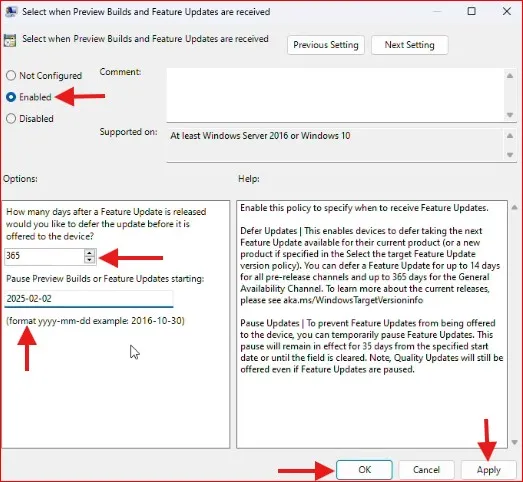
Now, Windows won’t install feature updates for 365 days!
Note: you don’t have to stick with 365 days; you can choose 2 months, 6 months, or whatever works best for you, but the maximum is 1 year.
Step 4: Apply Changes Instantly
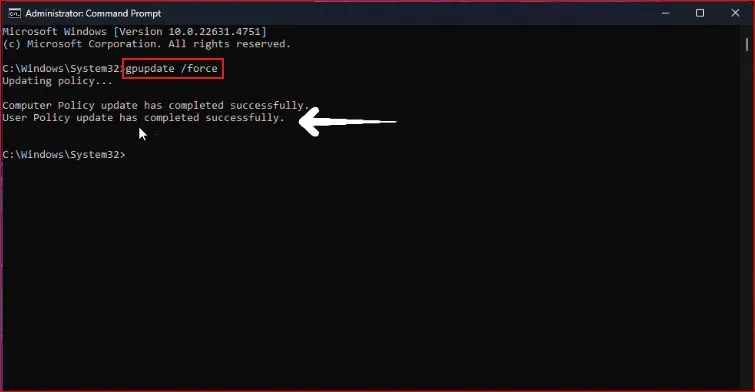
- Open Command Prompt as Administrator.
- Type the following command and press Enter:
- gpupdate /force
- This applies the policy changes immediately, so you don’t have to restart your PC.
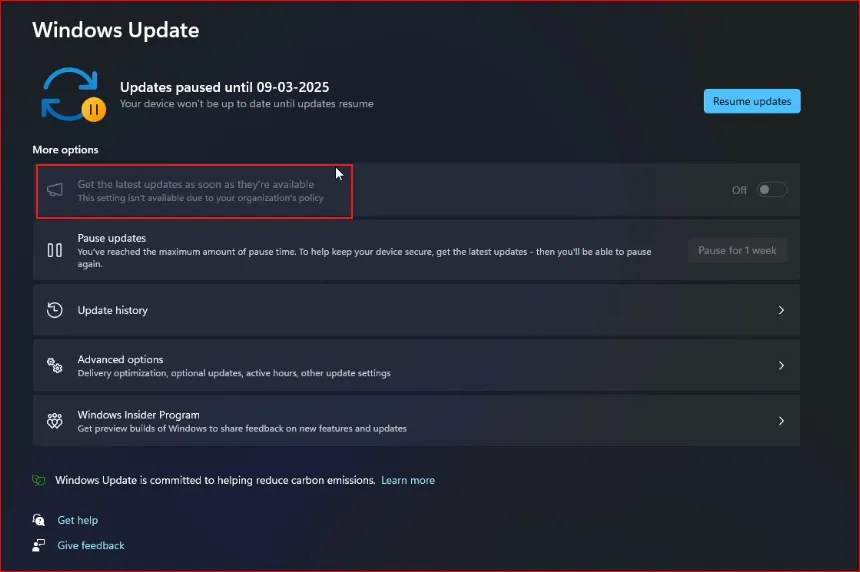
If you go to Windows Update settings now, you’ll see a message saying: Your organization paused some updates for this device. This confirms that your system is locked to Windows 11 23H2, and 24H2 won’t be installed.
How to Delay Updates for More Than 365 Days
If you want to stay on Windows 11 23H2 beyond one year, there’s another way to do it.
Step 1: Open Group Policy Editor
- Click the Start button, type gpedit.msc, and hit Enter.
- Navigate to Computer Configuration → Administrative Templates → Windows Components → Windows Update.
Step 2: Select a Target Feature Update Version
- In the right panel, find Select the target feature update version.
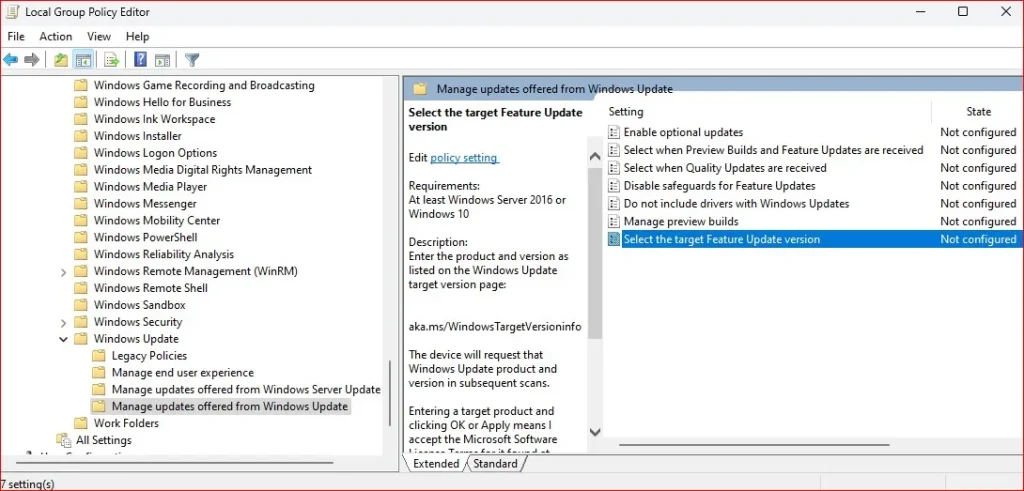
- Double-click on it, and a new window will open.
- Change the setting to Enabled.
- Under Target Version for Feature Updates, enter:
- Windows 11 in the first box.
- 23H2 in the second box.
- Click Apply and OK.

This means you’ll stay on 23H2, and 24H2 won’t be offered to you or forced upon you because you’ve set it to 23H2. This policy will now be in place, and as long as it’s active, you won’t be pushed to a newer version.
Step 3: Apply Changes Instantly
- Open Command Prompt as Administrator.
- Type: gpupdate /force
- Press Enter to apply the changes immediately.
Now, your PC will stay on Windows 11 23H2 indefinitely, even after 365 days!
You’re now locked into the selected version. You can use this for any Windows build—whether it’s Windows 10 or Windows 11—and choose which version you want to stay on and you won’t be forced into an update until you remove that policy okay.
If you want a detailed walkthrough, I’ve made a YouTube video covering everything in this blog post. Check it out below!
How to Roll Back from 24H2 to 23H2
If you’ve already updated to Windows 11 24H2 and want to roll back to 23H2, don’t worry. I have a step-by-step guide on How to Rollback Windows Update from 24H2 to 23H2.
Final Thoughts
That’s it! You now have full control over Windows updates. Whether you want to pause updates temporarily, block windows 11 24H2 update permanently, or delay updates indefinitely, these methods will help you stay on Windows 11 23H2 without any unwanted updates.
If you found this guide helpful, share it with others who might also want to stay on 23H2.
Frequently Asked Question (FAQs)
Will block windows 11 24H2 update stop security updates?
No, these methods only block feature updates. Security updates will still be installed.
Can I undo these changes later?
Yes, just revert the settings in Group Policy, Registry Editor, or the update blocker tool.
What if Windows still tries to update?
Double-check your settings and make sure Windows Update Service isn’t running in the background.
Do I need to redo these steps after every update?
No, as long as you set Windows to stay on 23H2, it should remain blocked.
Will blocking updates cause problems with apps or drivers?
Not usually. If your apps work fine on 23H2, they’ll continue working without issues.