
Regardless of where you purchase your Windows license, it is always a good idea to verify that the product is legitimate. A quick Windows genuine key check lets you confirm that your copy is valid and working safely. In this guide, I’ll show you some simple ways to confirm your Windows key authenticity without needing any technical know-how.
Understanding Windows Key Authenticity
Your Windows key authenticity tells you if your copy of Windows is genuine or not. A real key comes directly from Microsoft or trusted sellers, giving you full access to updates and features. Fake or pirated keys might work for a while but usually cause problems later.
Genuine vs. Pirated Windows Keys
- Genuine keys: Safe, stable, and supported by Microsoft.
- Pirated keys: Often stolen or fake, leaving your PC open to crashes and security risks.
Risks of Using a Fake Key
Using a non-genuine key can lead to legal trouble, fines for businesses, and even Microsoft disabling your system. Plus, you’ll miss out on important updates that protect against malware and hackers.
Performance Issues with Non-Genuine Windows
A fake license doesn’t just block updates—it also slows down your PC. You may see:
- System crashes
- Slow performance
- Missing features
- Annoying activation reminders
How Microsoft Activation Works
When you activate Windows, Microsoft verifies that your key is legitimate. It also ties the license to your PC’s hardware, ensuring that the key isn’t abused. This process confirms your Windows key authenticity and ensures you get proper updates and support.
Why a Windows Genuine Key Check Matters
Before we get into the process, let’s consider for a moment why this matter.
- Security updates: Only genuine keys receive regular updates.
- No activation issues: Fake keys may expire suddenly, showing “Your license will expire soon.”
- Peace of mind: A proper Windows key authenticity check ensures your copy is legal and future-proof.
There are a couple of easy ways to check Windows key authenticity, and I’ll walk you how using each of them step by step.
Method 1: Windows Genuine Key Check via Settings
The simplest way to perform a Windows genuine key check is from the system settings.
- Press Windows + I.
- Go to Update & Security → Activation (Windows 10) or System → Activation (Windows 11).
- Look at the message under Activation.
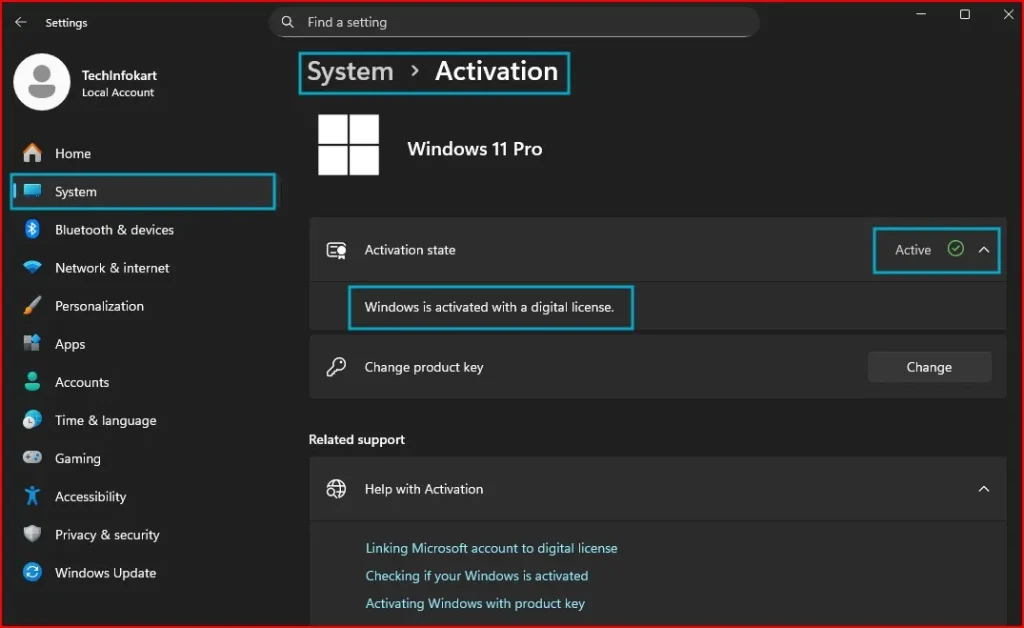
- If it says “Windows is activated with a digital license linked to your Microsoft account”, your Windows key authenticity is confirmed.
- If it shows not activated or an error code, your key may be fake or invalid.
Method 2: Windows Genuine Key Check Using Command Prompt
Windows includes a built-in script for checking license details.
- Open Command Prompt (type “cmd” in search).
- Run the following command: slmgr /xpr
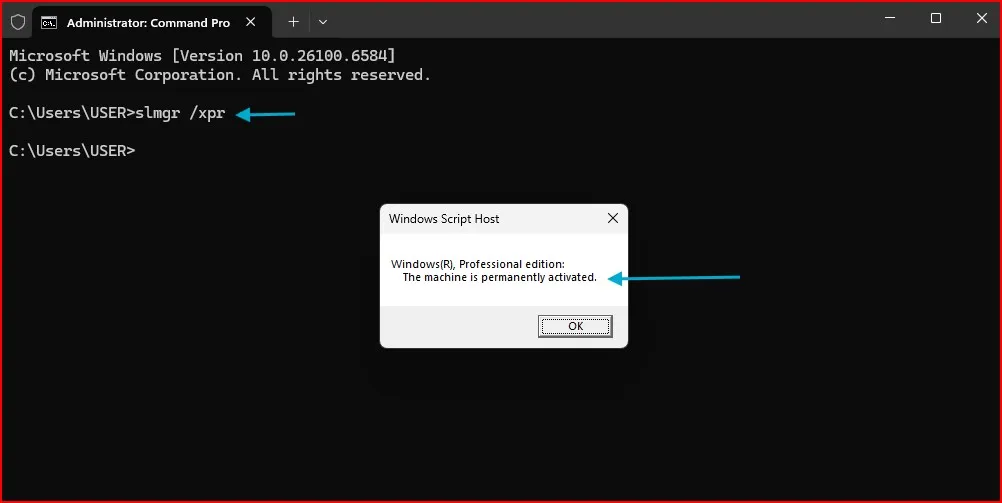
- If you see “The machine is permanently activated”, then your Windows key authenticity is valid.
- If an expiration date appears, it might be a trial or unauthorized license.
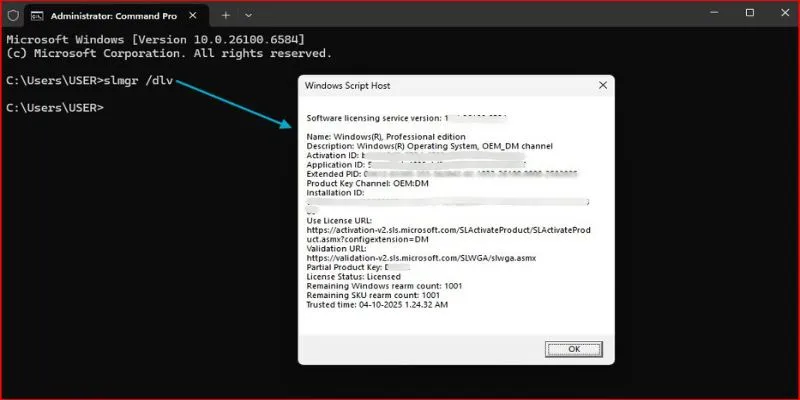
Other useful commands for a deeper Windows genuine key check:
slmgr /dli→ Basic license info.slmgr /dlv→ Detailed license details (Retail, OEM, or Volume key type).
Method 3: Windows Genuine Key Check Through Microsoft Account
Another way to confirm your Windows key authenticity is by linking it to your Microsoft account.
- Open Settings → Accounts → Your info.
- Sign in with your Microsoft account.
- Go back to Activation settings.
If you see “digital license linked to your Microsoft account”, then your Windows genuine key check is successful.
Method 4: Verify with Microsoft Support
If you still have doubts, the most reliable method is contacting Microsoft support.
- Open Settings → Activation → Troubleshoot if issues appear.
- Or directly chat with Microsoft support and provide your product key.
This final Windows genuine key check ensures 100% accuracy.
What to Do If Your Windows Key Fails the Genuine Check?
Don’t worry—there are safe options:
- Purchase a legitimate license from Microsoft or reliable resellers.
- Go with a digital license if your PC came with Windows pre-installed.
- Protect yourself by ensuring apps are up-to-date until you obtain an actual key.
A verified Windows genuine key check ensures your system runs without risks.
Conclusion
A Windows genuine key check is fast and easy — and gives you peace of mind. There are several different ways to test the Windows key authenticity including with Settings, Command Prompt or a Microsoft account. If any of this is unclear, Microsoft support can look for you.
And a real license means smooth updates, stable activation and long-term security. So, if you haven’t already, run a Windows genuine key check now and ensure your PC is secure and reliable.
Frequently Asked Question (FAQ)
What is a Windows genuine key check?
A Windows genuine key check is a quick way to verify if your Windows license is valid and properly activated.
Why should I do a Windows genuine key check?
It ensures your Windows copy is original, safe to use, and eligible for updates.
How can I perform a Windows genuine key check?
You can check using Command Prompt, System Settings, or through Microsoft’s activation settings.
Can I do a Windows genuine key check without the internet?
Yes, you can use Command Prompt or System Settings, but online verification is more accurate.
What happens if my Windows genuine key check fails?
Your copy may be pirated or invalid, and you might lose access to updates and security features.