
If you’ve ever wondered “What exactly has Google recorded when I search stuff?” you’re not alone. It’s a fair question. Google keeps a log of many things you search (if you allow it), and knowing how to check your google search history lets you peek into it, tidy it up, or turn it off.
I’ll walk you through it step by step — on computer, phone, and more — in a way that’s friendly and (mostly) worry-free.
Why Would You Need to Review Your Google Search History?
Before we dive in, a disclaimer about why you might want to:
- To retrieve something, you previously searched for (a recipe, an article title, etc.).
- To clean up sensitive searches or older items you no longer want stored.
- To manage your privacy (turn off what Google saves, delete parts of it).
- To understand what Google uses to “learn” about your search habits (for suggestions, ads, etc.).
- Your Google search history is in a larger tracking record known as Web & App Activity, which also tracks your searches, some browsing history and more.
How to See Google Search History (Computer / Web)
Let’s start on a computer (Windows, Mac, Linux — pretty much any browser).
- Open your browser and ensure that you’re signed in to your Google account (the one you have for Gmail, etc.).
- In the address bar, type:
- myactivity.google.com
- This takes you to Google’s My Activity page.
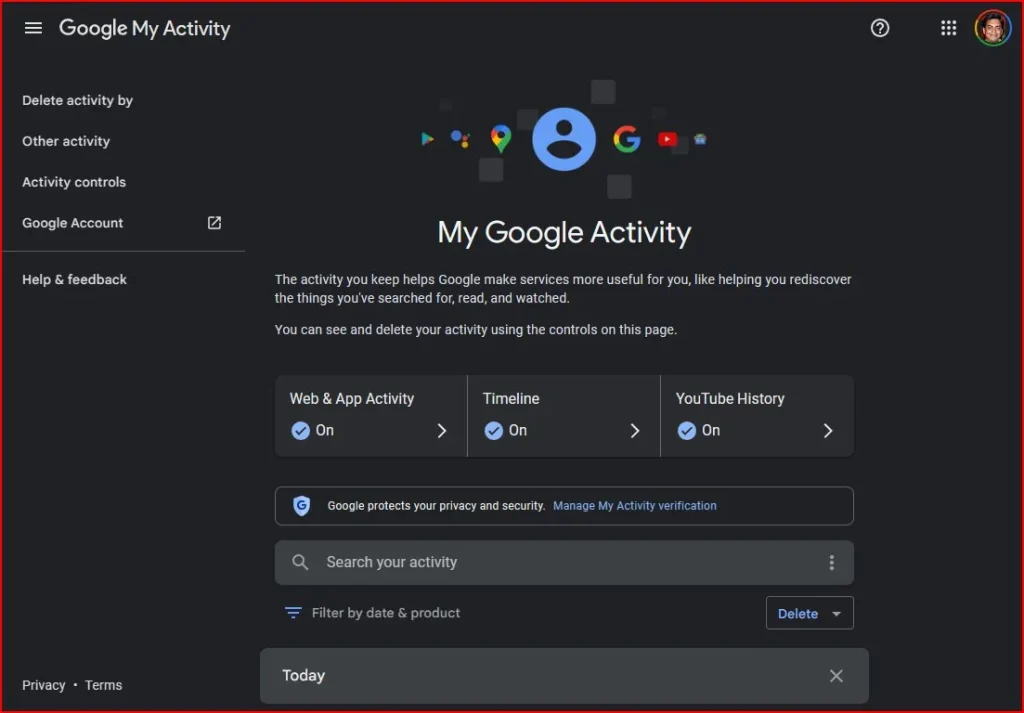
- Once there, you’ll see a timeline of all sorts of activity (searches, maps, YouTube, etc.).
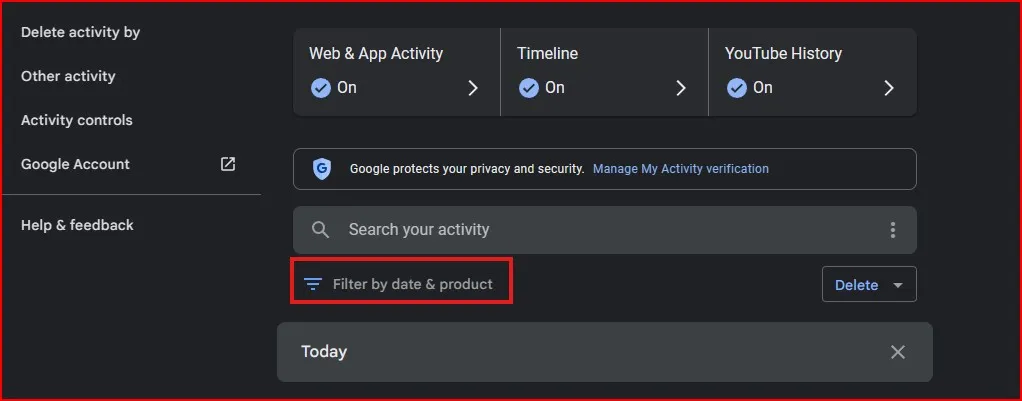
- To filter only Google searches:
- Click “Filter by date & product” (usually near a search bar on that page).
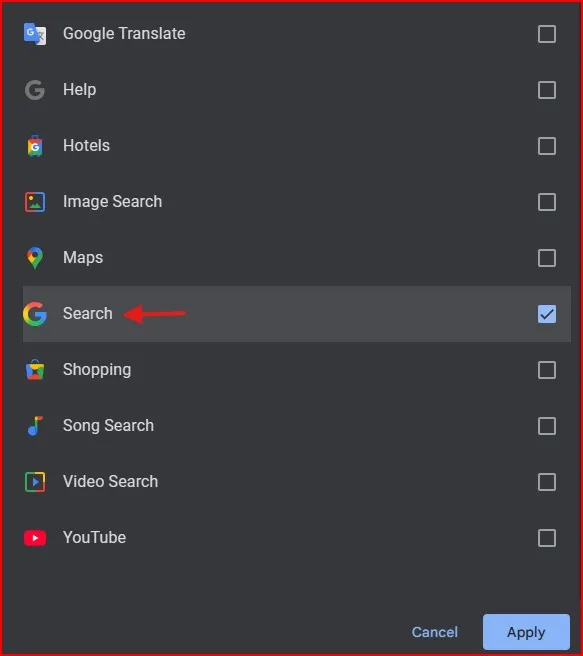
- In the “Products” list, check Search (or “Google Search”) and hit Apply. Now you’ll only see your search queries.
- You can scroll through, search within your history, or click entries to see more detail (e.g. which exact search, or which link you clicked).
How to Check on Mobile (Phone / Tablet)
Yes — you can do this from your phone too (Android or iPhone). Here’s how:
On Android / Google app:
- Open the Google app on your phone.
- Tap your profile picture or initial (top right).
- Tap “Search history” (or “Your data in Search”) or something similar.
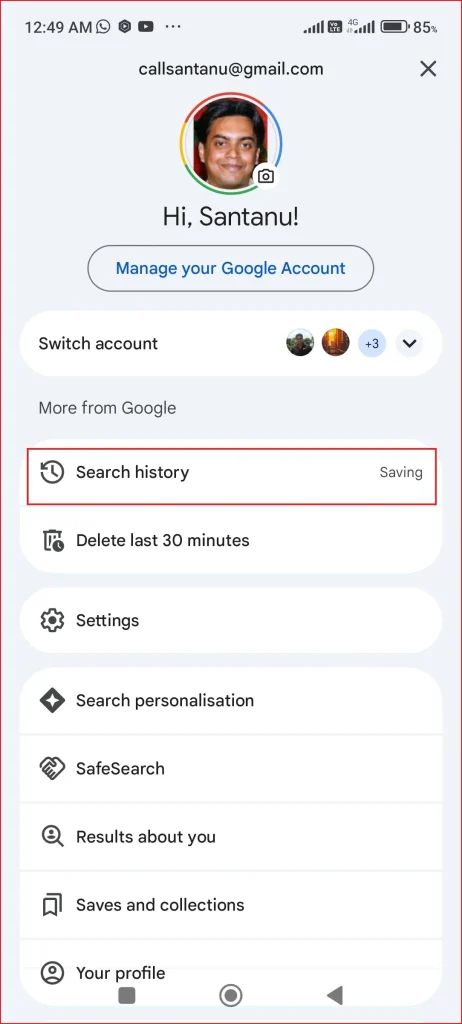
- From there you’ll see your past searches. You can delete individual entries, or choose to delete by date or all at once. Google Help
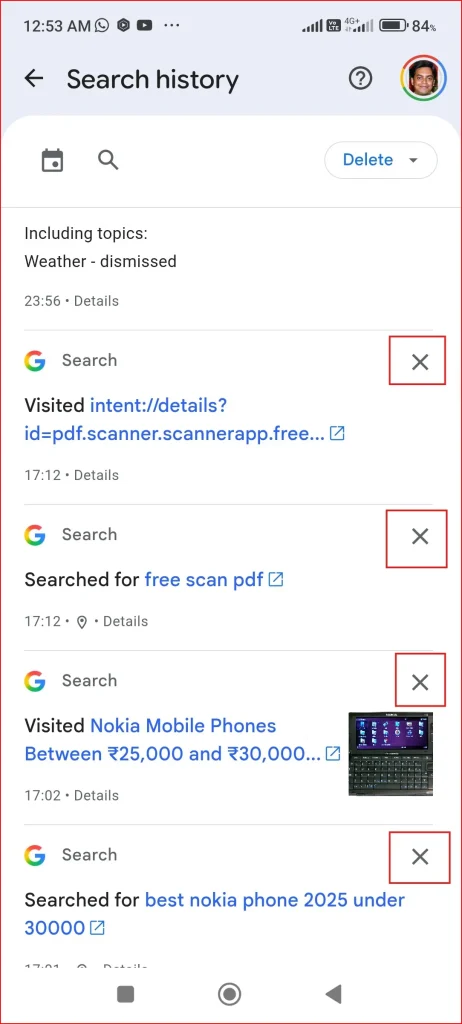
On iPhone / iPad / Browser:
- Open Safari or Chrome (or your browser) and go to myactivity.google.com.
- Sign into your Google account (if not already).
- Use the “Filter by date & product” tool the same way as on desktop to select only “Search.”
- Browse through your search history and delete or manage as needed.
How to Delete or Manage Your Google Search History
Seeing your history is one thing — deciding what stays is another. Let’s clean up.
Delete individual searches
On either desktop or mobile:
- Find the search you want to remove.
- Click or tap the three-dot menu (“⋮”) next to that item.
- Choose Delete (or “Remove”).
Delete by time period or all
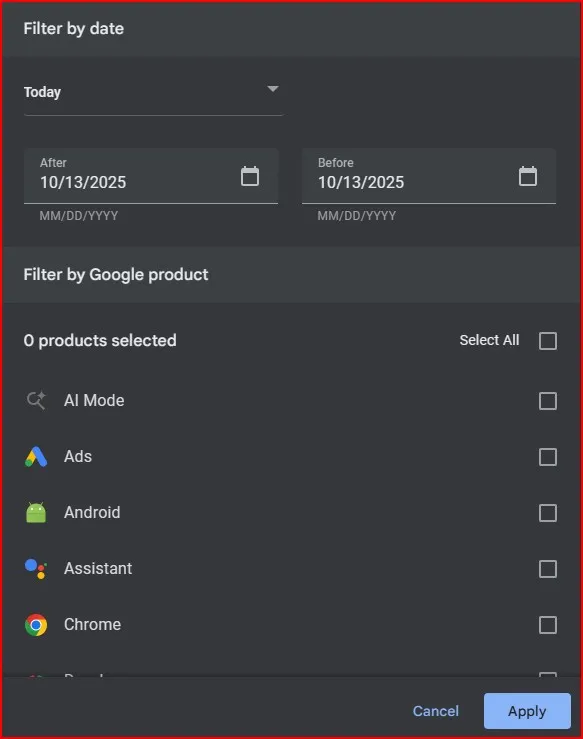
- On the My Activity page, you’ll see a Delete option (often as a dropdown).
- You might see options like “Delete today”, “Delete custom range”, or “Delete all time”.
- Choose the time span you want to clear, then confirm.
Heads up: Once deleted, you can’t recover those entries. So be sure you don’t need them before wiping.
Auto-delete older items
If you don’t want your history to pile up endlessly, you can set it to auto-delete:
- On your My Activity or Activity Controls page, find “Auto-delete” under Web & App Activity.
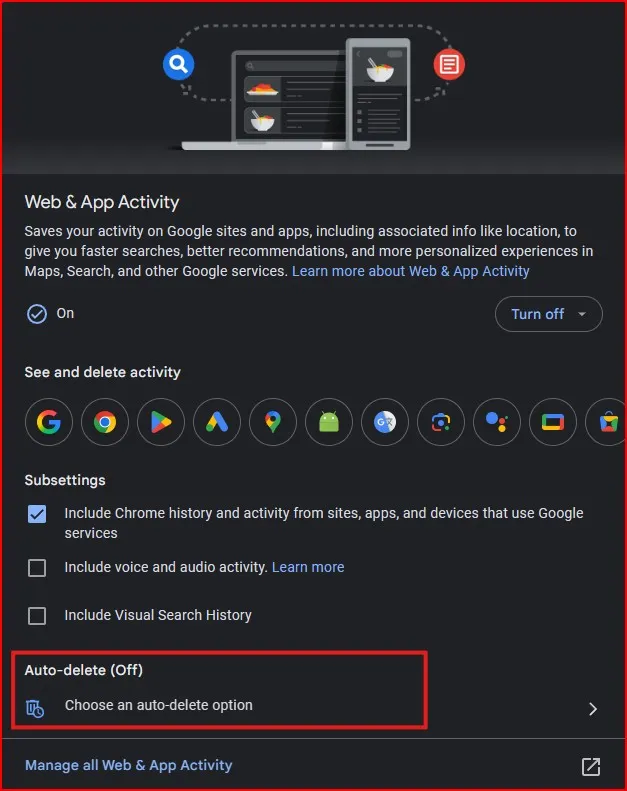
- Choose a time frame, e.g. 3 months, 18 months, 36 months. After that, Google will automatically erase older history.
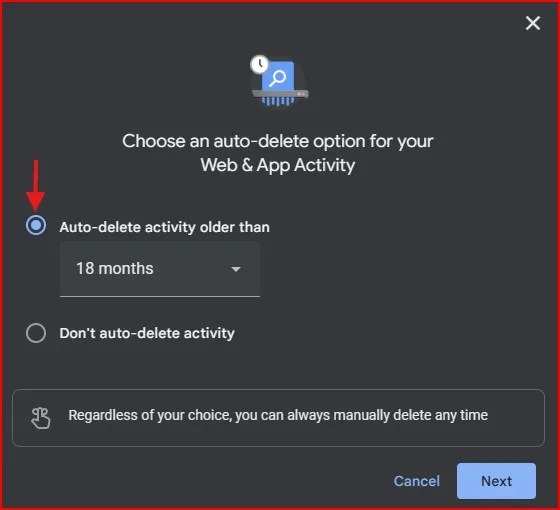
- Save your settings.
Turn off Web & App Activity (stop saving history)
If you prefer Google stop recording your search history entirely:
- In My Activity → Activity Controls, look for Web & App Activity setting.
- Toggle it off (or “Pause” it).
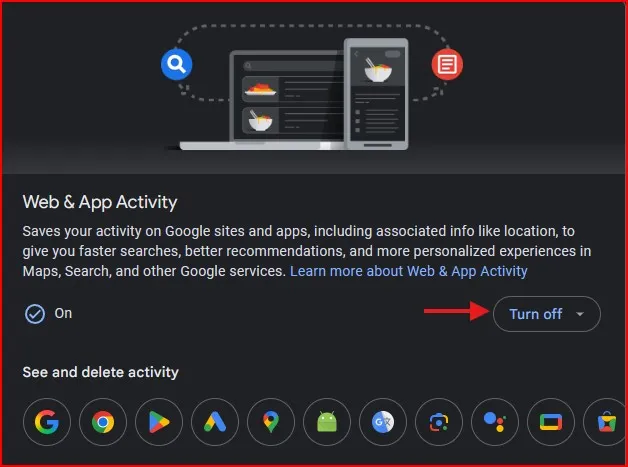
- Be aware: turning it off means Google won’t use your past searches to suggest better results — but for many people, that’s fine (or even desirable).
Some Additional Tips (Because They Work)
- Even if you delete from Google, your browser history (like Chrome’s) still might have a record of what site you visited. You may also want to clear that.
- Browsing / searching using Incognito / private mode (no local history saved from those sessions though possibly Google sees some activity, depending on settings).
- Be aware: that if you use more than one device, phone, tablet or computer all logged into the same Google account your google search history may be syncing between those devices.
- On some occasions, you can download your activity from Google (for example, using Google Takeout) if you would like a copy. (Check Google’s “Download your data” options.)
- If you want to learn more, Google’s official help pages are good — here’s one: Access & control activity in your account.
Final Thought
Google search history can give away a lot of personal information about you, and it also helps to improve your future searches. You can view these old searches by visiting Google’s history page and looking for it. This function really becomes valuable one time when you need to track down a website you have already visited or wish to understand the pattern of your research habits.
Related Post: How to Disable Google Password Manager on PC and Mobile
Frequently Asked Question (FAQ)
How can I see my google search history?
You can view your google search history by visiting myactivity.google.com. Sign in with your Google account and filter the activity by “Search” to see all your past search queries.
Can I delete my google search history permanently?
Yes. Go to your google search history page, click Delete, and choose “All time.” Once deleted, it’s permanently removed from your visible account history.
How do I stop Google from saving my search history?
Open Activity Controls and turn off Web & App Activity. This stops Google from saving future google search history entries.
Is my google search history the same as my browser history?
Not exactly. Google search history records your searches while signed in to your Google account, while browser history shows all the websites you visit on that device.
Can I download my google search history?
Yes. You can use Google Takeout to download your google search history as a file and keep a personal backup of your search data.