
If you use Google Chrome often, you’ve probably noticed it loves asking you this question: “Do you want to save this password?” At first, it sounds handy. But over time? It feels more like a little pop-up nag that just won’t quit.
I went through this myself — I already had a separate password manager, and Chrome just kept bugging me. That’s when I decided to turn it off. The good news is: it’s super easy. Let me show you how you can disable Google Password Manager in just a few clicks.
Why Disable Google Password Manager?
Here are a few common reasons (you’ll probably nod along to at least one of these):
- You care about privacy and don’t want Chrome storing sensitive info.
- You’re already using something like Bitwarden or 1Password — both much better options, by the way.
- You’re just plain tired of those little pop-ups.
How to Disable Google Password Manager on PC
Step 1: Open Chrome Settings
- First things first, launch Google Chrome on your computer.
- Now, look at the top-right corner of Chrome. You’ll notice three little dots stacked on each other (kind of like a menu). Go ahead and click on that.
- Then select Settings.
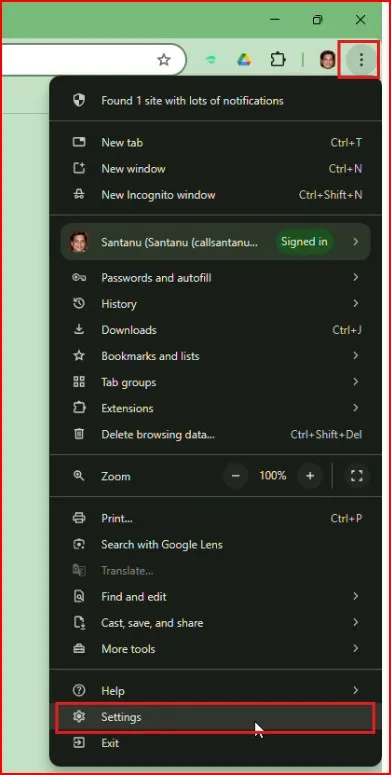
Step 2: Go to Autofill and Passwords
- From the left menu, click Autofill and Passwords.
- Then click Google Password Manager.
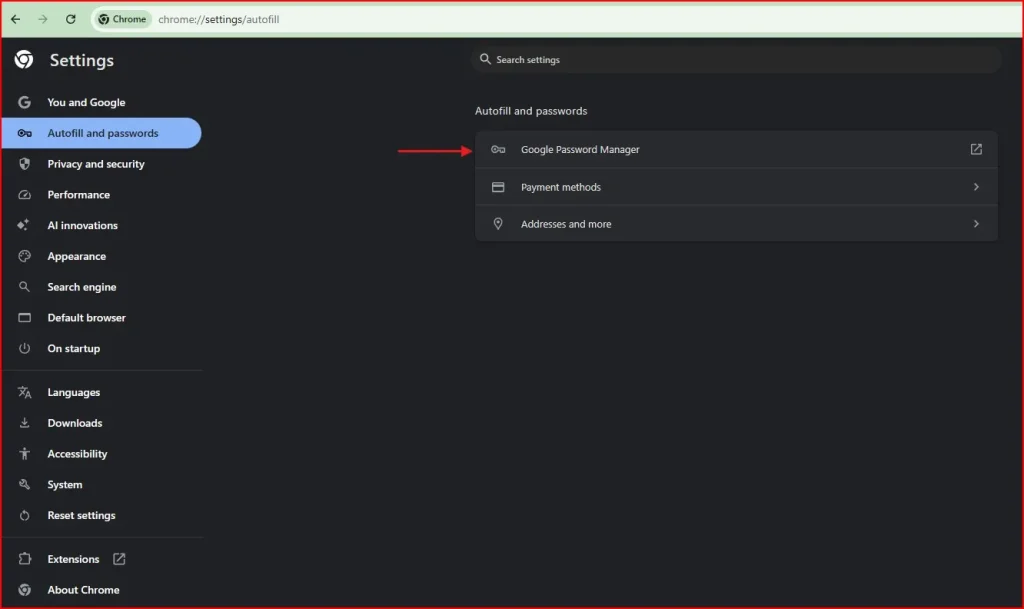
Step 3: Turn Off the Toggles
- Go to Settings
- You’ll see two important options:Offer to save passwords and passkeys and Signin automatically
Switch both of these OFF. Chrome will stop asking to save passwords.
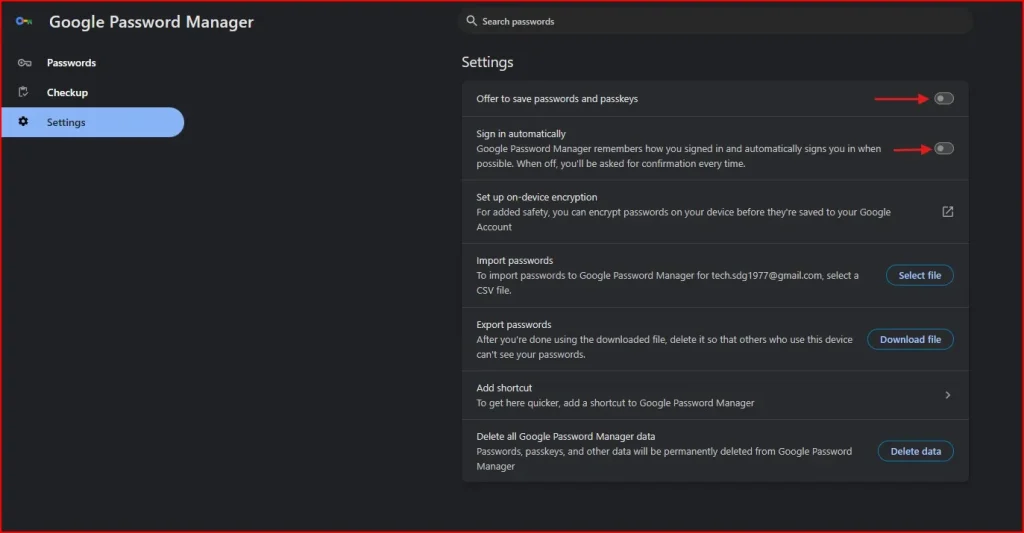
Step 4 (Optional): Delete Saved Passwords
If you also want to clear what Chrome already stored:
- Stay on the Google Password Manager page.
- For each saved login, click the three dots → Delete.
- Or clear everything at once via Settings > Privacy and Security > Clear browsing data > Passwords.
How to Disable Google Password Manager on Mobile
A lot of people forget that Chrome on Android does the same thing — it asks to save passwords. Here’s how to turn it off on your phone:
Step 1: Open Chrome App
- First, open the Chrome app on your Android device.
- Tap the three dots at the top-right.
- Go to Settings.
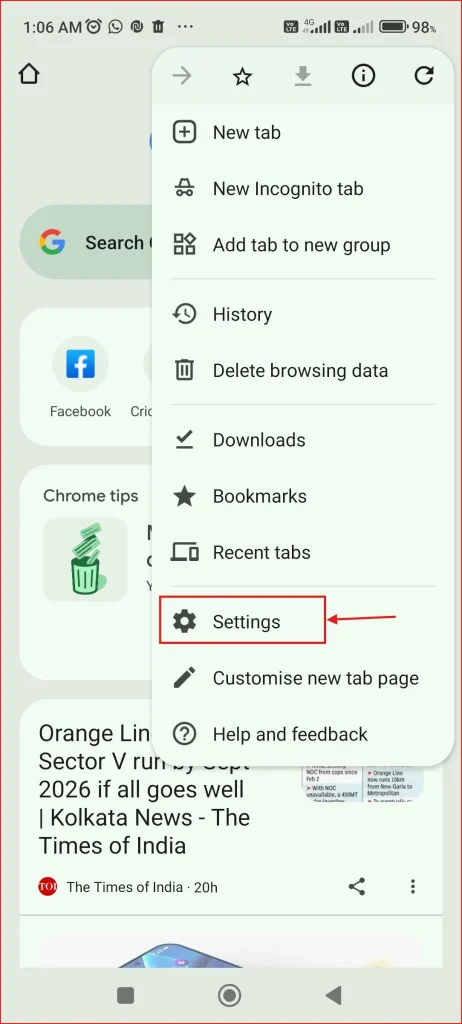
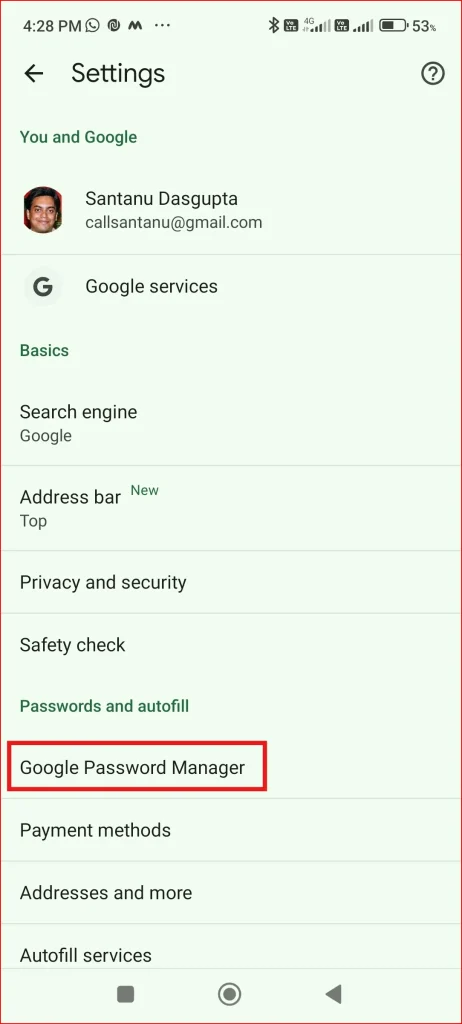
Step 2: Find Password Manager
- Scroll down and tap Google Password Manager.
- This is where Chrome stores your saved logins.
Step 3: Switch Off the Options
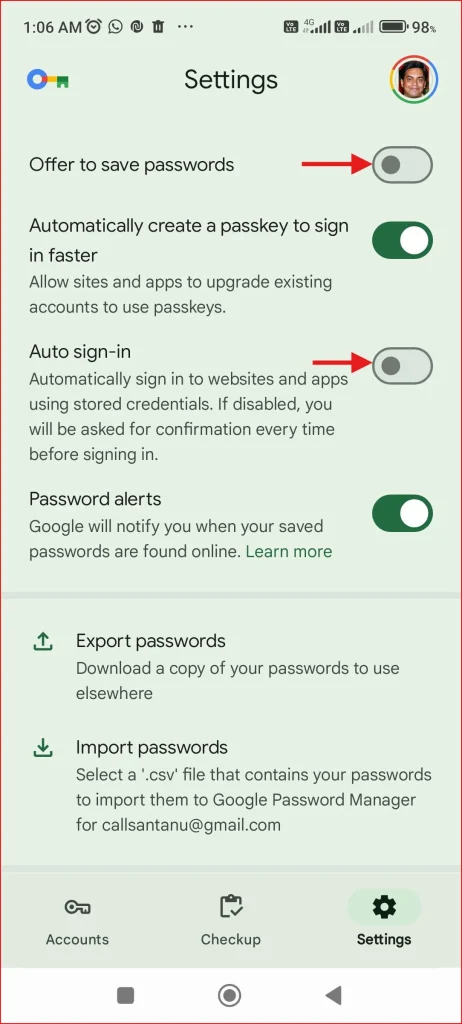
Inside Password Manager, turn off:
- Save Passwords
- Auto Sign-in
Once you disable these, Chrome on your Android phone will stop asking to remember passwords and won’t auto-fill them either.
Step 4 (Optional): Remove Already Saved Passwords
If you’d like to delete what’s already stored:
- Inside Password Manager, you’ll see a list of accounts.
- Tap any one you don’t want → hit the trash bin/delete option.
Done! Now Chrome on your phone will stop nagging you too.
What Happens After Disable Google Password Manager?
- Chrome won’t prompt you to save new logins.
- Old saved passwords will remain unless you remove them.
- You’ll either type passwords manually or use another manager.
A Better Way: Dedicated Password Managers
Instead of Chrome doing the job halfway, a proper password manager does it all:
They sync across devices and are generally more secure.
Final Thought
So, that’s how you disable Google Password Manager in Chrome, both on desktop and Android. Honestly, it takes less than a minute, and it gives you more control over your own logins.
I personally feel calmer knowing Chrome isn’t hoarding all my passwords in the background. Whether you decide to switch to a dedicated password manager or just type things in manually, at least you won’t see those nagging “Save password?” boxes anymore.
Hope this little guide helped. And hey — if you know someone who’s constantly annoyed by Chrome’s pop-ups, share this post with them. They’ll thank you later.
And if you ever get locked out of your Windows PC, don’t worry — I’ve covered how to reset your Windows 11 login password when forgotten in another article.
FAQs About How to Disable Google Password Manager
Is it safe to disable Google Password Manager in Chrome?
Yes, it’s completely safe. Disabling Google Password Manager simply means Chrome won’t save or autofill your passwords anymore.
Will my saved passwords get deleted if I disable Google Password Manager?
No. Turning off the feature won’t delete existing passwords. They will remain saved unless you manually remove them from Chrome’s settings.
Can I disable Google Password Manager only on my phone?
Yes. You can disable Google Password Manager separately on your mobile device without affecting Chrome on your PC, and vice versa.
Do I need another app after I disable Google Password Manager?
Not necessarily, but it’s a good idea. Many people use dedicated apps like Bitwarden or 1Password for stronger security and easy syncing across devices.
Can I turn Google Password Manager back on later?
Absolutely. You can go back into Chrome’s settings and re-enable both “Offer to save passwords” and “Auto sign-in” anytime you want.