
But in a digital privacy world that matters more than ever, it’s wise to take control of what your devices say about you. Windows 11 can stalk your location via GPS, Wi-Fi, IP-address triangulation, etc. If you want to disable location access Windows 11, this guide takes you through every step—systemwide, for individual apps, at the browser level, and even with advanced hacks.
What occurs when you disable location access Windows 11
The location services in Windows 11 serve apps like Weather or Maps by providing a sense of local context. But if you choose to disable location access Windows 11, you’ll prevent Windows and apps from knowing where you are — although certain legacy desktop apps or websites with browser-level tracking may still be able to derive location information. Microsoft also explains that emergency services can obtain location even if it is switched off system-wide Microsoft Support. And location data might linger in the cloud associated with your Microsoft account unless you wipe it out by hand.
How-to Disable system-wide location tracking
Here are a few ways to turn disable location access Windows 11:
1. Open the Settings by pressing the Win + I.
2. Go to Privacy & security → Location.
3. Switch the location services to Off at the top. This disables location for all users on the device. All sub-settings become grayed out.
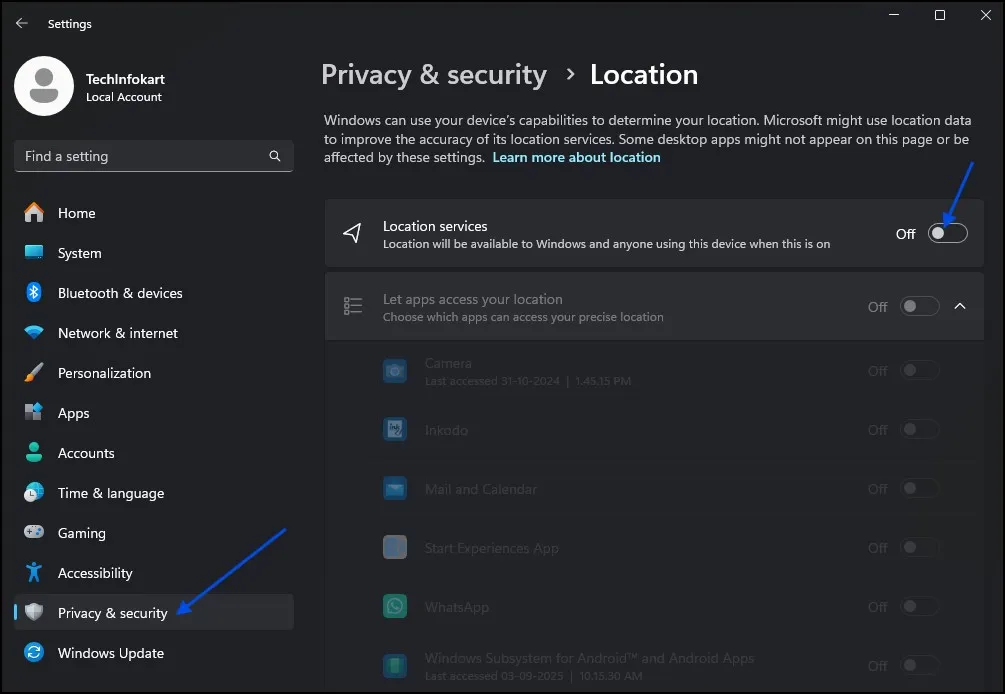
As soon as you do, Windows will stop sending your location to apps or services—though some caveats, such as with emergency calls and IP-based defaults, still stay in effect.
Clear old location history
Even though you disable location access, there may still be lingering old data:
- Go to Settings → Privacy & security → Location, then locate Location history and tap Clear.

- If you are signed in to a Microsoft account, you can visit your Microsoft Privacy Dashboard (account. microsoft.com) and select Clear location activity to erase cloud recordings.
That way you’re not leaving creepy traces of where you’ve been.
Block location per-application
If you don’t want such a blunt force method, then you could prevent access to location selectively which a more targeted way to disable location access Windows 11:
- Turn your Location services On, scroll down to Let apps access your location and switch individual apps Off if you do not trust them, which you won’t, of course.
- Further down, there’s a section labelled Let desktop apps access your location—change that to Off to stop old-style software getting hold of more precise location data.

Note: desktop apps can still use your IP or Wi-Fi info to figure out your approximate location, even if you’ve blocked it here.
Quick privacy boost: Use Airplane Mode
There are a few easy steps you can take to improve your level of privacy: Use Airplane Mode.
If all you want is an instant, short-term — and free — way to turn off everything, you can always switch to Airplane Mode
1. Open Action Center by pressing Win + A.
2. Click the Airplane Mode tile.
This turns off not just Wi-Fi, but also Bluetooth and location services. This is good for sensitive places, but terrible if you need access to the network.
Stop browser-level location tracking
And by the way, even after you disable location access Windows 11, websites are still able to ask for access to your location (via your browser). To block this:
- Microsoft Edge:
Head to Settings → Privacy, search and services →Site Permissions →All Permissions →Location then toggle Ask before accessing Off

- Google Chrome:
Navigate to Settings → Privacy and security → Site Settings → Location and select Don’t allow sites to see your location

- Mozilla Firefox:
Settings → Privacy & Security → Permissions → Location → Settings → Select Block new requests asking to access your location and Save.

It takes these steps to effectively prevent websites from asking for or utilizing your location once you’ve opted out of it at the system level.
Advanced techniques (for power users or admins)
For more sophisticated or enterprise-level control to disable location access Windows 11, employ Group Policy or do Registry tweaks:
Group Policy (Windows Pro/Edu/Enterprise):
- Press Win + R, type gpedit.msc, and hit Enter.
- Go to: Computer Configuration → Administrative Templates → Windows Components → Location and Sensors.
- Find Turn off location services and change the status to Enabled, and then click OK.
Restart to apply
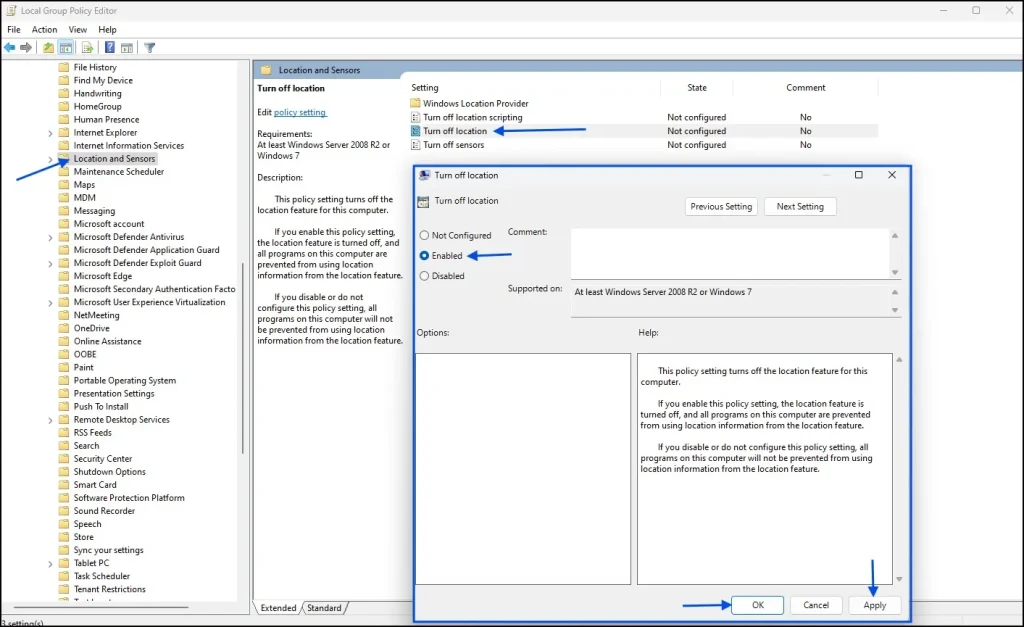
Note: If you’re using Windows 11 Home Edition, you won’t have Group Policy Editor enabled by default. But don’t worry—you can check out my detailed guide here:
Enable Group Policy Editor (gpedit.msc) in Windows 10/11 Home Edition
Registry edit (all editions):
- You can fire up regedit by pressing Win + R and type regedit and hitting enter.
- Go to: HKEY_LOCAL_MACHINE\SOFTWARE\Policies\Microsoft\Windows\LocationAndSensors.
- Create (or edit) a DWORD with the name DisableLocation and set it to 1.
- Restart your PC. This will disable the entire location feature across the entire system.
Make sure you always backup the registry before going into a testing mood.
Why it matters: privacy, battery, distractions
Privacy: It prevents Windows and apps from constantly tracking your position or even keeping that data in the cloud
Battery: GPS, Wi-Fi scans, and background services suck up battery—shutting off location can save your battery life.
UX: We’ve heard user feedback that this setting should be more prominent in the affected system. Many users specify the location-in-use icon that appears in notification when desktop apps are repeatedly pulling location. However, that is that annoying to have desktop app access disabled.
Common issues & real-world feedback
- Location icon flickering: Some users noted that the location icon flashes all the time and that is because Desktop apps (such as some of the ones developed from Anti V companies) have been triggering location—disable location access for desktop apps, resolved the issue.
- Who needs location, anyway? Your computer uses it, apparently: Numerous users have reported that Windows is still providing them with weather or news based on their IP address or browser fingerprinting.
- There are certain apps that won’t run without location: For example, if location is turned off, network-shell tools (netsh) may not work because Wi-Fi APIs require location.
Final thoughts
Whether you’re looking to disable location access Windows 11 and reclaim control of your digital privacy, the steps outlined above provide broad-based protection from system-wide toggles to browser blockers to registry policies. You’ll get rid of most tracking, take a bite out of battery drain, and silence distracting notifications.
Remember, however, that some network-based tracking or emergency location overrides might still work. In a browser your location and IP address can still be revealed. But this guide is here to make sure you’re doing all the things that Windows lets you have a hand in.
Frequently Asked Question (FAQ)
How do I disable location access Windows 11 completely?
You can disable location access Windows 11 by going to Settings > Privacy & Security > Location and turning off Location services.
Can I disable location access Windows 11 for only specific apps?
Yes, you can. In Settings > Privacy & Security > Location, scroll down to see individual apps and toggle location access off for the ones you don’t trust.
What happens if I disable location access Windows 11?
When you disable location access Windows 11, apps like Maps, Weather, and Find My Device may stop working properly, but your privacy and battery life improve.
How do I clear location history after I disable location access Windows 11?
Go to Settings > Privacy & Security > Location and click Clear under Location history to remove saved data.
Is it safe to disable location access Windows 11?
Yes, it’s completely safe to disable location access Windows 11. It only affects apps that rely on location services and does not harm your system.