
If you’re running Windows 11 and the Microsoft Store is gone or it refuses to open, you’re in the club. I’ve personally had this problem with a laptop and I know several folks who have experienced it themselves.The good news? You can fix it. The most effective method is to reinstall Microsoft Store Windows 11 missing problem using a few simple tricks.
In this post, I’ll share step-by-step methods that have worked for me (and many others). I’ll also cover some quick checks you should try before doing a full reinstall, because sometimes the fix is easier than you think.
Why Does Microsoft Store Go Missing?
It’s frustrating when you want to download an app but the Store just isn’t there. From what I’ve seen, the reinstall Microsoft Store Windows 11 missing issue usually happens for a few reasons:
- Corrupted files after a system crash or update.
- Accidental removal with PowerShell (it happens more often than you think).
- Malware or third-party software interfering with system apps.
- Windows updates that don’t install properly.
No matter the cause, there’s always a way to bring the Store back.
Quick Fixes to Try Before Reinstalling
Before you go for a full reinstall, try these easy fixes. Many times, they’ll fix Microsoft Store missing without needing deeper steps.
1. Reset the Store Cache
- Press Windows + R to open Run.
- Type wsreset.exe and hit Enter.

A blank window will open for a few seconds, then close automatically. This will delete cached files and may fix minor problems.
2. Use the Troubleshooter
- Navigate to Settings > System > Troubleshoot > Other troubleshooters to access the required section.
- Find Windows Store Apps and click Run.
The troubleshooter scans for common problems and apply fixes automatically.
3. Update Windows
- Go to Settings > Windows Update.
- Click Check for updates.
Sometimes, Microsoft quietly fixes the issue through updates, so this step is worth trying.
If none of these helps, then it’s time to reinstall Microsoft Store Windows 11 missing problem properly.
How to Uninstall Microsoft Store in Windows 11
Unlike other apps, you can’t uninstall the Store in Settings in Windows. Instead, you would have to use PowerShell. Don’t worry, I’ll walk you through it step by step.
- Type Powershell in the Windows search box, then right-click on it in the search results to “Run as administrator.”
- paste this below command when powershell will appear:
Get-AppxPackage -allusers *WindowsStore* | Remove-AppxPackage- Hit Enter.
- Wait until the process finishes.
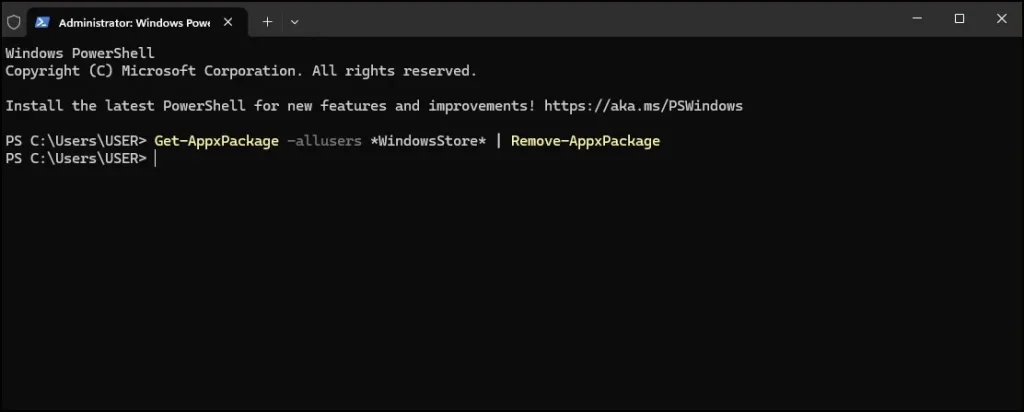
That’s it. The Store will be removed from your computer.
How to Reinstall Microsoft Store in Windows 11
Now let’s bring it back. This is the part where you reinstall Microsoft Store Windows 11 missingand get it working again.
Method 1: Use PowerShell Command
- You must open PowerShell as Administrator once again.
- You need to Paste this below command:
Get-AppxPackage -allusersMicrosoft.WindowsStore | Foreach {Add-AppxPackage -DisableDevelopmentMode -Register "$($_.InstallLocation)\AppXManifest.xml"}- Press Enter and wait.
- Reboot your PC once the process is finished.
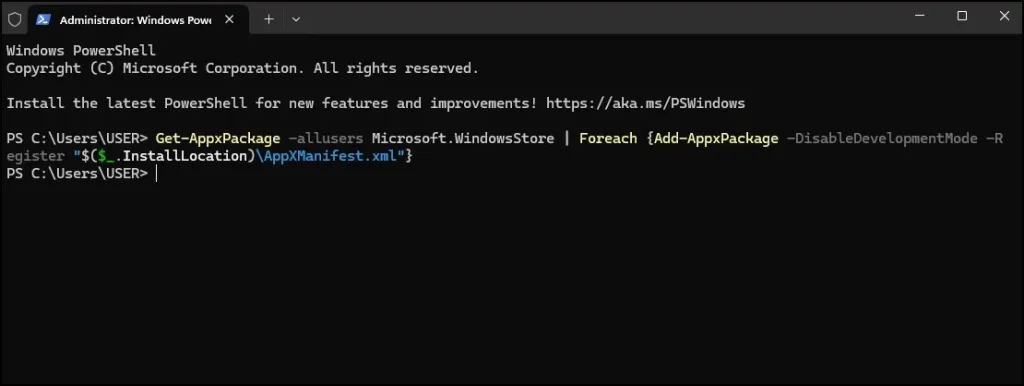
Once the computer restart, the Microsoft Store app will appear in the Start menu itself.
Method 2: Repair or Reset from Settings
If the Store is still installed but not working, you don’t need to reinstall it fully. Try repairing or resetting it.
- Open Settings > Apps > Installed apps.
- Search for Microsoft Store.
- Click on Advanced options.
- First click Repair. If that doesn’t fix it, try Reset.
This often helps to fix Microsoft Store missing functions or crashing issues.
Method 3: Windows Update Reinstallation
Sometimes an update alone can reinstall Microsoft Store automatically.
- Go to Settings > Windows Update.
- Install all pending updates.
- Restart your computer.
I’ve seen this method restore the Store without needing any PowerShell commands.
Extra Fixes if Store Still Misbehaves
Even after you reinstall Microsoft Store Windows 11 missing, you may run into issues like downloads failing or apps crashing. If that happens, here are some extra tricks:
- Check your time & date settings – Wrong time can stop the Store from connecting.
- Restart essential services – Open
services.mscand make sure Windows Update and Background Intelligent Transfer Service are running. - Run System File Checker – Open Command Prompt as admin and type:
sfc /scannow
This will repair corrupted files that might affect the Store.
If these methods don’t work, you can also follow Microsoft’s official troubleshooting steps for Microsoft Store issues.
Final Thoughts
It can be really annoying when you encounter reinstall Microsoft store windows 11 missing. But, as you’ve noticed, the fix is simple, once you know the process. Begin with the quick fixes, reset the cache and run the troubleshooter. If none of those does the trick, try the PowerShell reinstall process.
I’ve personally solved this problem on several computers, and the reinstall trick works on each one. So, the next time the Store vanishes or starts acting up, you will know exactly what to do.
Along with reinstalling Microsoft Store, cleaning up your PC can also improve performance. Check out my guide on how to delete old Windows update files for an easy way to do that.