
If you are on Windows 10 or Windows 11 Home edition, then you probably had noticed that some system tools are missing. One such is the Group Policy Editor or gpedit. msc.
A lot of Windows tips and tricks we see online require gpedit.msc to modify how the system works — like halting updates, limiting user control, or shutting down background services. To do any of these on a Home edition PC, you’ll first need to Enable Group Policy Editor, since it’s not available by default.
But here’s the good news: With a quick workaround, you can unlock it on your Home Edition PC.
What is Group Policy Editor (gpedit. msc)?
Group Policy Editor is a powerful tool for managing your system settings that are not available through any other means including the normal Control Panel interface. You will be able to configure security policies, software restrictions, and tweak a variety of options, including system behaviour and user interface; all through a simple and easy to use graphical user interface (GUI).
Why it’s not included in Windows Home editions
Microsoft deliberately omits Group Policy Editor from Home editions to differentiate their product tiers. By reserving this powerful tool for Pro, Enterprise, and Education editions, they create a compelling reason for power users and businesses to upgrade from the basic Home version that comes with most consumer PCs.
Key advantages of having access to Group Policy Editor
Here are a few things you can do with it:
- Stop automatic Windows updates
- Disable telemetry, disable Command Prompt and data collection
- Hide specific Control Panel items
- Control startup programs and system performance
For a full list of policy settings and what they do, you can check out Microsoft Group Policy Documentation
Unfortunately, Windows Home doesn’t come with it pre-installed — but it’s still buried inside your system. We just need to activate it.
How to Enable Group Policy Editor in Windows 10/11 Home
This method has been tested on both Windows 10 and Windows 11 Home editions. It works by installing built-in packages that are already on your system — nothing is downloaded from outside.
Let’s get started.
Step 1 – Create a Batch File
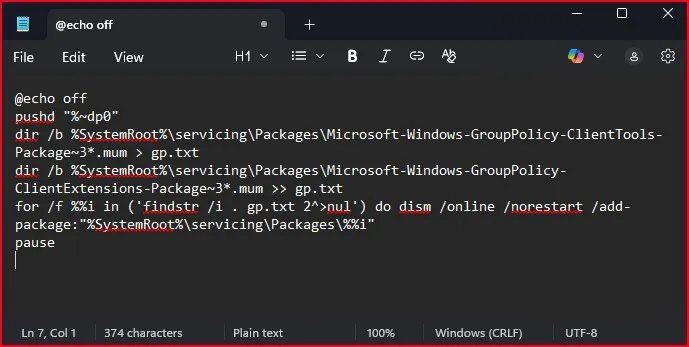
Open Notepad on your computer.Paste the following script into it:
@echo off
pushd “%~dp0”
dir /b %SystemRoot%\servicing\Packages\Microsoft-Windows-GroupPolicy-ClientTools-Package~3*.mum > gp.txt
dir /b %SystemRoot%\servicing\Packages\Microsoft-Windows-GroupPolicy-ClientExtensions-Package~3*.mum >> gp.txt
for /f %%i in (‘findstr /i . gp.txt 2^>nul’) do dism /online /norestart /add-package:”%SystemRoot%\servicing\Packages\%%i”
pause
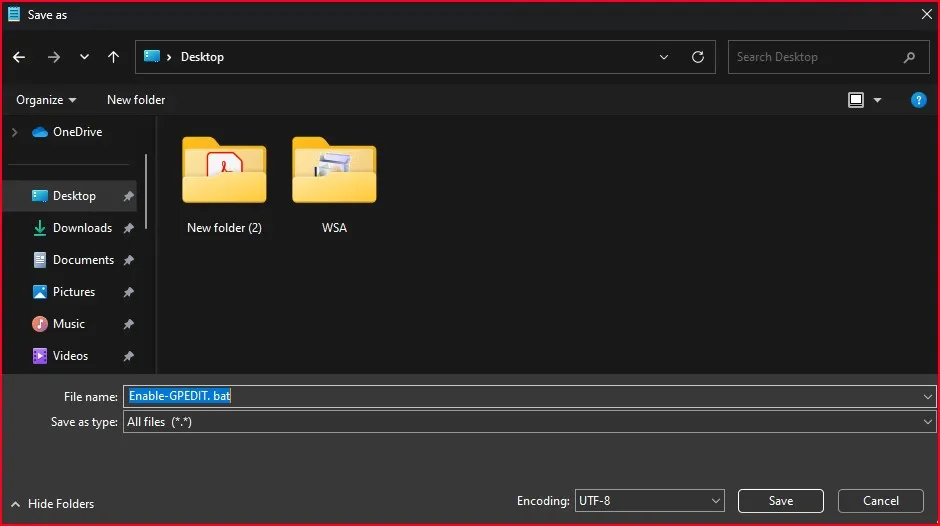
Now press (or click) File > Save As then enter the name as for example: Enable-GPEDIT. bat In the Save as type box, click to change All Files, and save the file on your Desktop.
Step 2 – Execute the Script as an Administrator
- Now right-click on the file you’ve just saved.
- Choose Run as administrator.
- A command prompt will pop up and start processing packages. Wait until it finishes.
Once you see “Press any key to continue…”, you’re done.
Step 3 – Open gpedit.msc
So, now you simply open the start menu and type gpedit. msc, and hit Enter.
Boom! You should see the Group Policy Editor window pop open.
A Few Things to Keep in Mind
While you have successfully brought back the Group Policy Editor, there may be some features of it that are disabled, or a little bit different, from that seen in Pro or Enterprise. That’s because some features depend on background services that aren’t present in Windows Home.
Still, most commonly-used settings — like disabling updates or restricting apps — work without a hitch.
Is This Safe and Legal?
Absolutely. You’re not hacking your system or doing anything shady. These are official Windows components already present in your system, just not active. This method simply brings them to life.
If you’re worried, rest easy. This approach is commonly used by power users and even IT professionals who want to unlock hidden settings on Windows Home.
Final Thought – Unlock Control, The Safe Way
Getting access to gpedit.msc might seem like a Pro-only feature, but now you know the truth: you can enable Group Policy Editor in Windows 10/11 Home safely and easily.
With just a simple script and a few clicks, you unlock a world of control over your PC — no need to spend extra money upgrading to Pro.
Give it a try and notice the difference of the added flexibility to your Windows journey. And if you found this useful, perhaps you’d like to share it with a friend who’s stuck in the same boat.
Frequently Asked Questions (FAQ)
Can I enable Group Policy Editor without upgrading to Pro?
Yes! You can enable Group Policy Editor on Windows Home by using a batch script to activate the built-in packages already present in the system.
Will this work on both Windows 10 and Windows 11 Home?
It works on both versions, and the steps are exactly the same.
Is there any risk in running the script?
As long as you copy the code correctly, it’s safe. You’re only enabling hidden tools — not modifying any core system files.
Do I need to restart my PC after enabling it?
No, in most cases, a restart isn’t needed. But if gpedit.msc doesn’t open right away, give your system a quick reboot.