
Who Is on My Wifi – If you’ve noticed a slowdown in your computer, Wi-Fi if it freezes up, or random devices popping up with strange hardware names on the devices such as AP, but nothing more. We teach you how check All Connected Devices on WiFi Using CMD, so that you can understand and monitor your network without the need for any third-party apps.
This guide will take you through the steps to open a command prompt and how to use the most common WIFI devices detection commands on any Windows system.
Why Should You Bother Checking Devices on Your WiFi?
Before jumping into the steps, let’s talk about why it’s worth learning how to check all connected devices on Wi-Fi:
- Catch WiFi thieves – Sometimes neighbours or even strangers may be connected without your permission.
- Speed things up – Too many devices sharing the same Wi-Fi can slow it down.
- Better control – You’ll know exactly which devices belong to you and which don’t.
In other words, it’s like counting the number of heads at home — you don’t want strangers indoors.
Sometimes WiFi issues happen not just because of too many connected devices, but also due to technical errors. If you’ve ever seen the error ‘WiFi doesn’t have a valid IP configuration’, I’ve already written a full guide on fixing that. You can check it here.
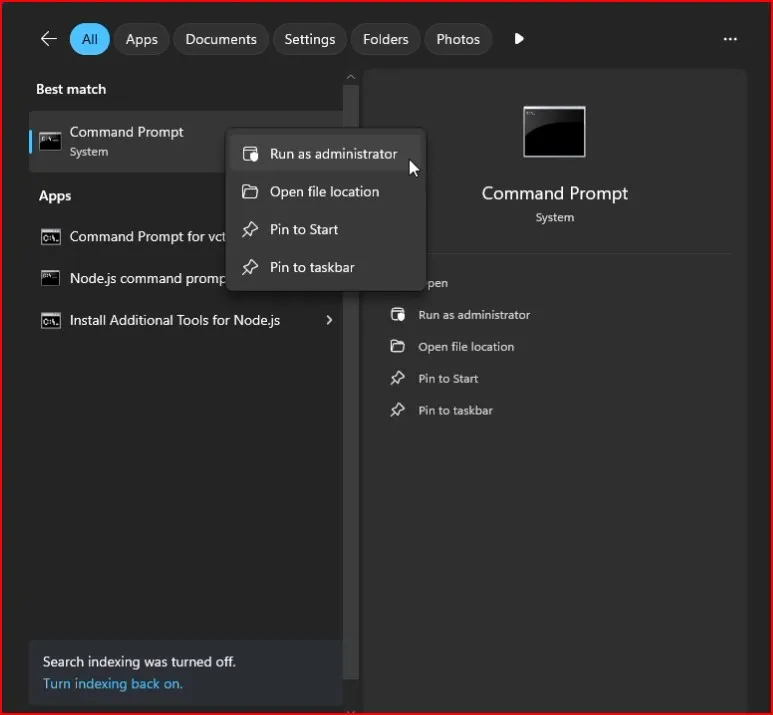
Step 1: Open Command Prompt (CMD)
Open Command Prompt as an admin to use more advanced network discovery tools. Right-click the Start button, and then click “Windows PowerShell (Admin)” or “Command Prompt (Admin)”. With the rights of admins, you can use most network commands and view system information required to perform a full scan to check all connected devices on Wi-Fi. You should see a black window open. Don’t be scared — this will look geeky, but we’re just using a couple of simple commands.
Step 2: Find Your Default Gateway
Your gateway is basically the “doorway” between your computer and the internet. To find it: In CMD, type: ipconfig and Press Enter.
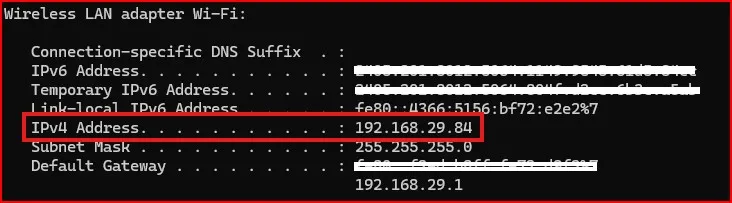
You’ll see a lot of details, but don’t panic. Look for Default Gateway under your Wi-Fi adapter section. It will look similar too: 192.168.1.1
Hold on to that number —you’ll need it to check all connected devices on Wi-Fi
Step 3: See Who’s Connected
Now comes the interesting part. using CMD to check all connected devices on Wi-Fi.
In CMD, type: arp –a and press Enter.
And with that command you retrieve every device which communicate in the last time period with your router, mapping them IP addresses to MAC addresses. The result contains both active and cached entries from your network’s address resolution protocol table.
All of those are devices on your WiFi. If this all seems like a jumble, don’t fret: Just remember that each device — your phone, laptop, smart TV and so on — has its own MAC address.
Using netstat to view active network connections
Another way to check all connected devices on Wi-Fi is with the netstat command.
Netstat is a command-line tool that can help you diagnose network issues and explore the different ways to use it through Windows 10. Do a netstat -an and you will see all active connections to your computer, the IP address and port.
Step 4: Spot the Strangers
Here’s the detective work:
- From there, compare the list with what you know: your phone, your laptop, your smart speakers.
- If you spot something that doesn’t look familiar — a random MAC address, for example — it could be an outsider connecting to your WiFi.
I did this and I found an old tablet that I had forgotten about the first time around — so it actually worked. So, don’t worry if you see a longer-than-expected list — one of those devices could be your own.
Step 5: What If You Find Unknown Devices?
If you do find devices that shouldn’t be there, here’s what you should do:
- Change your WiFi password immediately.
- Make sure you’re using WPA2 or WPA3 encryption (you can set this in your router).
- Restart your router so that only devices with the new password can reconnect.
That’s the easiest way to remove unwanted devices after you check all connected devices on Wi-Fi.
Alternative Method: Use Router Settings
If CMD feels a little too technical, here’s another way to check all connected devices on WiFi:
- Open your browser, and then type in Default Gateway (e.g., 192.168.29.1) into the search field of the address menu.
- Log in using your router’s username and password (your router’s credentials are often listed on the device).

- This may be called Connected Devices or Device List.
That gives you the same information in a cleaner, more legible format.
Final Thoughts
And that’s it—you now know how to check all connected devices on WiFi using CMD. It’s a super handy little trick to make sure only your devices are connected.
When I first tried this, it gave me peace of mind knowing no one else was sneaking into my internet. Plus, my speed felt better after clearing out old devices I no longer used.
So, go ahead, run the check on your WiFi, and take back control. And if you’d like to read more on network security, check out Windows central’s guide on How to manage wireless networks.
FAQs – Check All Connected Devices on WiFi
Can I see connected devices on WiFi without CMD?
Yes, you can log in to your router’s admin panel or use third-party apps like Fing (available for mobile).
Is the CMD method safe?
Absolutely! You’re only reading information from your network. It doesn’t harm your computer.
Why should I check all connected devices on WiFi?
It helps you find unknown users, secure your internet, and ensure only trusted devices are using your WiFi.
Can I check all connected devices on WiFi from my phone?
On mobile, you can’t use CMD, but you can log in to your router’s admin page or use free WiFi scanner apps.
Can I remove devices using CMD?
No, CMD only shows you the devices. To remove them, you need to change your Wi-Fi password or block devices from your router settings.