
You’re all set to binge-watch your favourite show when that dreaded yellow triangle shows up on your Wi-Fi icon. Sound familiar? For fast and furious browsing, nothing will kill your productivity (or Netflix binges) faster than the dreaded WiFi doesn’t have a valid IP configuration error.
This obscure Windows networking glitch can ruin your day and the fix does not take an IT-degree to do! In the next minutes, you will read seven solutions to troubleshoot whatever’s causing your WiFi IP configuration problem in your Windows 11/10 computer.
Hundreds of other frustrated people like you have been able to get back online with these same steps. Some will take mere seconds; others may require a few minutes of your time. But which one of those fixes will be the one that works in your unique case? Well, that really just depends what is causing your connection issue in the first place.
Explanation of the WiFi Doesn’t Have a Valid IP Configuration Error
A. Common Types of IP Configuration Issues
IP configuration issues are usually caused by obsolete network drivers, issues with the router’s firmware, or a malfunctioning DHCP server. Other typical suspects are incorrectly configured TCP/IP settings, a network adapter problem or a security software conflict preventing good IP assignment.
B. Description of how this error affects your network connection
This mistake makes sure devices cannot connect to the internet, since they don’t have an appropriate IP address. Invalidly IP addressed devices become virtually stranded on the network, incapable of reaching routers, surfing websites or accessing network resources.
C. Diagnosing symptoms and error messages
The most common symptom is that you will lose internet access after few minutes of starting Wi-FI on your device. Windows show this particular WiFi doesn’t have a valid IP configuration message in network diagnostics. In the network settings, the network adapter may appear as “Limited” connectivity.
Follow the below steps to Fix the WiFi Doesn’t Have a Valid IP Configuration error
Step 1: Rebooting your router and computer
When you see a Wi-Fi doesn’t have a valid IP configuration error, start with the simple fix.
Switch your router off at the power for 30 seconds and turn it back on. When the router lights are indicating normal operations, power on the computer. This simple troubleshooting step can solve temporary network problems and other settings like IP configuration issues.
Step 2: Disconnecting and reconnecting to your network
Sometimes the connection really just needs a clean slate. Open the WiFi list in the task bar down below, select the current connection, select “Disconnect”. When you lose the connection, wait around thirty seconds and connect again. This will make Windows to create the connection again and ask for a new IP address from the router, that might fix the setup
Step 3: Releasing and renewing your IP address through the Command Prompt
For lingering IP configuration issues, Command Prompt has some very helpful fixes. right-click Start and then choose “Command Prompt (Admin)” or “Windows PowerShell (Admin).” Copy and paste these commands one at a time:
ipconfig /release
ipconfig /renew
This will make the system forget the troubled IP address and obtain a new one via the DHCP process— perfect for fixing WiFi doesn’t have a valid IP configuration error.

Step 4: Flushing your DNS cache
DNS caching problems may also wreak havoc on your IP configuration. Just open Command Prompt as admin and type in:
ipconfig /flushdns

This command flushes all stored DNS information, deleting any poisoned entries that could be preventing the system from having a correctly configured network. The system will then “flush” the DNS and rebuild as new.
If you want a more detailed walkthrough, check out How to Flush DNS Cache.
Step5: Using the Windows Network Troubleshooter
This is a free and automatic network trouble-shooter for Windows users. To access it, right-click the WiFi icon in the taskbar, select “Troubleshoot problems,” Then follow the steps on screen. The trouble-shooter will attempt to identify and often resolves them without further intervention.
Step 6: Updating network adapter drivers
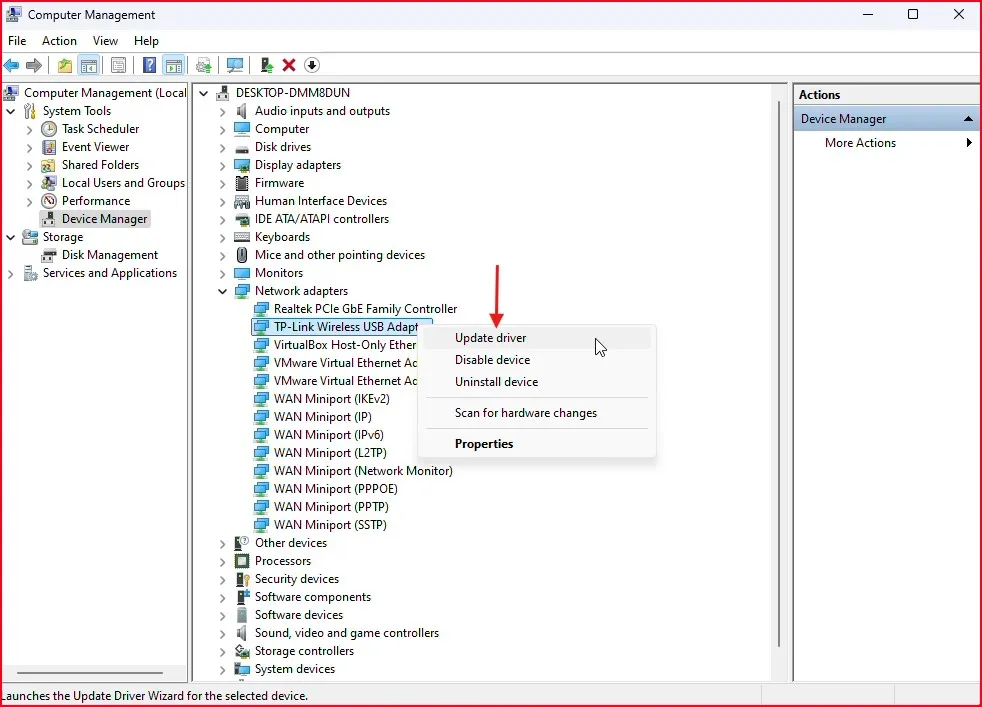
Old network drivers are the most common cause of IP address issues. Open Device Manager by clicking the Start button, right-clicking on the Computer, and clicking on “Manage” and then selecting the device. Expand “Network adapters,” right-click on your WiFi adapter, and then select “Update driver.”
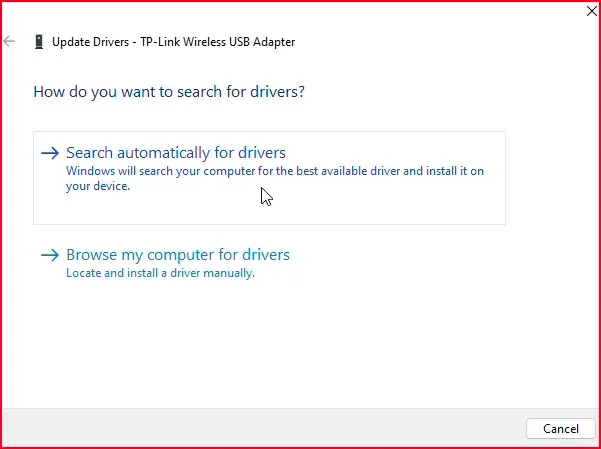
Choose Search automatically for updated driver software and then just follow the rest of the prompts to install the driver.
Make sure your drivers are up to date to avoid recurring IP configuration issues.
Step 7: Resetting network adapter properties
Corrupted TCP/IP settings can prevent proper IP configuration. You can reset these settings by going to command prompt (Run as Administrator) and type the following command-lines.
netsh winsock reset
netsh int ip reset
ipconfig /release
ipconfig /renew
ipconfig /flushdns
Don’t forget to reboot after typing any of these commands to activate them.

Step 8: Reinstalling network adapters when necessary
When other solutions fail, reinstalling the network adapter resolves lasting problems. In Device Manager, right-click the WiFi adapter in the list and choose Uninstall device and check the box to delete driver software. Reboot your computer after uninstall — Windows will reinstall the adapter on boot with new parameters.

Step 9: Resetting the Winsock by netsh commands
When network connectivity issues persist, you know you can always trust the command line. To reset Winsock, open the command prompt and type:
netsh winsock reset.

This will reset the Winsock Catalog to default settings and restore appropriate network settings. A reboot will complete the process. This can resolve deep system-level IP configuration issues.
Step 10: Resetting TCP/IP stack
Resetting the TCP/IP stack will clear up any issues in the IP stack that can be stubborn to fix the type of IP configuration issue you are experiencing. Run Command Prompt as an administrator and execute the command:
netsh int ip reset reset. log.

This command reinstalls the TCP/IP protocol stack, clearing corrupted settings that might prevent proper IP assignment. Reboot the computer after execution.
Step 11: Checking router settings and firmware
IP configuration errors are frequently due to router issues. Make sure you have the latest firmware on your admin panel (probably, 192.168.0.1 or 192.168.1.1). Outdated firmware can prevent proper IP assignment.
Step 12: Disabling IPv6 if causing conflicts
IPv6 sometimes conflicts with IPv4 networking. Disable IPv6 in router settings or Windows network adapter properties to resolve connection problems.
Step 13: Contacting your ISP for assistance
When all troubleshooting fails, then it’s time to call your ISP. They can check if services are available, remotely reset connections, and investigate possible service issues in the area impacting IP configuration.
Final Thoughts:
Wi-Fi connection issues can be extremely frustrating, thankfully you can fix the WiFi doesn’t have a valid IP configuration error simply and easily. Just go through the steps above at a time until your problem is solved! A lot of people can fix that by renewing/releasing the Ip or restarting the router.
If none of those things work, you may want to consider upgrading your router’s firmware, or even contacting your ISP.
Frequently Asked Question (FAQ)
What causes the WiFi Doesn’t Have a Valid IP Configuration error?
This happens when your computer can’t get a proper IP address from your router. It’s usually caused by driver issues, misconfigured settings, or a temporary network glitch.
Is the WiFi Doesn’t Have a Valid IP Configuration error permanent?
Nope! It’s almost always fixable with basic troubleshooting like restarting your router, running some commands, or resetting your network settings.
Will I lose any data if I reset the TCP/IP stack?
No, resetting TCP/IP only affects network configuration. Your files and apps stay untouched.
Should I disable IPv6 permanently?
Only if it’s confirmed that IPv6 is causing issues. Most modern routers and systems handle both IPv4 and IPv6 well.
Can antivirus or firewall software cause this problem?
Yes. Some third-party firewalls or security software may block proper IP configuration. Temporarily disable them to test.