
So, you’ve heard the term MAC address somewhere — maybe from your internet provider, your office IT guy, or a YouTube video. And now you’re wondering… What the heck is that?
Well, don’t worry — I’ve got you covered. In this post, we’ll go over what a MAC address is in simple words and how you can find MAC address on your computer — whether you’re using Windows, Mac, or even Linux.
What is a MAC address and why it matters?
The full form of MAC is Media Access Control. Your device’s MAC address is like its digital fingerprint – a unique 12-character code built into your network hardware. When you connect to a network, this address helps route data directly to your device instead of sending it to everyone else. Without it, your laptop wouldn’t know which internet packets were meant for you.
MAC addresses work behind the scenes every time you browse online. When you visit a website, your data travels through your local network using these addresses as signposts. Your router uses your MAC address to identify your specific device among all others connected to your home network.
MAC Address Structure
Your device’s MAC address is a 12 digit code in hexadecimal (numbers ranging from 0-9 and letters a-f) pairs : or – or nothing in between. Every MAC consists of six bytes equivalent to 48 bits and will look something like 00:1A:2B:3C:4D:5E This will make sure that every single device on a network will have its unique identifying number.
It’s not something you would necessarily need to memorize, but there may be times you can use it for:
- Connecting to secured networks
- Whitelisting a device in your router
- Troubleshooting internet problems
- Talking to IT support
How to Find MAC Address on Different Systems
Now that you know what it is, let’s find it on your device. I’ve broken it down by system so you can jump to the one you use.
How to Find MAC Address on your Windows 10 or Windows 11 PC
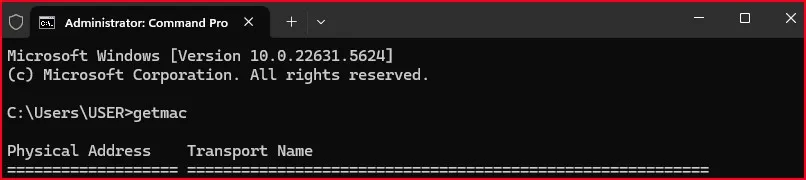
Method 1: The Quick Command Way
- Press the
Windows + Rkeys. - Type
cmdand press Enter. - Now type this command: getmac and hit enter.
You’ll see something like physical Address — that’s your MAC address!
Method 2: From Settings (No typing needed)
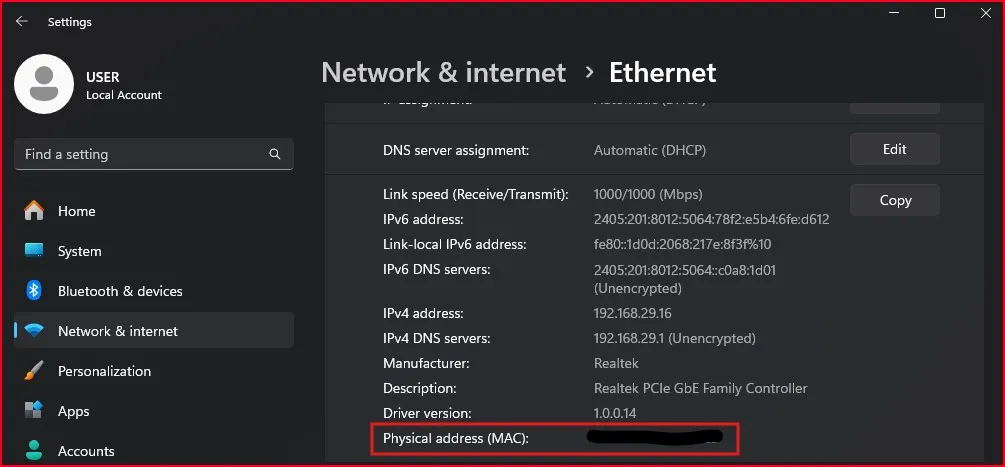
- Click Start, and then click Settings
- Choose Network & Internet.
- Click Wi-Fi or Ethernet, depending on how you’re connected.
- Scroll down and look for Hardware Properties.
You’ll find your MAC address listed there.
How to Find MAC Address on your Mac (macOS)
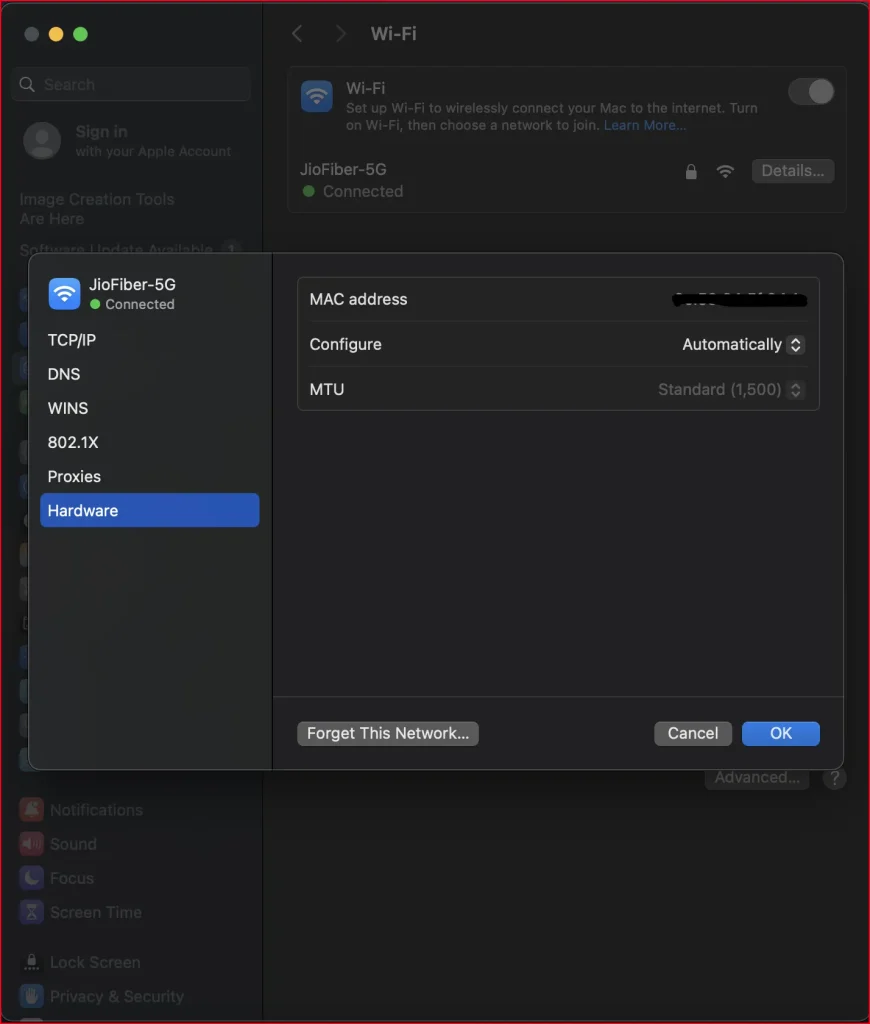
Option 1: Through System Settings
- Click on the Apple logo at the top left corner.
- Open System Settings (or System Preferences for older versions).
- Choose Network.
- Choose your connection (Wi-Fi or Ethernet).
- Click Details or Advanced.
Look for Wi-Fi Address or Ethernet ID for your MAC address.
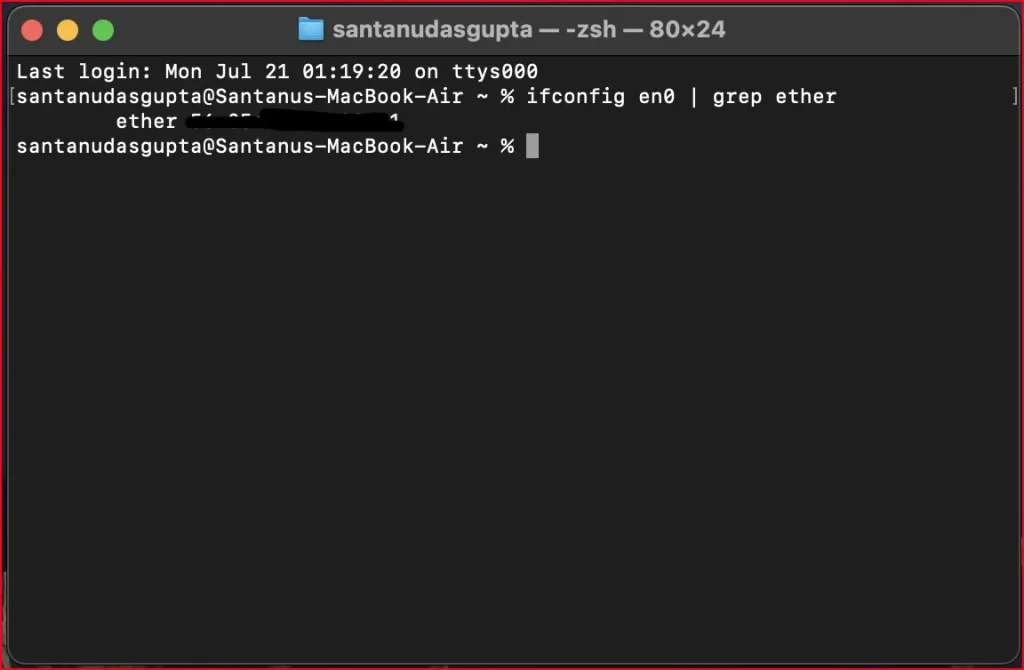
Option 2: Through Terminal (if you prefer using it)
- Open the Terminal app.
- Type:ifconfig en0 | grep ether
If you’re using Ethernet, replace en0 with en1.
How to Find MAC Address on your Linux (Ubuntu or Similar)
If you’re on Linux, here’s the easiest way:
Terminal Method:
- Open Terminal.
- Type:ip link
- You’ll see a few lines — look for your active connection (usually
eth0orwlan0) and spot the line that starts withlink/ether. That’s your MAC address.
GUI Method (if you’re not into Terminal):
- Open Settings>Network.
- Click on your connected network.
- Go to Details.
- You’ll find your MAC address listed there.
Real-Life Use: Why You Might Need It
Let’s say you’re setting up your home Wi-Fi and want only your devices to connect. Some routers let you allow connections only from known MAC addresses. Which is exactly where this intel comes in handy.
Or perhaps you’re working remotely, and the IT department requires your MAC address to grant access to a secure network.
Not sure which version of Windows you’re using? You can check your Windows version and build number here.
Final Thought:
You don’t need to be a computer expert to find MAC address on your device. Whether you’re using Windows, Mac, or Linux, it just takes a couple of steps. And now that you know what it is and why it matters, you’re ahead of most people!
Keep this guide bookmarked — it might save you time the next time you’re setting up a new device or helping a friend with Wi-Fi issues.
Frequently Asked Question (FAQ)
What is a MAC Address used for?
It identifies your device on a network. It’s how routers know which device is which.
Is it okay to share my MAC Address?
Yes, in most cases. But don’t post it publicly — it’s not super sensitive, but it’s still personal.
Can I change my MAC Address?
Some devices let you “spoof” or temporarily change it for privacy reasons. It’s more for advanced users though.
Is a MAC Address the same as an IP address?
Nope! IP addresses can change. MAC addresses are hardware-based and (mostly) permanent.