
Ever been stuck in that awkward tech support call where they ask for your Windows version and you freeze up?”Uh… it’s the latest one, I think?”
Millions of Windows users can’t quickly identify their exact version or build number when they need it most. That’s why it’s important to know how to check Windows version the easy way — especially when it can save you time, confusion, and a little embarrassment.
This guide will walk you through a few simple methods for checking your version of Windows and the build number, whether you need to troubleshoot, check for compatibility, or satisfy your curiosity.The methods we’ll cover work for any modern Windows system — from ancient Windows 7 machines to the shiniest Windows 11 setups.
But first, let’s address why knowing your exact Windows version matters more than you might think…
Why Should You Check Windows Version?
Before we get into the how-to, you might be wondering why you even need to check Windows version in the first place. Good question!
Here’s why it matters:
- Some software only works with specific versions of Windows.
- Security updates and new features vary between builds.
- If you’re getting help from tech support (or even a YouTube tutorial), they’ll usually ask for your version number.
- If you’re buying used computers and need to verify what’s installed
Knowing how to quickly check this info can save you hours of headaches.
Why knowing your Windows version matters?
Ever tried to install a new game only to find out it doesn’t work on your PC? That’s often because of version compatibility issues. Knowing your Windows version,it’s not just some geeky fact you need to know — it’s actually really important for using your computer day-to-day
And when it becomes necessary to diagnose problems, “What version of Windows are you running?” will be one of the first questions problem solvers will ask. Having this info ready saves time and frustration. Plus, security updates are version-specific, so knowing your exact Windows version helps ensure you’re protected against the latest threats.
Not just the Windows version — understanding your system’s processor is equally important for compatibility and performance. If you’re curious, here’s my guide on How to Check Your Computer Processor Generation in 5 easy ways.
Difference between version, edition, and build number
These terms get mixed up all the time, but they’re not the same thing:
- Version: The major release like Windows 10 or Windows 11
- Edition: Home, Pro, Enterprise – these determine what features you get
- Build number: This is the specific update package installed (like 19044.1826)
If you’re curious about the different Windows 11 versions and their release dates, Microsoft keeps an up-to-date list you can check anytime.
The Easiest Way to Check Windows Version — Use the “Winver” Command
The winver command is probably the quickest way to check your Windows version:
- Press the Windows key + R on your keyboard.
This will open the Run dialog box. Don’t worry — it’s just a small pop-up. - In the box, type winver and hit Enter.
- A little window will pop up with your Windows version and OS build number.
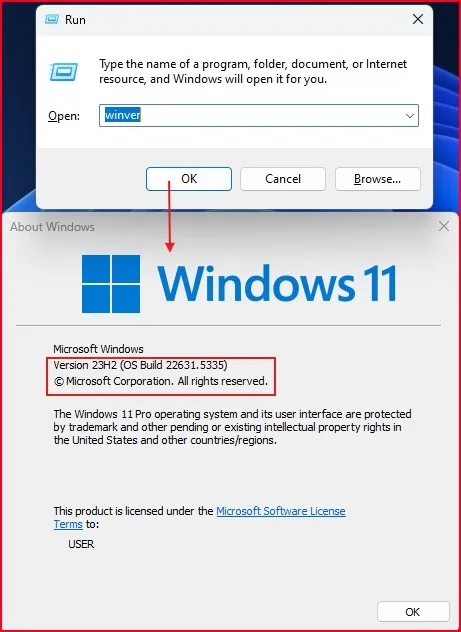
For example, it might say something like:
Windows 11 Pro, Version 23H2 (OS Build 22631.5335)
Here’s a quick breakdown:
- Version 23H2 – This tells you the major release of Windows you’re using.
- OS Build 22631.5335– This is the detailed build number, which shows minor updates and patches.
Another Way — Using System Settings to Check Windows Version
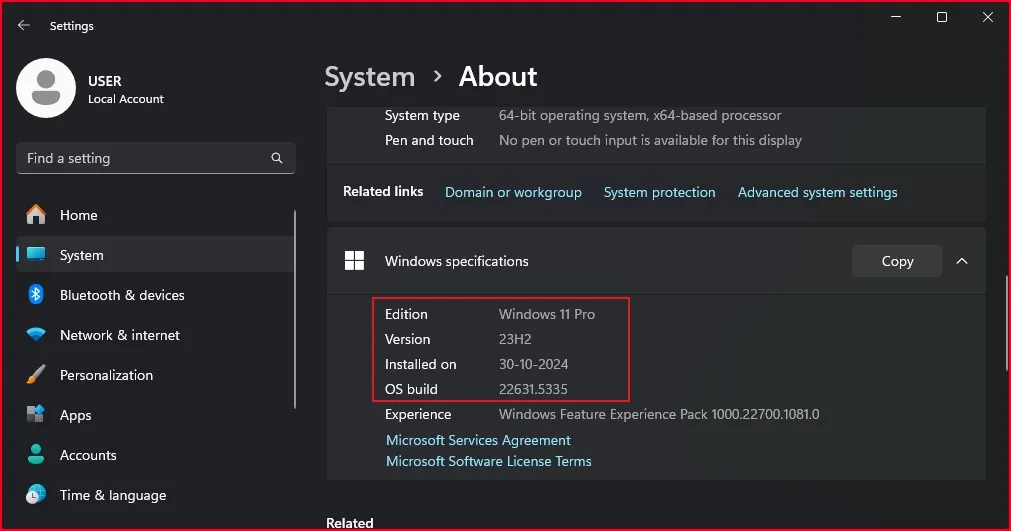
Want a quick way to check your Windows version? The Settings app has got you covered.
- Click the Start button and select Settings (gear icon).
Or press Windows key + I to open Settings directly. - In the Settings window, click on System.
- Scroll down and click on About (you’ll find this on the left or at the bottom, depending on your Windows version).
- Under Windows specifications, you’ll see:
- Edition (like Windows 11 Pro or Home)
- Version (like 23H2)
- Installed on date
- OS build (something like 22631.5335)
The version number tells you which major update you have, while the build number reveals the specific minor update installed on your PC.
Optional Method — Using the Windows Command Prompt
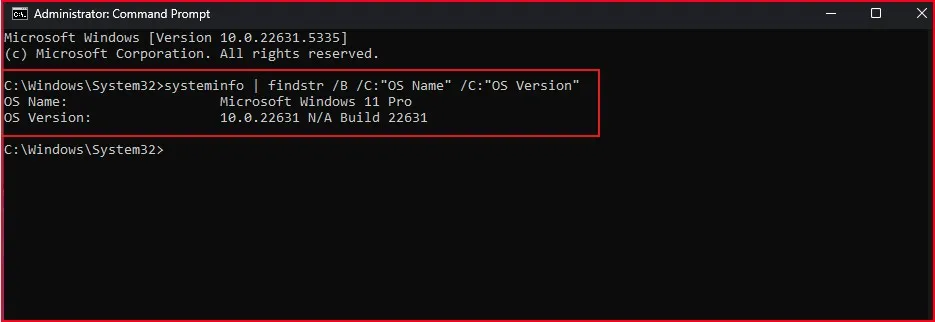
For those who prefer typing over clicking, the Command Prompt is your best friend. To check your Windows version, simply:
- Click Start, type cmd, and press Enter.
- In the black Command Prompt window, type: systeminfo | findstr /B /C:”OS Name” /C:”OS Version”
- Press Enter and boom! You’ll see your Windows version and build in plain text.
It might look like this:
- OS Name: Microsoft Windows 11 Pro
- OS Version: 10.0.22631 N/A Build 22631
This filters out just the OS information from a larger data set. Super handy when you need to quickly verify which Windows version you’re running.
If you’d like to see the steps in action, there’s a quick YouTube video below that shows How to Check Windows Version and Build Number. Just watch and follow along.
Final Thought: Know Your System in 30 Seconds
Locating the version and build number of your Windows system is much simpler than you may realize. Whether you prefer the easy System Settings approach, power-user methods like the winver command, or even use the Command Prompt — you’ve got several possibilities to check Windows version in a matter of seconds.
It is important to know your precise Windows version for software compatibility, accurate troubleshooting, and to ensure you receive the latest security updates for your PC. So, open a few moments today to check your Windows version with one of the methods above— and consider making it a part of your regular system maintenance routine.
FAQs – Check Windows Version
How do I check Windows version without using the Run box?
You can go to Start > Settings > System > About to see your version and build number under Windows specifications.
What does “build number” mean?
The build number refers to the exact version of Windows, including smaller updates. It helps you know how up-to-date your system is.
Can I check Windows version from the desktop?
Not directly, but right-clicking on This PC > Properties will show you your Windows edition and some version info.
Do I need admin rights to check Windows version?
Nope! Anyone can check the version without needing admin access.
Is there a difference between version and edition?
Yes. The edition refers to what type of Windows you have (like Home, Pro), while the version and build number refer to how up-to-date your Windows is.