
Ever received an important email and thought, “I don’t want to lose this one!”? Whether it’s a receipt, a report, or a sweet memory, Gmail doesn’t really offer a “Save Forever” button. But don’t worry—there’s an easy trick for that.
In this guide, I’ll show you how to save Gmail email to Google Drive using three simple methods — including one using a handy Chrome extension! Let’s make this super easy.
Why Learn How to Save Gmail Email to Google Drive?
There are so many good reasons:
- To keep a permanent copy of an email: Sometimes emails contain important info—like receipts, travel plans, or official documents. Saving them to Google Drive means you’ll always have a backup, even if the email gets deleted later.
- To free up inbox space without losing important messages: Your inbox can fill up fast! By saving key emails to drive, you can safely delete them from Gmail and still have access to what matters—without cluttering your inbox.
- To organize documents in folders: Google Drive lets you create folders, just like drawers in a filing cabinet. You can group related emails or attachments together so everything stays neat and easy to find.
- To access emails even without internet: Once an email is saved as a PDF in Drive, you can download it to your device and open it anytime—even when you’re offline. Perfect for travel or poor internet days!
Google Drive works like your digital filing cabinet—clean, safe, and always with you
Method 1 – How to Save Gmail Email to Google Drive as PDF
Sometimes the simplest approach works best. If you’re dealing with just a handful of emails, manually downloading and uploading them might be your quickest option.
Steps to Save Gmail Email to Google Drive
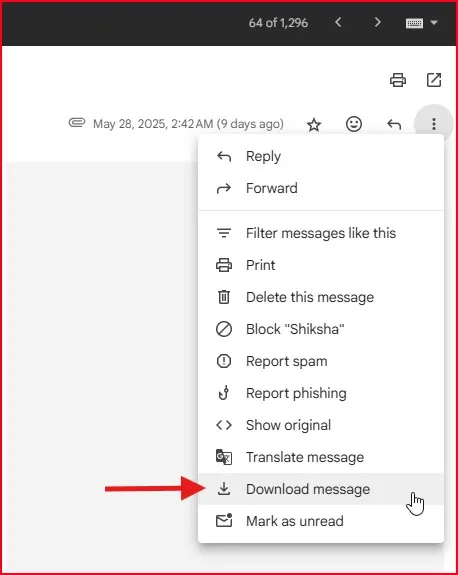
Step 1: Go to gmail and open the email you want to save.
Step 2: click the three dots in the top-right corner, and select “Download message” This saves the email as an .eml file on your computer.
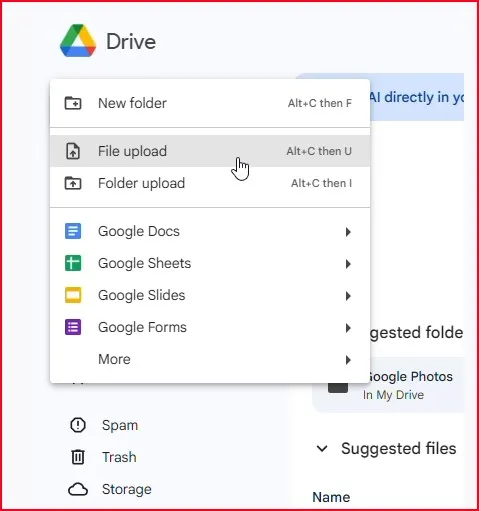
Step 3: Next, open Google Drive, click the “New” button, then “File upload” and select your downloaded email file. The cool thing about this method is that it preserves the original email format, including headers and metadata that might be important later.
Method 2 – How to Save Gmail Attachments to Google Drive
Sometimes you just need to save the files, not the entire email.
Save Gmail to Google Drive – Attachments Only
- Open the email
- Hover over the attachment
- Click the Google Drive icon (triangle symbol)
- Done! It’s now saved to Drive
Easy, right?

Method 3 – Use the Chrome “Save to Google Drive” Extension
Want even more flexibility? Google’s free Chrome extension lets you save Gmail to Google Drive with a single click.This method is especially useful if you want to save full web pages, emails, or screenshots directly into your Drive with one click.
What Is This Extension?
Google offers a free Chrome extension called Save to Google Drive, which adds a one-click option to save pages, Gmail emails, and more to your Drive.
How to Save Gmail Email to Google Drive Using the Extension
Step 1: Install the Extension
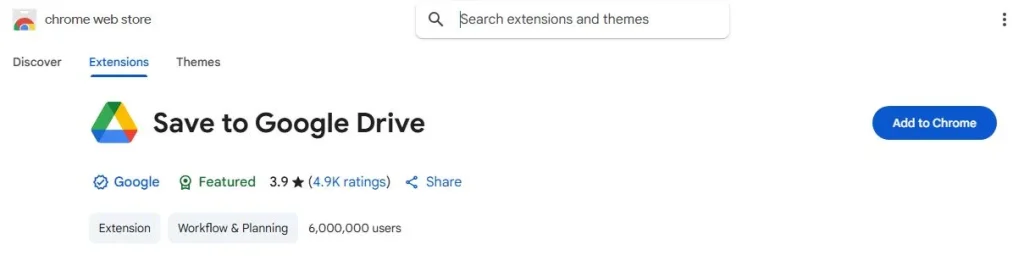
Go to the Save to Google Drive extension page on the Chrome Web Store and click Add to Chrome.
Step 2: Allow Permissions
Once added, give the necessary permissions when prompted.
Step 3: Use the Extension
Whenever you’re viewing an email:
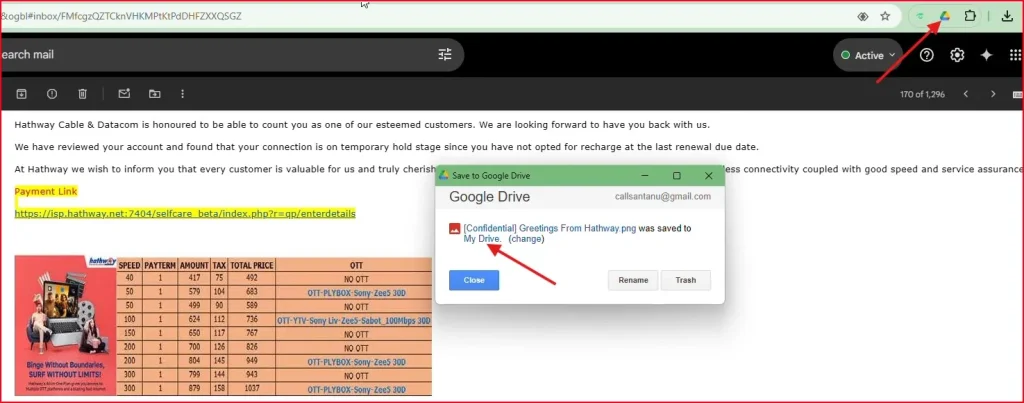
- Click the extension icon on the top-right of your browser
- Choose how you want to save it (as image, HTML, etc.)
- It will automatically be saved in a folder called “Save to Google Drive” inside your Google Drive
Optional: Right-Click to Save
You can also right-click on the page or an image, and choose “Save to Google Drive” directly from the context menu!
Final Thoughts – Why You Should Know How to Save Gmail Email to Google Drive
And there you go! Now you know how to save Gmail email to Google Drive using three super simple methods:
- Print to Google Drive (best for full emails)
- Save attachments (best for documents, photos)
- Use the Save to Google Drive Chrome extension (great for fast, repeated use)
It’s all about keeping your important stuff safe, accessible, and organized. Whether it’s for work, school, or personal use, backing up your Gmail messages has never been easier.
If you want even faster access to your saved emails or attachments, you can use Google Drive like a local folder on your Windows 11 PC.
FAQ – How to Save Gmail Email to Google Drive
Can I save Gmail emails to Google Drive automatically?
Yes, using tools like Zapier or Google Workspace add-ons, but they require setup. For most users, manual saving is simpler.
What’s the benefit of using the “Save to Google Drive” extension?
It saves you time! You can save emails, webpages, and even screenshots to Drive with a single click.
Where do saved files go in Google Drive?
Unless moved, they’re usually saved in the root folder or under a folder named “Save to Google Drive.”
Is the extension free to use?
Yes! It’s 100% free and made by Google.
Can I save emails on my phone to Google Drive?
The mobile Gmail app doesn’t support this directly. It’s easiest on a desktop or laptop browser.