
Ever been asked, “What generation is your processor?” and it’s like, you had no idea how to respond? Not to worry- Whether you’re thinking of upgrading your system to a new version of Windows or simply curious, it’s helpful to know whether you have an Intel or an AMD chip.
On today’s blog, I will show you how to check your computer processor generationin the easiest way, no complicated methods, no tech jargons. All it takes is a few clicks and you’ll have your answer.
How to Check Your Computer Processor Generation by Understanding Manufacturer Labels
Intel and AMD approach generation labelling differently, which can be confusing if you’re trying to figure out what you’ve got.
Intel uses a straightforward numbering system. Their nomenclature for 9th, 10th, 11th, 12th, and 13th-gen processors specifically identified in the product name. Take an Intel Core i7-10700K, for instance — that’s a 10th generation chip.
AMD’s naming isn’t as straightforward. Their Ryzen processors name differently—the first digit on the Ryzen 5000 series doesn’t stand for “5th generation.” Instead, AMD uses architecture titles such as “Zen,” “Zen+,” “Zen 2” and “Zen 3” to help identify generations.
For both manufacturers, you’ll find the generation info in the model number. Intel puts it right after the brand (Core i5-10xxx = 10th gen), while AMD embeds it in their numbering scheme.
Why Knowing Your Processor Generation Matters?
Before we get into the steps, let’s quickly understand why it’s helpful to know your CPU generation:
- Software and operating system requirements often mention minimum CPU generations.
- Newer generations generally offer better speed and energy efficiency.
- It helps when upgrading, troubleshooting, or buying new hardware.
Now let’s see how to check it.
5 Easy Ways – How to Check Your Computer Processor Generation
Method 1: How to Check Your Computer Processor Generation Using System Information
Windows has a built-in tool that reveals everything about your processor without installing anything extra. It’s hiding in plain sight!
To access it:
- Press Win + R to open the Run dialog
- Type “msinfo32” and hit Enter
- The System Information window will open
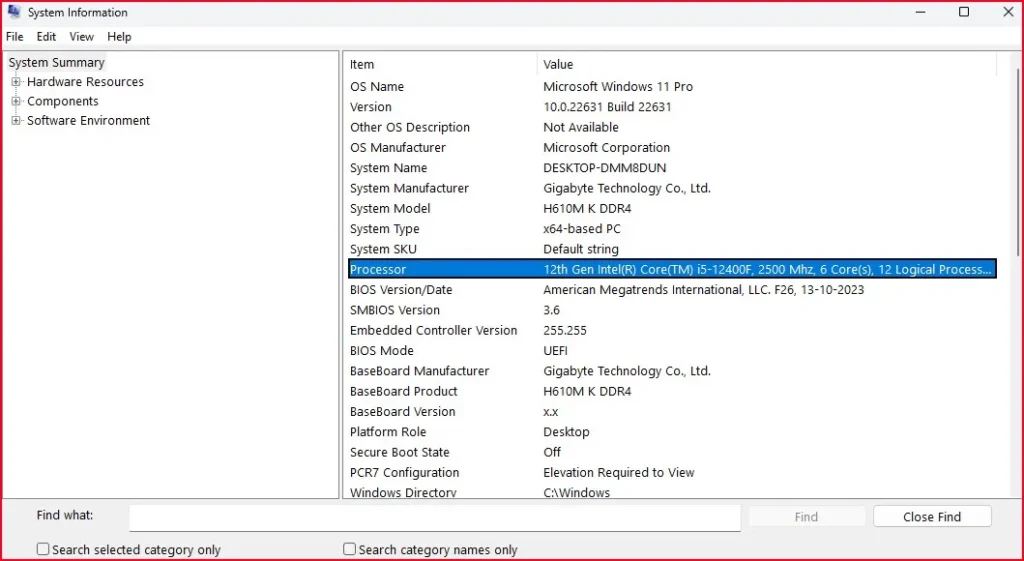
- Look for “Processor” under the System Summary section
You’ll see something like:
Intel(R) Core (TM) i5-12400F CPU @ 2500 Mhz
Here, the number “12400F” tells you it’s a 12th Gen Intel processor. The first two digits (12) = 12th Gen. If it was i5-8250U, that’s 8th Gen, and so on.
Tip: For AMD processors, look for the model number like “Ryzen 5 5600X” — the first digit (5) usually indicates the generation.
Method 2: How to Check Your Computer Processor Generation Using Task Manager
Task Manager isn’t just for killing frozen apps – it’s also great for checking your CPU:
- Press Ctrl + Shift + Esc to open Task Manager.
- Go to the Performance tab.
- Click CPU on the left side.
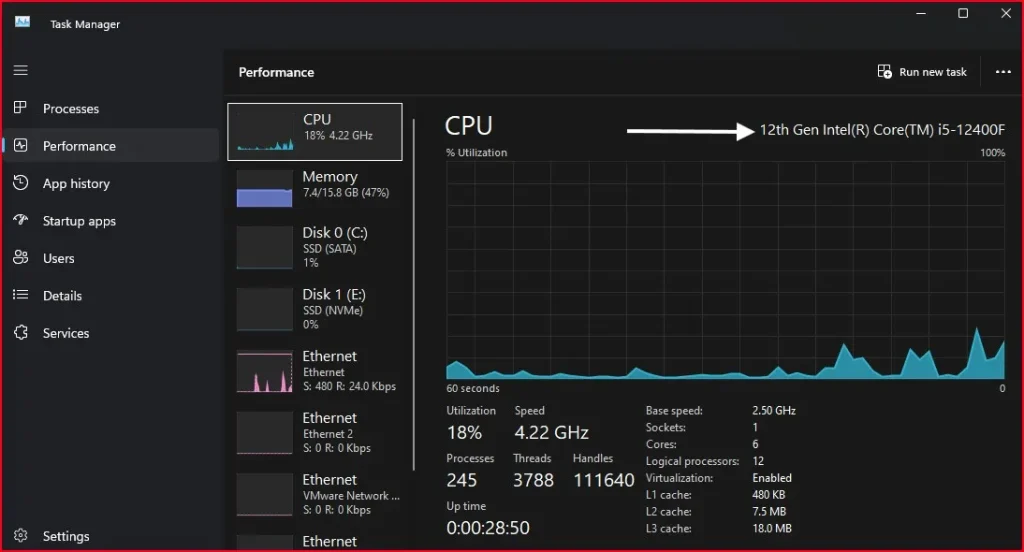
- On the right panel, you’ll see the processor name.
The right panel displays your processor’s full name and model. Again, check the model number like “i5-12400F” – this means it’s an 12th Gen Intel processor.
Method 3: How to Check Your Computer Processor Generation Using System Properties
This is one of the simplest ways, especially if you’re not very technical.
- Right-click This PC on your desktop or File Explorer.
- Select Properties.
- Under system Specifications, you’ll see your processor details.
The info here is concise but usually includes the crucial model number that reveals your CPU generation. Look at the numbers after the i3/i5/i7 or Ryzen name – that tells you the generation.

Method 4: How to Check Your Computer Processor Generation Using Command Prompt
Not a fan of fancy software? The trusty Command Prompt has your back when it comes to checking your processor generation.
To get started:
- Click the Start menu and type cmd.
- Right-click Command Prompt and choose Run as administrator.
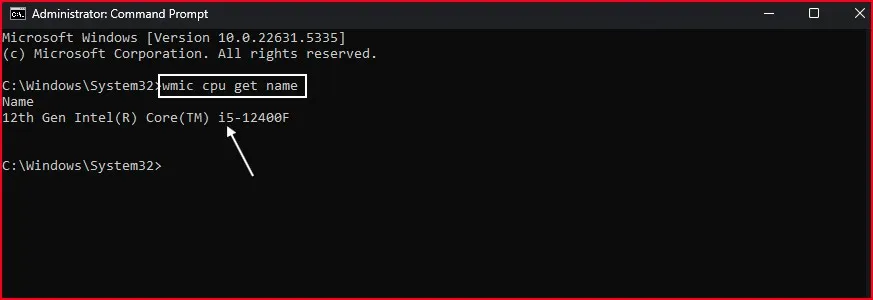
- Type the following command and press Enter: wmic cpu get name
This will show you your CPU’s name. Then you can identify the generation from the model number like in the previous methods.
And speaking of system commands, if you’re interested in learning more, check out my guide on How to Check Disk Partition Style: MBR or GPT in Windows.
Method 5: How to Check Your Computer Processor Generation Using DirectX Diagnostic Tool
Another simple built-in tool.
Steps:
- Press Windows + R to open Run.
- Type dxdiag and hit Enter.
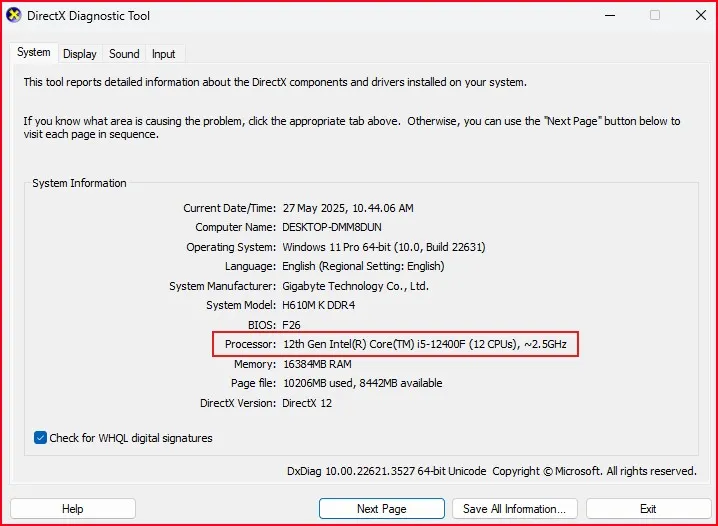
- Under the System tab, you’ll find the processor name.
This tool is mainly for diagnosing graphics and sound issues, but it still shows your CPU info.
How to Tell Which Generation It Is (Explained Simply)
Let’s simplify it:
| Processor Example | Generation |
| Intel Core i5-6200U | 6th Gen |
| Intel Core i7-10700K | 10th Gen |
| AMD Ryzen 5 3600 | 3rd Gen |
| AMD Ryzen 7 5800X | 5th Gen |
Just look at the first 1–2 digits after the dash.
If you’d like to see the steps in action, there’s a quick YouTube video below that shows how to check your computer processor generation. Just watch and follow along.
Checking Processor Generation Online
Using manufacturer websites (Intel, AMD)
The quickest way to check your processor generation online is to head straight to the source. Both Intel and AMD maintain comprehensive databases of their products.
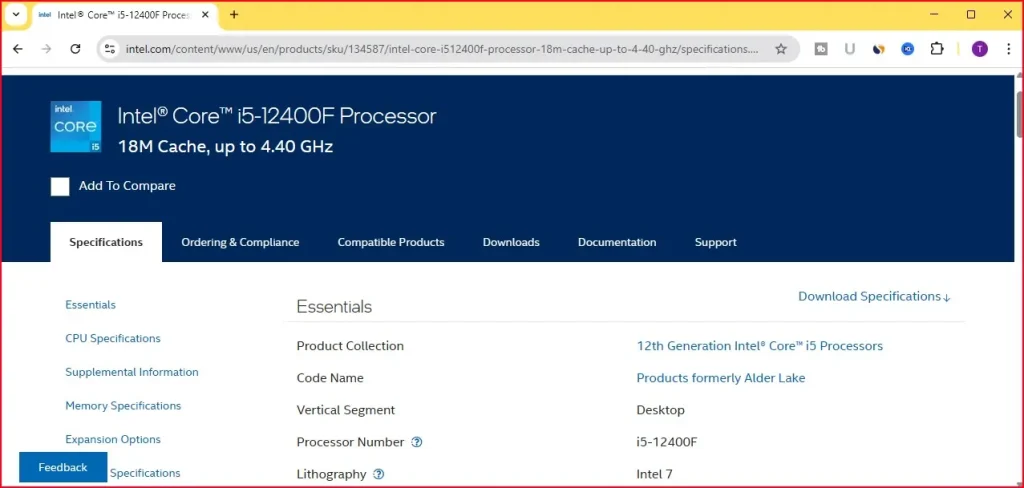
For Intel processors:
- Visit ark.intel.com
- Enter your processor model in the search bar (like “i5-12400F”)
- Click on your exact model from the results
- Look for “Product Collection” or “Generation” in the specifications
For AMD processors:
- Go to amd.com/products
- Navigate to the processors section
- Use their product finder tool
- Enter your processor details to get complete information
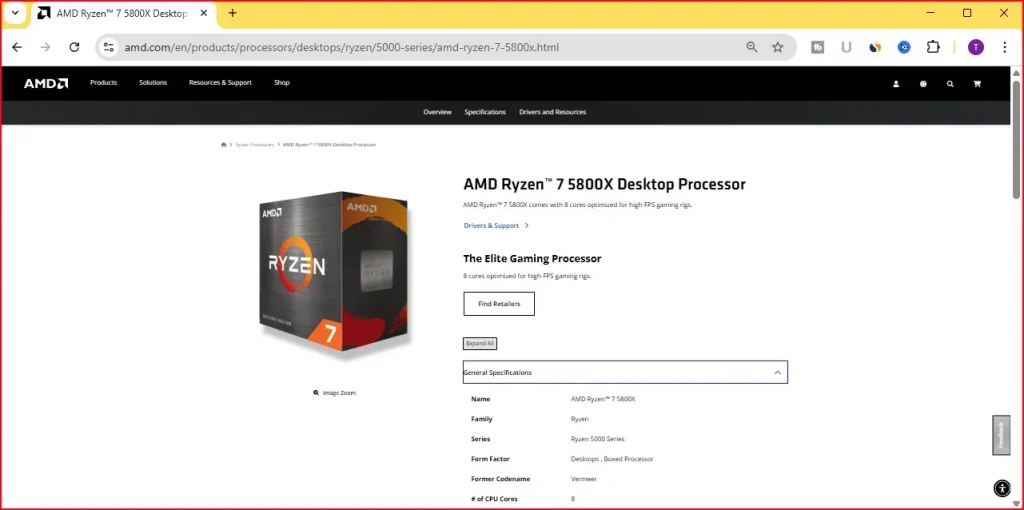
These official sites give you the most reliable information, straight from the people who made your CPU.
Online CPU databases and comparison tools
Several third-party websites offer comprehensive CPU information:
- CPU-World.com provides detailed specs and generational info
- TechPowerUp’s CPU Database has an extensive catalog
- UserBenchmark lets you compare your processor against others
These sites often include helpful information like release dates, architecture details, and comparative performance data that manufacturer sites might not highlight.
Decoding processor naming conventions
Processor names follow specific patterns that reveal their generation:
Intel desktop CPUs typically use this format:
- Core i[3/5/7/9]-[generation][model number][suffix]
- Example: i7-11700K (11 = 11th gen, 700 = performance tier, K = unlocked)
AMD Ryzen follows this pattern:
- Ryzen [3/5/7/9] [generation][model] [suffix]
- Example: Ryzen 7 5800X (5 = generation, 800 = performance tier, X = higher performance)
The naming gets updated occasionally, so when in doubt, use the next method.
Final Thought – How to Check Your Computer Processor Generation Without Hassle
The search to How to Check Your Computer Processor Generationneed not be a wild goose chase. It doesn’t matter if you prefer built-in system information tools, command line utilities, third party software, or online resources – you have easy access to now several different ways to go about it. Each method has its own advantages: the ease of Windows System Information, and the deep-dive detail of specialized tools.
It’s worth noting too that knowing what generation of processor you have is more than just a bit of technical trivia: it also informs other choices, like what software your machine is capable of running, what you might be able to upgrade in the future, and what your machine’s limitations are. Spend five minutes checking your processor via one of these five methods and you’ll be well-informed about the technological core of your computer.
If you’re looking to upgrade your PC or checking compatibility with Windows 11, you might also want to visit Intel’s official processor list or Microsoft’s compatibility guide.
Once you know your processor generation, it’s also a good idea to make sure your system is healthy overall. You can read my post on The Best Ways to Check HDD and SSD Health in Windows 11 to ensure your storage drives are in good shape too.
FAQs: How to Check Your Computer Processor Generation
How to check your computer processor generation on Windows 10 or 11?
You can use tools like System Information, Task Manager, or Command Prompt to check your computer processor generation easily.
What do processor generation numbers mean?
They show the version or evolution of a CPU. For example, i7-1165G7 means it’s an 11th Gen Intel processor.
Why is it important to check your computer processor generation?
It helps you understand system capability and software compatibility, especially when upgrading or installing OS like Windows 11.
Can I upgrade my CPU to a newer generation?
Only if your motherboard supports it. Some CPUs need different sockets and chipsets.
How to find out your CPU generation if you’re not tech-savvy?
Use the System Properties or Task Manager methods from this guide. They’re very beginner-friendly and help you find out your CPU generation quickly.