
Regardless of your circumstances, including if you’ve ever let someone else uses your computer (such as your kids or other family members or even your work team), you’ve probably wondered how to prevent users from installing apps in Windows 11 without your permission.
Sometimes people install unnecessary games, random apps, or even risky software that can slow down or harm your PC. But don’t worry — today I’ll show you 4 simple ways to stop that from happening!
Why You Should Prevent Users from Installing Apps in Windows 11
Let’s be real — not everyone knows what’s safe to install. Here’s why you might want to prevent users from installing apps in Windows 11:
- To stop children from installing games or unsafe tools
- To avoid malware or bloatware
- To keep your system running smoothly
- To enforce rules on shared or office devices
Ready to take control? Let’s get started!
Method 1 – Prevent Users from Installing Apps in Windows 11 via Settings
Use Microsoft Store Only for App Installs
Windows lets you limit app installations to only the Microsoft Store — which has safer, verified apps.
Steps:
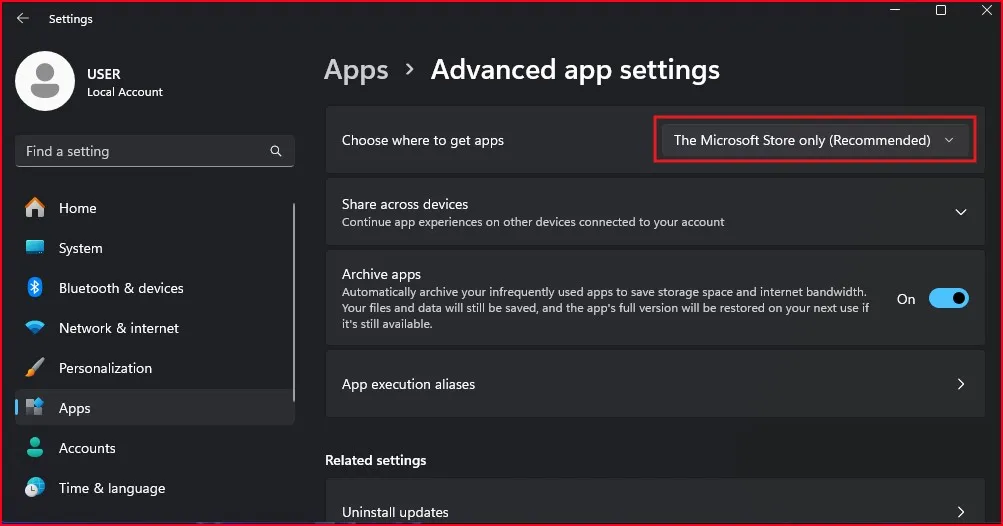
- Click Start, open Settings
- Go to Apps > Advanced app settings
- Under Choose where to get apps, select:
“The Microsoft Store only (Recommended)”
Done! Now, if someone tries to install an app from the web or other sources, Windows will block it.
Method 2 – Prevent Users from Installing Apps in Windows 11 Using Group Policy
This method gives more control and is great for managing multiple users.
Block Software Installations Through gpedit.msc
Steps:
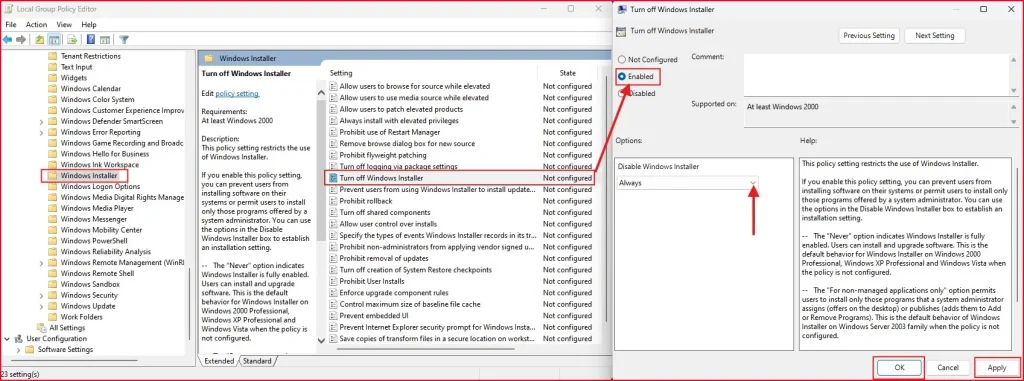
- Press Windows + R, type gpedit.msc and press Enter
- Go to: Computer Configuration > Administrative Templates > Windows Components > Windows Installer
- Double-click “Turn off Windows Installer“
- Choose Enabled
- In the dropdown, select Always
- Click Apply and OK
From now on, no one (except admins) can install apps using Windows Installer.
Method 3 – Prevent Users from Installing Apps in Windows 11 Using Registry Editor
This method is perfect if you’re using Windows 11 Home, which doesn’t have the Group Policy Editor.
Modify Registry to Block software Installation Access
Caution: Be careful while editing the registry. Take a backup first.
Steps:
- Press Windows + R, type regedit and hit Enter
- Navigate to:
HKEY_LOCAL_MACHINE\Software\Policies\Microsoft\Windows\Installer
(If the Installer key doesn’t exist, right-click Windows, choose New > Key, and name it Installer)
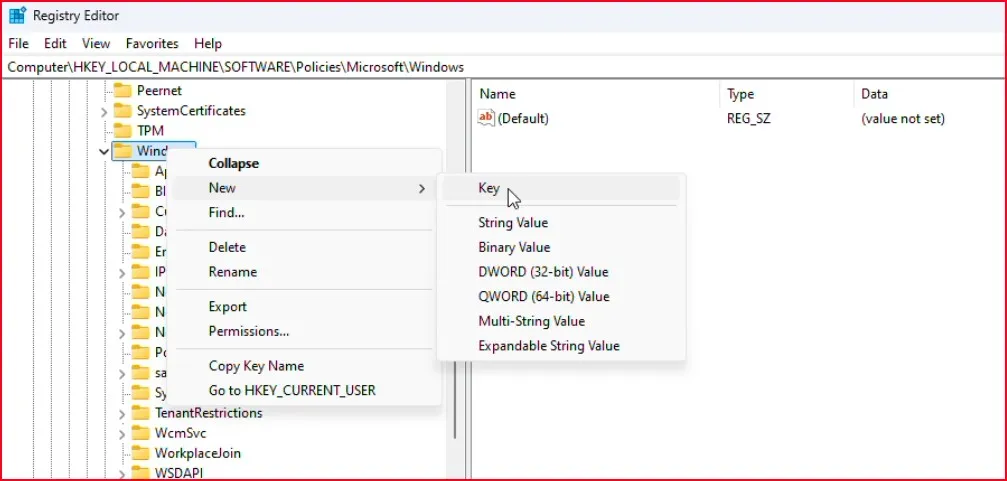
- Inside the Installer key, right-click the right panel, select New > DWORD (32-bit) Value
- Name it DisableMSI
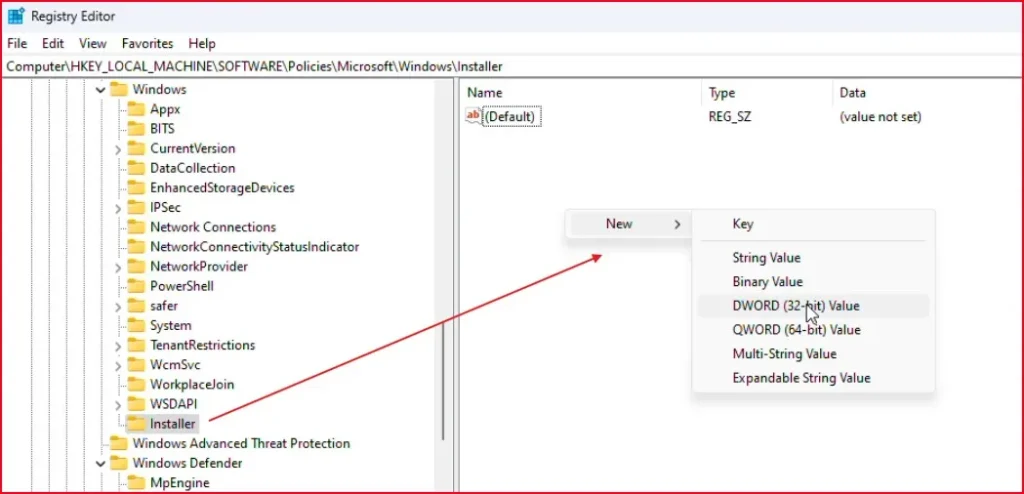
- Double-click it and set the value to 2
- Click OK, then close the Registry Editor
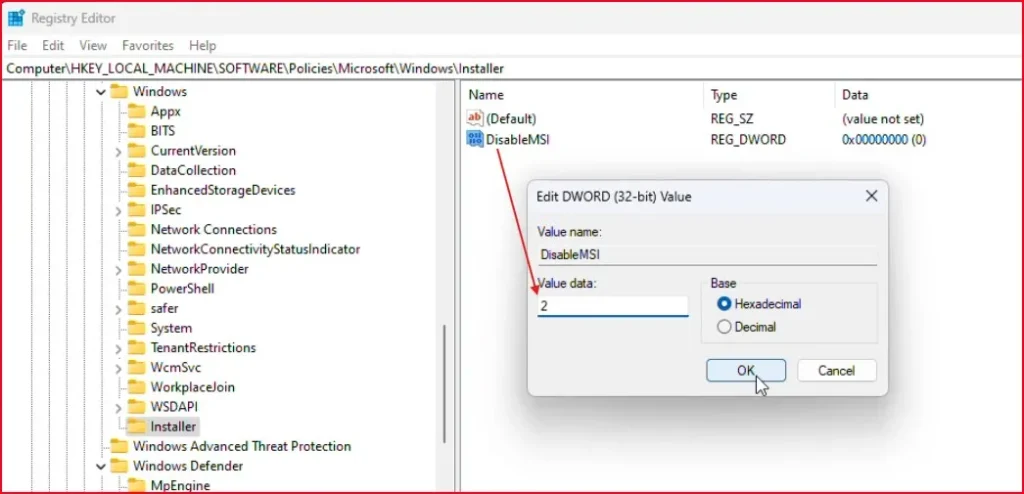
This will now prevent any new app installations via Windows Installer, just like the Group Policy method.
Method 4 – Prevent Users from Installing Apps in Windows 11 by Limiting Account Type
Use Standard User Accounts to Block software Installations
Another super easy way to prevent users from installing apps in Windows 11 is by switching them to Standard users.
To set up a standard account:
- Open Settings by pressing Win+I
- Click on “Accounts” then “Family & other users“
- Select “Add account” under Other users
- Choose “I don’t have this person’s sign-in information“
- Select “Add a user without a Microsoft account“
- Create a username and password
The magic happens because standard accounts hit a wall when trying to install apps. They’ll get that familiar UAC prompt asking for admin credentials. No credentials? No installation. Simple as that.
Removing administrator privileges
Got existing accounts with too much power? Time to demote them.
- Head to Settings > Accounts > Family & other users
- Click on the account you want to modify
- Hit “Change account type“
- Switch from “Administrator” to “Standard User“
- Click “OK“
Boom. Their app installation powers are gone. They’ll need to come begging to an admin account whenever they want to install something new.
BONUS TIP: Block Software Installation in Windows 11 with Third-Party Tools
Here are a couple of tools that give you more granular control for home setups:
- AppLocker Utilities simplifies Windows’ built-in AppLocker feature with a user-friendly interface. Perfect if PowerShell makes your head spin.
- Family Safety tools like Microsoft Family Safety give parents simple controls to block game and app installations based on ratings or categories.
Summary: Best Ways to Prevent Users from Installing Apps in Windows 11
| Method | Works On | Easy? | Reversible? |
| Microsoft Store Restriction | All Editions | Yes | Yes |
| Group Policy Editor | Pro/Enterprise | Medium | Yes |
| Registry Editor | All Editions | Medium | Yes |
| Standard User Accounts | All Editions | Yes | Yes |
Wrapping Up
So, there you have it! Whether you want to keep your kids safe or avoid accidental software installs on a work PC, these simple tricks help you prevent users from installing apps in Windows 11.
Pick what works best for your build, and you’ll be treated to a cleaner, safer Windows experience. Remember — the goal is not to prevent people from using your PC, it’s about protecting your digital space. Got questions? Drop them in the comments.
Read More:
How to Reduce RAM and CPU Usage in Windows 11
How to Reset Windows 11 Login Password When Forgotten
How to Disable RUN Command on Windows 11: Two Simple Methods Explained
Frequently Asked Question (FAQ)-Prevent Users from Installing Apps in Windows 11
How do I prevent users from installing apps in Windows 11?
You can use the built-in Settings, Registry Editor, Group Policy Editor, or set user accounts as Standard to block app installation.
Will it block all software installations?
Yes, these methods will block typical Windows installer setups. To block portable apps, additional restrictions are needed.
Is it possible to block software installation in Windows 11 without Pro version?
Yes! Use the Registry Editor method — it works even in Windows 11 Home.
Can I undo the restrictions later?
Absolutely. All these methods are reversible. You just follow the same steps and revert the settings.
Can I block only standard users from installing apps in Windows 11?
Yes. By using Group Policy or Registry Editor, you can configure restrictions that apply only to standard (non-admin) users, while still allowing administrators to install software. This is useful for shared family or office computers.