
Windows 11’s next update — 25H2 — is nearly here. It’s available as a preview build for the time being, but if you want to try out prior to its release, you can download Windows 11 25H2 ISO now.
Some believe you’re required to sign up for Microsoft’s Insider Program to obtain it, however, that’s not the sole method. In fact, there’s an easy way to access the ISO without scam and free.
What is Windows 11 25H2?
Windows 11 25H2 is that next feature update that’s expected to arrive next Fall October. It delivers performance enhancements, design updates and new features to make a richer Windows experience.
For now, it’s only available as a preview, primarily via Microsoft’s Insider Dev Channel. But the best part is you can download it as an ISO file and install it like a Windows version!
Two Methods to Download Windows 11 25H2 ISO:
Method 1: Official Microsoft Website (Insider Account Required)
If you’re already a Windows Insider, this is the safest and official way to Download Windows 11 25H2 ISO.
Steps:
Open your browser and search:
Windows 11 download
Click on the first result that links to the official Microsoft page. Or go directly to: https://www.microsoft.com/software-download/windowsinsiderpreviewiso
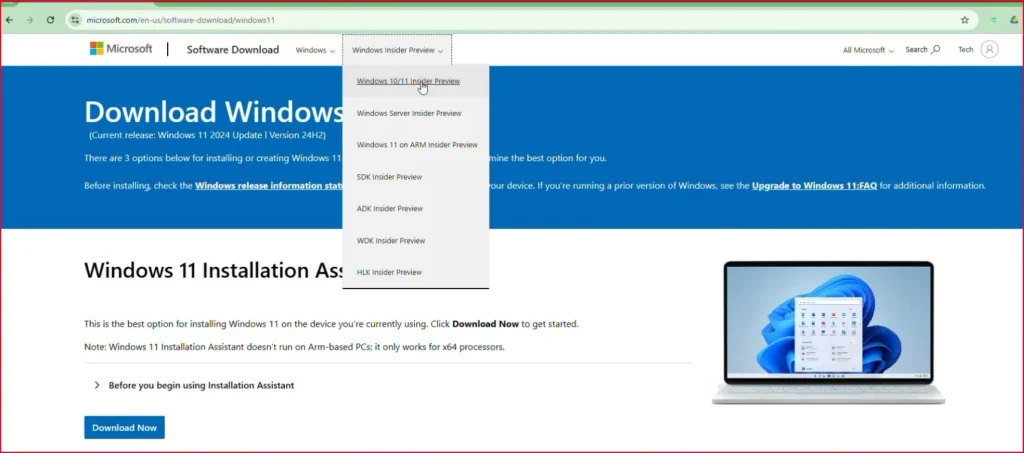
Log in using the Microsoft account associated with the Insider program.
Under “Select edition” choose:
Windows 11 Insider Preview (Dev Channel) – Build 26100.1150 (or later 25H2 build)
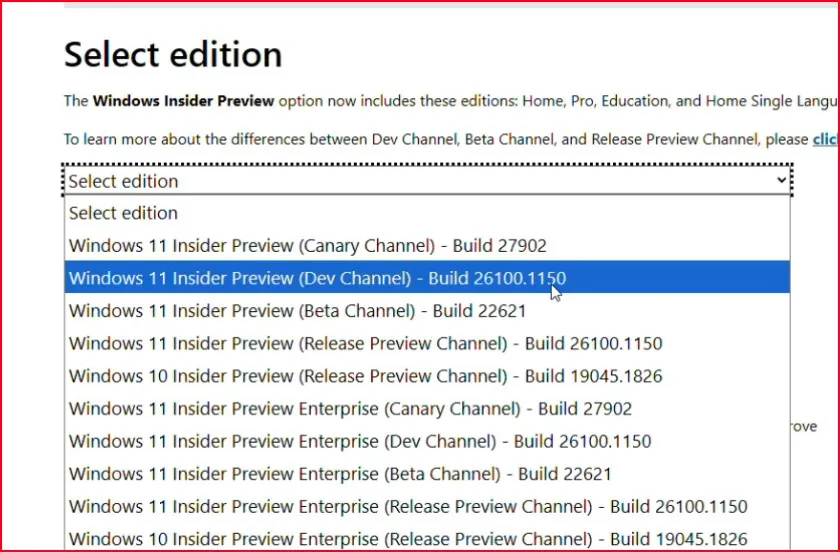
Confirm and select your preferred language preference.

Click the 64-bit Download button to commence the Download Windows 11 25H2 ISO.

Method 2: Use UUP Dump (No Insider Program Needed)
Not enrolled in the Insider Program? No problem. This method lets you download Windows 11 25H2 ISO without signing up. And yes, it’s completely safe — it uses Microsoft’s official update files!
Steps:
Visit: https://uupdump.net
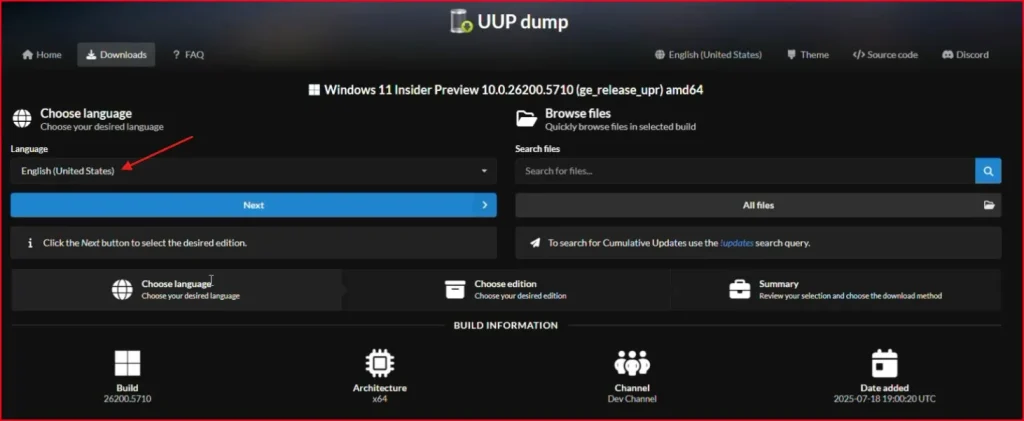
Click on Dev Channel.

Find the latest x64 build for Windows 11. Look for one with something like:Windows 11 Insider Preview 26100.xx (Dev Channel. Click on the build.

Select your preferred language and click on Next.
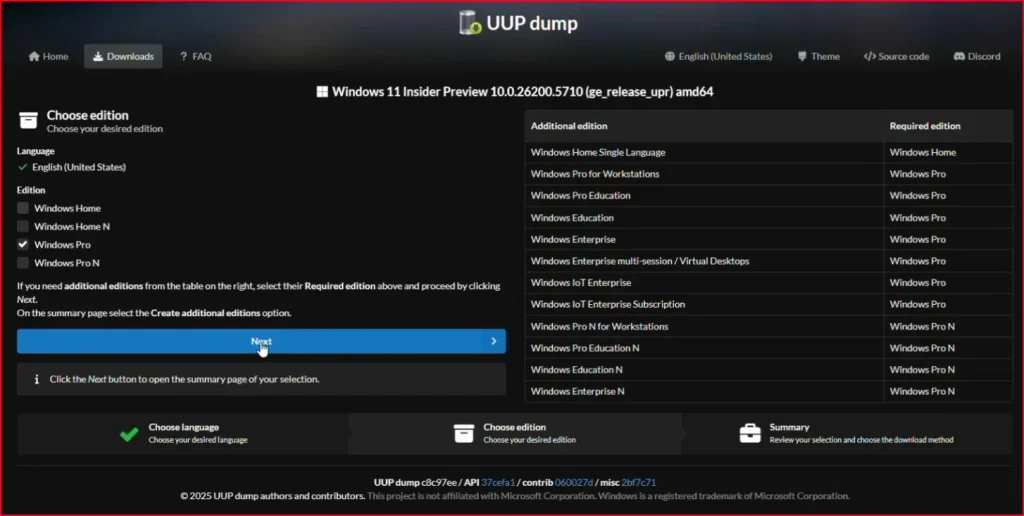
Tick the box for Windows Pro and again click on Next.
Choose Download and convert to ISO and make sure Include updates is checked. Then click on Create download package.

A small ZIP file is going to be downloaded. Unzip the file – Right click on the ZIP file and click on “Extract All“.
Open the folder and right-click the file:
uup_download_windows.cmd→ Select Run as administrator

Hit the R key when prompted.
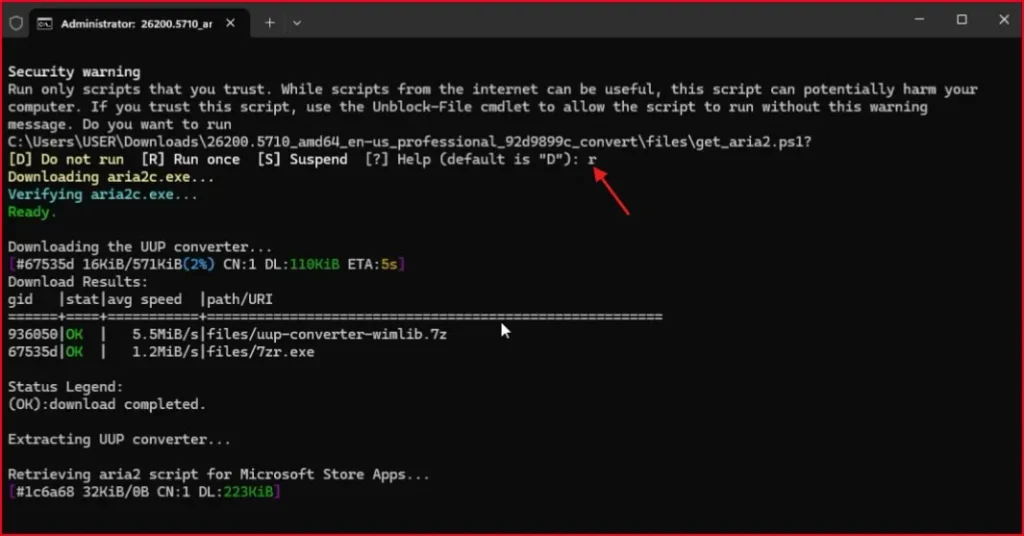
Now sit back — the script will fetch all necessary files and build the ISO for you. It may take 30–40 minutes depending on your internet speed. Do not close the Command Prompt window while this process runs
When it’s finished, you’ll get a message like:
“Finished. Press 0 to exit”
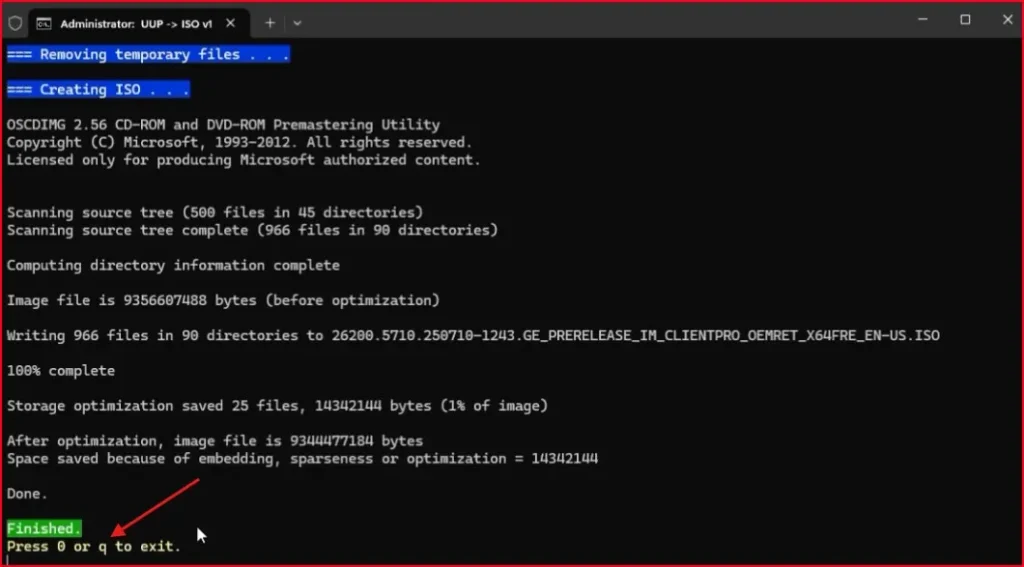
You now have your Windows 11 25H2 ISO file (approximately 8.7 GB)!

How to Make a Bootable USB Drive with Rufus (Optional)
Once you’ve successfully downloaded the Windows 11 25H2 ISO, the next step is to create a bootable USB drive so you can install it on your PC or laptop — either using Rufus or Microsoft’s Media Creation Tool.
If you’re not sure how to go about doing this you may want to see my full tutorial video here: https://youtu.be/iWfaf_F9Jm4
Final Thought:
For those of you who love to dive into new things before others, Download Windows 11 25H2 ISO is definitely for you. It’s still in preview, so avoid installing it on your main device unless you don’t mind running into a few small bugs.
Best way to try it is a virtual machine like VirtualBox or on a spare PC.
Whether you go with the Microsoft way or opt for UUP Dump, you now have a clear pathway to download Windows 11 25H2 ISO in easy steps.
FAQ: Download Windows 11 25H2 ISO
Is Windows 11 25H2 ISO stable for daily use?
It’s currently in preview. While fairly stable, it may still have some bugs. Use it for testing, not as your primary OS.
Is UUP Dump safe to use?
Yes! UUP Dump downloads files directly from Microsoft’s servers. It just builds them into an ISO for you.
Do I need a product key?
If you’re reinstalling on the same machine or upgrading, you usually don’t need to re-enter the product key.
Can I downgrade if I don’t like 25H2?
Yes, but only within 10 days of installation, using the rollback feature. Or, reinstall an older ISO manually.