
Forgetting your Windows 11 login password can be very stressful, especially if you don’t have a backup plan. But don’t worry! In this post, we’ll show you an easy step-by-step way to reset Windows 11 login password using the Utilman method, and you don’t need any extra tools or installation media.
Important reason for Changing Your Password
Your Windows 11 login password is your access key to your files, apps and personal data. If you’ve forgotten it, you could get locked out of your own system. Although Microsoft has a few options to get your password back, Utilman is a simple way that works great with local accounts. It’s also a godsend if you don’t have a recovery disk or access to your Microsoft account credentials.
What is the Utilman Procedure?
Utilman is short for “Utility Manager,” a Windows feature that allows immediate access to accessibility tools such as the On-Screen Keyboard and Magnifier. You can reset Windows 11 login password on the login screen directly by replacing the Utilman executable with the Command Prompt. Sounds technical? Don’t panic, I’ll explain it in simple ways, and more importantly you see the screenshots for better understanding.
How to Reset Windows 11 Login Password: A Step by Step Guide
Step1: Access Advanced Startup Options
Let’s start by getting into the recovery environment: Restart your PC, and on the login screen, click Restart while holding the Shift key.
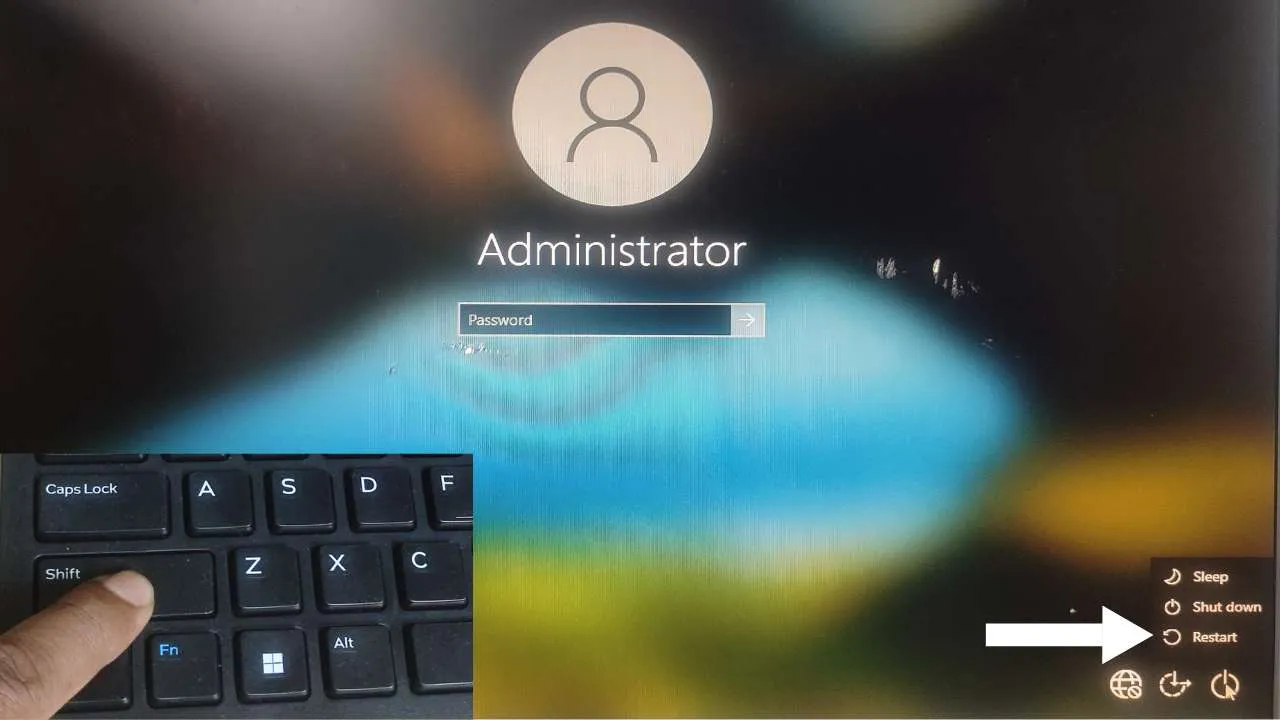
This will open up the Advanced Startup Options menu. From here choose Troubleshoot > Advanced Options > Command Prompt.
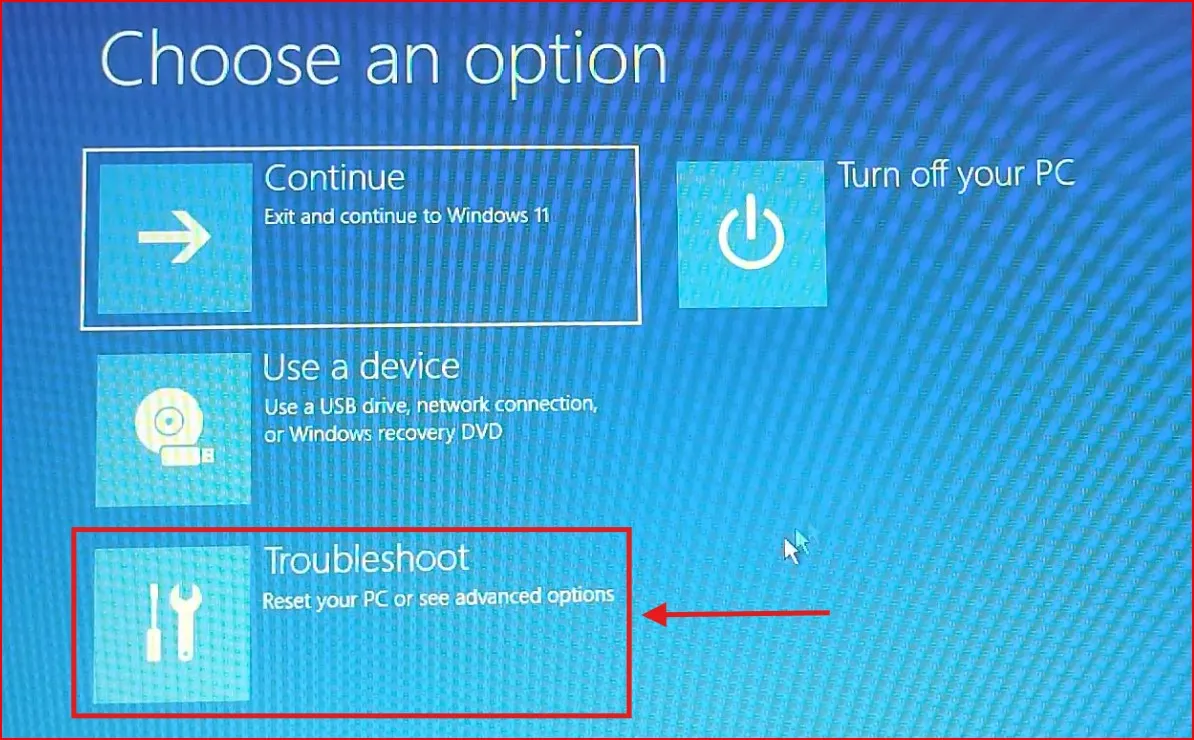
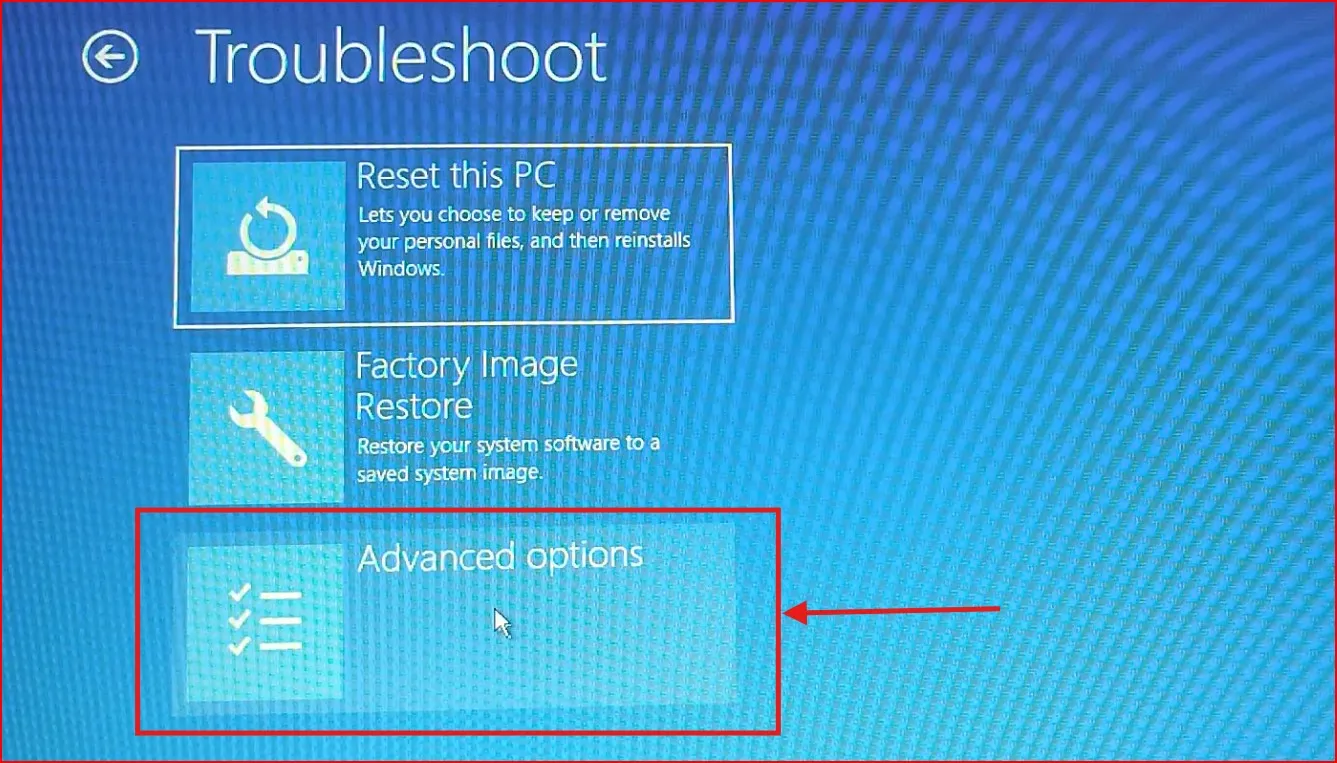
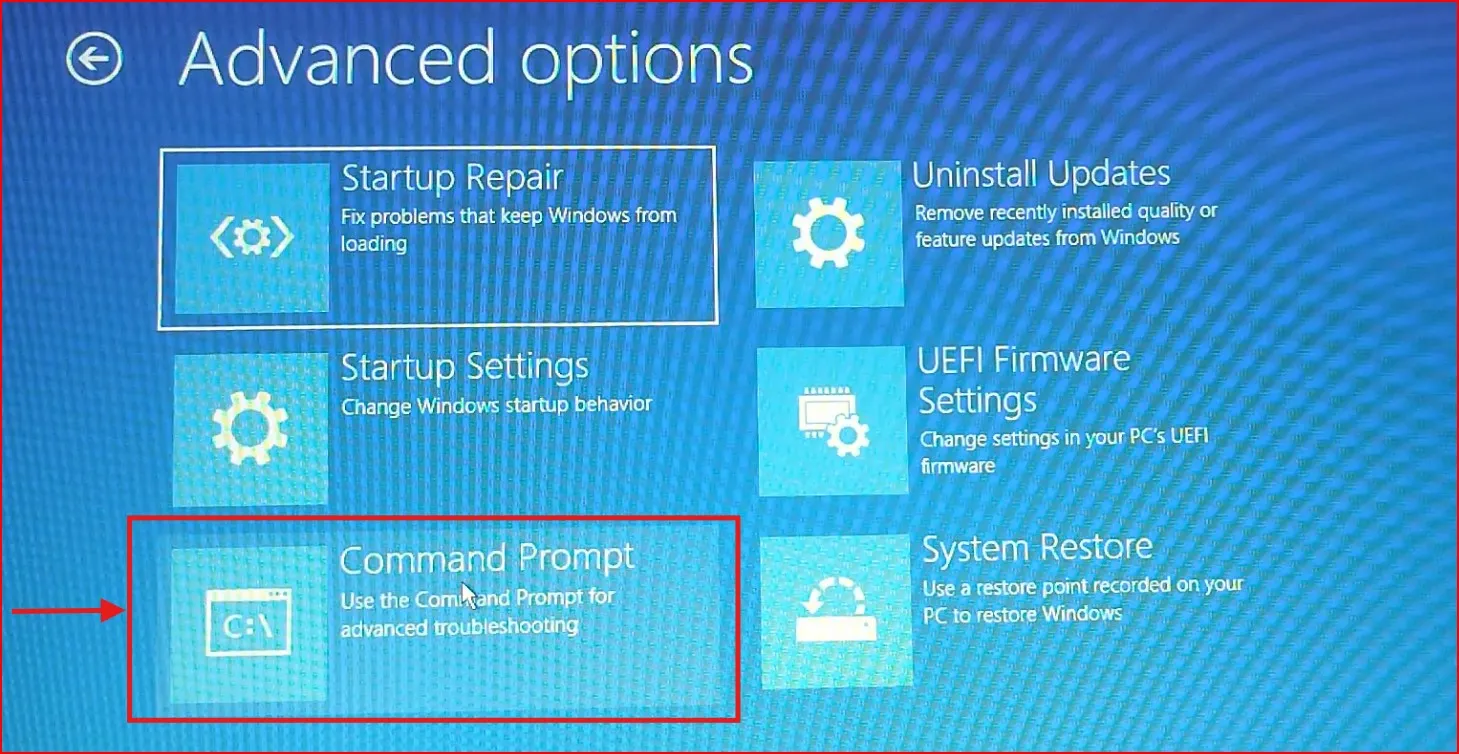
Tip: If you don’t see these options, restart your PC three times in a row to send it into recovery mode.
Step2: Open the Command Prompt
When you are in the recovery environment:
Choose the Command Prompt option from the list. This will open a black command prompt window, where you can enter commands.
Step3: Back Up and Overwrite the Utilman Executable
Now, let’s replace the Utilman executable with the Command Prompt:
- In the Command Prompt, navigate to the System32 directory by typing:
cd C:\Windows\System32
Press Enter.
Backup the original Utilman executable by renaming it. Type:
ren utilman.exe utilman_old.exe
Press Enter. This step ensures you can restore the file later.
- Replace Utilman with the Command Prompt by renaming cmd.exe to utilman.exe. Type:
ren cmd.exe utilman.exe
Press Enter.
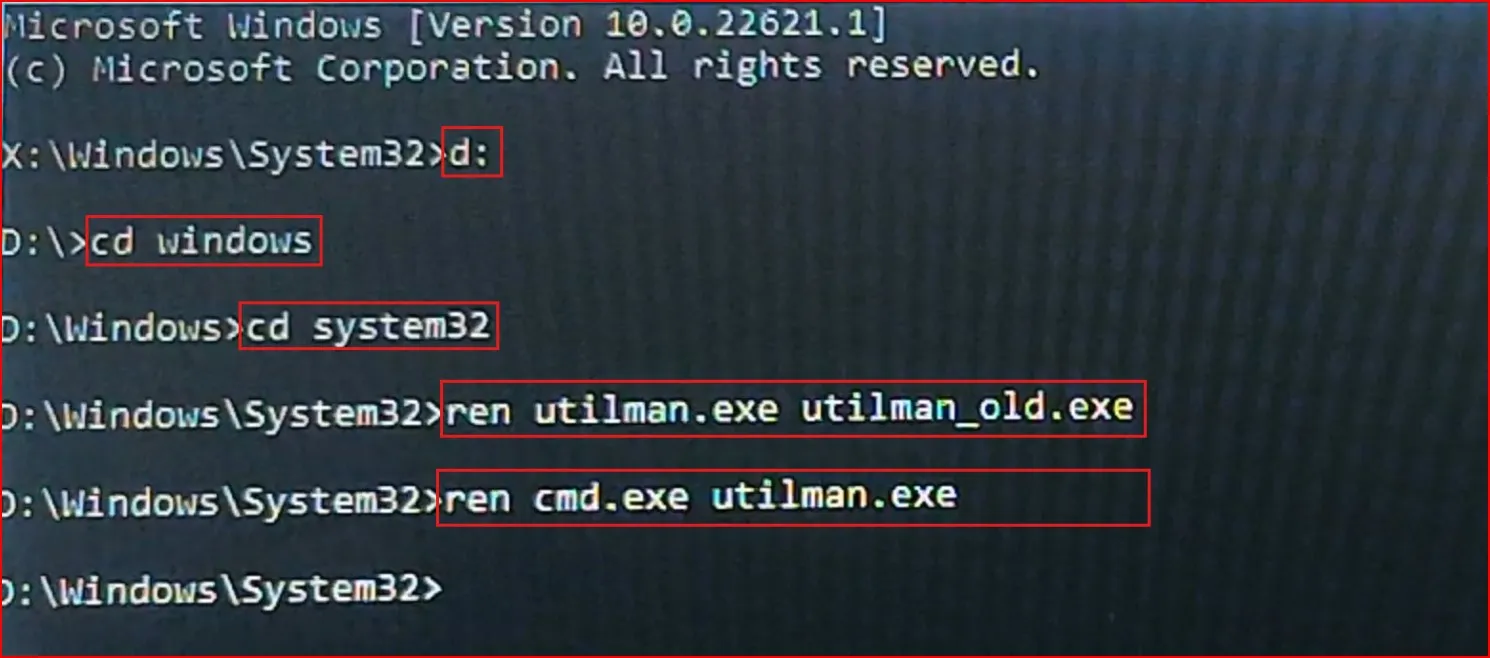
3. Close the Command Prompt by typing exit, then restart your PC.
Step4: Reset windows 11 login Password
Once your computer restarts, follow these steps:
- At the login screen, click the Accessibility icon (bottom-right corner). Instead of opening the usual tools, this will launch the Command Prompt.
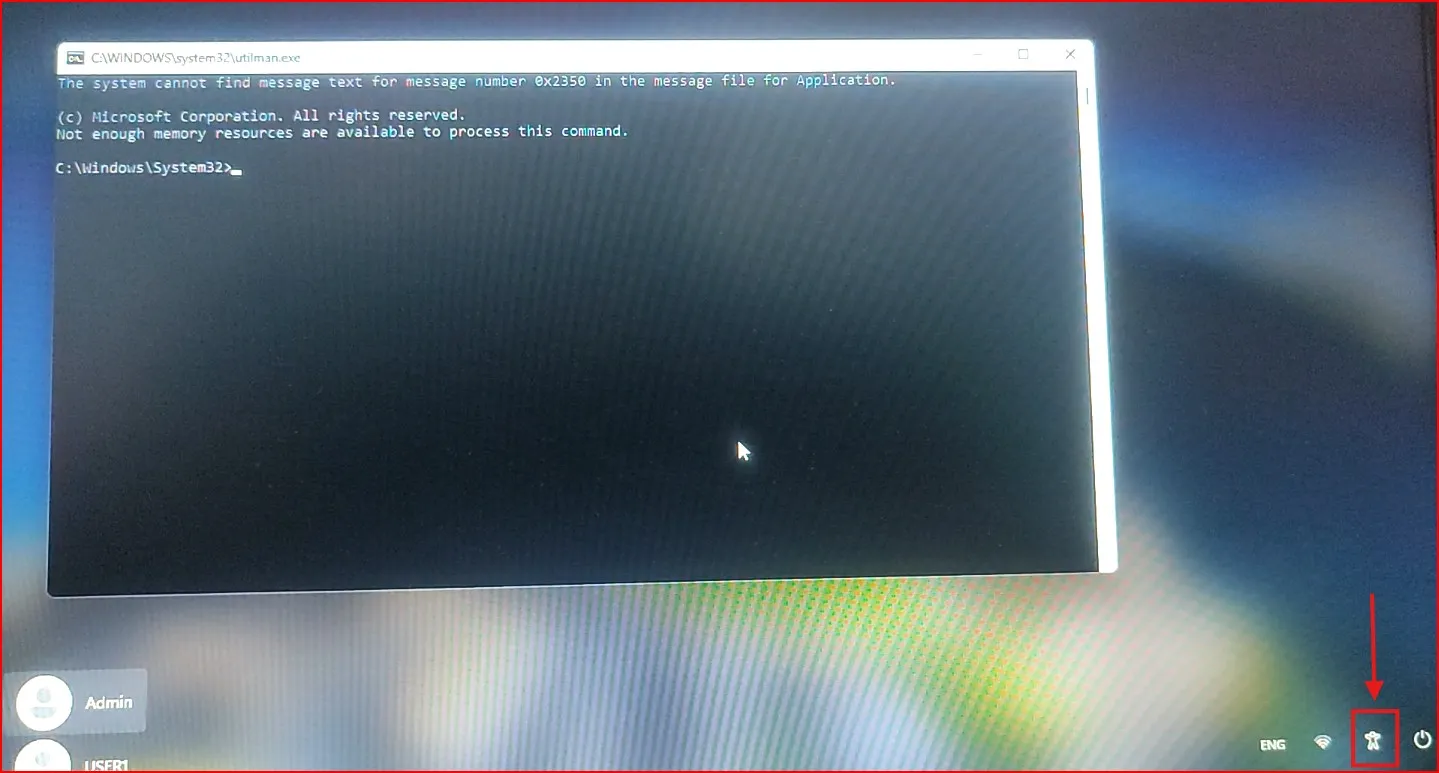
2. In the Command Prompt, type the following command to display all user accounts on the system:
control userpasswords2
Press Enter.
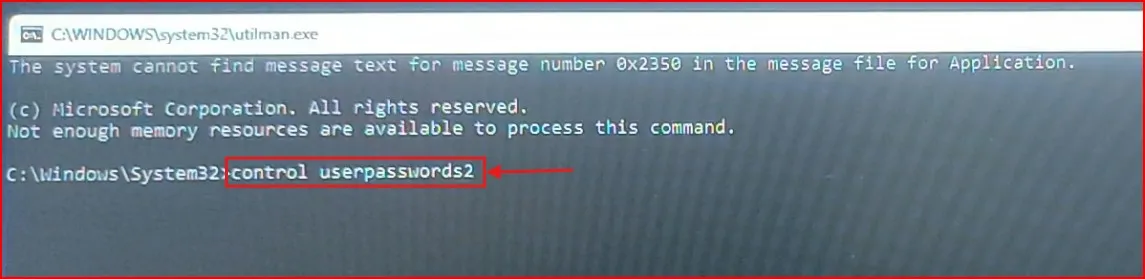
This will open up a User Accounts window where we can reset password.
In the User Accounts window, look for the account you want to reset the password for. With your account selected, click on ‘Reset Password.’ Now you can set a new password of your choice.
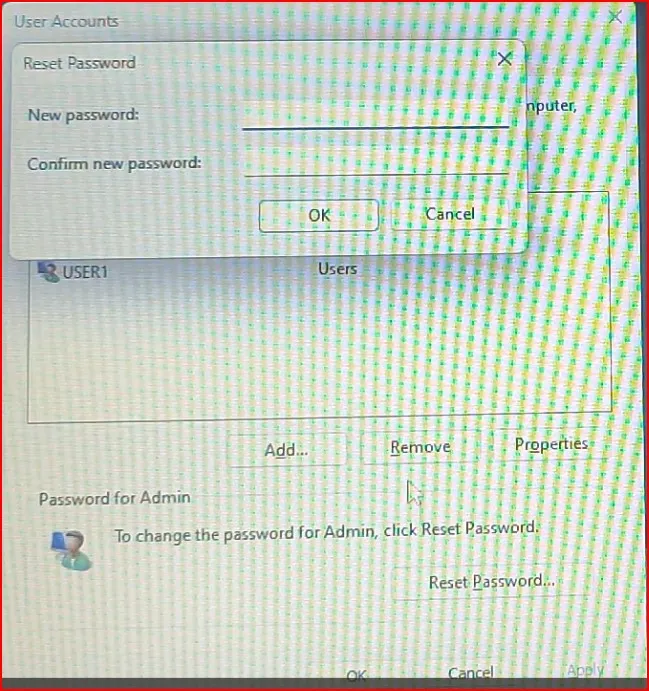
Then click on Ok and close the command prompt window.
After that restart the pc again. Once restart you will be able to sign into your windows.
Step5: Restore the Utilman Executable
For security purposes, it’s important to restore the original Utilman file. Here’s how:
- Restart your PC and access the recovery options again by holding Shift while clicking Restart.
- Open the Command Prompt from the Advanced Options menu (as mentioned above).
- Navigate to the System32 directory:
cd C:\Windows\System32
Press Enter.
- Now, replace the Command Prompt we added with the Utilman,the original Utility Manager file. by typing:
ren Utilman.exe cmd.exe
Press Enter.
Now restore the original Utilman executable by renaming it. Type:
ren Utilman_old.exeUtilman.exe
Press Enter.
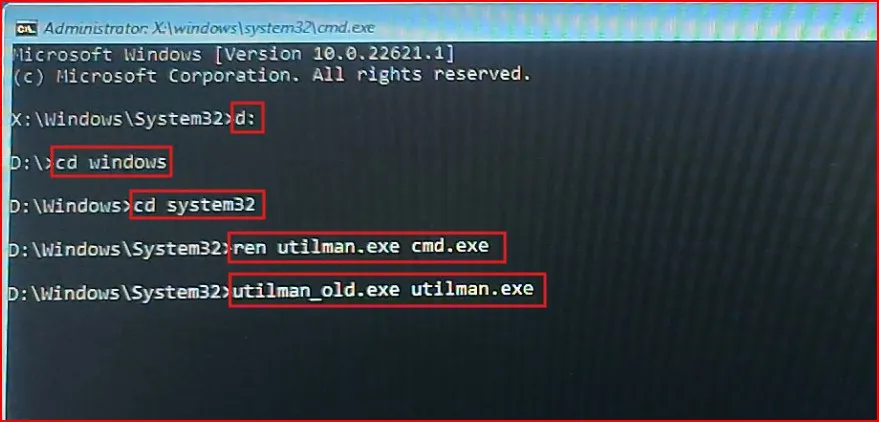
5. Close the Command Prompt and restart your PC. Everything is now back to normal!
Want a visual guide? Don’t miss our YouTube video where we explain every step in detail. Click here to watch now!
Is This Method Safe?
Yes, the Utilman procedure is safe when done properly. Though the original Utilman executable must be restored to prevent others from misusing the issue, this is an important concept to understand. This method is best for personal use and is not for intravenous applications to crack someone else’s system security without their knowledge.
While troubleshooting login issues, you might also want to check how to generate a System Performance Report on Windows 11 to ensure your PC is running optimally after resetting your password.
Final Thoughts
When you’re locked out of your PC, reset Windows 11 login password with the Utilman method is an effective way to regain access. If you go through these steps one by one, following the screenshots you’ll be able to recover your account without losing any of your files. Always restore Utilman, though.
If this guide helped you, please feel free to share with anyone else who may need to reset password. And be sure to leave any questions or further assistance requests in the comments below
Frequently Asked Questions (FAQ)
Is this method applicable to a Microsoft account?
No, this trick works only for local accounts. If you forgot your Microsoft account password, you have to reset password on that account online as part of Microsoft’s recovery process.
What if I am unable to use recovery options?
Unfortunately, if you can’t access recovery options, you may need to use alternative methods like installation media or professional help.
Will this delete my files?
No, this only reset password. Your files and data are preserved.
Is there a way to prevent password issues in the future?
Yes, you can set up a password hint, enable password less sign-in options, or use a password manager to securely store and retrieve your passwords.
Can I use this method on a shared PC?
This method is intended for personal PCs. If you’re using a shared or workplace PC, resetting the password without proper authorization may violate policies.