
Learn how to generate a System Performance Report on Windows 11 with this step-by-step guide. Optimize your PC’s performance quickly and easily!
Want to know how well your computer is running? Would you want to know what’s causing it to slow down or how to optimize it for better performance? Windows 11 users are fortunate in this regard! System Performance Report generation can provide you with an overview of your system health and help you troubleshoot errors. We will guide you through it step by step in this blog post. Don’t fret; it’s less complicated than you think!
What’s a System Performance Report?
System Performance Report is an in-depth analysis of your computer performance. It’s a leftover feature from Windows 11 which keep you in check to know how your system is performing in regard to CPU usage, memory usage and other metrics. The report can indicate potential trouble spots, like hardware bottlenecks or software that needlessly slows things down.
By generating this report, you can:
- Get a glimpse into your system performance.
- Find aspects which could be enhanced.
- Troubleshoot particular performance problems.
And the best part? You can do this without any third-party software. The built-in tool Performance Monitor on Windows 11 makes this job very easy.
System Performance Report: Why to Generate It?
Learning how your PC acts under various scenarios can be extremely useful. Creating a System Performance Report lets you look for bottlenecks—determining if your CPU, RAM, or something else is making your PC feel slow. It also helps you plan upgrades by showing whether you need more RAM, a faster processor or other hardware enhancements. But, the report can also help you get better efficiency from the system hardware by finding unneeded background processes or misconfiguration of the settings, so you can adjust it for optimal performance.
How to Open the Performance Monitor in Windows 11
The Performance Monitor is the tool we’ll use to generate the report. There are two simple ways to open it:
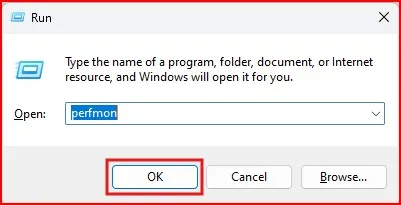
Method 1: Use the Run Command
You would press Win + R on your keyboard. This opens the Run dialog box. Type perfmon in the box and hit Enter
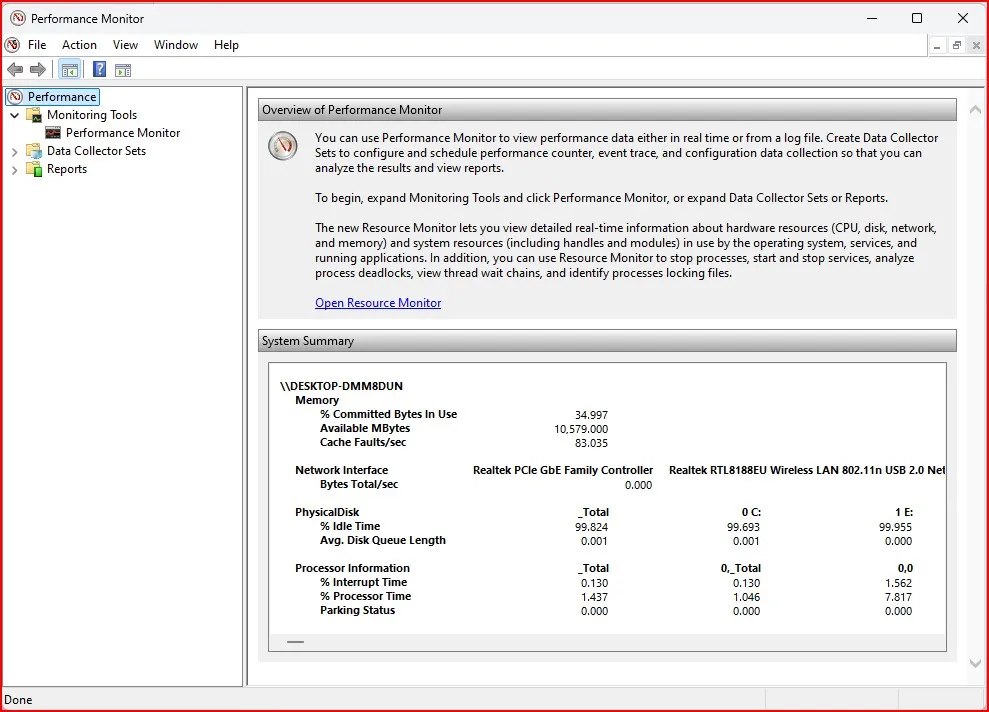
That should open the Performance Monitor window.
Method 2: Search in the Start Menu
Press the Windows key or click on Start.Type Performance Monitor into the search bar.
Once the app appears in the search results, click on it.
Both methods work great, so use whichever one is easiest for you.
Steps to Generate a System Performance Report
Once you have the Performance Monitor open, follow these steps to generate your report:
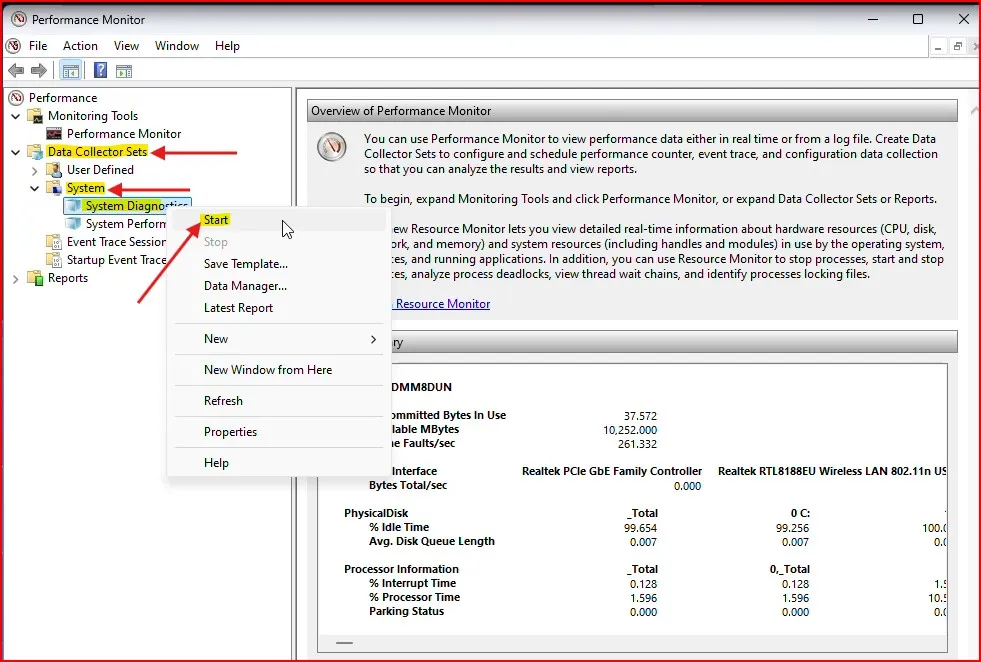
Step 1: Access the System Diagnostics Report:
In the Performance Monitor window, click on the Data Collector Sets option from the left-hand menu. Under it, click on System. There’ll be an option called System Diagnostics. You can right-click it and choose Start.
Step2: Process the Support Report Generation.
It takes roughly 60 seconds to produce the report. In this period, the tool gathers information about your system’s performance, such as:
- CPU and RAM usage
- Disk activity
- Network activity
- Overall system health
Step 3: View the Report
After the report is prepared, return to Reports section in the left-hand menu. You will need to go to System > System Diagnostics. Now click on the report you just created. It will be marked and listed with a timestamp.
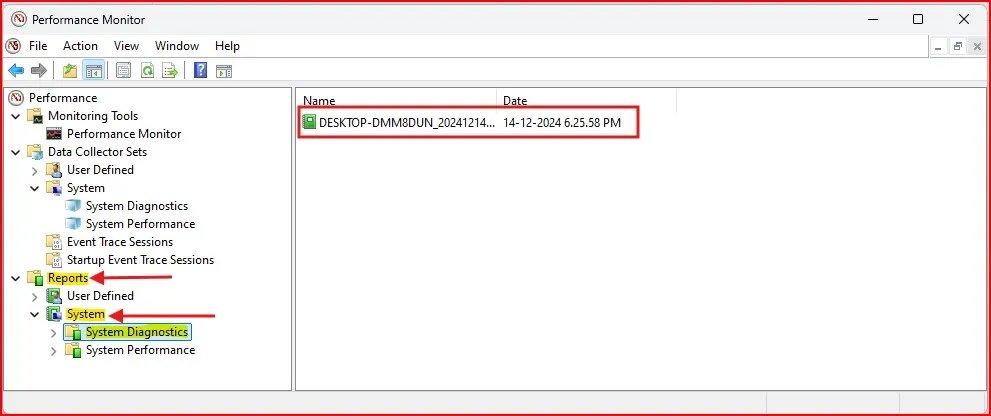
You will also be able to get detailed insights into your computer’s performance and any warnings or issues that require action.
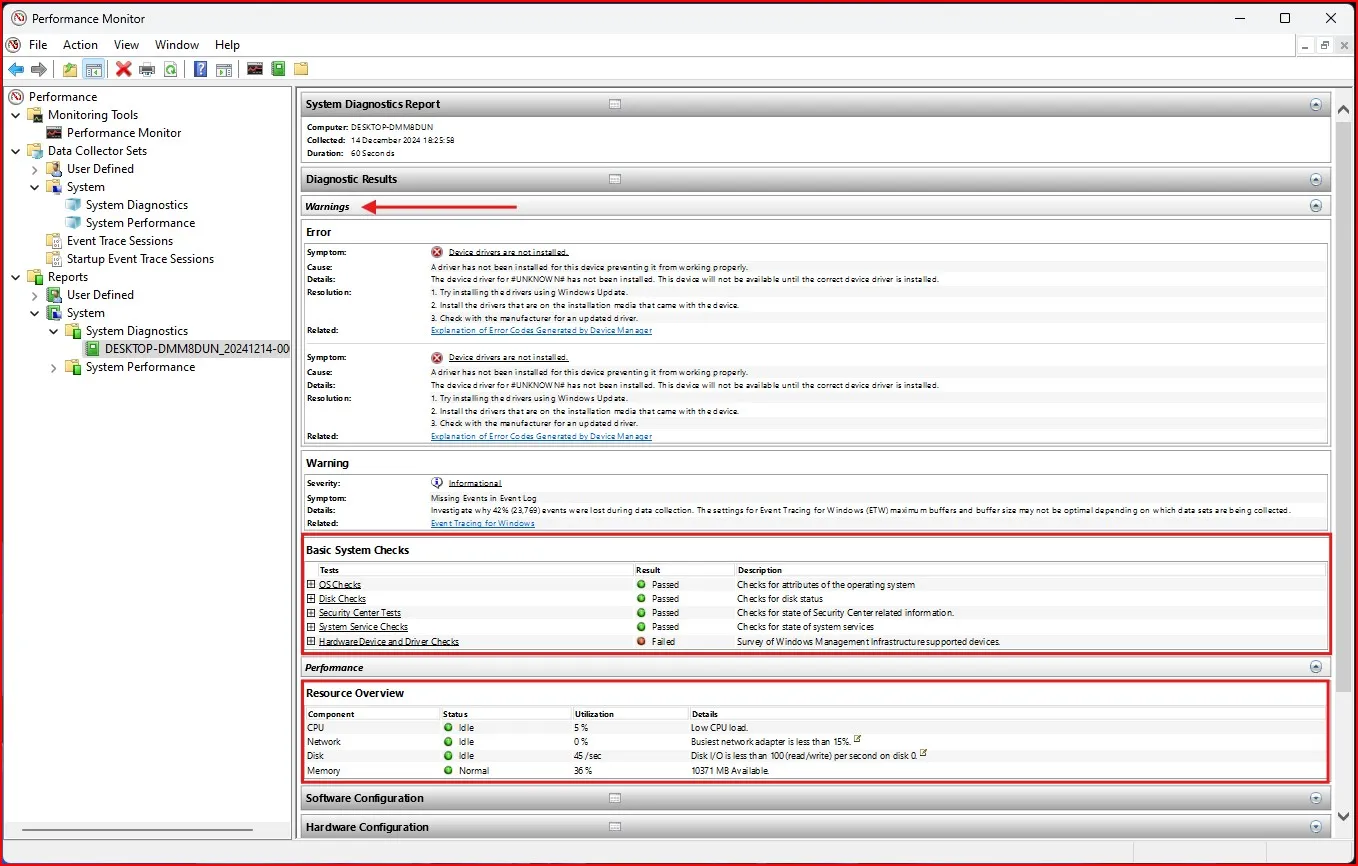
What to Watch for in the Report
Underneath a lot of information is the System Performance Report. Consider checking the following key areas:
CPU Usage: High CPU usage might indicate some of the programs are using excessive processing power.
Memory Utilization: If you’re struggling with your RAM usage on a regular basis, it could be time to upgrade or close some apps.
Disk Activity: Excessive read/write activity might point to problems with your hard drive or SSD.
Network Statistics: Do some apps draw too much input, especially if your connection is dragging?
Additional Tips
Run the report regularly: This could help you to monitor performance over time.
How to resolve performance issues: Update your Windows. Sometimes a simple Windows update can restore your performance.
Turn off unnecessary startup programs: Use the Task Manager to stop programs from launching when your PC starts.
Also Read: How to Check Disk partition Style MBR or GPT in Windows
Final Thoughts
How to Generate a System Performance Report on Windows 11? Whether you’re diving into a particular problem or simply wanting to learn more about your system’s health, this report is a great read.
So give it a try, go ahead. Once you run the report, you’ll get a treasure trove of info at your fingertips on how to make your PC run better and faster. If you liked this guide, you can share it with friends or leave a comment below. We would love to hear how the System Performance Report went for you!
Frequently asked questions (FAQs):
Can I run a System Performance Report on older versions of Windows?
The Performance Monitor tool is also present in the older versions such as the windows 10 and Windows 8 also. The steps are quite similar.
Do I need admin privileges to generate the report?
You probably do need administrative rights for some diagnostics.
How often do you advise to generate the report?
When troubleshooting a problem, create the report each time you make a significant change. Running it every once-a-month is a good practice though.
Can I export the report for further analysis?
Yes, you can save the report by right-clicking it in the Performance Monitor and selecting the export option. This allows you to share or analyse the data using other tools.
Is there an alternative tool for generating performance reports?
Yes, third-party tools like HWMonitor and Speccy can provide similar performance insights with additional features for advanced users.