
Learn how to disable RUN command on Windows 11 using two easy methods: Group Policy and Registry Editor. Secure your PC step-by-step today!
In Windows, one useful command is a RUN command, which allows you to open applications, settings or system tools pretty quickly by typing in commands. But there are occasions where you don’t want to have it enabled for certain reasons, including attempts to protect important system applications or commands from being used by those without authorization. So if you want to learn how to disable RUN command on Windows 11 then you are just at the right place.
In this guide, we’ll present you two simple methods to turn off the RUN command on Windows 11, via the Group Policy Editor as well as the Registry Editor. Don’t worry if you don’t know much about tech — we’ll walk through it step by step. Within a few minutes, you will learn how to avoid cyber attacks on your system.
Why Disable the RUN Command
Before going into the steps, let us first understand why you would want to disable the RUN command in Windows 11:
- Prevent Misuse/Unauthenticated Users: The RUN command can give people access to some of your system’s powerful tools and settings, which can become a danger in the wrong hands.
- Improved Security: If you share your PC with others, disabling it provides an additional protective layer.
- Access Control towards the System: If you are an administrator handling more than one device, then disabling the RUN command can restrict the users from making unwanted changes.
Having covered the why, now time for the techniques.
Method 1: Disable RUN Command using Group Policy Editor
If you want to disable the RUN command on Windows 11, then using the Group Policy Editor is one of the simplest ways to do so. Here’s how you can do it:
Step 1: Launch the Group Policy Editor
Open the RUN dialog press Windows + R on the keyboard. Another straightforward way to open the RUN box on Windows 11 is by Right-Click on the Start Menu and from the list of options that appears, click on Run to open the RUN dialog box.
Type gpedit.msc and press Enter.

Doing so, will bring up the Local Group Policy Editor.

Step 2:Navigate to the RUN Command Setting
In the Group Policy Editor window, navigate here:
USER CONFIGURATION>ADMINISTRATIVE TEMPLATES>START MENU AND TASKBAR
Then in the right-hand pane, locate a policy named Remove Run menu from Start Menu.

Step 3– Make sure the Policy is Enabled
Now double click on Remove Run menu from Start Menu to open up its properties. In the pop-up window, choose Enabled. Click Apply and OK.
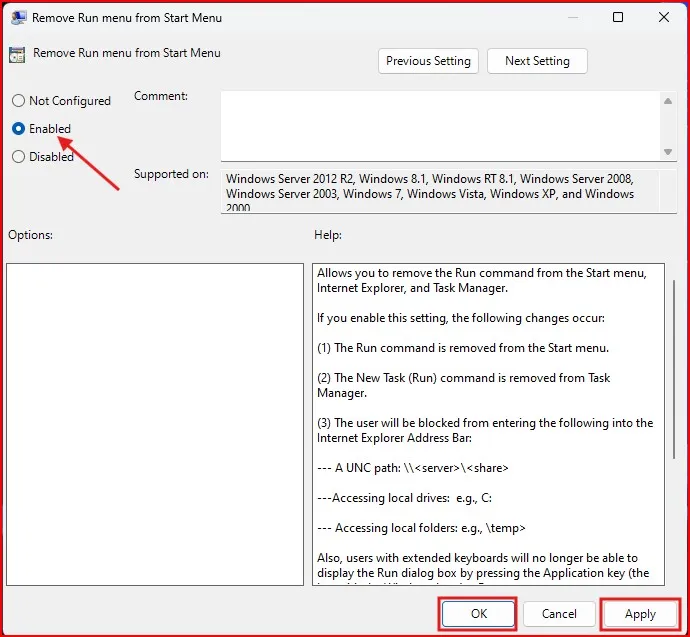
Step 4: Restart Your PC
Reboot your PC for the changes to take effect. After restarting, the RUN command has will be turned off and the users will not be able to access it.
Regaining Access to the RUN Command
To restore the RUN command, repeat the steps above and then choose Not Configured or Disabled in Step 3. Then, restart your PC.
Method 2 – Disable the RUN Command (Using Registry Editor)
If you don’t have access to the Group Policy Editor (e.g., if you’re using the Home edition of Windows 11), you can use the Registry Editor to disable the RUN command. Using the Registry Editor with caution as changes to it can impact your system.
Step 1: Start the Registry Editor
Open the RUN ( Windows + R ) dialog box. Type regedit followed by Enter.

This will launch the Registry Editor.

Step 2: Go to the Policy key
In the Registry Editor, go to the following path: HKEY_CURRENT_USER\Software\Microsoft\Windows\CurrentVersion\Policies\Explorer
· If the Explorer key doesn’t exist, you’ll need to create it:
- Right-click on Policies in the left pane.
Select New > Key and name it Explorer.
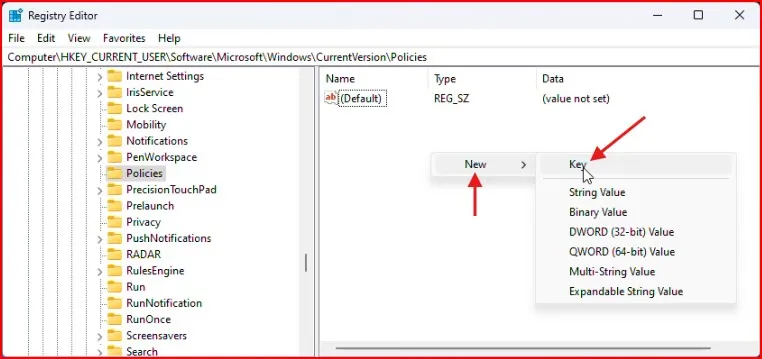
Step 3: Add New DWORD Value
The left pane of the registry editor displays the hierarchy of records in a form of a tree. Right-click on the Explorer key in the left pane. Select New > DWORD (32-bit) Value. Name the new value NoRun.

Step 4: Modify the Value
Double-click on NoRun to open its properties. Set the Value data to 1 and click OK.

Step 5: Restart Your PC
Exit the Registry Editor and reboot the machine. The RUN command will be disabled post restart.
How to Enable the RUN Command Again
To re-enable the RUN command, repeat those steps and give the `NoRun` Value data to `0` or delete the `NoRun` key entirely. Then restart your PC.
Comparing the Two Methods
Here is a quick comparison to help you choose which method you can use:
| Method | Ease of Use | Availability |
| Group Policy Editor | Easy | Only available on Pro/Enterprise editions |
| Registry Editor | Moderate | Available on all editions |
Group Policy Editor is the easiest and safest option if you have access to it. Of course, the Registry Editor will serve you equally well if you are running the Home edition of Windows 11.
If you’re looking for additional ways to enhance your Windows 11 experience and improve security or browsing, you might also find our guide on How to Set Up AdGuard DNS on Windows 10 & 11 for an Ad-Free Browsing Experience useful. It walks you through configuring DNS settings to block ads and trackers, ensuring a safer and faster online experience
Final Thoughts
In this guide, we will show you how to disable the Run command on your Windows 11 computer to secure your device and prevent users from accessing sensitive utilities. The process is simple, and it only takes a few minutes to use either the Group Policy Editor or the Registry Editor.
If you use the RUN command to access system tools, just re-enable options if you don’t want RUN to be disabled anymore, particularly if you are troubleshooting.
If you think this guide was useful, do share it with your friends. Please stay tuned for more simple and practical tech tutorials.
Frequently Asked Question (FAQ):
Should I Disable RUN Command?
In shared or public environments, it is common to disable the RUN command so that unwanted or unauthorized access to sensitive system tools or settings is prevented. It is also useful for administrators managing several devices to reduce user control.
The RUN command can be disabled on Windows 11 Home Edition?
Yes, you can hide the RUN command on Home Edition as well but the Group Policy Editor is only available in Pro versions, so you need a Registry Editor method to do this.
How to enable the RUN command again, if I want?
To re-enable the RUN command
For the Group Policy Editor, set the policy to Not Configured or Disabled and restart your PC.
For the Registry Editor, set the NoRun value to 0 or delete the NoRun entry and restart your PC.
Does RUN command disable impacts other features in Windows 11?
No, even if you disable the RUN command, it will only restrict the user from opening the RUN dialog box. And other features and functionality such as the Start menu and Task Manager will remain unaffected.
Can I temporarily disable the RUN command for a specific user?
As you can edit policies under User Configuration in the Group Policy Editor or by editing the registry keys for the required user account, Yes, You can apply the settings for specific user accounts.
Is there a quick way to check if the RUN command is disabled?
Press Windows + R normally. If the dialog doesn’t show or restriction message appears, then RUN command is disabled.