
AdGuard DNS use to block all unwanted ads appear in your pc. We all hate ads. These annoy us, spoil browsing experience and consume memory of PC. Previously, if you have been using the Chrome browser for a longer period of time, then you might know about ad blocker extensions. You can use ad blockers to easily block ads on the web browser. But what if I told you to install system-wide ad-blocker on Windows 10? You can do that if you configure the Adguard custom DNS actually.
What is AdGuard DNS?
AdGuard DNS is a failsafe method to block ads on the Windows OS. This is free and simple to use you dont have to install any DNS client to get rid of the ads only by following a few steps.
This protection includes personal data that anyone who cares about privacy can unlock with AdGuard DNS. It eliminates all the trackers and analytics systems from the sites you visit. Now, let us explore some of the highlighted features of AdGuard DNS
Features of AdGuard DNS
Now, let us take a look at the main features of AdGuard DNS.
- Deny advertisements from every location, even applications, programs, video games, websites, etc.
- It strips websites of all the trackers and analytics systems on the shelf.
- The family protection provides a fully-blocked access to all the adult websites.
- AdGuard is portable, free of cost and no installation required.
I’ve been using AdGuard DNS for a while now, and I must say, it’s been a game-changer. No more annoying pop-ups when I’m trying to read an article!
How it differs from traditional ad blockers
Unlike browser-based ad blockers, AdGuard DNS works at the network level. This means it blocks ads not just in your browser, but in all your apps too. I remember when I first set it up, I was surprised to see ads disappear from my weather app – that was a nice bonus!
How to Configure AdGuard DNS on Windows 10
AdGuard DNS doesn’t have any special system requirements. If your Windows 10 or 11 device can connect to the internet, you’re good to go. It’s that simple! Just do the following to configure this on Windows 10.
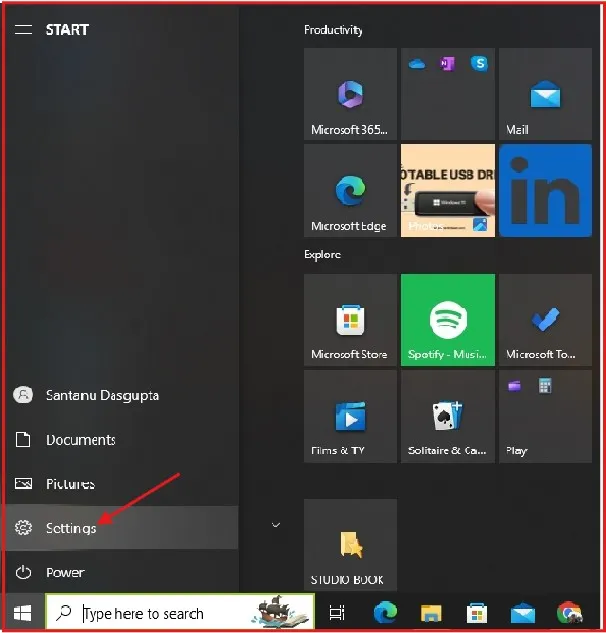
Step1: So firstly, Click on the Settings app from the Start Menu.
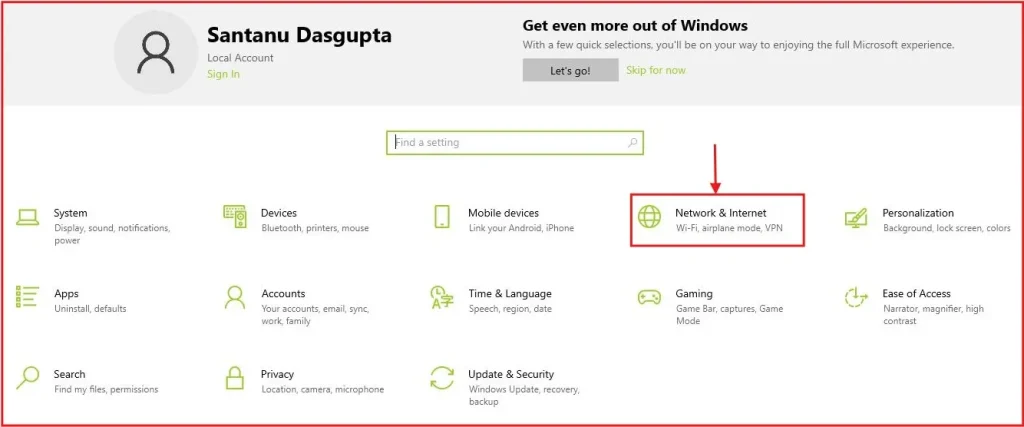
Step2: In the Settings window, click on Network & Internet.
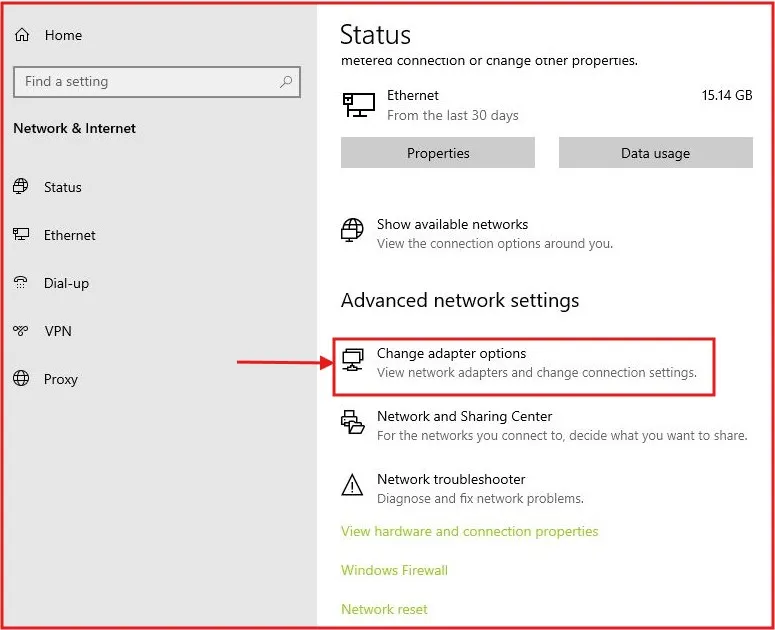
Step3: Scroll down and click on Change Adapter Options. This will open a new window with your network connections.
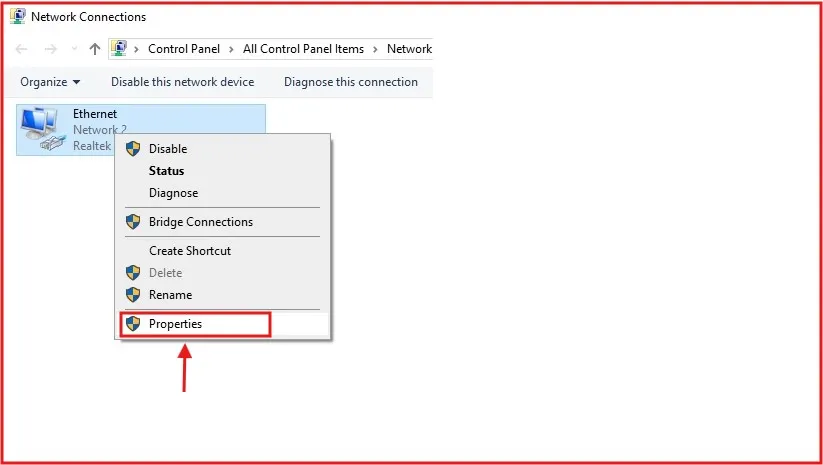
Step4: Right-click on your active connection (Wi-Fi or Ethernet) and select Properties.
Step5: Locate the Internet Protocol Version 4 (TCP/IP) and hit Properties.
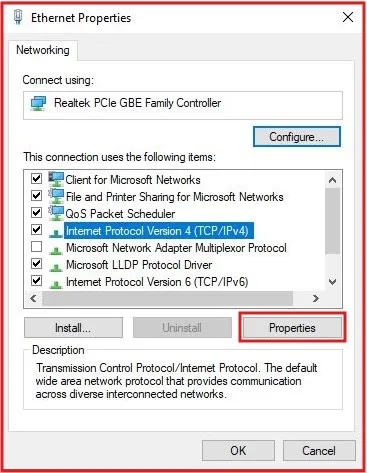
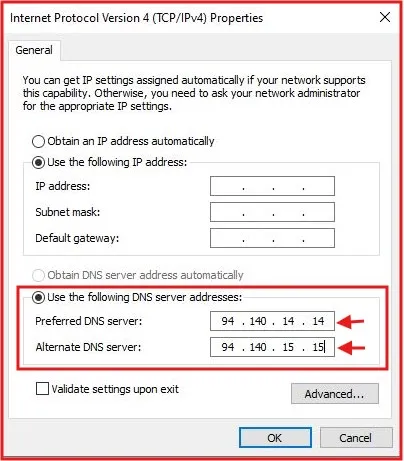
Step6: Here’s where the magic happens. Enter these DNS addresses:
To Block Ads:
Preferred DNS server: 94.140.14.14
Alternate DNS server: 94.140.15.15
To Block Ads + Adult Sites:
Preferred DNS server: 94.140.14.15
Alternate DNS server: 94.140.15.16
After that, Hit on OK button and you’re done! I remember feeling a bit nervous the first time I did this, but trust me, it’s easier than it looks.
How to Configure AdGuard DNS on Windows 11
The process of setting up DNS on Windows 11 is a little different from that on Windows 10. Thus, follow these procedures to eliminate advertisements with DNS AdGuard windows eleven
Step1: Open the Settings app by clicking the Start Menu and selecting Settings.
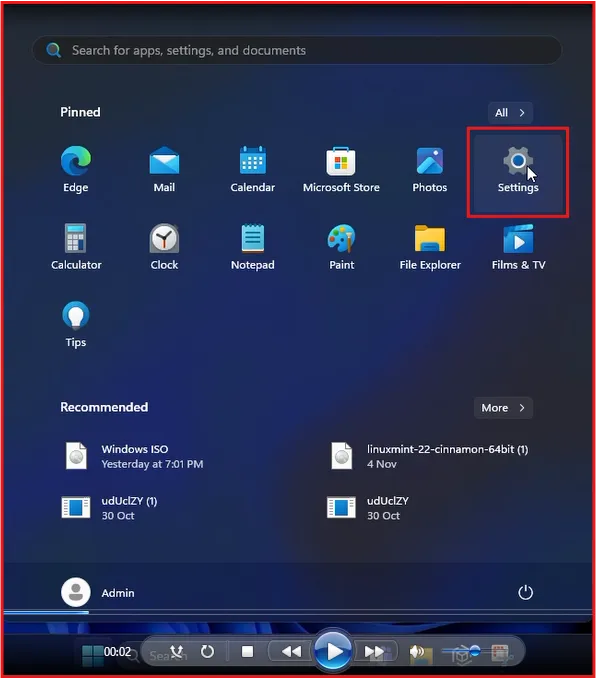
Step2: Now the Settings app will open, switch to Network & Internet, then select Properties.
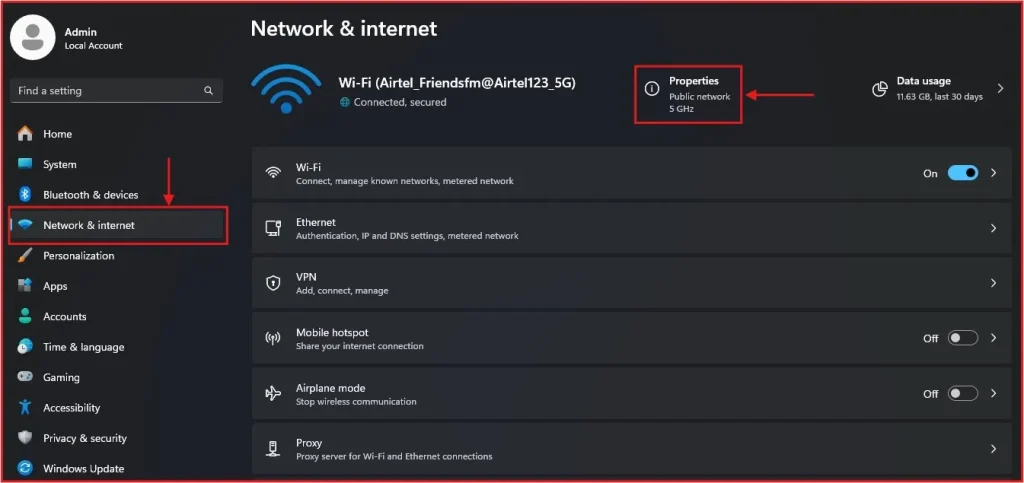
Step3: In the network properties, scroll down to DNS server assignment and click Edit.
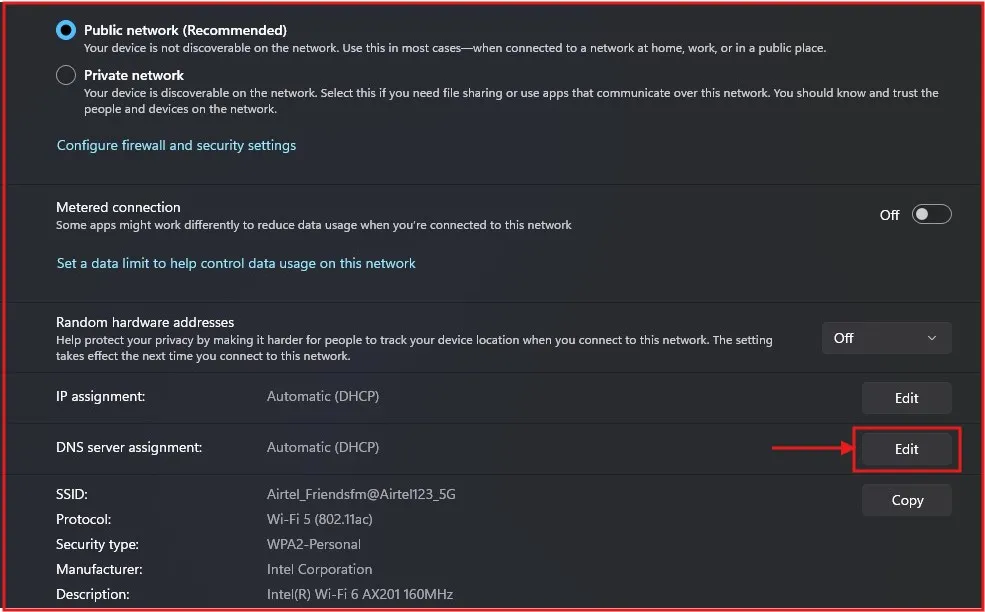
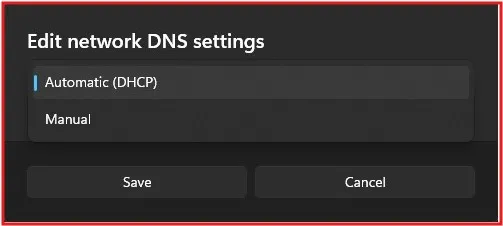
Step4: In the edit menu, choose Manual from the dropdown options.
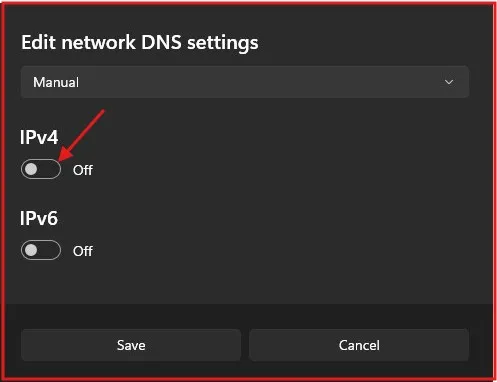
Step5: Toggle on IPv4 (or IPv6 if preferred).
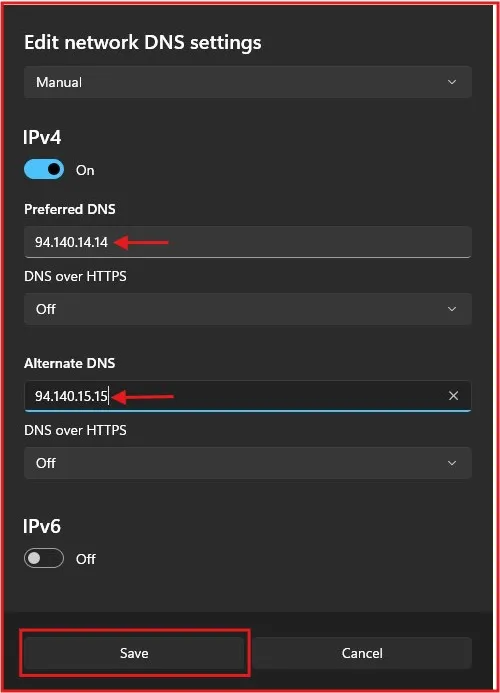
Step6: On the Preferred DNS Server, add 94.140.14.14. On the Alternate DNS Server, add 94.140.15.15. Once done, click Save.
I personally use the default option, but the family protection is great if you have kids at home. To use family protection, just replace the DNS addresses with:
- 94.140.14.15
- 94.140.15.16
It’s that simple to create a safer browsing environment for your family.
Another way to to Block Adult Sites on PC (2023) | 2 Easy Methods!
Advantages of AdGuard DNS:
Setting up AdGuard DNS on Windows 10 or 11 will make everything run smoothly — all apps and games (not only the browser) will be ad-free. It not only stops trackers but also protects your personal data and with the family protection option you can also make sure that younger users have a safer Internet.
Conclusion:
If you want to block ads system-wide on Windows 10 and 11, then setting up AdGuard DNS is an easy solution. The benefits are you get faster browsing, trackers that intrude upon your work can be blocked, and for families there is even protection from unwanted software installation. Try this DNS now and get a clean, fast, and private internet right away.
Frequently Asked Questions (FAQs)
What is AdGuard DNS?
AdGuard DNS is a public DNS service that blocks ads, trackers, and adult content on your entire device.
Is this DNS free to use?
Yes, AdGuard DNS is completely free. It’s one of the things I love most about it!
Do I need to install any software for this DNS?
No, AdGuard DNS requires no software installation—just a quick setup in your network settings.
Will AdGuard DNS block ads in apps and games?
Yes, it blocks ads across your system, including in apps, games, and browsers.
Can I use this DNS alongside a VPN?
You can, but it might not work as expected. VPNs often use their own DNS servers, which could override AdGuard DNS.
Can this DNS improve my privacy?
Yes, it blocks online trackers, protecting your personal data.
Will AdGuard DNS slow down my internet connection?
In my experience, it actually slightly speeds up browsing because it’s blocking data-heavy ads.
How does AdGuard DNS handle HTTPS traffic?
AdGuard DNS can filter HTTPS traffic, but it doesn’t decrypt it. Your privacy is safe!
Can I temporarily disable DNS AdGuard if needed?
Absolutely! Just switch your DNS settings back to automatic. It’s easy to turn on and off as needed.
How do I turn off this DNS AdGuard?
To disable it, simply remove the AdGuard DNS addresses from your network settings and restore your previous DNS.