
Eager to explore the exciting features of the new Windows 11 24H2 update now? Downloading the official ISO image is the safest and most reliable option to either upgrade, or perform a clean install of your system. In this guide, I will take you step by step through a very simple way to download the ISO image from within Microsoft’s site as effortlessly and safely as possible!
Why Go for Official Method?
The first step you should take when downloading operating system files is to know the source. Why you should always go to Microsoft official page:
Security: No exposure to malicious files and viruses usually found while downloading third party applications.
Authenticity: Windows 11 ISO image (unmodified and genuine).
Current Version: With all the current updates, Microsoft offers the newest version.
With the official way you make sure that everything is ok, and there will not be any problem with installation.
System Requirements and Compatibility Check
- Processor: 1 GHz or faster with at least 2 cores on a compatible 64-bit processor or System on a Chip (SoC).
- RAM: 4 GB or more.
- Storage: 64 GB or larger storage device.
- System Firmware: UEFI, Secure Boot capable.
- TPM (Trusted Platform Module): Version 2.0.
- Graphics Card: DirectX 12 compatible with WDDM 2.0 driver.
- Display: High-definition (720p) display, greater than 9” diagonally.
Tip: Use the Windows PC Health Check app to see if your computer can run Windows 11 24H2. It’s a simple tool that gives you a clear yes or no answer.
Benefits of Clean Installation vs Upgrade
A clean installation gives you a fresh start – like moving into a new house that’s completely empty. You’ll avoid old software conflicts and get better performance. However, upgrading keeps your files and apps, which is more convenient if you don’t want to reinstall everything.
How to Download Windows 11 24H2 ISO
So, here are 3 simple steps to follow:
Step 1: Official Microsoft Download Page
Open your browser and go to the Microsoft Download Page
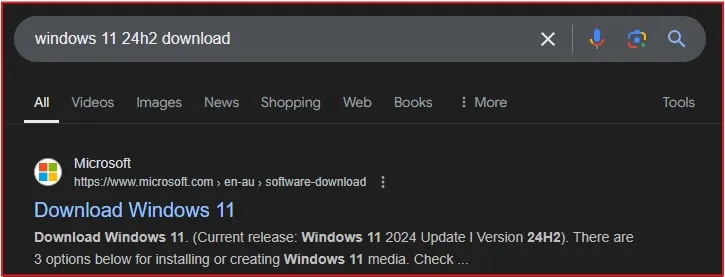
Scroll down and you will get the Download Windows 11 Disk Image ISO section.
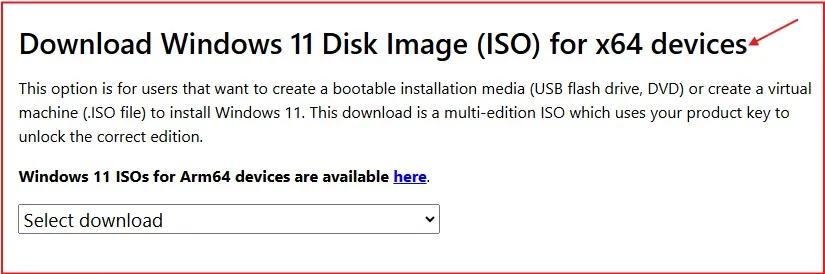
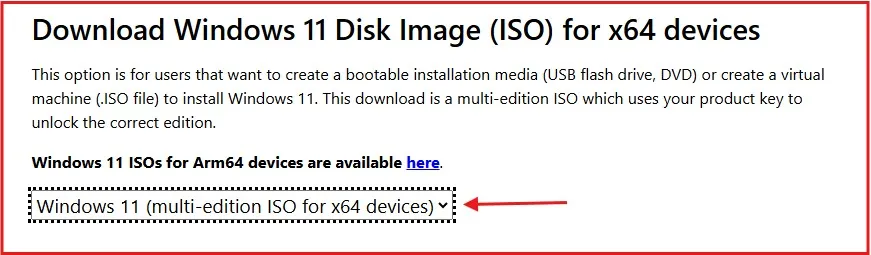
Click on Select Download and from the drop-down select Windows 11 (Multi-edition ISO for x64 devices).
Once select, click on the Download Now button.
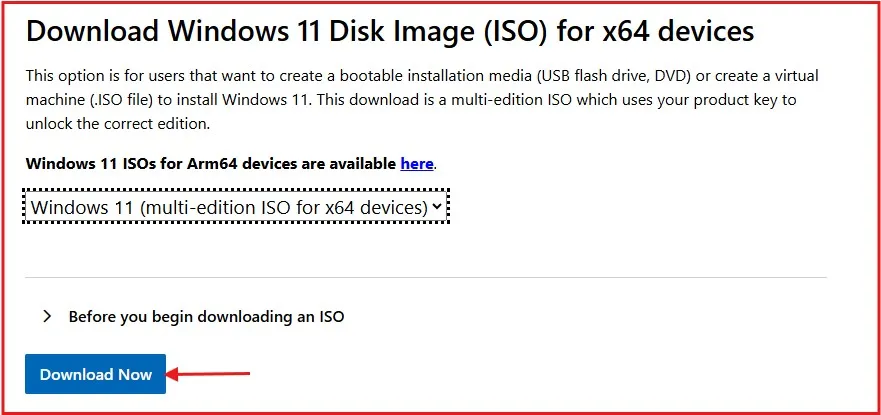
Now, give the site a few moments to validate your request.
Step 2: Choose Version and Language
On the next screen, choose your preferred product language and click Confirm.
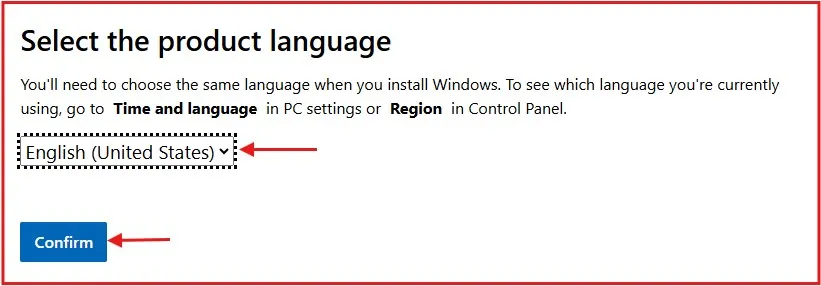
Step 3: Begin with the Download of Windows 11 24H2 ISO File
Once confirmed, a download link will be generated for you. Simply click the 64-bit Download button to start the process.
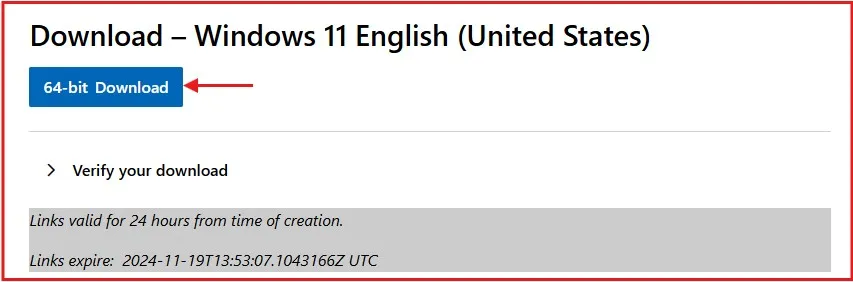
The ISO download will start automatically, so make sure to save it in a location where you can quickly access it later.
How to Use the Downloaded Windows 11 24H2 ISO
Let us look at how to use it after you have downloaded the ISO file
Make a Bootable USB Drive: Using tools such as Rufus or the Windows Media Creation Tool to boot from a USB.
Install Windows 11: Restart your computer (or click on Start- > Power- > Restart), boot to USB drive and follow the instructions shown on the screen to install.
In the case of upgrades, you can just mount your ISO on top of your existing Windows and run setup.
To install Windows 11 using the ISO, you’ll need to create a bootable USB drive. If you’re unsure how to do this, check out my detailed guide: Bootable USB: 3 Easy Steps to Create a Windows 11 Bootable Drive Using the Media Creation Tool. This step-by-step tutorial will walk you through the entire process effortlessly.
To install Windows 11 using the ISO file, you’ll need to create a bootable USB drive. If you prefer using Rufus, check out my step-by-step video tutorial here:
Helpful Guide for Smooth Download Windows 11 24H2
With that said, here are some tips to make everything perfect:
Have a look at your internet: A reliable and high-speed connection is the key to constantly smooth streaming.
Check for Disk Space: Make sure to have at least 8GB of free space on your PC (for the ISO file).
Download Manager: If your internet is not stable, a download manager can continue the downloads from last breakpoint if interrupted.
Features of Windows 11 24H2— What You Need to Know
This update comes with full feature set. The following are the main highlights of the update:
- Faster boot process, better multitasking.
- Improved visuals and a streamlined interface.
- Exclusive to Copilot+ PCsAdvanced features (Like Live CaptionsCocreator in PaintWindows Studio EffectsSuper Resolution in Photos and Much More)
- Improvements in native apps like File Explorer and Photos.
- Improved privacy settings for Wi-Fi network access
- Support for Bluetooth LE Audio extensions for hearing devices
- Improvements to the System tray & Taskbar
- A simplified File Explorer
- Intelligent management of your PC’s power
- QR codes for joining and sharing Wi-Fi networks
- Features and patches to protect your system in as well as it gets.
Conclusion
Downloading the official Windows 11 24H2 ISO file is quick, safe, and easy when you follow these steps. Remember, staying genuine with your software ensures the best performance and security for your PC.
If you found this guide helpful, let me know in the comments below. Don’t forget to share this post and help others simplify their Windows upgrade journey!
Frequently Asked Questions (FAQs):
Can I upgrade directly from Windows 10?
Yes, if your PC meets the requirements. The upgrade process keeps your files and apps intact.
Do I need a product key to install Windows 11 24H2 from the ISO?
If you’re upgrading from an activated Windows 11 version, your license will carry over automatically. For fresh installations, you may need to enter a valid product key during or after the installation process.
What happens to my files during installation?
A clean install erases everything, while an upgrade keeps your files. Always back up regardless of your choice.
How long does the download and installation take?
Download time depends on your internet speed. Installation usually takes 30-60 minutes on modern PCs.
Can I revert to my previous Windows version?
Yes, within 10 days of upgrading, you can go back through Windows Settings > System > Recovery.
Is downloading Windows 11 24H2 ISO from third-party websites safe?
No, it’s not recommended. Third-party websites may provide altered or malicious ISO files. Always download the ISO directly from Microsoft’s official website for security and authenticity.
How much storage space do I need to download and install the Windows 11 24H2 ISO?
For Download: Approximately 5–6 GB of free disk space is required for the ISO file.
For Installation: A minimum of 64 GB of storage is needed, but Microsoft recommends at least 128 GB for a smooth experience.
How do I check if my PC is compatible with Windows 11 24H2?
Use the PC Health Check Tool from Microsoft’s official website. It will scan your PC and provide a detailed compatibility report.