
Drivers are essential for your Windows PC to communicate with its hardware. But when they’re outdated, your system can slow down or even crash. The good news! To Update drivers in Windows PC is straightforward, and I’m here to guide you through the process step by step!
What Are Drivers and Why Do They Matter?
Consider drivers as translators for your PC. Drivers have information and instructions that help hardware (like your graphics card, a printer, or a sound system) communicate with Windows. Without them, your devices would not function at all!
For example:
• You could lose sound if your audio driver is out of date.
• If your graphics driver is not up to date, games and videos might lag or crash.
Drivers are the unsung heroes behind your PC’s smooth performance, and ensuring they’re kept up to date makes sure your hardware runs as efficiently as possible and is compatible with the latest software.
When to Update Drivers?
You don’t have to keep updating drivers weekly, but there are certainly times you must:
1. When Something Stops Working: If your keyboard, mouse or some other device suddenly refuses to respond, update drivers could solve the problem.
2. Performance Problems: Frequent crashes, screen freezes, or poor game performance can be signs of outdated drivers. Update drivers could solve the issue.
3. After Major Windows Updates: Major updates of Windows often require updated drivers for compatibility.
Different Methods to Update Drivers
There are multiple methods for update drivers on your Windows PC. Each method has its own advantages. Here’s a breakdown:
Method 1: Through Windows Update
On the simplest level, especially for beginners, updating drivers via Windows Update is the most straightforward approach to use. update drivers are part of the routine system updates Microsoft releases to maintain compatibility and security.
- Open the Start menu and type “Windows Update.”
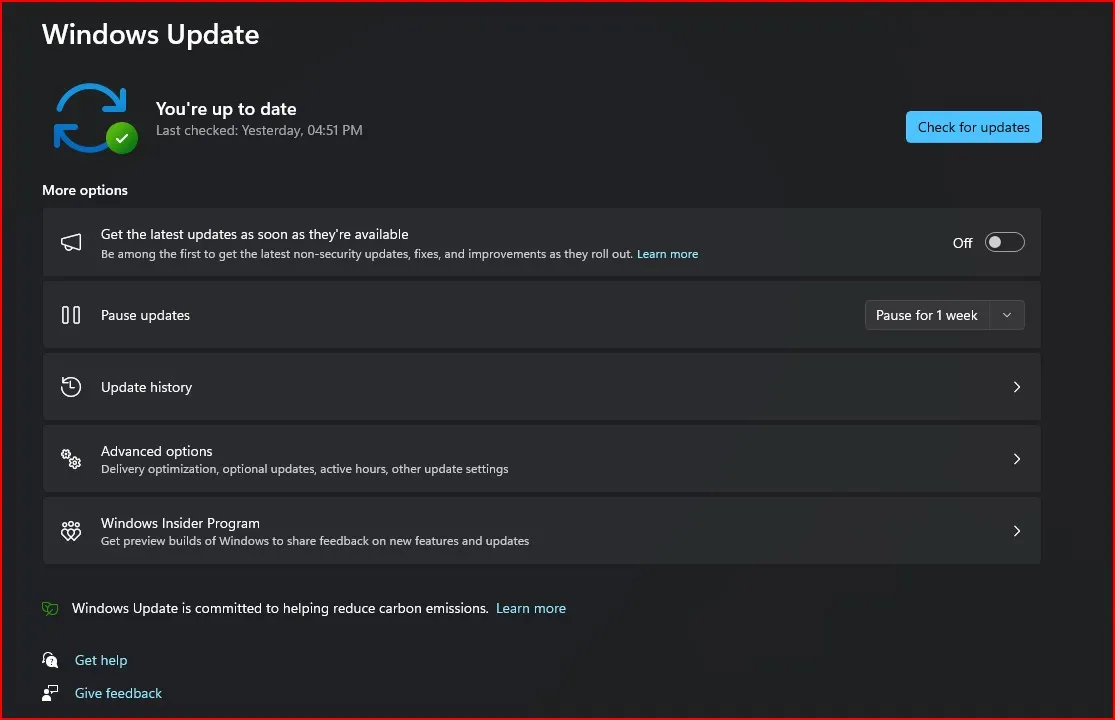
- Click on Check for updates.
- If updates are available, Windows will automatically download and install them, including any driver updates.
However, note that not every driver will be offered via Windows Update. For more recent family of drivers like a graphics card driver for gameplay, sometimes you’re going to have to get it another way.
Method 2: Using Device Manager
The Device Manager is a native utility of Windows that provides tools to manage the hardware of your PC and their drivers. It puts you in the driver’s seat for checking and update drivers individually as needed.
- Press Win + X and select Device Manager.
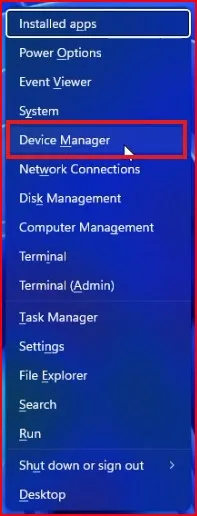
- Find the hardware you want to update (e.g., Display Adapters for your graphics card).
- Right-click the device and choose Update driver.
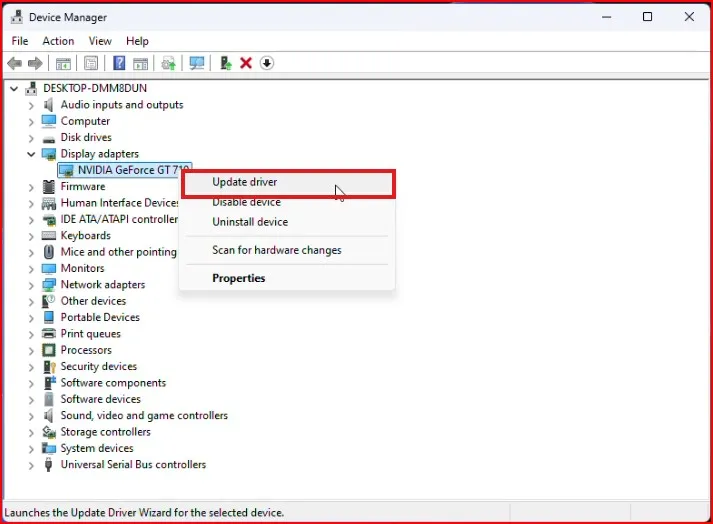
- Select Search automatically for drivers.
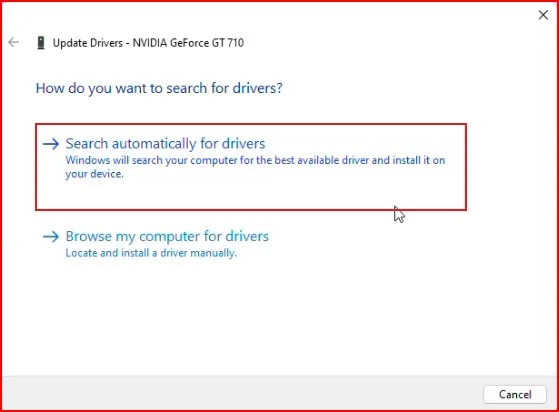
- If an update is available, follow the on-screen instructions.
Although Device Manager has the option to look for updated drivers online, it does not always find the more recent version. If not, you’ll need to use the manual download method.
Technique 3: Download Drivers Manually
If you do want to make sure you’re downloading the most up-to-date driver version possible, downloading drivers from the manufacturer’s website respectively is the way to go. This method provides you the exact driver made for your hardware and Windows version.
- Identify your hardware (e.g., NVIDIA graphics card or HP printer).
- Go to the manufacturer’s official website.
- Search for your product model.
- Download the latest driver for your Windows version.
- Run the installer and follow the prompts.
Although this approach provides you with the most up-to-date drivers, it does require some additional work. You need to know your hardware model and version and download an appropriate driver for your system.
Method 4: Using Third-Party Tools
You can even save time, if you want to automatically update drivers, via third-party driver update tools. These tools scan your PC for old drivers, and update them in a few clicks. Here are some of the best alternatives to update drivers on your Windows computer that we are going to talk about below.
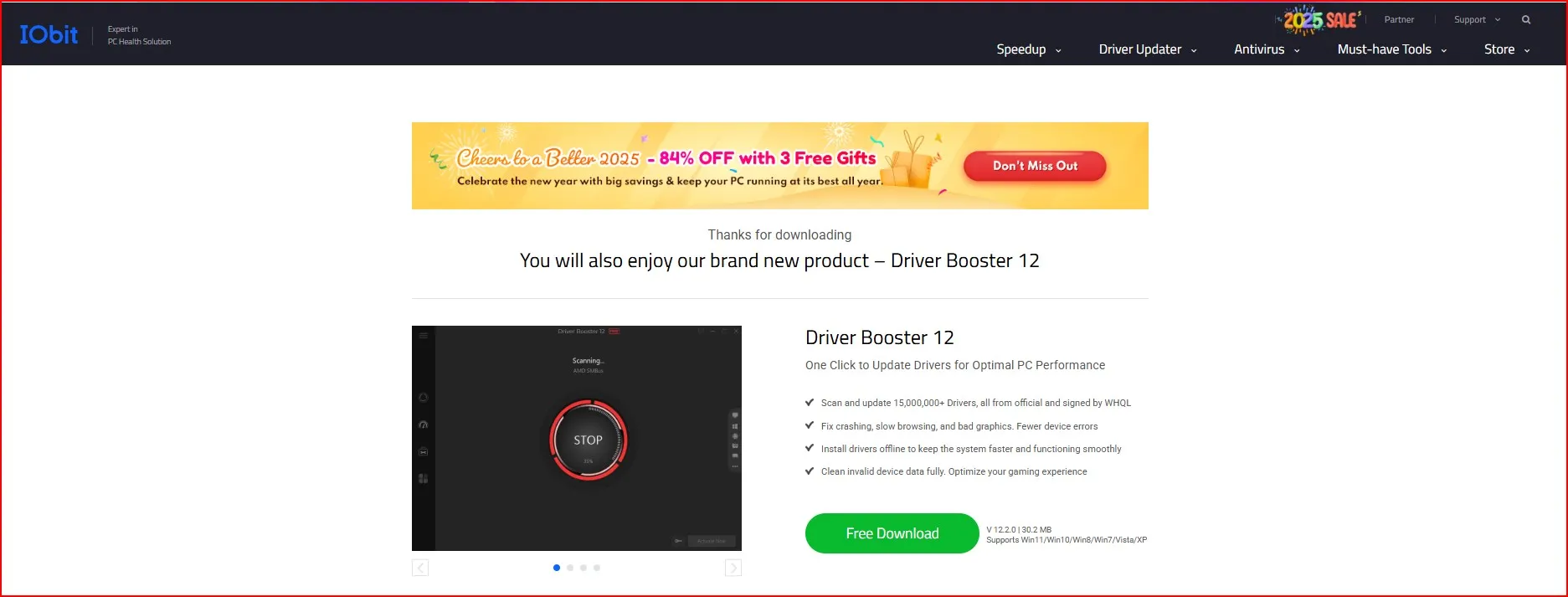
1. Driver Booster: Known for its user-friendly interface, Driver Booster scans your system for outdated drivers and updates them with a single click. It also takes backups before installing new drivers, which makes it a safe choice for novices.
2. Driver Easy: This is great for users who want simplicity. It supports automatic scans, updates as well as supports offline driver updates for devices with no internet connectivity. It includes a robust free version but comes with a Pro version that offers faster download speeds.
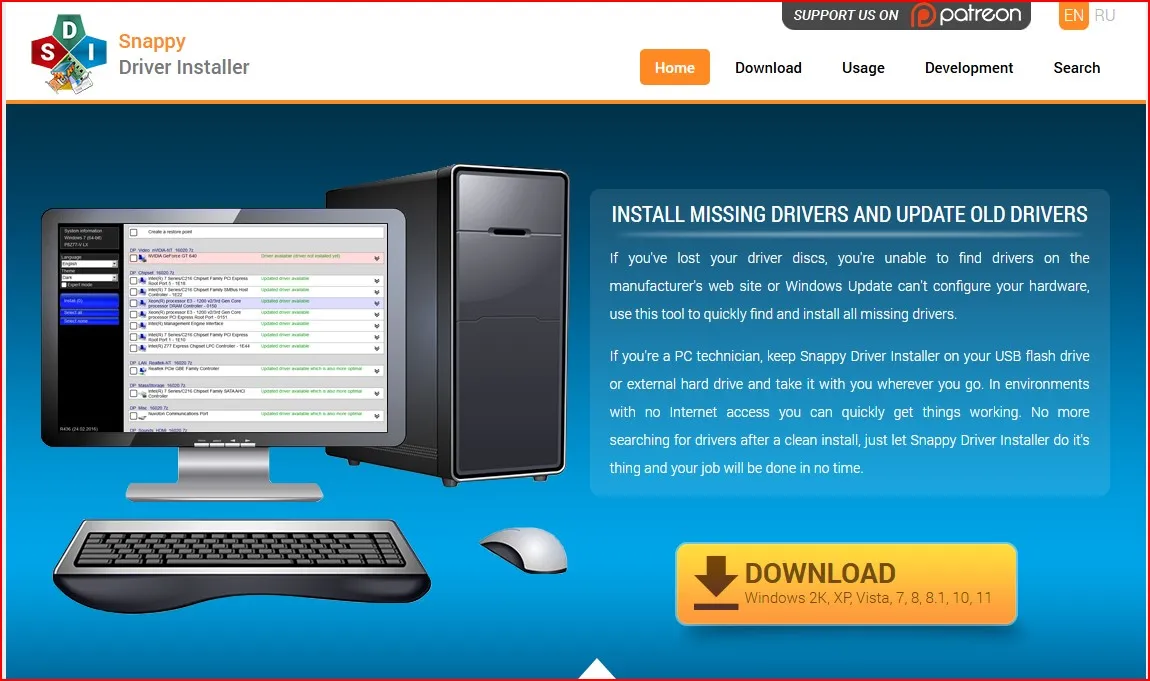
3. Snappy Driver Installer: This is a free and open-source tool that can help update drivers on your PC without needing an internet connection, as it can download the complete driver package. It’s ideal for advanced users that desire more control and transparency.
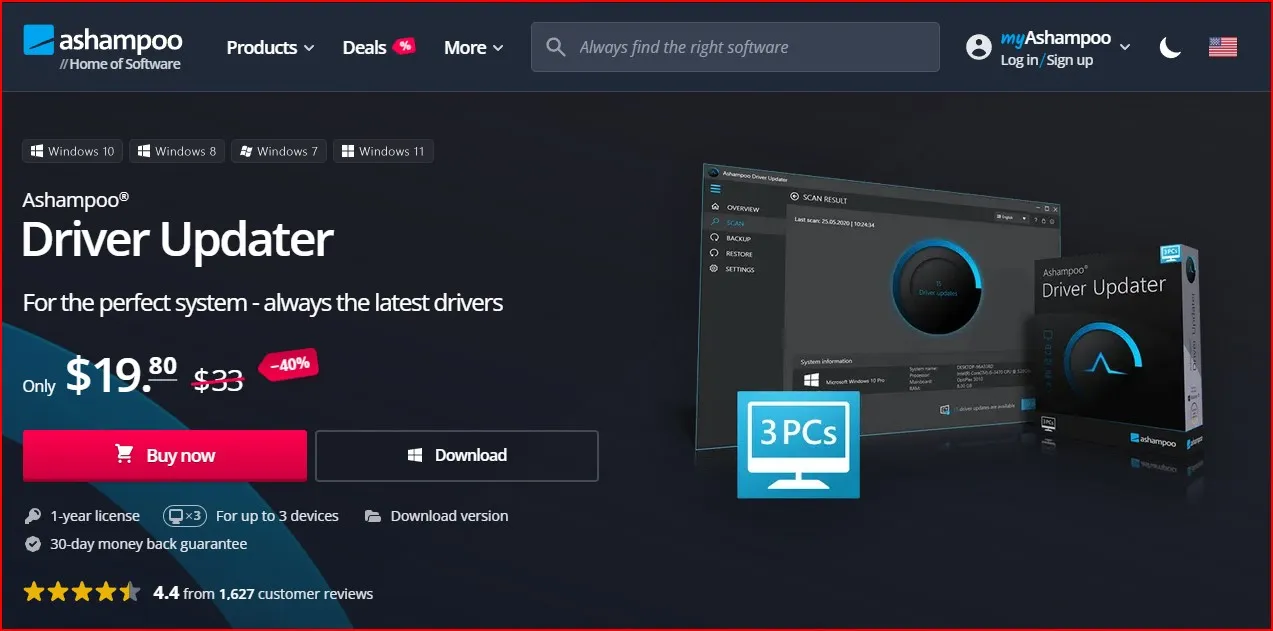
4. Ashampoo Driver Updater: A paid solution that can be used easily without expertise with extensive hardware compatibility. It offers correct driver updates with security at its best, and it sets restore points before every update.
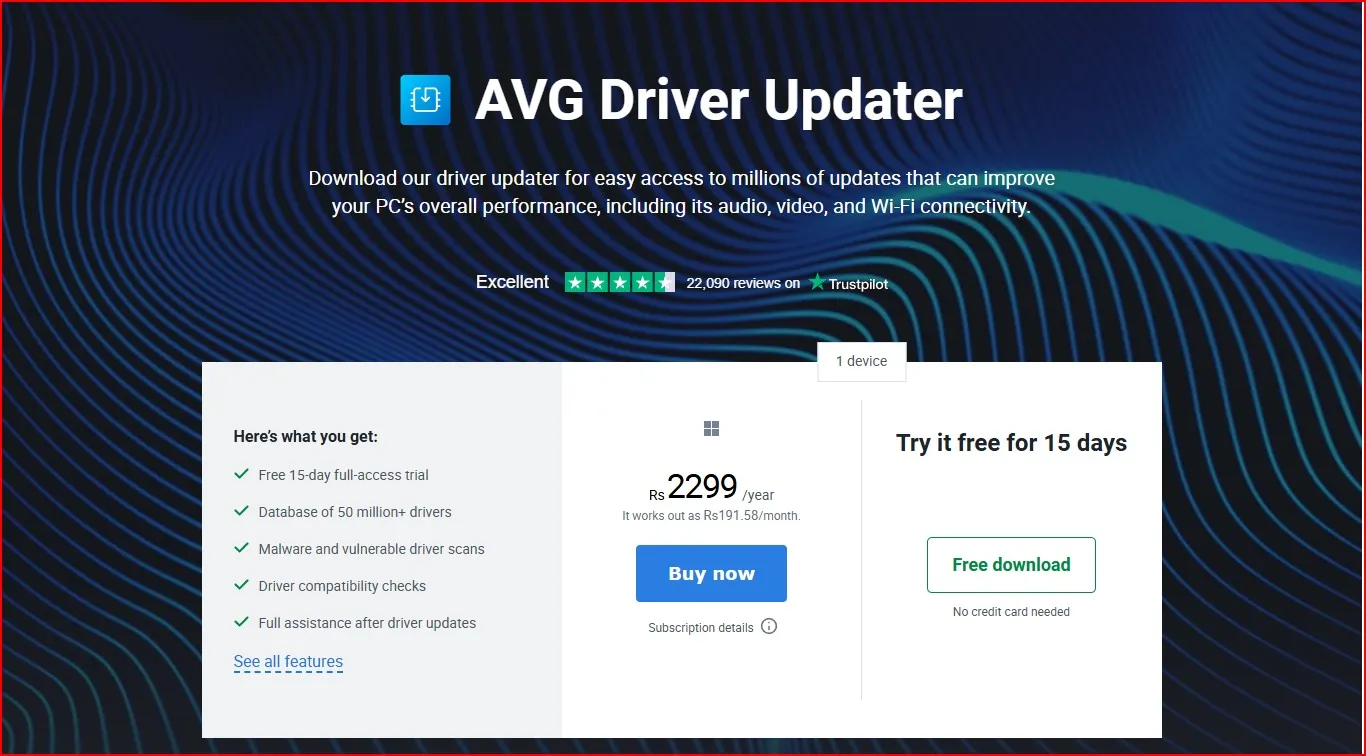
5. AVG Driver Updater: Created by the well-known AVG brand, this application will update over 8 million drivers for compatibility and stability. It is small and necessary for optimal PC performance and hardware life.
All of these tools are reliable, trustworthy, and will keep your PC’s drivers updated automatically. Always download from their official websites to prevent counterfeit software.
While updating drivers can boost your system performance, you might also want to make your file management easier. Check out The Ultimate Hack: How to Access Google Drive as a Local Drive in Windows 11 to streamline your workflow!
Tips for Safe Driver Updates
- Backup Before Updating: Use a tool like Driver Backup to save your current drivers.
- Stick to Official Sources: Avoid random websites claiming to have driver updates—they can be unsafe.
- Check Compatibility: Make sure the driver matches your hardware and Windows version.
Conclusion
Keeping your drivers updated doesn’t have to be complicated. With the methods we’ve covered—Windows Update, Device Manager, manual downloads, or third-party tools—you’re equipped to keep your PC running smoothly and efficiently
So take few minutes today and make sure your drivers are up to date. You may be amazed at how much better your system runs after!
If you found this guide on how to update drivers in your Windows PC helpful, then make sure to share your feedback in the comments.
Frequently Asked Question (FAQ)
Why is it important to update drivers on my Windows PC?
Updating drivers ensures your hardware works correctly with your operating system. It can improve performance, fix bugs, add new features, and enhance security.
How often should I update my drivers?
It’s a good idea to check for driver updates every few months or when you face hardware issues. Critical drivers like graphics and network drivers may need more frequent updates, especially for gamers or professionals.
Can I update all my drivers at once?
Yes, trusted tools like Driver Booster, Driver Easy, and Snappy Driver Installer are safe to use. Always download them from their official websites to avoid risks
What should I do if a driver update causes problems?
You can roll back to the previous driver version using Device Manager.
Do Windows Updates automatically install all driver updates?
Not always. While Windows Update installs many drivers, it may not include the latest versions for specific hardware. For advanced updates, check the manufacturer’s website.