
It seems to me that all the more relevance is being attached nowadays towards keeping our online accounts and profile safe. With the glut of data breaches, password leaks and cyber attacks all around us, it’s no longer enough to rely on just a password… frankly, it never really was. If someone gets their hands on your password — even accidentally — they can get into your account straight away. Scary, right?
That’s precisely why you would like to know how to enable two-factor authentication (2FA) for your critical accounts. Indeed, once you have it in the on position, you’ll probably be at least a little more relaxed about your privacy not hanging by a thread.
What is Two-Factor Authentication (2FA) and why should You Care?
Think of your password like a key. What if someone steals it and opens your door with ease? But if they stole the key with 2FA, there’s still a second lock that only you can open — typically via your phone.
Two-factor authentication means an extra step to prove it’s actually you. This could be:
- a one-time code sent to your phone,
- a 2FA app like Google Authenticator or Authy,
- a fingerprint,
- Or a physical security key.
Yes, it adds a couple of seconds to your login time, but it safeguards your accounts by 90% of the most common attacks.
Step-by-Step Guide: How to Enable Two-Factor Authentication
Your email account is probably the most IMPORTANT account to secure because it’s often the master key to everything else. Think about it – when you forget a password for any other account, where do the reset links go? That’s right, to your email! So let’s start by securing your Gmail account, & then we’ll cover other popular email providers.
- Go to: myaccount.google.com
- Click Security& Sign-in
- Find 2-Step Verification
- Click Get Started
- Choose SMS or Authenticator App
- Verify your identity
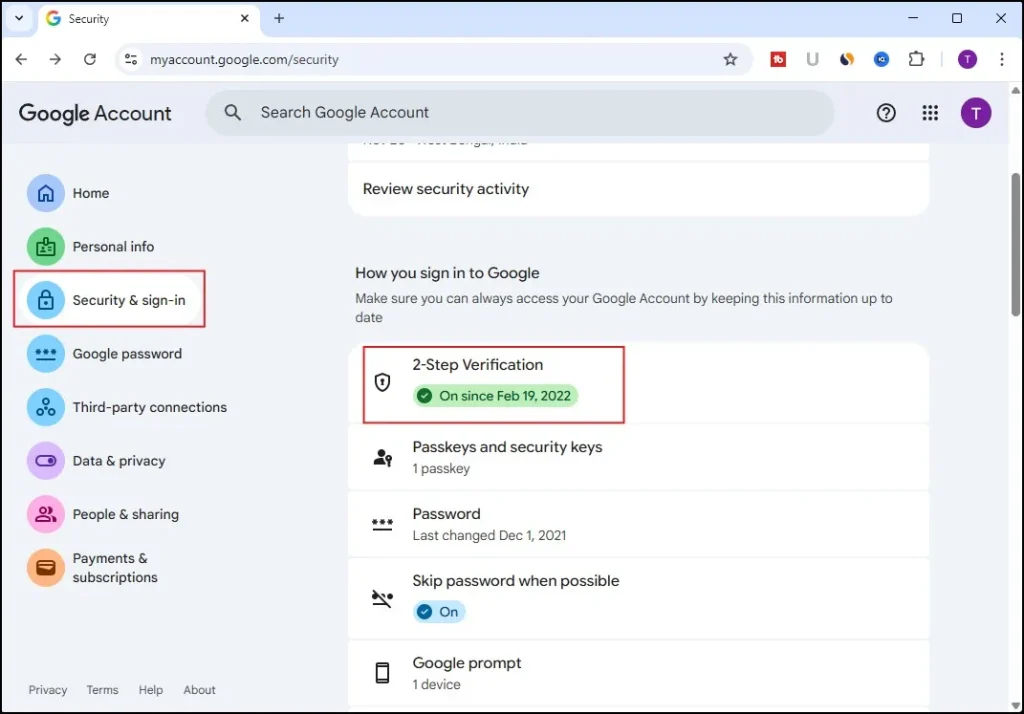
Done! Your Gmail, Google Drive, YouTube, and every Google service are now safer.
As you set up your phone, you’ll be prompted to provide a phone number for Google to send verification codes to. You can opt to have the codes sent by text or phone call – most people select text, because it’s quicker. After you’ve entered in your phone number, Google will send you a test 6-digit code to make sure everything is working! Enter this code, & congratulations! You just set up 2FA on your Gmail account.
But here’s a PRO tip that many people don’t know about: Google also offers backup codes that you should definitely set up. These are special one-time-use codes that you can write down & store in a safe place. If you ever lose your phone or can’t receive text messages, you can use one of these backup codes to get into your account. To set these up, go back to the 2-Step Verification settings & look for “Backup codes.”
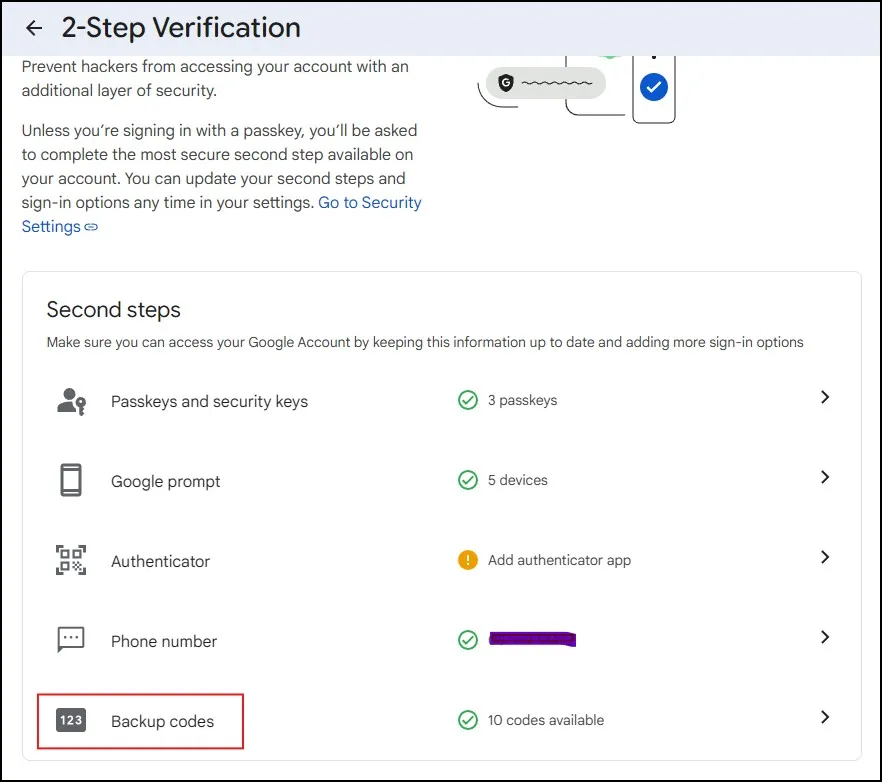
Generate these codes, print them out or write them down, & store them somewhere secure like a safe or locked drawer.
How to Enable Two-Factor Authentication on Facebook
- Open Settings & Privacy
- Click Security and Login
- Scroll to Two-Factor Authentication
- Choose SMS, App, or Security Key
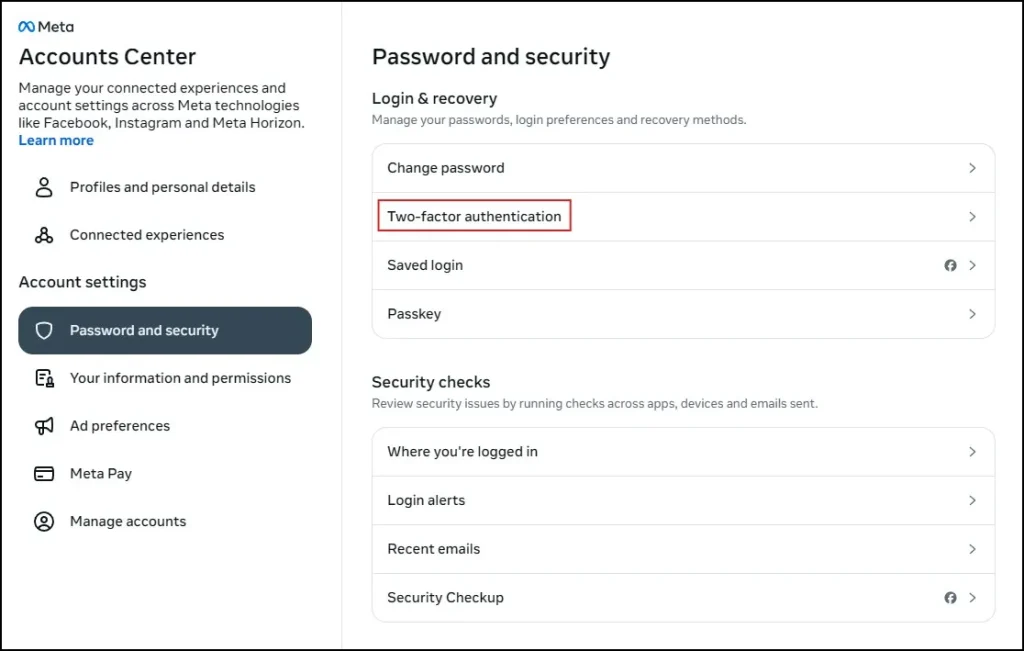
The simplest way to begin is with text-message exchanges. Choose “Text Message” & put in your number. There, Facebook will send a confirmation code to check if the number works. After you’ve entered the code, your account will be enabled with 2FA. But this is also where Facebook wisely asks you to add multiple forms of authentication — a SMART move. If you lose or break your phone, a backup method means you won’t be locked out of your own account.
How to Enable Two-Factor Authentication on Instagram
- Open the Instagram app
- Go to Settings → Account → Security
- Tap Two-Factor Authentication
- Pick SMS or App method
The setup process is nearly identical to Facebook since they’re owned by the same company. Remember, even if these accounts don’t contain financial information; they’re still valuable to criminals & worth protecting properly.
How to Enable Two-Factor Authentication on WhatsApp
This is a bit different.WhatsApp uses a 6-digit PIN for 2FA instead of an app.
- Open WhatsApp Settings
- Tap Account
- Select Two-step verification
- Create your 6-digit PIN
- Add an email for recovery
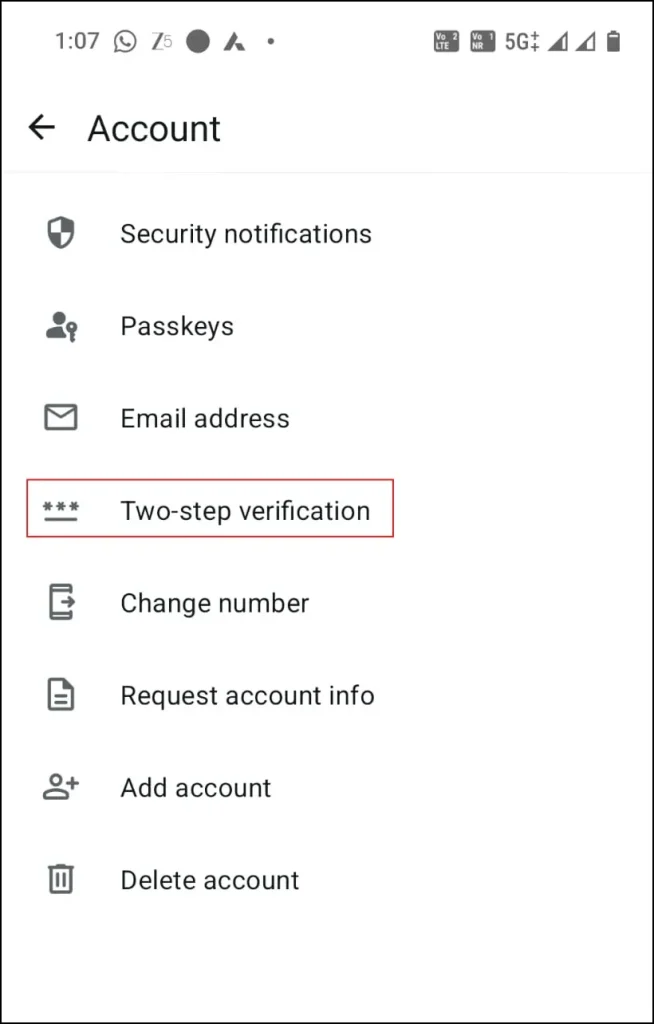
Once you have done these, WhatsApp will demand for this PIN every time you verify your number on a new device. It’s a minor extra step, but it ensures that no one can set up your WhatsApp without your consent. Just be sure to keep your PIN and recovery email safe so that you don’t accidentally lock yourself out of the system in the future.
How to Enable Two-Factor Authentication on Amazon
- Login to Amazon
- Go to Your Account → Login & Security
- Click Two-Step Verification
- Choose SMS or Authenticator App
Amazon is compatible a number of ways so you can select your preference. Once you’ve completed the setup, Amazon will prompt you to provide a verification code every time that you’re logging in from a different browser or device. This easy level of security enhances the safety of your shopping history, saved cards and personal information.
Final Thoughts: Why You Should Enable Two-Factor Authentication Today
Figuring out how to enable two-factor authentication may feel trivial, but it will make a big difference. We inhabit a world where passwords leak like they’re going out of fashion on virtually daily basis. Data breaches even happen to big companies. But with 2FA enabled, you add one tougher barrier that protects your personal life.
You don’t need to get everything in place today. Begin by focusing on the accounts you use most often — your email, banking apps and social media. And after you’ve gotten used to it, turning on 2FA will be as second nature as locking your door before you walk out.
Also Read: How to Reset Network Settings in Windows
Frequently Asked Questions (FAQ)
Is two-factor authentication really necessary?
Yes. 2FA blocks most common hacking attempts, even if someone knows your password.
Which 2FA method is safest?
Security keys (like YubiKey) are the most secure, followed by authenticator apps.
What if I lose my phone?
Use your backup codes or recovery email/phone number to regain access.
Does 2FA slow down login?
Only by a few seconds. The added security is totally worth it.
Can someone still hack me even with 2FA enabled?
It’s extremely difficult, but not impossible. That’s why using strong passwords and avoiding suspicious links is still important.