
If you share your Windows 11 PC with other people, you might not want them modifying your desktop wallpaper each time they launch it. The good news is that Windows has the ability to prevent others from changing Windows 11 wallpaper.
In this article I will show you two simple methods to lock desktop background with Group Policy and Registry Editor.
Why Prevent Others from Changing Your Wallpaper?
Desktop wallpapers seem to be a minor thing, but if you share your computer with family members, students, employees or other users it can also come in handy to lock it down.
For instance, you might want to keep a specific custom wallpaper on the PC, classroom image or a specific company logo. Once you enable the appropriate Windows policy, users won’t be able to enter Personalization and change it for something else.
You don’t need to install third party software because Windows has the policy for prevent changing desktop background.
These can be done in two ways. For Windows 11 Pro, Enterprise, or Education users, the Group Policy method is by far the simplest. In the absence of Group Policy Editor from Windows 11 Home, you can use Registry Editor.
Method 1: Prevent Changing Wallpaper Using Group Policy
If you use Windows 11 Pro or another edition that comes with Local Group Policy Editor, this is the approach I would suggest to take.
It is recommended to set the wallpaper of your choice prior to activating this policy. Once the policy is activated, Windows will prevent users from changing it using the regular Personalization settings.
Step 1: Open Local Group Policy Editor
Open Run window by pressing Windows + R keys on your keyboard.
Type:
gpedit.msc
and press Enter.

Windows will ask for the User Account you click Yes.
If you see a message saying Windows cannot find gpedit.msc, you’re probably using Windows 11 Home. In that case, skip to the Registry method below.
However, if you’re using Windows 10 or 11 Home and gpedit.msc isn’t available on your PC, check out our guide on how to enable Group Policy Editor (gpedit.msc) in Windows 10/11 Home Edition before continuing.
Step 2: Go to the Personalization Settings
In the Local Group Policy Editor, go to:
User Configuration → Administrative Templates → Control Panel → Personalization
There are many personalization related projects in the right side of the window.
Look for the policy named:
Prevent changing desktop background
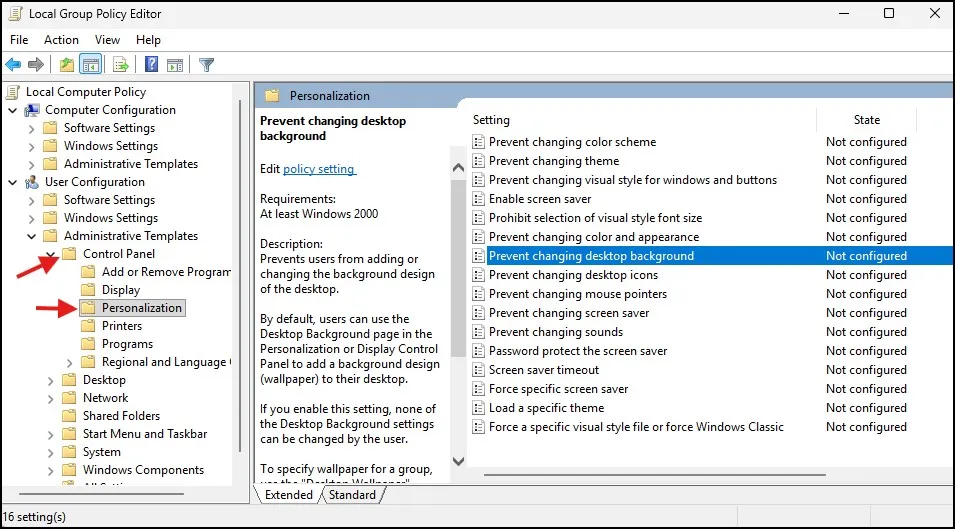
This is the setting we need to prevent others from changing Windows 11 wallpaper.
Step 3: Enable the Policy
Double-click Prevent changing desktop background.
A new window will appear. Choose Enable, click Apply, then OK.

That’s it. The policy is enabled for the current user account.
That user should not be allowed to alter the desktop background normally via Windows Personalization.
Step 4: Restart or Sign Out
You may restart the computer so that the policy is applied. Alternatively, log out of your Windows account and log back in.
After that, go to:
Settings → Personalization → Background
You will notice that regular options for customizing the desktop background are limited.
This is a pretty easy method of prevent changing wallpaper on a shared PC, and requires no additional software.
Method 2: Prevent Others from Changing Wallpaper Using Registry Editor
If you’re using Windows 11 Home, you can use Registry Editor instead. The Registry method also works on Windows 11 Pro, but I generally prefer Group Policy when it is available because it’s easier to manage later.
Before making any changes to the Registry, I recommend creating a Registry backup or at least being careful to follow the path exactly. Changing the wrong Registry setting can cause unexpected problems.
Step 1: Open Registry Editor
Press Windows + R to open the Run dialog.
Type:
regedit
and press Enter.

When the User Account Control window appears click Yes.
Step 2: Navigate to the ActiveDesktop Key
Registry Editor: Navigate to the following location:
HKEY_CURRENT_USER\Software\Microsoft\Windows\CurrentVersion\Policies\ActiveDesktop
You are also able to copy the path above and paste it into the address bar at the top of Registry Editor.
If you do not see the ActiveDesktop key then you’ll have to create it.
Then right-click on the Policies key and click:
New → Key

Name the new key:
ActiveDesktop

Step 3: Create the NoChangingWallPaper Value
Select the ActiveDesktop key.
Then right click on empty area in the right side and click:
New → DWORD (32-bit) Value

Name the new value:
NoChangingWallPaper
So you double click it and set the value data to be:
1
Click OK.

This Registry setting instructs Windows to prevent the user from changing their wallpaper.
Step 4: Restart Windows
Exit Registry Editor and reboot your machine, or sign out and back into Windows.
After Windows restarts that option of changing the wallpaper should be taken away.
How to Allow Wallpaper Changes Again
Both methods can be easily reverted if you decide to allow users to change the wallpaper later.
If you used a GPO, open:
User Configuration → Administrative Templates → Control Panel → Personalization
In the right pane double-click on Prevent Changing Desktop Background and select Not Configured. Click Apply and then OK.
A bit back to For the Registry method:
HKEY_CURRENT_USER\Software\Microsoft\Windows\CurrentVersion\Policies\ActiveDesktop
Deleted NoChangingWallPaper or set its value data from 1 to 0.
Signing out and back in again should then allow users to adjust the wallpaper once more.
One Important Thing to Keep in Mind
The Group Policy and Registry settings that are discussed here typically only affect the user account currently logged on. If you wish to lock the wallpaper for a single user, make sure you apply this while logged into that specific account.
Also, this does not prevent someone with sufficient administrator access from altering the system-level configuration. Primarily meant to prevent standard desktop users from accidentally changing the background using Windows’ built-in personalization features.
Which Method Should You Use?
So, I suggest going for Method 1 if your Windows 11 edition has Group Policy Editor. That makes it easier to follow and revert later.
If you have Windows 11 Home Edition, the Registry method is your only real option.
These two methods will assist you prevent others from changing Windows 11 wallpaper without the help of third-party applications.
Conclusion
And if you would like to keep a specific wallpaper in place because you share your Windows 11 computer, then you won’t need any third-party applications. Windows comes with group policy to prevent changing desktop background.
While Group Policy can be used in Windows 11 Pro to enable the restriction, it is possible for Windows 11 Home users to do so via Registry Editor. Just make sure to follow the instructions with care. When enabled, other users cannot simply change your selected desktop wallpaper.
Frequently Asked Questions
Can I prevent others from changing my wallpaper in Windows 11?
Yes. You can use the Prevent changing desktop background policy in Group Policy Editor or configure the corresponding Registry setting.
Does this work on Windows 11 Home?
Yes. Windows 11 Home doesn’t normally include Group Policy Editor, but you can use the Registry Editor method to prevent others from changing Windows 11 wallpaper.
What is the Group Policy setting called?
The setting is called Prevent changing desktop background. You can find it under User Configuration → Administrative Templates → Control Panel → Personalization.
Can I undo the wallpaper restriction later?
Yes. In Group Policy, change the policy to Not Configured. With Registry Editor, remove the NoChangingWallPaper value or set it to 0.
Will this prevent an administrator from changing the wallpaper?
Not necessarily. This setting is mainly designed to restrict normal users. Someone with administrator-level access may still be able to modify the system or user settings.