
Planning to sell your old laptop? Before giving it to someone else, you should wipe laptop before selling it to make sure your personal files and accounts are removed. Simply deleting your files is not enough. This guide explains how to reset your Windows 11 laptop and wipe it clean using the built‑in Windows option.
Things to Do Before You Wipe Your Laptop
Make sure that you do have your files copied (all files you want).
Look on your Desktop in your Documents, Downloads, Pictures and Videos folders and, in any places where you typically keep your files. If you use OneDrive or another cloud storage service, make sure your files are properly backed up/sync.
Don’t forget your browser data. If you use Chrome or Microsoft Edge, verify that your bookmarks, passwords and some other critical info is synced with your account.
It’s a good idea also to sign out of your Microsoft account and other personal accounts. If you use services like Microsoft 365, Adobe or any other subscription-based application service ensure to look into the account details as well.
Proceed with the reset once you are positive that you do not require anything from the laptop.
How to Wipe Laptop Before Selling It
Windows 11 has a built-in Reset this PC feature that makes it fairly easy to wipe laptop before selling it.
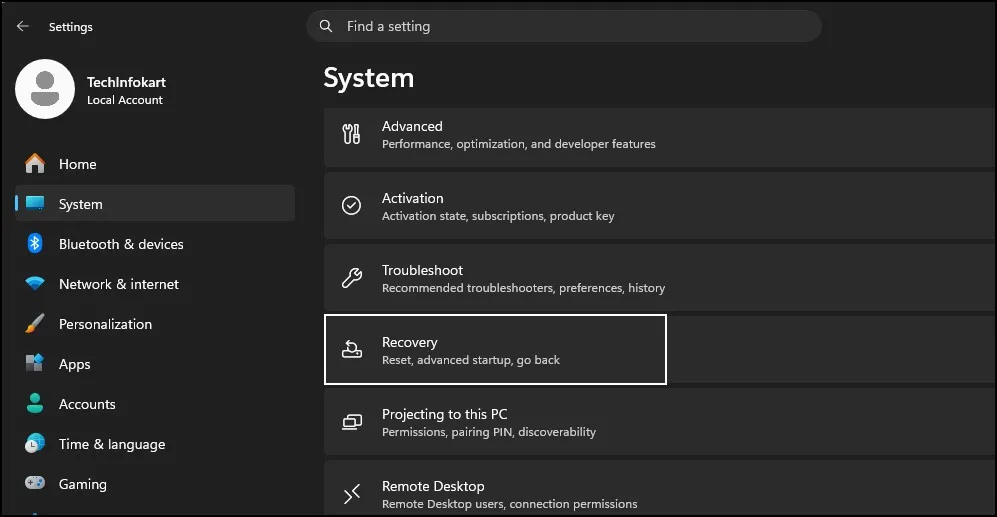
STEP 1: First, open Settings from the Start menu.
Now go to:
System → Recovery
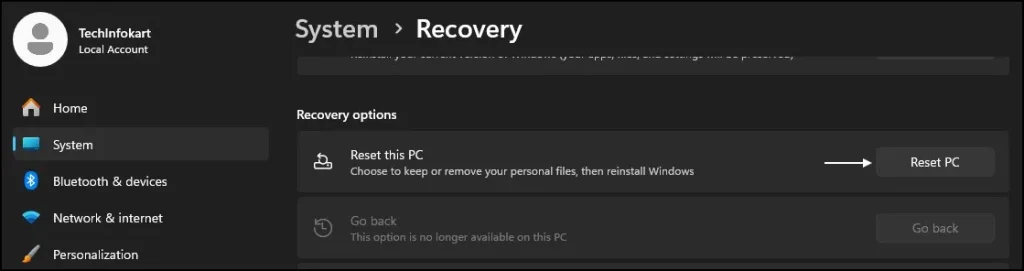
Under Recovery options, look for Reset this PC and click Reset PC.
Windows will now ask you what you want to do with your personal files.
You will normally see two options:
Keep my files
and
Remove everything

Since you are selling the laptop, select Remove everything.
The first option is useful if you want to reinstall Windows but keep your personal files. In this case, we don’t want to keep them.
STEP 2: After selecting Remove everything, Windows may ask how you want to reinstall Windows.
You may see two options:
Cloud download
Local reinstall
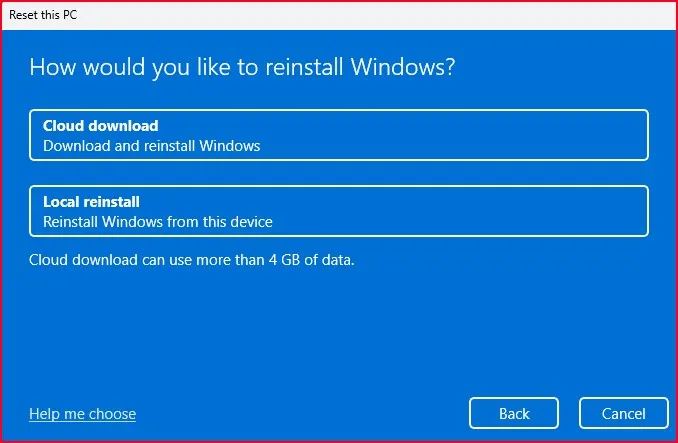
Cloud download downloads a fresh copy of Windows, while Local reinstall uses the Windows installation files already available on your laptop.
You can choose either option depending on your situation. If your internet connection is good and you want Windows to download a fresh copy, Cloud download is an option. Otherwise, Local reinstall can save some time and internet data.
Continue to the next screen.
STEP 3: Before the reset starts, Windows will show you a summary of the settings you selected.
Don’t click through this screen too quickly.
Look for the option related to cleaning the drive or data. The exact wording and available options can vary depending on your Windows version.
If you are selling the laptop, choose the option that cleans the drive/data when it is available. This is more appropriate when another person will be using the laptop.
Keep in mind that this can make the reset laptop process take much longer than a normal reset.
Once you have checked everything, confirm the reset.

Let Windows Reset the Laptop
Now Windows will restart the laptop and begin the reset process.
At this point just let Windows work. Keep the laptop connected to power. Do not turn it off while Windows is resetting.
The time required can vary a lot. It depends on the storage drive the amount of data and whether you selected the drive-cleaning option.
So do not worry if Windows is taking some time. When Windows finishes Windows will. Show the initial setup screen.
Check the Laptop After the Reset
This is an important final step when you wipe laptop before selling it.
Once Windows finishes, you should see the initial Windows setup screen. It may ask for the region, keyboard layout, and other basic settings.
You should not see your old desktop or your personal files.
You should also make sure that your Microsoft account is no longer signed in. You need to remove your browser data and delete any applications that are still, on the device. Make sure nothing is left behind.
If everything looks clean and nothing personal remains you don’t have to go through the Windows setup. Just shut down the laptop properly. Then hand it over to the owner. They can start fresh. Complete the setup using their own Microsoft account and their own information.
What If Your Laptop Has More Than One Drive?
Before you wipe laptop before selling it check whether your laptop has than one internal storage drive.
I see that many people skip this step so be careful. For example, your Windows installation might be, on an SSD while your photos videos or documents are stored on another drive.
Do not assume that resetting Windows will automatically erase every drive in your laptop.
If you have another internal drive containing personal information, make sure you deal with that drive separately before selling the laptop.
Also remember to remove your USB drives, SD cards, and external hard drives.
Final Check Before Selling
After you wipe laptop before selling it, take one last look at the laptop.
Make sure Windows is showing the initial setup screen and that you cannot access your old desktop, files, accounts, or personal information.
If everything is fine, shut down the laptop.
Now it is ready for the new owner to set up.
Microsoft also provides detailed instructions and explains the available reset options in its official guide.
Conclusion
If you’re getting rid of your laptop, you do not want to just delete the files and presume that everything is gone.
First of all, back up first, then log-off from your accounts and use Reset this PC → Remove everything. If there is an option for Windows that allows you to clear the drive/data then select this when preparing the laptop for someone else.
It’s an easy method to wipe laptop before selling it and also have a fresh Windows installation.
Frequently Asked Questions
Should I wipe my laptop before selling it?
Yes. You should remove your personal files, accounts, and other data before giving the laptop to another person.
Does resetting a laptop delete everything?
If you choose Remove everything, Windows removes your personal files, apps, and settings from the Windows installation.
Is it enough to delete my personal files?
No. Simply deleting files is not the same as resetting the laptop. Using the Windows reset option is a better way to prepare it for a new owner.
Should I sign out of my Microsoft account before selling my laptop?
Yes. Sign out of your Microsoft account and other personal accounts before handing over the laptop.
What should I do after wiping my laptop?
When Windows reaches the initial setup screen, shut down the laptop. The new owner can complete the Windows setup using their own information.