
The Settings app is one of the most usefull components of Windows 11. We apply it for Windows Update, network configuration, personalization, accounts and many other options. However, sometimes you may discover that Windows 11 Settings not opening either by clicking the Settings icon or pressing Windows + I, nothing happens.
Worry not if you are dealing with this issue. This tutorial will demonstrate 8 easy ways for getting this issue fixed, beginning with the simplest fixes.
1. Restart Your Windows 11 PC
Just restart your computer before trying anything complicated.
Select Start > Power > Restart and allow Windows to restart.
When you are back on the desktop, schedule Settings by pressing Windows + I.
If Settings now opens without any problems, the fault was probably a temporary one and you can skip the remaining methods.
2. Try Opening Settings Using the Run Command
If clicking the Settings icon doesn’t work, try opening it using the Run dialog.
Press Windows + R on your keyboard.
Type:
ms-settings:Then press Enter.
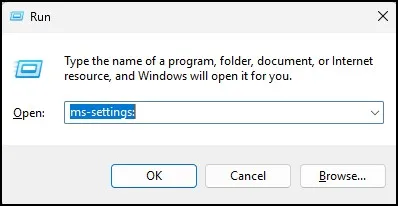
If the Settings app opens, you can continue using it normally.
If nothing happens or Settings still doesn’t open, move on to the next method.
3. Reset the Settings App
The Settings app can sometimes have corrupted data or other problems. In that case, resetting it may help.
Since you cannot open Settings normally, we’ll use PowerShell.
Right-click the Start button and select Terminal (Admin) or Windows PowerShell (Admin), depending on your Windows 11 installation.
If you see a User Account Control prompt, click Yes.
Now enter the following command:
Get-AppxPackage *windows.immersivecontrolpanel* | Reset-AppxPackagePress Enter and wait for the command to finish.
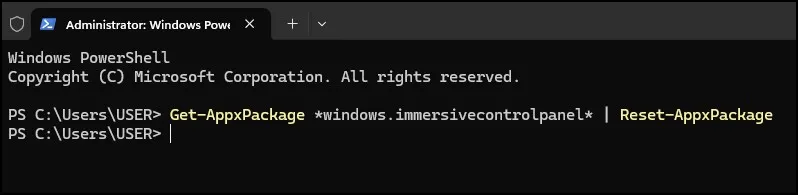
There may not be a clear confirmation message when the process completes. That’s normal.
Restart your PC and try opening Settings again.
4. Re-Register the Settings App
If resetting the app didn’t solve the problem, you can try re-registering the Settings app.
Open Terminal as administrator again.
Copy and paste this command:
Get-AppXPackage -AllUsers -Name windows.immersivecontrolpanel | Foreach {Add-AppxPackage -DisableDevelopmentMode -Register "$($_.InstallLocation)\AppXManifest.xml"}Press Enter and wait for the command to finish.
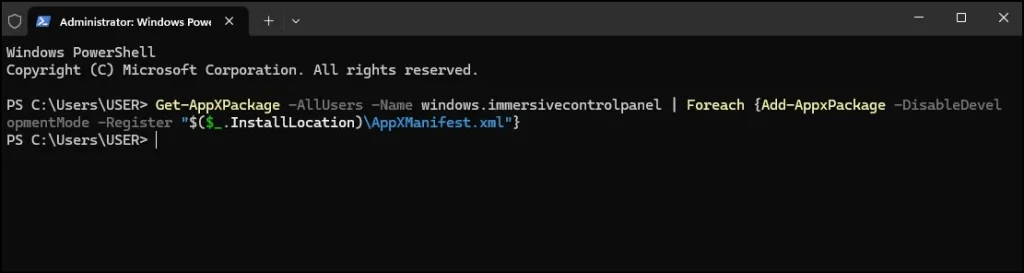
Once it’s done, restart your computer.
Now press Windows + I and check whether Settings opens.
5. Run DISM and SFC to Repair Windows
If Settings is still not working, the issue may come from corrupted Windows system files.
There’re two built-in utilities in Windows that can help with this process: DISM and System File Checker (also called SFC).
Step 1: Hit Start, right-click it then click “Terminal (Admin)”.
First, run this command:
DISM /Online /Cleanup-Image /RestoreHealth
Hit Enter and allow the scan to complete. It will take little time so please do not close the window while it runs.

After DISM finishes, run:
sfc /scannow
Hit Enter wait until the scan has 100%

Once both the commands have completed, restart your computer and check if Settings is working again.
6. Check if a Recent Windows Update Caused the Problem
The most recent update may be the primary cause if Settings failed to work around the same time as a Windows Update.
Since you aren’t able to normally open Settings, you may have to utilize the Windows Recovery Environment.
To access it, hold Shift while choosing Restart at the Start menu or sign-in screen.
After the PC restarts, select:
Troubleshoot > Advanced options
You will see one option for Uninstall Updates or System Restore.
If the issue began soon after applying an update, you can use Uninstall Updates to uninstall your latest quality update.
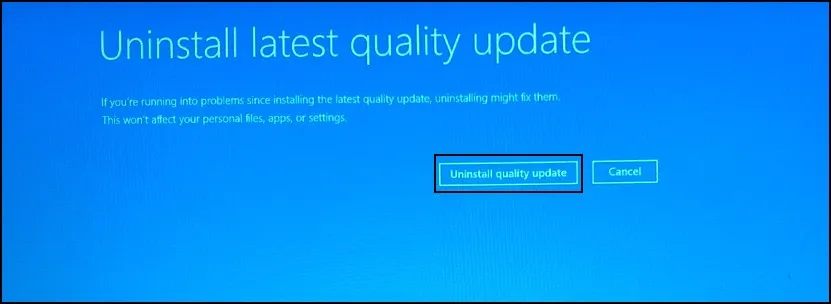
Be careful with this option. But just because an update is relatively recent, don’t scrimp on removing it. This can be used when the problem with Settings clearly arose after an update and other methods and solutions have not produced results.
7. Test with Another Windows User Account
If the above methods didn’t work, try opening Settings from another Windows user account.
Sign in to another account and check if Settings opens.
If it works there, then something is wrong within your original user profile. If Settings still doesn’t launch, the fault is likely with Windows itself.
8. Use Windows Recovery or Repair Windows 11
If above methods didn’t help open Settings, Windows has a bigger problem.
In this case, you can attempt System Restore (if there is a restore point). Another thing to check will be repair or reinstall Windows 11.
Make sure you keep Reset this PC as the last option. But before attempting to recover any critical file with the following procedure, you must ensure that your data is backed up.
Which Fix Should You Try First?
If you prefer not to attempt all methods, begin with the top few and proceed downwards.
In case the issue is temporary restarting PC might just be enough. If there is a problem with the Settings app itself, you can try resetting or re-registering it.
If other parts of Windows are also behaving strangely running DISM. SFC is worth trying for Windows.
If the problem started after a Windows update check the recovery options before considering a full Windows reset, for Windows.
Final Thoughts
The Windows 11 Settings app not opening, you don’t need to reinstall Windows immediately!
You should begin with the basic one before turn to app repair and system repair. Often, the Settings app will start working again after you first reset or re-register it, then repair Windows system files with DISM and SFC. If the issue persists with all eight methods, Windows Recovery or repair installation may be covered next.
Frequently Asked Questions
Why is Settings not opening in Windows 11?
Why is Settings not opening in Windows 11?Why is Settings not opening in Windows 11?
How do I open Settings if Windows 11 Settings won’t open?
Press Windows + I. You can also press Windows + R, type ms-settings: and press Enter.
How do I reset the Settings app in Windows 11?
Open Terminal as administrator and run the Settings reset command shown in Method 3, then restart your PC.
What should I do if Windows 11 Settings opens and then closes?
Try resetting or re-registering the Settings app. If that doesn’t work, run DISM and SFC to repair Windows system files.
Can I fix Windows 11 Settings without reinstalling Windows?
Yes. Try the troubleshooting methods in this guide before considering a Windows reset or reinstallation.
Why is Windows 11 Settings not responding?
It can happen because of a temporary Windows problem, corrupted system files, or an issue with the Settings app itself. Restarting Windows and repairing the app can help.