
If you regularly clear Recycle Bin, then you can add Empty Recycle Bin option to the Windows 11 context menu. After it has been added, you can just right-click an empty area of your desktop and choose that option.
This tutorial explains how to add Empty Recycle Bin to context menu via a simple Registry tweak. I’ll also explain why you may not see this option when right-clicking the Recycle Bin icon—and where Windows already stores that built-in solution.
NOTE: This command will delete everything that is in the Recycle Bin right now, and there is no way to recover those files. Well, be sure that you do not need those files anymore before using it.
Add Empty Recycle Bin to the Desktop Context Menu
Step 1: Open Registry Editor
Press Windows + R, type: regedit and press Enter.

Click Yes if Windows asks for permission.
Step 2: Go to the Shell Key
In Registry Editor, go to:
HKEY_CLASSES_ROOT\Directory\Background\shell

You can paste the path directly into the Registry Editor address bar and press Enter.
Step 3: Create a New Key
Right-click the shell key and select: New → Key
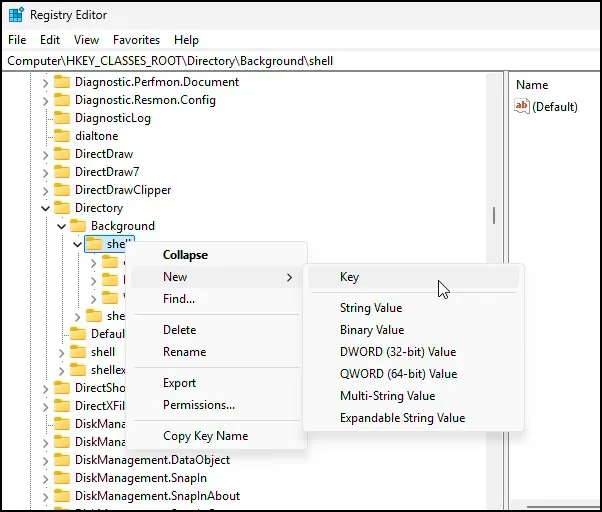
Name it: Empty Recycle Bin
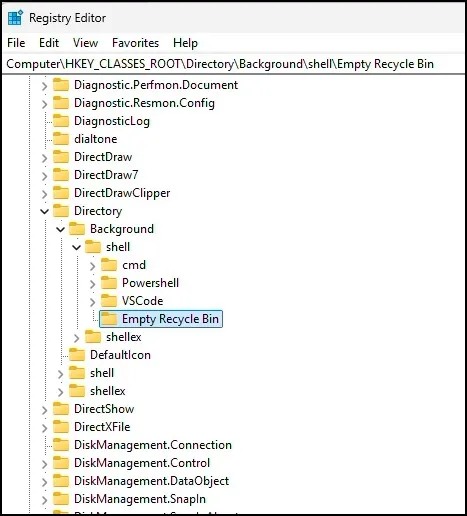
Now right-click Empty Recycle Bin, select New → Key
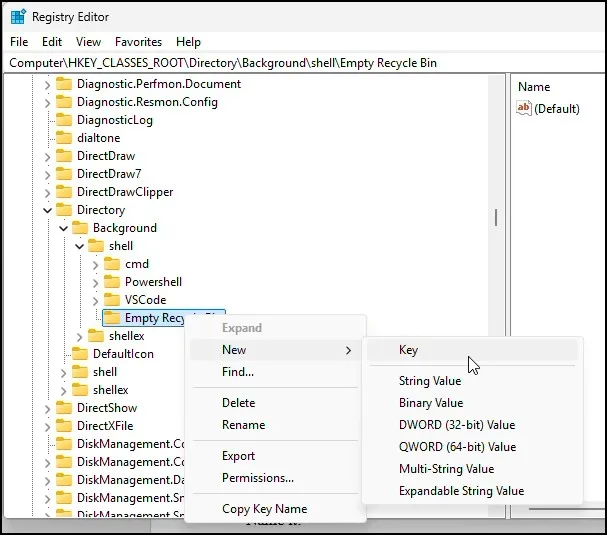
and name the new key: command
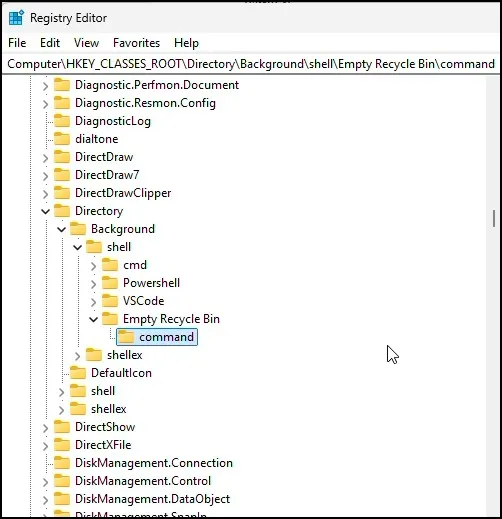
Step 4: Add the Command
Select the command key. On the right side, double-click (Default). In the Value data box, enter:
PowerShell.exe -NoProfile -Command “Clear-RecycleBin -Force”
Click OK.

Step 5: Test It
Close Registry Editor and right-click an empty area of your desktop.
You should now see Empty Recycle Bin in the context menu. On some Windows 11 versions, you may need to click Show more options first.

That’s it. But there’s one important thing to notice.
What About the Recycle Bin Icon?
At this point, you may notice something interesting.
When you right-click the Recycle Bin icon, the Empty Recycle Bin option is already there in Windows 11.
So, you don’t need to create another Registry entry for it.
Windows already has a built-in command for the Recycle Bin. You can find it in Registry Editor at:
HKEY_CLASSES_ROOT\CLSID\{645FF040-5081-101B-9F08-00AA002F954E}\shell\empty\command
Inside the command key, you’ll normally see a DelegateExecute value. This is part of the existing Windows command that handles the Empty Recycle Bin option.
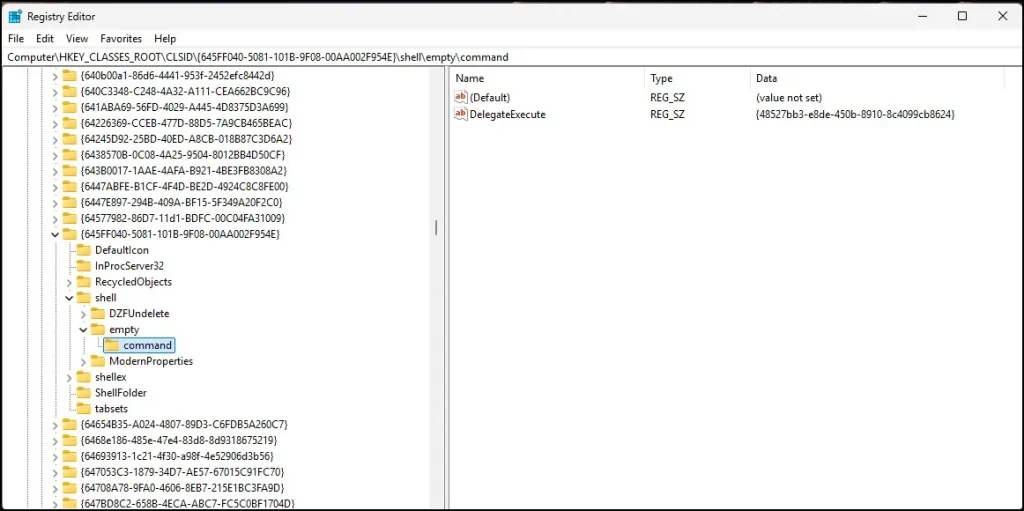
So, if you right-click the Recycle Bin and see Empty Recycle Bin, everything is working normally. The Registry method in this article is only adding an additional Empty Recycle Bin option to the desktop context menu.
Why Use This Method?
The benefit is simple: you no longer need to move your mouse over the Recycle Bin icon every time.
So, this means that for example if you are on the desktop already and want to dump your Recycle bin you could just right-click in an empty area and select Empty Recycle Bin.
It’s a minor customization, but the extra clicks can come in handy if you use it on almost daily basis.
How to Remove Empty Recycle Bin from the Desktop Context Menu
If you change your mind later, removing the option is easy. Open Registry Editor again and go to:
HKEY_CLASSES_ROOT\Directory\Background\shell
Find the Empty Recycle Bin key that you created. Right-click it and select Delete.
Click Yes to confirm.
The custom option will be removed from the desktop context menu. If it still appears, restart Windows Explorer from Task Manager.
Final Thoughts
Adding Empty Recycle Bin to the Windows 11 desktop context menu is a simple customization and doesn’t require any third-party software.
The Recycle Bin itself already has an Empty Recycle Bin option, but this Registry trick gives you another convenient way to access it directly from the desktop. If you don’t find the option useful later, you can remove it by deleting the Registry key you created.
Also read: How to Bring Back the Classic Context Menu in Windows 11
Frequently Asked Questions
Can I add Empty Recycle Bin to the Windows 11 context menu?
Yes. You can add it using Registry
Why doesn’t the first method show the option on the Recycle Bin icon?
The first Registry location controls the desktop background context menu. The Recycle Bin icon uses a different Registry location.
Can I add Empty Recycle Bin to both menus?
Yes. You can follow both methods and have the option available in both places.
Does this require third-party software?
No. Everything can be done using Windows Registry Editor and PowerShell.
Will this permanently delete my files?
Yes. Clear-RecycleBin -Force permanently empties the Recycle Bin, so use the option carefully.