
Did you recently upgrade Windows 11 and discover that the Go Back option is grayed out? This can be frustrating, especially when the new Windows version is causing problems and you want to return to the previous version.
In this guide, I’ll explain why the Windows 11 Go Back option becomes unavailable and what you can do to fix the problem or return to your previous Windows version.
Why Is the Windows 11 Go Back Option Grayed Out?
The Go Back option in Windows 11 is mainly designed to let you return to the previous version of Windows after an upgrade.
However, the option may become unavailable for several reasons:
- The rollback period has expired.
- The previous Windows installation files have been removed.
- The Windows.old folder is missing or damaged.
- Disk Cleanup removed the previous Windows installation.
- You performed a clean installation instead of an upgrade.
- Windows has already deleted the files required for rollback.
In most cases, the biggest reason is that Windows no longer has the files required to restore the previous version.
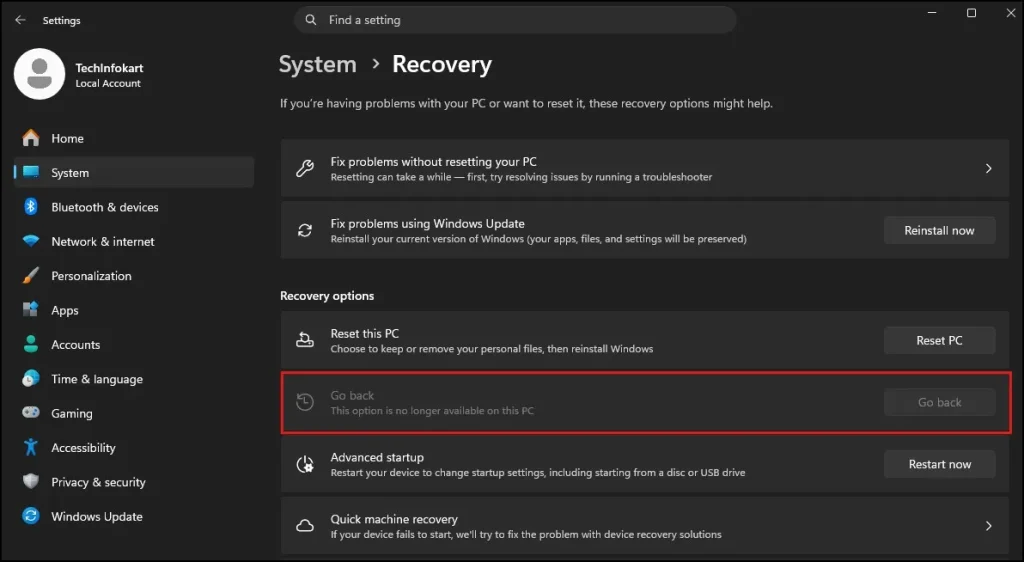
Check the Go Back Option First
Before trying other solutions, check whether Windows still provides the rollback option.
Open Windows Recovery Settings
- Press Windows + I to open Settings.
- Go to System > Recovery.
- Look for the Recovery options section.
- Check the Go back option.
If the button is available, you can use it to return to the previous version of Windows.
If Go back is grayed out, continue with the methods below.
1. Check How Long Ago You Upgraded Windows
Windows normally keeps the previous Windows installation for a limited period after a feature update.
During this period, the Go Back option may be available. Once that period has expired, Windows can automatically remove the files needed for rollback.
Check the Windows installation date
You can check when the current Windows installation was installed by opening:
Settings > System > About

If the upgrade happened a long time ago, the Windows 11 rollback option may no longer be available through Settings.
2. Check Whether the Windows.old Folder Exists
When Windows updates, it doesn’t just overwrite your old system; it packs it up neatly into a hidden folder named Windows.old. This folder is the literal engine behind the “Go back” button. If this folder is missing or damaged, the rollback option disappears.
Check for Windows.old
- Open File Explorer.
- Open the drive where Windows is installed, normally C:.
- Look for a folder named: Windows.old
If the folder exists and you still wish to roll back, do not delete it.
If Windows.old is missing then Windows can no longer roll back the upgrade normally.

Note: Do not manually re-create the Windows.old directory or copy content into it. That cannot bring back rollback functionality.
3. Check Whether Disk Cleanup Removed Previous Windows Files
If you recently used Disk Cleanup or Windows storage cleanup tools, the previous Windows installation may have been removed.
Check Storage settings
Go to:
Settings > System > Storage > Temporary files
Look for an entry such as Previous Windows installation(s).
If it is no longer listed, Windows may have already removed the files needed for rollback.
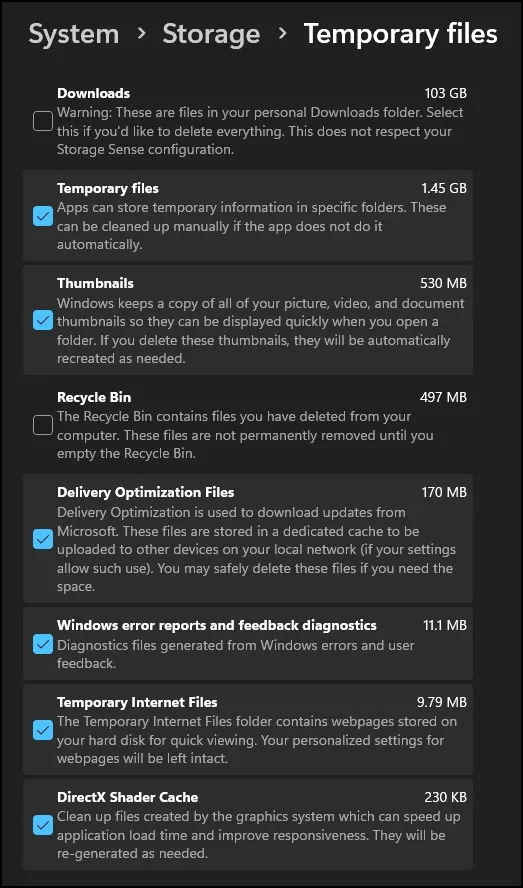
This is one of the common reasons why the Windows 11 Go Back option is grayed out.
4. Use System Restore If It Is Available
System Restore is different from the Windows rollback feature, but it can help if your problem was caused by a recent driver, application, or system change.
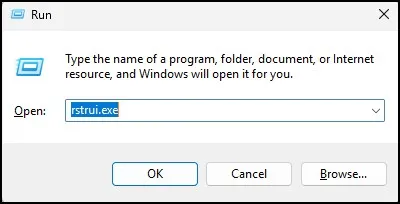
Open System Restore
Press Windows + R. Type: rstrui.exe Press Enter.
Select an available restore point. Click Next and follow the instructions.
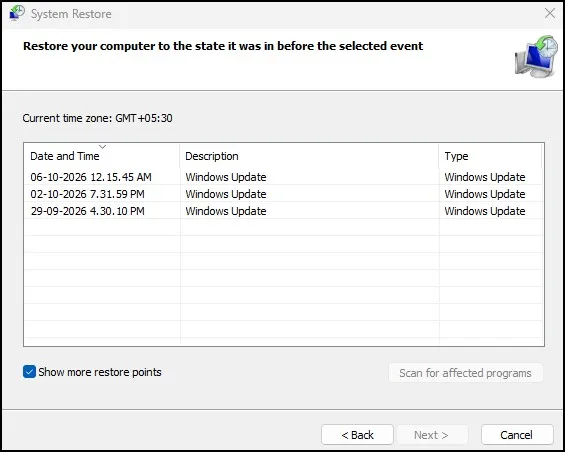
System Restore does not normally revert you back to the former feature version of Windows. Instead, it rolls the system files, drivers, registry settings and installed programs back to an earlier time.
If your only goal here is to reverse a recent system change, though, it is well worth a shot.
5. Uninstall the Latest Windows Update
If the problem started after a recent Windows update, you may be able to uninstall the latest update instead of rolling back the entire Windows version.
Uninstall an update from Settings
- Open Settings.
- Go to Windows Update.
- Select Update history.
- Scroll down and click Uninstall updates.
- Select the update you want to remove.
- Click Uninstall.
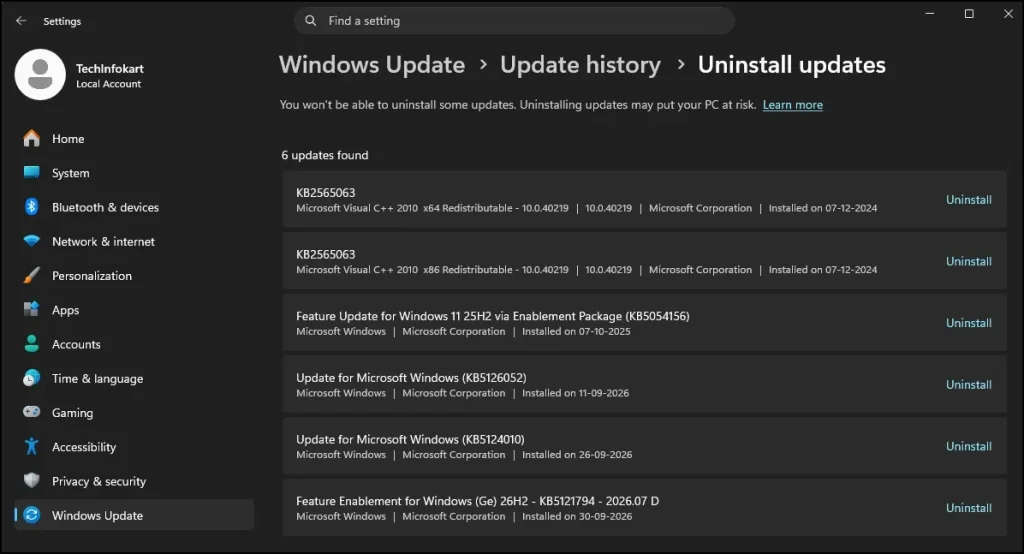
Keep in mind that not every update can be removed. Windows may also prevent the removal of certain updates for security or system stability reasons.
What If Windows 11 Go Back Is Still Unavailable?
When all recover options do not function, and you wish to return to your earlier Windows version then you will be compelled to reinstall that version.
Please backup your files before doing this.
Download the Previous Windows ISO
Download the appropriate Windows ISO from Microsoft’s official Windows download page.
From there, you either make installation media, or if you’re in a tight spot mount the ISO and do an in-place install.
But be careful which install you opt. This can delete your apps, settings, and files.
Be careful while downgrading a Windows feature version to another, and get acquainted with the installation options.
Can You Enable the Grayed-Out Go Back Button?
Normally you cannot just enable that Go Back button again with a simple Settings option or command, especially if Windows has removed the files necessary to perform a rollback.
Not just a missing setting that has disabled the button.
To roll back Windows needs previous installation files. However, if those files are deleted, rolling back to the normal process might not be an option.
So, do not just download arbitrary tools or registry tweaks which promise to “enable” the Windows 11 rollback option.
How to Prevent This Problem in the Future
Do not delete temporary Windows installation files right away if you have just upgraded to Windows 11 and are unsure whether or not you will go back to the previous version.
Keep the previous installation files
Keep the Windows.old during the rollback period. And do not check any cleanup options to delete the previous Windows installation.
You might also want to allow the new version of Windows to sit for a little while to ensure everything hardware, drivers, applications and more are working without any problems.
Once the rollback period expires, Windows may automatically remove the files and the Go Back option may become unavailable.
Final Thoughts
Don’t rush to conclusions that something is wrong with your PC, if the Windows 11 Go Back option is grayed out. For most of them, Windows has either left the rollback time or deleted installation files.
Head to Settings > System > Recovery and see if you have the Go Back option. Then check whether the Windows.old folder as well as earlier Windows installation files remain.
When it fails the normal rollback, your alternatives to go for are System Restore, uninstalling a recently-installed update or Revert Back to Previous Windows Version.
Also Read: How to Delete Old Windows Update Files Safely
Frequently Asked Questions
Why is the Windows 11 Go Back option grayed out?
The option may be unavailable because the rollback period has expired or Windows has removed the previous installation files.
How do I fix the Windows 11 Go Back option grayed out issue?
Check whether the Windows.old folder exists and whether the previous Windows installation files are still available. If they are missing, you may need to reinstall the previous Windows version.
Can I roll back Windows 11 after 10 days?
Yes, but not usually through the built-in Go Back option. You may need to reinstall the previous Windows version using compatible installation media.
Does deleting the Windows.old folder disable the Go Back option?
Yes. Removing the Windows.old folder can prevent Windows from returning to the previous version through the built-in rollback feature.
Can System Restore bring back the previous Windows version?
No. System Restore can revert certain system changes, drivers, and settings, but it does not normally downgrade Windows to a previous feature version.