
Windows 11 is an operating system that still feels a little bit meh, perhaps a bit like ye oldie Windows 10 with rounded corners, and tiresome menus with the same old bloated glossy icons. You may be shocked to find out there’s a hive of hidden features just waiting to be found! These might be the secret productivity boosters to being able to maximize performance in the time you have.
What if, without any more spending, you streamline your workflow, organize your digital workspace like a pro, and communicate with ease? And while you may know about voice-activated typing or advanced copy-paste techniques, these Windows 11 secret settings are going to change the way you use your computer.
Are you ready to super charge your productivity? The list goes on, but rather than spoiling the surprise, let us explore the Windows 11 hidden features that they can stealthily lend you for your daily grind. From focus sessions to the hidden Start menu, and even a preview of the forthcoming Windows Copilot, we’ll cover it all. All set to level up your Windows 11 experience!
Windows 11 can’t give you a productivity boost? Think again. Use these tips to accomplish more in less time.

There are a fantastic number of hidden Windows 11 features that can give your productivity a serious boost. With these tools, you will be able to optimize your workflow and do more with less time. Now, let us see the most attractive productivity oriented features of Windows 11.
Key Windows 11 hidden Features
- Focus Sessions
- Voice Typing
- Teams Integration
- Advanced Copy-Paste
- PowerToys
Productivity Gains from Windows 11 Features
| Feature | Productivity Benefit |
| Focus Sessions | Eliminates distractions and improves concentration |
| Voice Typing | Speeds up text input and reduces typing fatigue |
| Teams Integration | Streamlines communication and collaboration |
| Advanced Copy-Paste | Enhances content management and transfer |
| PowerToys | Customizes Windows for personal efficiency |
By utilizing these features, you can transform your Windows 11 experience into a productivity powerhouse. Whether you’re a professional wanting to maximize your workday, or a student looking to take control of your studies, these tools can have a great impact on your daily schedule.
Now, we will take a closer look into each of these productivity-boosting features, beginning with focus sessions, something that can keep you focused when working on projects that matter.
Get focused with focus sessions

Focus Sessions: Your Productivity Ally
What are Focus Sessions?
Windows 11 Focus Sessions are a means to get a focused period of time spent on important tasks with not much distractions. It provides integration with Microsoft To Do, loading this immersive experience with productivity features.
How to Use Focus Sessions
- Open the Clock app
- Click on “Focus Sessions”
- Set your desired focus duration
- Choose a task from your To Do list
- Select background music (optional)
- Start your session
Benefits of Focus Sessions
| Benefit | Description |
| Improved Concentration | Minimizes distractions and interruptions |
| Time Management | Helps track and allocate time effectively |
| Task Prioritization | Encourages focus on important tasks |
| Work-Life Balance | Promotes regular breaks and prevents burnout |
Customizing Your Focus Experience
- Adjust session duration (default is 30 minutes)
- Enable or disable breaks
- Integrate with Spotify for personalized focus music
- Sync with Microsoft To Do for seamless task management
Using Focus Sessions, you can increase your productivity and improve your work-life balance! This characteristic illustrates how Windows 11 strives to improve the efficiency and well-being of its users. Having covered how to remain focused, let’s move on to another productivity-enhancing functionality: voice typing in Windows 11.
Voice Typing in Windows 11

The upgraded voice typing in Windows 11 is, however, a rocket fuel for productivity. Helps you dictate text in a variety of apps — from word processors to web browsers.
How to Enable Voice Typing
- Press Windows key + H to open the voice typing toolbar
- Click the microphone icon or say “Start listening”
- Begin speaking clearly to dictate your text
Voice Commands for Efficient Typing
| Command | Action |
| “New line” | Moves cursor to next line |
| “Delete that” | Removes last dictated word |
| “Stop listening” | Pauses voice typing |
Tips for Effective Voice Typing
- Speak clearly and at a moderate pace
- Use punctuation commands like “period,” “comma,” or “question mark”
- Practice regularly to improve accuracy
Voice typing in Windows 11 is particularly useful for:
- Drafting quick emails
- Taking notes during meetings
- Brainstorming ideas hands-free
If you become skilled in voice typing, this will absolutely save you lots of time on textual input and also allow you to spend more time creating content. This benefit will especially help those with repetitive strain injuries or limited mobility, helping make Windows 11 a more accessible and productive OS for all users.
Use Teams via the taskbar

Quick Access to Teams
The taskbar now features integrated Microsoft Teams for better collaboration with Windows 11. This enables you to connect with colleagues, friends, or family at the moment you need to, without having to edit your separate application.
How to Use Teams from the Taskbar
- Locate the Teams icon on the taskbar
- Click the icon to open the Teams panel
- Choose to start a new chat or join a meeting
Benefits of Taskbar Integration
| Benefit | Description |
| Time-saving | Instant access without launching full app |
| Streamlined communication | Quick chats and calls at your fingertips |
| Improved productivity | Seamless transition between tasks |
Tips for Maximizing Teams Taskbar Feature
- Pin frequently contacted people for one-click access
- Customize notification settings directly from the taskbar
- Use the quick emoji reactions for swift responses
But as we all know, switching between applications can kill your workflow, and thankfully this handy integration saves you a lot of time by allowing you to use it! The Teams taskbar is just one way that Windows 11 is built with tools that work smarter and feel more intuitive to drive productivity.
So now that we covered how to use Teams directly from your taskbar, let’s go on to another productivity-boosting feature that will help transform how information is handled across your system.
Copy and paste like a pro
Clipboard History: Your New Best Friend
Windows 11 makes copying and pasting even more powerful with its revamped Clipboard History feature. It stores multiple things for you to access seamlessly, which increases productivity immensely.
How to Access Clipboard History
- Press Windows key + V
- View a list of recently copied items
- Click on any item to paste it
Advanced Clipboard Features
| Feature | Description |
| Pin Items | Keep important snippets always available |
| Sync Across Devices | Access your clipboard on multiple Windows devices |
| Clear History | Remove all items for privacy |
Cloud Clipboard: Sync Across Devices
Take your productivity to new heights by enabling Cloud Clipboard. This feature allows you to copy on one device and paste on another, seamlessly integrating your workflow across multiple Windows 11 machines.
Enabling Cloud Clipboard
- Open Settings
- Navigate to System > Clipboard
- Toggle on “Sync across devices”
You will work better than ever with these innovative copy and paste features. Having access to various copied items and the ability to sync your clipboard across devices means you no longer have to flit between different applications or documents all the time. Now that you’ve learned these clipboard tricks, let’s go into how PowerToys can make your Windows 11 experience even better.
Power up Windows 11 with PowerToys
PowerToys: Supercharge Your Windows 11 Experience
What are PowerToys?
PowerToys are a set of free, open-source utilities designed to enhance Windows functionality and productivity. These tools offer advanced features that power users and developers love.
Must-Try PowerToys Features
Here’s a list of some essential PowerToys features:
- FancyZones: Custom window layouts
- PowerRename: Bulk file renaming
- Color Picker: System-wide color sampling
- Image Resizer: Quick image resizing
- Keyboard Manager: Custom key remapping
Productivity Boost with PowerToys
| PowerToy | Productivity Benefit |
| FancyZones | Effortless window management |
| PowerRename | Time-saving file organization |
| Color Picker | Streamlined design workflows |
| Image Resizer | Quick image optimization |
| Keyboard Manager | Personalized keyboard shortcuts |
This can help improve your Windows 11 experience massively. For instance, you can use FancyZones to partition your workspace so you can use different apps in a productive way. PowerRename offers an easy way to manage bulk file actions, while Color Picker is an excellent tool for designers and developers. Image Resizer and Keyboard Manager take this a step further by reducing the number of clicks required for frequent tasks, giving you back valuable hours in your work week.
How to Install PowerToys
PowerToys is easy to install. Just go to the official Microsoft GitHub repository, download the latest release and run the installer. You can install each of them and configure it to your specific needs and how your workflow works.
Having shown you how PowerToys can ramp up your Windows 11 experience, let’s look at another productivity-enhancing option: virtual desktops.
PowerToys is an open-source tool developed by Microsoft. You can download PowerToys from GitHub and explore more utilities that enhance productivity.
Create virtual desktops

Create virtual desktops
Windows 11, Use virtual desktops to organize your workspace and enhance productivity It lets you create multiple desktop environments and each desktop environment can have its own set of open applications and windows.
Benefits of virtual desktops
- Improved organization: Separate work and personal tasks
- Reduced clutter: Keep different projects on different desktops
- Enhanced focus: Minimize distractions by switching between desktops
How to create and manage virtual desktops
- Click the Task View button on the taskbar or press Win + Tab
- Select “New desktop” at the top of the screen
- Switch between desktops using Task View or the Win + Ctrl + Left/Right Arrow shortcuts
Tips for maximizing virtual desktop efficiency
| Tip | Description |
| Customization | Give each desktop a unique name and background |
| Shortcuts | Use Win + Ctrl + D to create a new desktop instantly |
| App placement | Keep frequently used apps on specific desktops |
However, if you learn how to use virtual desktops you can give yourself a more organized and efficient workflow. This built-in feature is especially helpful for users who manage more than one project on their devices or want to keep work and personal things separate. You will find with practice that virtual desktops are one of the most indispensable tools in your productivity arsenal.
Having delved into the power of virtual desktops, let us turn to another nifty feature to keep your workflow tidy: Snap Layouts.
Organize your apps with Snap Layouts

Maximize Your Screen Real Estate
Snap Layouts in Windows 11 takes multitasking to the next level. This new tool, besides letting you use your available screen real estate most efficiently by minimizing open windows, enhances productivity as well. This is how to get the most out of Snap Layouts.
How to Use Snap Layouts
- Hover over a window’s maximize button
- Choose your preferred layout from the pop-up menu
- Click on the section where you want the current window
- Select other windows to fill the remaining spaces
Benefits of Snap Layouts
| Benefit | Description |
| Improved Organization | Arrange windows side-by-side for easy comparison |
| Enhanced Productivity | Reduce time spent switching between applications |
| Customizable Layouts | Choose from various pre-set arrangements |
| Multi-Monitor Support | Works seamlessly across multiple displays |
Pro Tips for Snap Layouts
- Use keyboard shortcuts: Windows key + Z to open Snap Layouts
- Customize layouts in Settings > System > Multitasking
- Combine with virtual desktops for ultimate organization
By simply getting to know Snap Layouts, you will be working more efficiently and getting more done! It makes this feature very handy for multitasking where you have to check out multiple sources at once or including working with various apps at once. Now that you have arranged your apps properly, let us show you another hidden treasure that can increase your productivity in Windows 11.
Use the secret Start menu
The Secret Start Menu in Windows 11
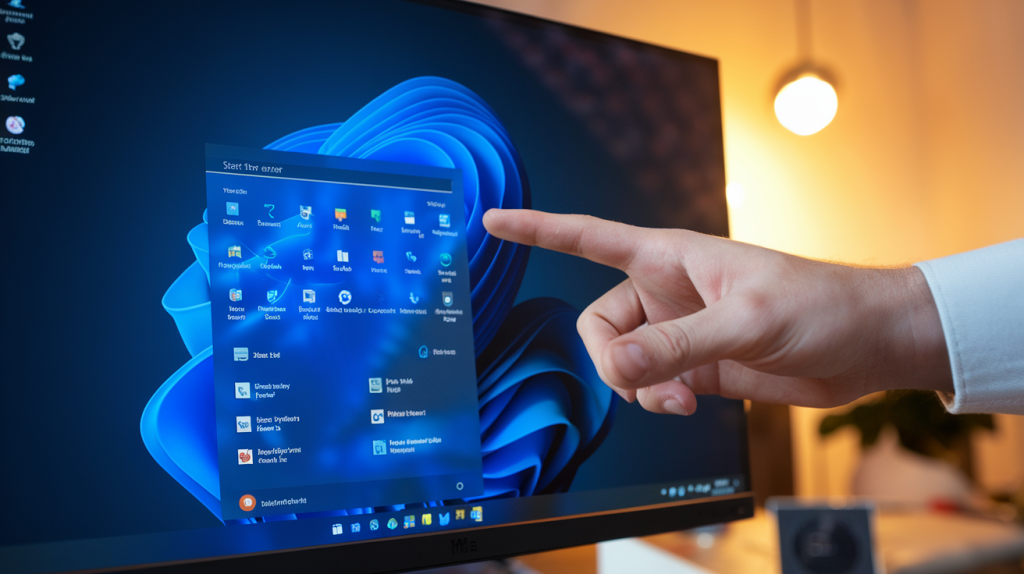
Windows 11 has a hidden gem that many users overlook – the secret Start menu. This powerful feature can significantly boost your productivity by providing quick access to essential system tools and settings.
How to Access the Secret Start Menu
To reveal this hidden menu:
- Right-click on the Start button
- Press Windows key + X on your keyboard
Key Features of the Secret Start Menu
The secret Start menu offers a wealth of options, including:
| Category | Options |
| System Management | Task Manager, Device Manager, System |
| Power Options | Shut down, Restart, Sleep |
| File Explorer | File Explorer, Windows Terminal |
| Settings | Settings, Network Connections |
Productivity Boosters
Some productivity-enhancing tools you can quickly access:
- Task Manager: Monitor and manage running applications
- Windows Terminal: Access command-line tools efficiently
- Settings: Quickly adjust system preferences
The hidden menu feature can help you speed up the way that you work and minimize the number of menus needed to navigate through. Whether you are a power user or only want to optimize your Windows experience, the secret Start menu is a powerful tool in your productivity arsenal.
With this hidden gem under your belt, it’s time to look at how you’re going to make Windows 11 even better soon enough with Windows Copilot.
Also Read: How AI Productivity Tools Boost Daily Efficiency
Bonus tip: Check for the Windows Copilot launch
Bonus tip: Check for the Windows Copilot launch
Microsoft already showed Windows Copilot, its new AI-driven assistant aimed at changing how we use Windows 11. It is a productivity-enhancing feature that we should look forward to seeing completely rolled out. Here’s what you need to know:
Key Features of Windows Copilot:
- AI-powered assistance
- Natural language processing
- Contextual understanding
- Integration with Windows apps
How to Check for Windows Copilot:
- Open Windows Update
- Click “Check for updates”
- Look for “Windows Copilot” in the optional updates
- Install if available
| Aspect | Windows Copilot | Traditional Windows Features |
| Interaction | Natural language | Command-based |
| Learning Curve | Minimal | Varies |
| Customization | Adaptive | Manual |
| Task Automation | Advanced | Basic |
Windows Copilot is expected to make completing tasks easier, provide personalized help and increase productivity overall. Meanwhile, there are lots of Windows 11 features to learn for your workflow while waiting for it. For the latest on Windows Copilot’s launch and availability, watch official Microsoft’s channels.
Windows 11 is packed with hidden features that can significantly boost your productivity. From focus sessions to voice typing, taskbar Teams integration, and advanced copy-paste functionality, these tools are designed to streamline your workflow. PowerToys, virtual desktops, and Snap Layouts offer even more ways to customize your experience and manage your workspace efficiently. Don’t forget to explore the secret Start menu and keep an eye out for the upcoming Windows Copilot launch.
By incorporating these hidden features into your daily routine, you can transform your Windows 11 experience and maximize your productivity. Take some time to explore and experiment with these tools, and you’ll likely discover even more ways to optimize your work process. Embrace the full potential of Windows 11 and watch your efficiency soar.