
Ever wanted to capture and record your computer screen but felt overwhelmed by all the options and techy difficulties? You’re not alone. From recording a game for social media to creating a tutorial (for personal or professional use), a good screen recorder makes a whole lot of sense.
But here’s the best part — you can get great results without spending a penny. In this article, I am going to show you the best 7 free screen recorders for Windows 11 that are powerful and also easy to start with. Every tool is really different, so no matter who you are, what you do or what your skill level is, there’s something for you.
Best Free Screen Recorders for Windows 11
Let’s dive into the 7 best tools you can try today. From built-in solutions to advanced third-party apps, this list covers everything.
1. Snipping Tool (Built-in Free Screen Recorders in Windows 11)
Windows 11 users have a powerful screen recording tool at their fingertips without the need for additional downloads. The Snipping Tool, a long-standing feature of Windows, has been enhanced to include screen recording capabilities. This integration ensures that you have a reliable, cost-free option readily available.

Key Features:
- Clean and simple interface
- Supports keyboard shortcuts
- Saves recordings instantly
- No watermark
Why You’ll Love It:
It’s perfect for beginners or anyone who wants a quick, no-fuss screen recording solution. You can also share your recording directly via email or apps.
It’s great for beginners or anyone who needs a fast, no-frills screen recording app.
The Snipping Tool also doesn’t include any watermarks on your recordings, which is more than can be said for many free screen recorders. What this means to you is your captures will look clean and professional and can be utilized for both email and business. Now that we’ve explored the built-in option, let’s look at some powerful third-party alternatives, starting with OBS Studio
2. OBS Studio: Powerful and Versatile
If you want a free screen recorders that feels like a professional studio, OBS Studio is the way to go. It’s used by streamers, gamers, and YouTubers worldwide. OBS Studio stands out with its impressive multi-source recording capabilities.

Key Features:
- Records screen, webcam, and audio all at once
- Supports multiple sources and scenes
- No watermark and no time limit
- Streaming integration (Twitch, YouTube, Facebook Live)
Why You’ll Love It:
It has a steeper learning curve, but once you get the hang of it, OBS can do virtually anything. There are tons of YouTube tutorials to help you get the hang of it, fast.
My Recommendation for OBS Studio There is a comrehensive screen recording room with all the bells and whistles, OBS Studio is your answer. In the next section, we will discuss ShareX, which is an effective screen recorder and much more.
3. ShareX: More Than Just Screen Recording
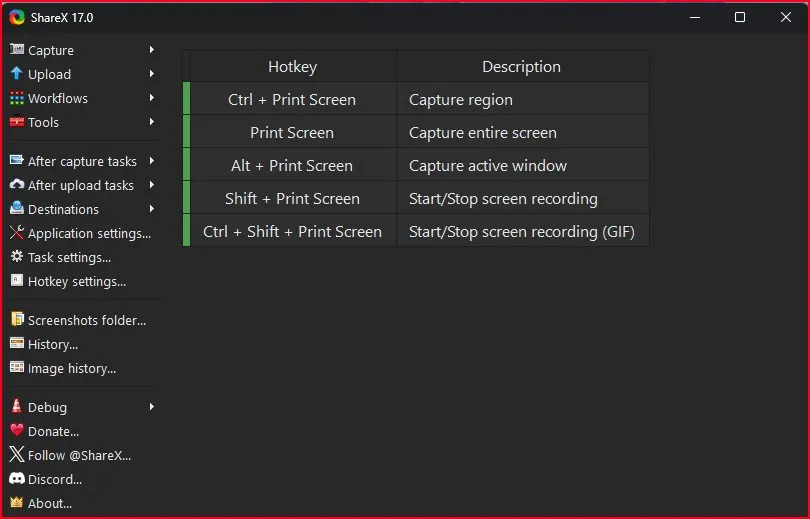
ShareX is not just a screen recorder. It’s kind of a Swiss army knife for recording and sharing your screen. ShareX is more than just a screen recording tool, the expansive range of screenshot options makes it perfect for anyone having to take regular screen grabs.
Key Features:
- Supports screen recording and screenshots
- Scroll capture for long pages
- Automatically upload files to cloud (Google Drive, Dropbox)
- Custom hotkeys and task automation
Why You’ll Love It:
If you’re someone who enjoys fine-tuning and automating things, then you’re going to love ShareX. With these tools, you can easily grab exactly what you need, whether it’s a specific portion of your screen or an entire webpage.
So, we’ve seen what ShareX can do, it’s time to take a look at another option – one that’s more user-friendly and emphasizes simplicity and ease-of-use.
4. ScreenPal – Simple and Webcam Friendly
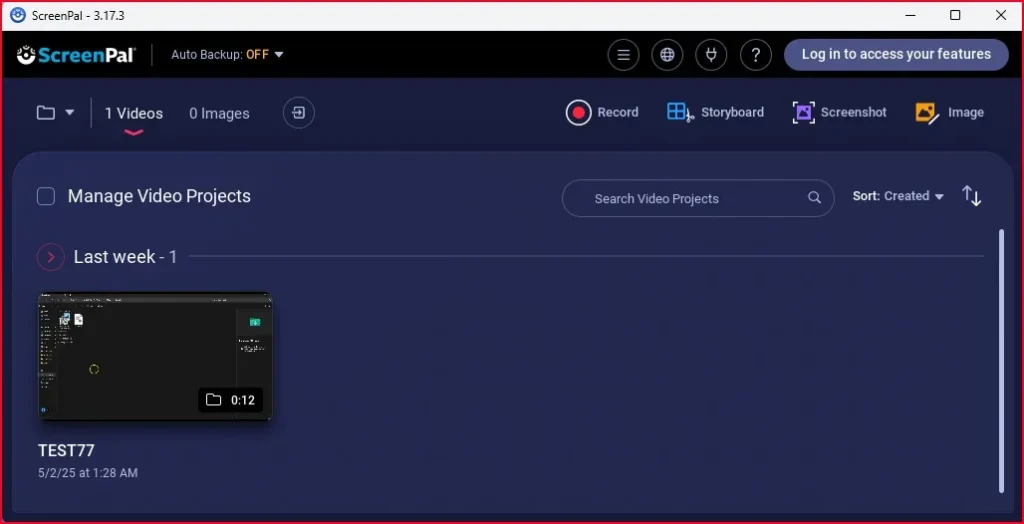
ScreenPal (previously Screencast-O-Matic) is ideal for people who like things clean and simple. The user interface is clean and simple to use for beginners yet powerful, it allows you to record menus, overlays, and much more without feeling the bloat.
Key Features:
- Easy-to-use interface
- Records both screen and webcam
- Basic editing tools like trim, cut, and add text
- Great for educators and presentation videos
Why You’ll Love It:
If you’re creating tutorial or explainer videos, ScreenPal makes it all easy – and at high qualit.
5. Icecream Screen Recorder – Great for Scheduling
Icecream Screen Recorder allows you to schedule recordings and draw on the screen while recording. Appearance/ looks Icecream Screen Recorder shines in terms of its self-explanatory and well-structured interface, which makes it a handy tool for newbies and pros alike.

Key Features:
- Schedule your screen recordings
- Draw and add text in real time
- Supports webcam and system audio
- Simple interface and quick setup
Why You’ll Love It:
Need to capture a webinar at a specific time? Set it and forget it with Icecream. Plus, real-time drawing tools make it ideal for tutorials. With its multiple simple-to-use yet still so powerful features, Icecream Screen Recorder can serve a diverse range of Windows 11 screen recording use cases. No matter whether you’re providing support, demonstrating software, installing a video for the first time, or analysing your computer’s problems, the process is designed to be as simple and quick as possible..
6. Free Cam – Clean and Distraction-Free
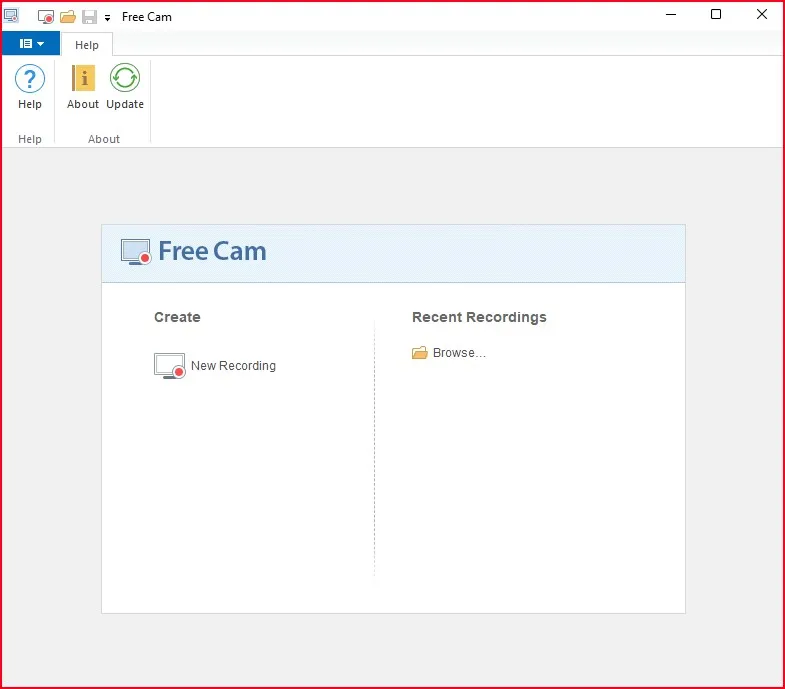
Free Cam is a tiny free app with no ads, no watermarks, and no limits. By being stripped down to its simplest form, you allow yourself be discovered.
Key Features:
- No watermark or pop-ups
- Built-in audio editor for trimming and noise removal
- Direct upload to YouTube
- Super lightweight and easy to use
Why You’ll Love It:
Free Cam is all about keeping things simple. There’s no getting bogged down with menus — just press record and go.
So now that we’ve taken a closer look at Free Cam’s straightforward functionalities, let’s do the same with another option that is quite and popular and features-rich in its free edition.
7. FlashBack Express – Best Free Version with Advanced Features
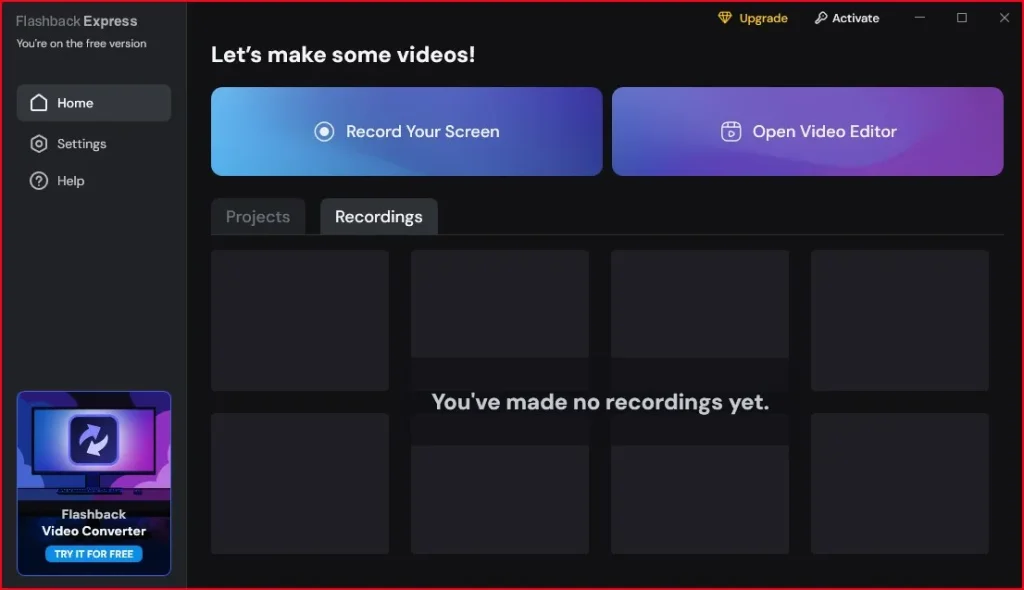
FlashBack Express stands out among free screen recorders with its robust multi-monitor support. This feature allows users to capture content across multiple screens simultaneously, making it ideal for professionals working with complex setups or gamers streaming multi-screen gameplay. You can easily select which monitors to record, offering flexibility in your screen capture process.
Key Features:
- Multi-monitor support
- Schedule recordings
- Record microphone and system audio
- Clean interface with built-in video player
Why You’ll Love It:
If you need to record meetings or lectures regularly, this one’s a keeper. It’s powerful yet not overwhelming for new users.
Which Free Screen Recorder Should You Choose?
Choosing the best free screen recorder for Windows 11 depends on your needs:
- Just need something quick? Go with Snipping Tool.
- Want pro-level features? Try OBS Studio.
- Prefer automation and screenshots? ShareX is for you.
- Looking for a clean UI? Use ScreenPal or Free Cam.
- Need scheduled recording? Icecream or FlashBack Express are great picks.
The good news is—you don’t have to settle for just one. Try a couple of these and see which fits your workflow best.
Want more free software for your PC? Don’t miss this handpicked list: 10 Best Sites to Download Windows Software for Free. It’s perfect for discovering more tools like the ones we covered today.
Final Words
No matter what kind of project you’re working on—be it tutorials, gameplay, or business presentations—there’s a free screen recorder for Windows 11 that’s right for you. Try one (or a few) from this list and start recording like a pro, without spending a dime!
Frequently Asked question (FAQs) – Free Screen Recorders for Windows 11
What is the best free screen recorder for beginners on Windows 11?
Snipping Tool or ScreenPal are best for beginners due to their simple and clean interfaces.
Do any of these free tools add watermarks?
Most of them, including OBS, Snipping Tool, Free Cam, and ShareX, do not add watermarks.
Can I record my webcam and screen at the same time?
Yes! Tools like OBS Studio, ScreenPal, and Icecream Screen Recorder support both webcam and screen recording.
Which Free screen recorder is best for YouTube videos?
OBS Studio and ShareX are great for YouTube due to high-quality output and streaming integration.
Can I schedule recordings?
Yes, both FlashBack Express and Icecream Screen Recorder allow you to schedule your recordings.