
Is your Windows 11 computer too slow to run? Perhaps your laptop fan is whizzing away, or apps are slow to open. These are indications your RAM and CPU are working too hard. Don’t panic — you’re not the only one. Most of us have this issue, especially in case you were using the system since a while.
The good news? You can Improve Windows 11 Performance. You don’t have to be a tech wizard to make it right. In this post, I take you through simple but effective ways to reduce RAM and CPU usage in Windows 11. These suggestions for how to speed up your computer are easy to understand and implement, and you can do them without spending any money.
So, without further ado, let’s jump in and make your PC take the breath it needs!
How to Reduce RAM and CPU Usage in Windows 11
Before we get into, let’s quickly understand what RAM and CPU do.
- RAM (Random Access Memory) is where your PC stores data temporarily while running programs. If RAM usage is high, your PC may slow down or freeze.
- CPU (Central Processing Unit) is like the brain of the computer. When it’s always at 100%, even the simplest of tasks will feel like climbing Everest.
Let’s now look at easy steps to fix these issues.
Turn off Startup Programs You Don’t Need
When your PC boots up, a bunch of apps may start running in the background without you even noticing. These startup programs can slow down your system right from the beginning. Disabling the ones you don’t actually need can make your system load faster that Improve Windows 11 Performance and reduce both RAM and CPU usage significantly.
How to Disable Startup Apps
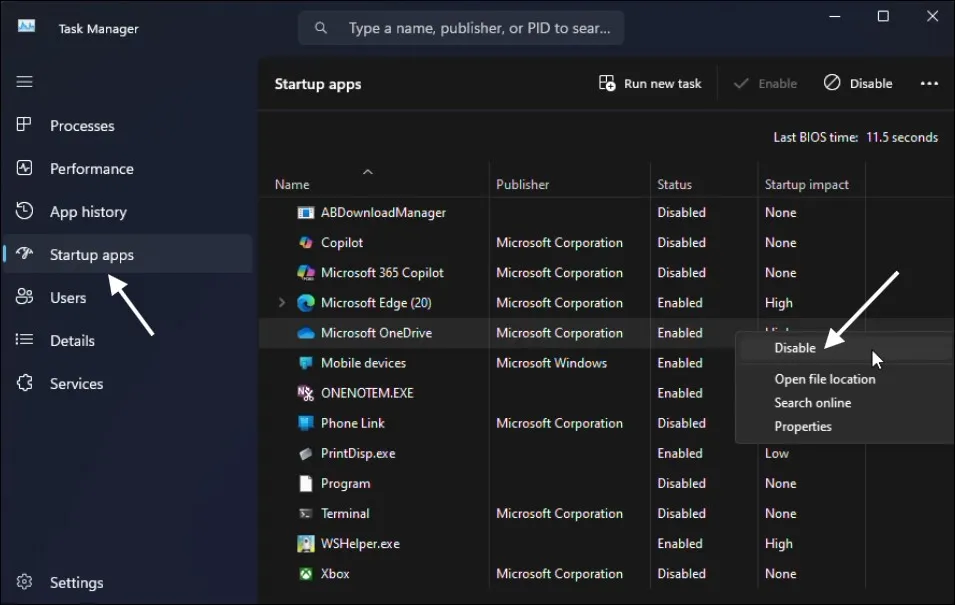
- Right-click on the Taskbar and select Task Manager.
- Click on the Startup apps tab.
- Right-click on any app you don’t need at startup and choose Disable.
Apps like Spotify, OneDrive, or Zoom don’t need to run when your PC boots. Disabling them can give your CPU and RAM some breathing room.
If you’re serious about speeding up your PC, I’ve also shared a full guide on how to disable unnecessary services in Windows 11. That post goes deeper into background services that quietly eat up your system resources.
Turn Off Background Apps
Even if you close apps manually, some of them keep running silently in the background. They keep consuming system resources, even if you’re not using them. Turning off these background apps will free up memory and lighten the load on your processor. And it also fix high CPU usage and Improve Windows 11 Performance.
Steps to Turn Off Background Apps
- Go to Settings > Apps > Installed apps.
- Click the three dots next to an app > Advanced options.
- Under “Background apps permissions,” select Never.
This is a game-changer. Apps like Mail, Weather, and even Xbox can quietly eat up RAM and CPU.

Disable SysMain (Superfetch) Service
SysMain, previously known as Superfetch, is supposed to speed up app loading by preloading them into memory. But in reality, it often causes high disk, RAM, and CPU usage. Disabling this service is a quick win, especially on PCs with SSDs.
How to Disable SysMain
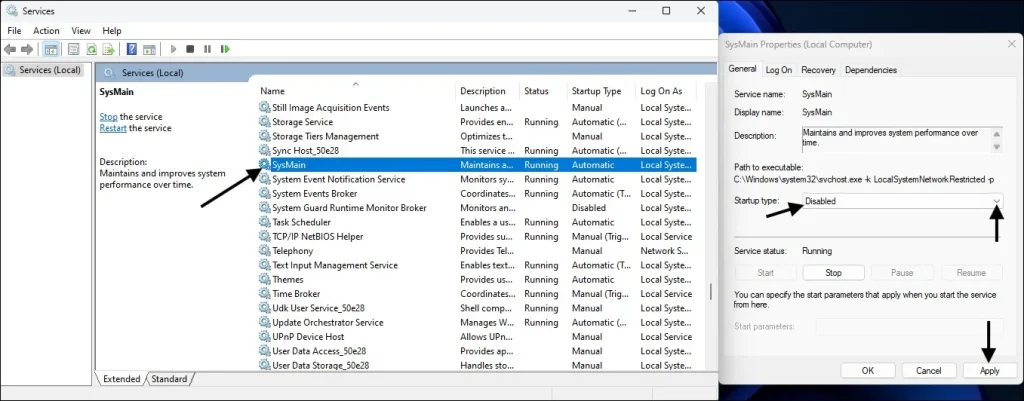
- Press Windows + R, type services.msc, and hit Enter.
- Find SysMain, right-click, and choose Properties.
- Click Stop, and set Startup type to Disabled.
Disabling SysMain can give you an improve windows 11 performance boost.
Use Lighter Antivirus Software
Some of the antivirus software are heavy on the system. They are constantly scanning, updating and conducting background checks, which can take time. Many antivirus solutions are extremely lightweight while also being very reliable and effective, freeing up much needed resources without sacrificing on security.
- Microsoft Defender – already in Windows 11 and works well for most users.
- Avira – lightweight and runs silently in the background.
- Bitdefender Free – effective and doesn’t slow down your PC.
Always uninstall any other third-party antivirus before switching to avoid conflicts.
Scan for Malware
Sometimes, the reason behind high resource usage isn’t obvious — it could be malware or hidden apps. These unwanted programs can quietly run in the background, hogging memory and CPU. Running a proper malware scan can help clean things up and Improve Windows 11 Performance.
Quick Malware Scan
- Go to Settings > Privacy & Security > Windows Security.
- Open Virus & Threat Protection.
- Click Quick Scan or Full Scan.
You can also try free tools like Malwarebytes to double-check.
Adjust Windows Visual Effects
Windows 11 is stunning with its animations and effects, but all these visuals do come at a price — particularly if you own a low or a mid-range PC. Adjusting these settings to performance mode can release RAM and CPU usage without impacting the core functionality.
Change Visual Settings
- Press Windows + R, type sysdm.cpl, and press Enter.
- Go to the Advanced tab > Click Settings under Performance.
- Select Adjust for best performance, or pick Custom and uncheck unnecessary effects.
This step helps especially if you have 4GB or 8GB RAM.

Turn Off Fast Startup
Fast Startup is meant to speed up your boot time, but it doesn’t always help. Sometimes it keeps background processes alive, which can cause higher resource consumption after every restart. Disabling it lets Windows start fresh and clean and also reduce RAM and CPU Usage in Windows 11.
Disable Fast Startup
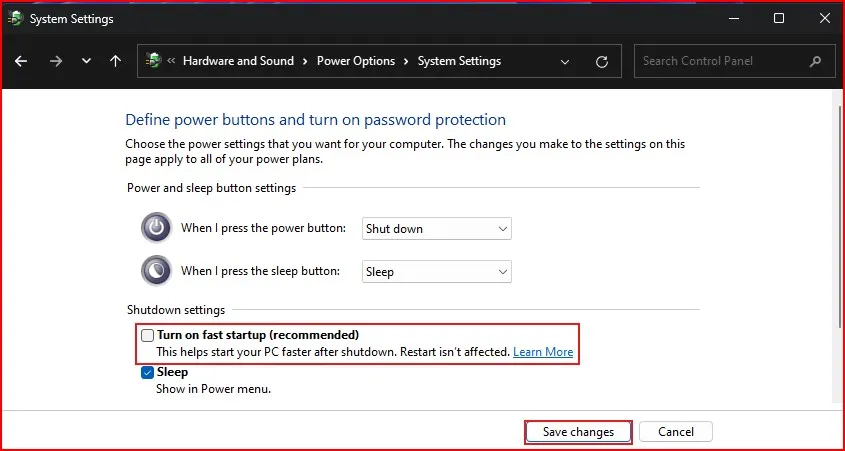
- Go to Control Panel > Power Options > Choose what the power buttons do.
- Click Change settings that are currently unavailable.
- Uncheck Turn on fast startup and click Save.
Now your PC will shut down fully and start clean, using less RAM and CPU.
Check for Windows Updates
Not all updates are bad! Microsoft sometimes releases some performance fixes and patches that reduce CPU and RAM usage. Keeping your system updated ensures your PC is running optimally with the latest improvements and bug fixes.
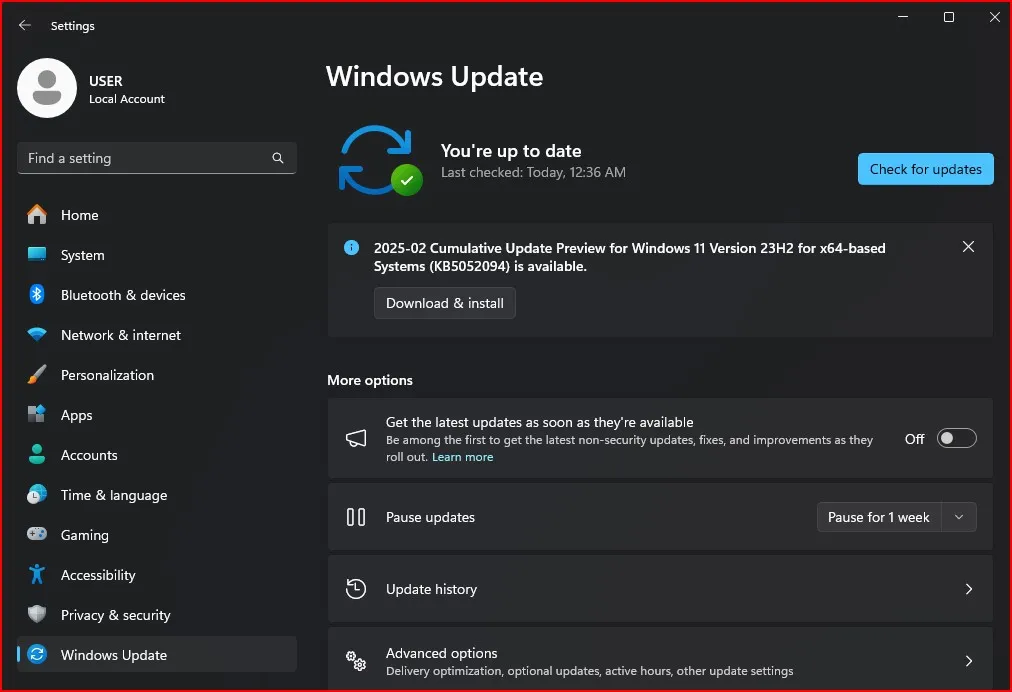
Go to Settings > Windows Update. Click Check for updates and install if available.
After an update, you might notice lower CPU and RAM usage, especially if it fixes a known issue.
Use a Lightweight Web Browser
Your browser may be the biggest memory hog — particularly if you leave a bunch of tabs open. Moving to a lighter browser, or utilizing tools like “sleeping Tabs” in Edge, can help decrease unnecessary memory and processor usage.
Try switching to:
- Brave Browser – lightweight and privacy-focused.
- Mozilla Firefox – customizable and less memory-heavy.
- Microsoft Edge (with sleeping tabs enabled) – saves resources by putting inactive tabs to sleep.
Just keep fewer tabs open — that helps a lot!
Upgrade Your RAM (Optional but Effective)
If you don’t have any of the above problems and everything is still slow, maybe it’s just your PC that needs more RAM. At the very least, 8 GB RAM is the new minimum and 16 GB is better suited for multitasking and seamless experience.
Check your laptop/desktop specs before upgrading.
Looking for a full checklist of ways to improve speed? Read my detailed guide on how to speed up Windows 11 PC for better performance.
Conclusion
And there you go — multiple easy and safe ways to reduce RAM and CPU usage in Windows 11. You don’t need to be a tech whiz to do this. Just take it one step at a time, and you’ll notice a valid improvement in how smooth your PC feels and fix high CPU usage.
If you found this guide helpful, feel free to share it with friends or anyone who is struggling with a slow computer.
Windows 11 comes with a lot of features that aren’t always easy to find, but they can really help you work faster and smarter. If you’re interested in discovering these helpful tools, check out my blog on Windows 11 hidden features that boost productivity. You’ll find some great tips that can make your everyday tasks easier and more efficient.
Frequently Asked Question (FAQ)
Why is my CPU usage always high in Windows 11?
High CPU usage is often caused by too many background apps, malware, or a service like SysMain running in the background.
Can low RAM cause high CPU usage?
Yes. When RAM is full, your PC may rely more on the CPU and the hard disk, which slows down everything. So increase your RAM and Fix High CPU Usage.
How do I fix high CPU usage in Windows 11?
Start by disabling background apps, turning off visual effects, and scanning for malware.
Is it safe to disable SysMain?
Yes, it’s completely safe and often improves performance, especially on PCs with SSDs.
Which browser uses the least RAM?
Brave and Firefox generally use less RAM than Chrome. But usage also depends on the number of open tabs and extensions.
Will upgrading from HDD to SSD help with RAM/CPU issues?
Yes. While it doesn’t directly affect RAM or CPU, it speeds up system response, making your PC feel faster and Improve Windows 11 Performance. And it can also fix High CPU Usage issue.