
Let’s be honest— Windows 11 is clean and modern to look at, but it is loaded with all sorts of stuff you probably didn’t want as soon as you start using it. From pre-installed apps to background services, all of it just sits there quietly, devouring your system resources. If your PC seems slightly slower or laggier even after a fresh install, you’re not alone.
And that’s where debloating comes into play. In this post, I am going to share a quick and easy way to Debloat Windows 11 to improve performance using an easy to use tool with an intuitive web type interface that helps you get started. It’s like cleaning out the junk drawer of your system: Getting rid of the apps and services that run in the background that you never really use. Regardless of how budget-friendly your laptop is or how high-end your machine is, it is easy to make your Windows 11 run faster and smoother in a few clicks.
What Is Debloating?
Debloating is the process of removing unnecessary and built-in apps, features, and services from your computer that you don’t use or require. These include Xbox apps, Feedback Hub, Weather, Cortana, and some other background services that run silently and while eating up resources. Removing unnecessary software already installed on your system can boost performance, improve windows boot times, decrease background processes, and even improve battery life on your laptop. It’s similar to spring cleaning your computer — removing the unnecessary clutter to keep it running smoother.
Before You Start – Create a Restore Point
It is always advisable to create a system restore point before performing any operation on your system. This means you can recover to the previous state without losing any data or setting if something goes wrong. I’ve written a full guide already on How to Create a Restore Point in Windows 11.Once you’re done with that, you’re ready to move on.
How to Debloat Windows 11 to Improve Performance
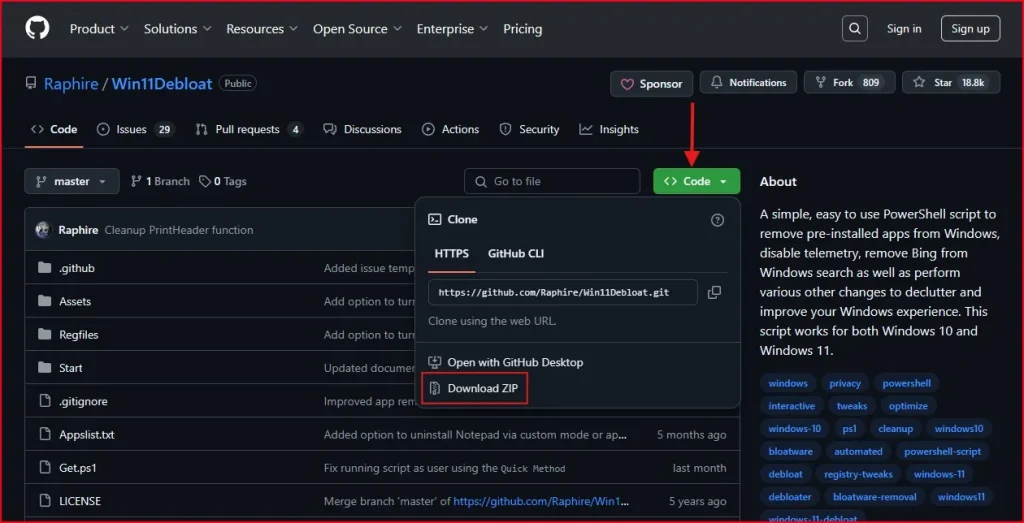
To begin, visit the GitHub page with the available script (at no cost). This tool is built to enable the debloating as easily as possible. You don’t need to know any programming or type complex commands — just download, run and follow the on-screen instructions. The menu has a clean interface, so it is easy enough for the beginner.
Step 1: Download the Script
First, go to the GitHub page linked above. Click on the green Code button, then choose Download ZIP. After downloading, extract the ZIP file to a folder—it’s best to save it somewhere like your desktop for easy access.
Step 2: Run the Script
Inside the extracted folder, look for a file named run.bat. Double-click on it.

A black command-line window will appear, and you’ll be presented with a script menu with three things you can choose: Default Mode, Custom Mode, and App Approval Mode.
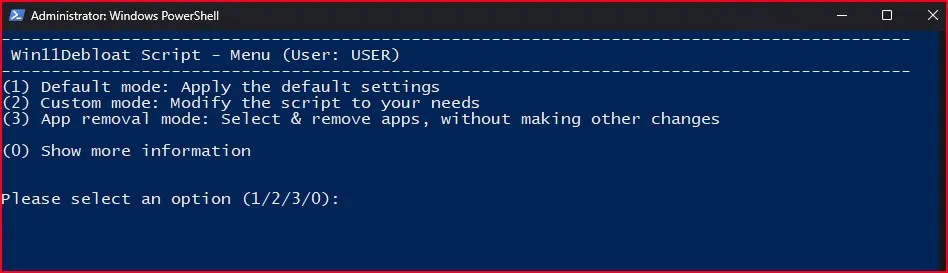
In Default Mode, the script literally hands you the wheel of what to keep and what to discard. A checklist menu opens up; you manually check anything you want to get rid of in this menu of apps or services. If you’d want to retain some of the apps, such as OneDrive, Xbox or features you commonly use, this is just fine. There are also optional tweaks, such as disabling services or removing telemetry features. You can also quit this step by clicking on the CTRL + C’ on keyboard.

In Custom Mode, the script gives you the power to decide what stays and what goes. A checklist menu appears, where you can manually select which apps or services you want to remove. This is perfect if you want to keep certain apps like OneDrive, Xbox, or other features you personally use. It also offers optional tweaks like disabling services or removing telemetry features. If you’re more comfortable with knowing exactly what’s being changed, this mode is for you.
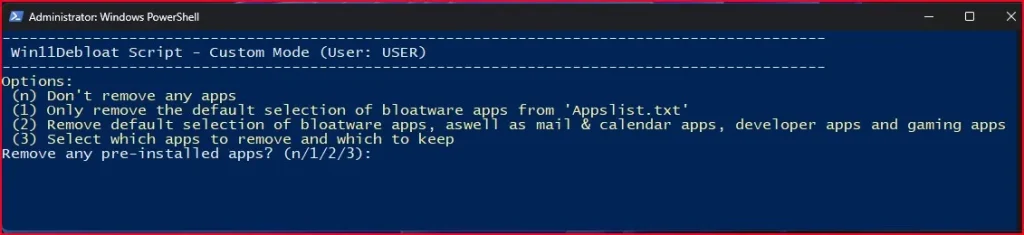
App Approval Mode has a slightly different take. Rather than presenting a checklist all at once, it asks you for permission one app at a time. The script asks you every time before you remove an item if you really want to do that or just want to skip it. This is useful if you’re unsure about which apps are safe to remove and would like to check them one by one.

Step 3: Follow the On-Screen Instructions
After selecting your mode, the script will go to work and begin cleaning. You’ll see lines of code running in the terminal—it might look a bit techy, but don’t worry. Just sit back and let it finish. Depending on the number of apps and tweaks selected, the process can take a few minutes.
Step 4: Restart Your PC
After the script finishes its job, restart your PC. This is important to apply all changes properly. After the system is booted, you should see a faster boot time and a general performance improvement.
Extra Tweaks to Boost Windows 11 Performance
If you want to go beyond debloating and truly optimize your Windows 11 experience, there are several other performance tweaks you can apply—like disabling startup apps, adjusting power settings, turning off animations, and more. I’ve already covered all those steps in detail in a separate post.
Check out: How to Speed Up Windows 11 PC for Better Performance
These additional tweaks, when combined with debloating, can give your system a significant performance lift.
So that’s how you debloat Windows 11 to improve performance without needing any technical expertise. Whether you choose the Default, Custom, or App Approval mode, the process is simple, safe, and effective. You’re basically giving your PC a deep clean, removing everything it doesn’t need, and freeing up valuable resources. Just don’t forget to create a restore point before starting, and choose the mode that best matches your comfort level. With just a few clicks, your computer will feel like it’s had a fresh start.
Frequently Asked question (FAQ)
Is this debloating method safe to use?
Yes, the script is open-source and widely used. Just make sure to create a restore point first in case you want to undo the changes.
Which mode is best for beginners?
Default Mode is great for beginners who want to clean up their system without making individual decisions.
Will I lose important apps during debloating?
Only apps you choose to remove will be uninstalled. Use App Approval Mode if you’re not sure what to keep or delete.
Can I undo the debloating changes later?
Yes, if you created a restore point, you can revert your system back to its previous state.
Will debloating help with gaming performance?
Absolutely. Removing background apps and unnecessary services frees up RAM and CPU power, which can improve gaming performance, especially on low-end systems.