
Have you recently upgraded to Windows 11 and felt something’s missing when you right-click? You’re not alone! Microsoft gave Windows 11 a brand-new, streamlined context menu, and all of that’s lovely — but for many of us, the classic Windows 10 right-click menu was just simpler and faster.
If you’re a person who is longing for the menu of old that allowed you to immediately select options such “Refresh”” New” or “Properties” without that extra click to “Show more options” — don’t fret, I’ll show you how to bring back classic context menu in Windows 11 with only a few short steps.
Key differences between Windows 10 and 11 context menus
If you’re wondering why you might want to bring back classic context menu in Windows 11, here’s the comparison.
Windows 11 has developed a new context menu style when compared to Window 10, and has done so for an all-round simplicity, contemporary look. The biggest change is the look – Windows 11 has rounded corners, new icons, and a more streamlined look in line with the OS’s wider design philosophy.
In Windows 10, all options appeared immediately in a single, sometimes lengthy menu. Windows 11, however, groups common actions like cut, copy, paste, and rename at the top with distinct icons, while relegating fewer common actions behind the “Show more options” button (or Shift+F10).
Why Did Microsoft Change the Context Menu?
Windows 11 is all about a cleaner look, and the new context menu is part of that design. While it looks modern, it can slow you down by hiding many of the options under “Show more options.” For power users, it’s an annoying extra step.While Microsoft had design reasons, many users still prefer to bring back classic context menu in Windows 11 for productivity.
Benefits of restoring the classic context menu
When you bring back classic context menu in Windows 11,itprovides immediate access to all options without the extra click. For users who frequently use specialized tools or third-party applications, this streamlines their workflow significantly.
The classic menu maintains compatibility with older applications whose context menu integrations might not display properly in the new design. It also provides consistency for users working across different Windows versions in mixed environments.
Thankfully, with a small tweak in the Registry Editor (or using a simple tool), we can bring back the good old classic menu.
Method 1: How to Bring Back Classic Context Menu in Windows 11 Using Registry Editor
Safety precautions before modifying registry
Before you edit your registry to bring back classic context menu in Windows 11, you need to be aware of the risks. The Registry Editor is a powerful tool and if you make a mistake, you can damage your install beyond repair and do any sorts of other nastiness to it. As always, make a backup (system restore point) before changing the registry.
Step-by-step registry key modification process
- Press Win+R to open the Run dialog
- Type “regedit” and press Enter
- Navigate to: HKEY_CURRENT_USER\Software\Classes\CLSID
- Right-click on CLSID, select New > Key and name it “{86ca1aa0-34aa-4e8b-a509-50c905bae2a2}”
- Right-click on this new key, select New > Key and name it “InprocServer32”
- Double-click on the (Default) value in the right pane
- Leave the Value data empty and click OK
- Restart your computer or restart File Explorer

Verifying changes successfully applied
After restarting, right-click on any file or folder to confirm the classic context menu has been restored. If you see the traditional expanded menu without the “Show more options” entry, the registry modification was successful. This change should persist across all File Explorer windows and desktop interactions.
This method allows you to bring back classic context menu in Windows 11 manually.
Method 2: Use PowerShell to bring back classic context menu in Windows 11
Simple command to restore classic menu
For users comfortable with command-line interfaces, Windows 11 offers a straightforward PowerShell command to bring back classic context menu in Windows 11:
reg add “HKCU\Software\Classes\CLSID\{86ca1aa0-34aa-4e8b-a509-50c905bae2a2}\InprocServer32” /f /ve
After executing this command, you’ll need to restart File Explorer or sign out and back in for changes to take effect. This command creates a specific registry key that disables the new context menu without requiring manual registry edits.
To revert back to Windows 11’s new context menu, use:
reg delete “HKCU\Software\Classes\CLSID\{86ca1aa0-34aa-4e8b-a509-50c905bae2a2}” /f
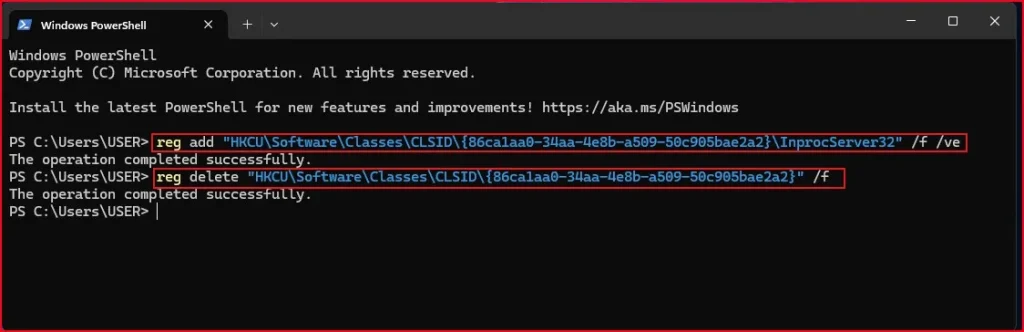
Running commands with administrator privileges
For these commands to work properly, you must run PowerShell or Command Prompt with administrator privileges:
- Right-click on the Start button
- Select “Windows Terminal (Admin)” or “PowerShell (Admin)”
- Confirm the User Account Control prompt
- Then enter the command
Running without admin rights may result in “Access denied” errors since you’re modifying system registry settings.
Creating batch files for quick toggling
To simplify switching between menu styles, create two batch files:
- Create a text file named “EnableClassicMenu.bat” containing:
- @echo off
- reg add “HKCU\Software\Classes\CLSID\{86ca1aa0-34aa-4e8b-a509-50c905bae2a2}\InprocServer32” /f /ve
- taskkill /f /im explorer.exe
start explorer.exe
- Create another file named “EnableNewMenu.bat” with:
- @echo off
- reg delete “HKCU\Software\Classes\CLSID\4e8b-a509-50c905bae2a2}” /f
- taskkill /f /im explorer.exe
start explorer.exe
Save both with the .bat extension and run as administrator when needed.
Now that you’ve successfully bring back classic context menu in Windows 11 through registry and command line modifications, you might want to explore alternative methods if you encounter any issues with this approach.
Method 3: Third-Party Tools to bring back classic context menu in Windows 11
If you’re not comfortable editing the registry, you can use Several third-party tools offer one-click solutions to bring back the familiar Windows 10 context menu.
ExplorerPatcher is such a utility that is not just limited to bringing the classic context menu back, but also the It is such a utility with a refined job that is just not the classic context menu, but a whole lot of other Windows 10 UI. Another well-known choice is WinaeroTweaker, which offers a lot of customizations for Windows 11. Classic Shell (now Open-Shell) continues its legacy of enhancing the Windows experience with familiar interfaces.
These tools offer a user-friendly way to bring back classic context menu in Windows 11 without touching the registry.
Installation and configuration guide
Installation is typically straightforward with these utilities. Download the installer from the website and run the setup file as administrator and follow the screen instructions. After installation, most tools offer simple toggle switches to enable the classic context menu. Some utilities like WinaeroTweaker require you to navigate to the “Context Menu” section to apply changes. Always restart File Explorer (or your computer) after making changes to see the effects.
Conclusion
That’s it! It’s the easiest means to bring back classic context menu in Windows 11. Whether you like the old one retroactively, or just want quicker access to your same old options, this tweak can make a real difference in your day-to-day Windows 11 experience. Keep in mind, though Microsoft has redesigned the context menu for a cleaner look, it’s still your custom world and you can change the look of Windows 11 to fit your mood.
Now all you have to do is simply pick the one that you are more comfortable with system tweaking, so have fun with your favourite context menu placed back in your hand. If you run into any problems while trying it out, feel free to share in the comments.
Frequently Asked Questions (FAQ)
Is it safe to bring back the classic context menu?
Yes, if you follow the steps carefully or use trusted tools like WinAeroTweaker.
Will this affect system performance or updates?
No. This only change how the right-click menu looks. It won’t interfere with system updates or performance.
Do I need admin rights for this change?
Yes, you’ll need administrator access to edit the registry or install tweaking tools.
Is there any risk of corrupting Windows?
If you edit the wrong registry key, it can cause issues. Always double-check the path or use a backup.
Will this tweak survive future Windows updates?
Not always. Major Windows 11 updates might reset the context menu back to default. If that happens, you can follow the same steps again to bring back classic context menu in Windows 11.