
Ever found your office desktop ransacked by keyboard-happy colleagues launching all kinds of command-line mischief? Or maybe you’re setting up computers for your kids and don’t want them accidentally wiping the C drive using some scary-looking black box?
It’s time to disable Command Prompt — and honestly, it’s much easier than most people think.
Whether you’re a system administrator locking down company devices or a parent childproofing the family computer, this guide will walk you through how to disable Command Prompt on Windows 11 using two proven methods. One with Group Policy Editor, and the other using Registry Editor.
Why You Might Want to Disable Command Prompt
You might be surprised how powerful — and risky — the Command Prompt can be when left wide open. Here’s why many users choose to disable it:
1. Security Risks with Command Prompt Access
Command Prompt isn’t just some nerdy tool — it’s a backstage pass to your whole system. With just a few keystrokes, someone can install malware, erase files, or change settings you never knew existed.
Disabling Command Prompt protects your computer from unintended changes or potential attacks.
2. Preventing Unauthorized System Changes
Ever had your system settings go haywire for no reason? Now imagine someone with bad intentions accessing Command Prompt. They could:
- Modify registry settings
- Create unauthorized user accounts
- Tamper with startup configurations
One way to stop all that? Yep — disable Command Prompt.
3. Protecting Company and Family Devices
For businesses, disabling Command Prompt helps protect sensitive files. For families, it helps keep kids from exploring parts of Windows they really shouldn’t.
In both cases, it’s a small step that can prevent big issues.
4. Use Cases for Parents, Schools & Organizations
- Schools: prevent students from bypassing restrictions
- Companies: follow the least-privilege security principle
- Parents: stop kids from installing unknown apps or running suspicious commands
No matter your reason, the solution is the same — disables Command Prompt to stay in control.
If you’re taking steps to protect your system, you might also want to disable the Run command on Windows 11.
Method 1: Disable Command Prompt Using Group Policy Editor
If you’re using Windows 11 Pro, Enterprise, or Education, the Group Policy Editor is your easiest and most reliable option.
Step1: Accessing the Group Policy Editor
Want to lock down Command Prompt on your Windows 11 PC? Group Policy Editor is your best friend.
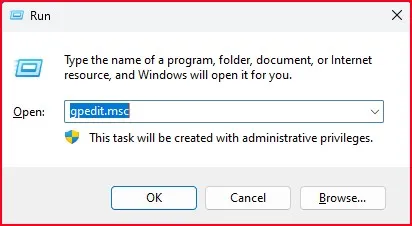
- Press Win + R
- Type gpedit.msc
- Hit Enter
This opens up the Group Policy Editor — your control panel for what users can and can’t do.
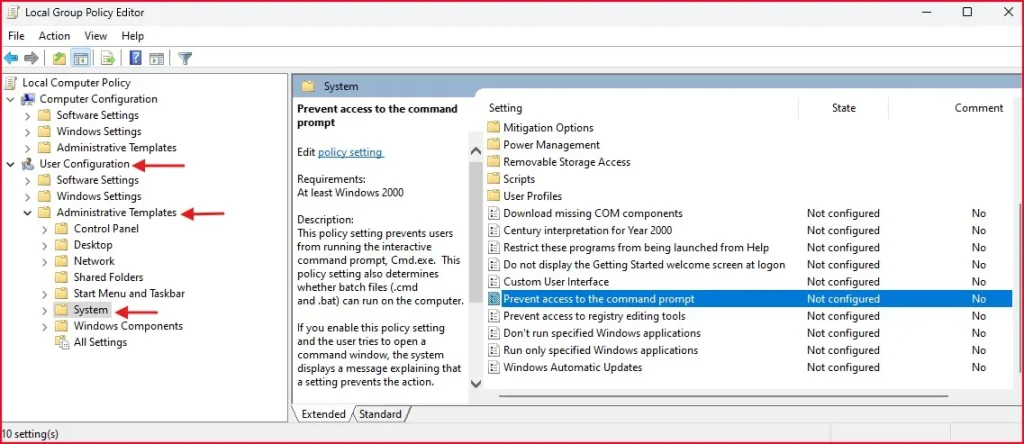
Step2: Navigating to the Command Prompt Policy
Go to:User Configuration > Administrative Templates > System Here, you’ll find a setting called “Prevent access to the command prompt.”
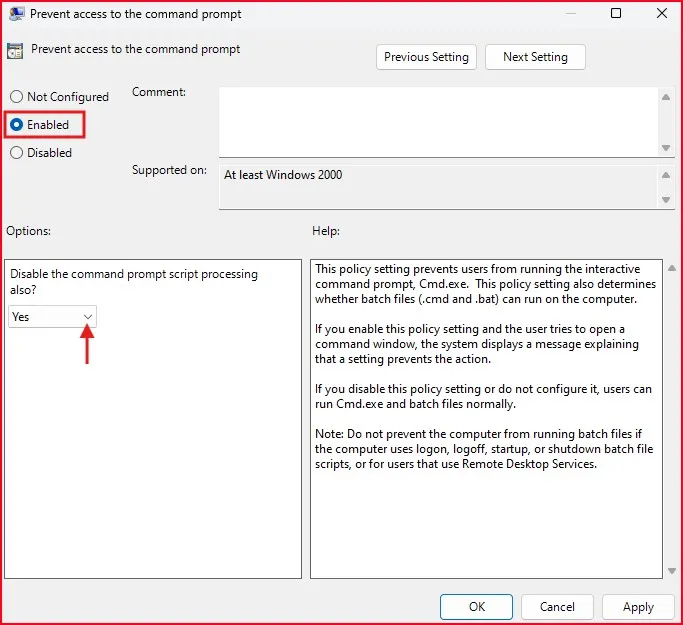
Step3: Configuring the Command Prompt Restriction
- Double-click “Prevent access to the command prompt”
- In the new window, choose “Enabled”
- Select Yes from the dropdown box that says “Disable the command prompt script processing also?”
- Click Apply, then OK
This will disable Command Prompt immediately for all standard users on the system.
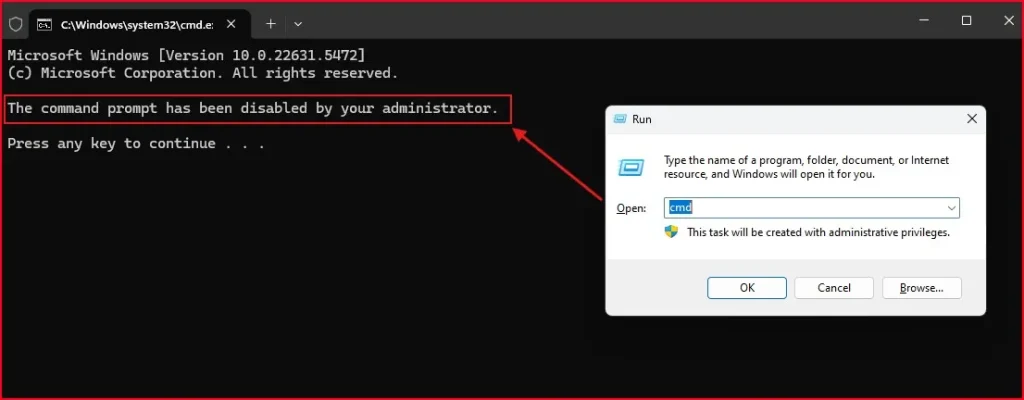
Step4: Verifying It Worked
Time to test your handiwork! Try opening Command Prompt – press Win+R, type “cmd” and hit Enter. You should see an error message stating “The command prompt has been disabled by your administrator” This confirms your restriction is active and working correctly.
Method 2: Disable Command Prompt via Registry Editor (for Windows 11 Home Users)
If you’re on Windows 11 Home, the Group Policy Editor is missing — but frets not. You can still disable Command Prompt through Regedit.
Warning: Don’t touch your registry unless youhave a recent back up! It’s like making a safety net for your system — so it’s smart to create a system restore point. That way, if something goes wrong, you can roll everything back with ease.
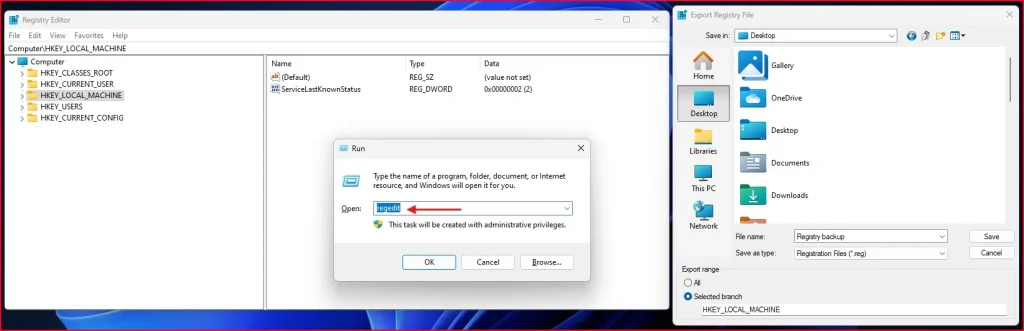
Step1: Backing Up the Registry
- Press Win + R, type regedit, and press Enter
- Click File > Export
Save the backup file somewhere safe
Step2: Accessing Registry Settings to Disable Command Prompt
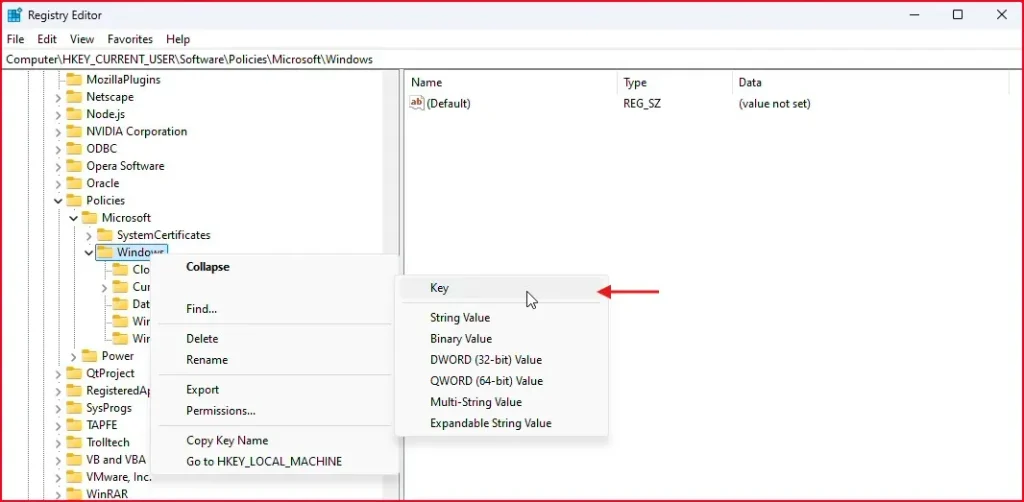
In the Registry Editor, navigate to: HKEY_CURRENT_USER\Software\Policies\Microsoft\Windows\System.
Don’t see the “System” key? Right-click on “Windows,” choose New > Key, and name its System.
Step3: Creating the DisableCMD Value
- Right-click in the right panel, choose New > DWORD (32-bit) Value
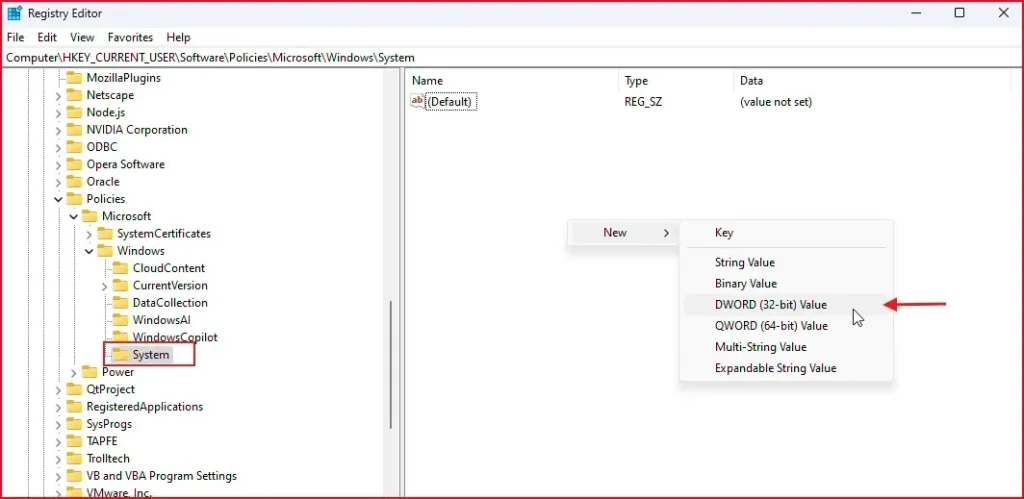
- Name it exactly: DisableCMD
- Double-click the new value
- Set the Value Data to 1
- Click OK, close Registry Editor, and restart your PC
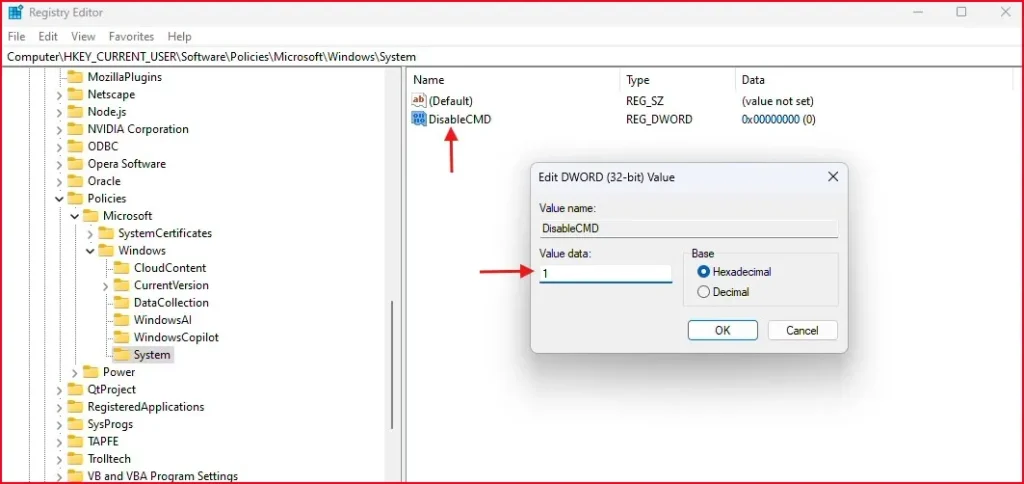
After reboot, CMD will be blocked — mission accomplished.
If you prefer visual instructions, I’ve covered these steps in my YouTube video too. Watch it here
Other Ways to Disable Command Prompt
Use Third-Party Security Tools
If you want something easier, tools like Bitdefender, Kaspersky, or Norton often include features to block access to Command Prompt with just a few clicks. They’re great for added control without diving into system settings.
Use Microsoft Family Safety
For parents, Microsoft Family Safety is a great tool. You can block apps like CMD, set screen time, and even monitor what your kids try to access — all from your dashboard.
Set Up Limited User Accounts
A simple way to restrict access is by creating Standard user accounts instead of Administrator ones. These have fewer privileges and can help prevent unauthorized changes, including using Command Prompt.
Final Thought – Should You Disable Command Prompt?
Disabling Command Prompt might sound like overkill, but, in the appropriate contexts, it’s a smart, simple layer of protection. It aids in preventing unwanted changes, stops prying users from acting up and encourages better digital hygiene — particularly on shared or supervised computers.
If you’re managing a school network, company system, or even your own home PC, it’s worth considering this step.
FAQs – Disable Command Prompt
Is it safe to disable Command Prompt?
Yes. If you’re not a power user or developer, you likely don’t need Command Prompt day-to-day. It’s safe to disable and reversible if needed.
Can I disable Command Prompt for just one user?
Yes. Both Group Policy and Registry Editor methods apply to the currently logged-in user unless explicitly configured for all users.
How do I re-enable Command Prompt?
Simply reverse the method you used:
# n Group Policy Editor: Set the policy to Not Configured
# In Registry: Change DisableCMD value to 0 or delete it
Should parents disable CMD on home PCs?
Definitely. It adds a small but meaningful barrier to prevent kids from making accidental or risky changes to the system.