
The Windows Event Viewer is a built-in tool which monitors and records events that occur in your system as up to the minute basis. It can be used by IT professionals and tech-savvy home users to have control over their systems, troubleshoot problems, detect security issues.
It is like the personal diary of your PC. It takes notes of every key events, so you can retrospect at what time which issue occurred.
What is Windows Event Viewer?
In simple terms, Windows Event Viewer is a built-in Windows tool that keeps logs of everything that happens on your computer. This includes:
- Application events – errors, warnings, and messages from programs you run
- Security events – login attempts and permission changes
- System events – issues with hardware or system components
You can look for the fine details in Event Viewer, rather than guessing what has happened. It is like reading the black box of your computer.
Why Should You Care About Event Viewer?
The Event Viewer is one of those features that quietly runs in the background without getting any attention most of the time — until something goes wrong.
Here’s why you might use it:
- Analysing system crashes: If your PC reboots randomly or freezes, Event Viewer can help you identify the cause.
- Suspicious activity inspection: This typically includes things such as looking for failed logins, security related changes.
- Monitoring system Health:this may indicate that something is amiss which could avoid potentially bigger challenges later on, such as hardware alerts or driver alerts.
Example:
If your printer suddenly stops working, Event Viewer showing you that a driver was unable to load rather than wasting countless hours guessing.
How to Open Windows Event Viewer
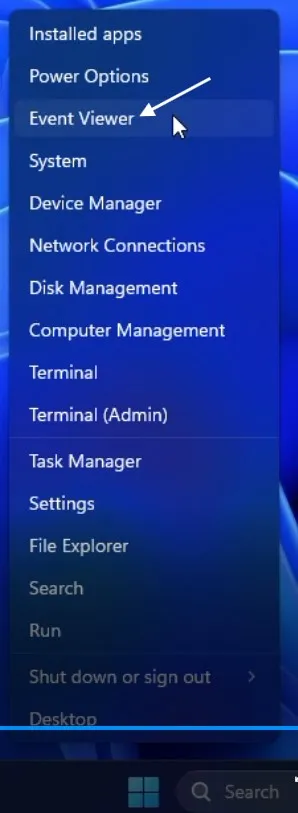
1. Finding Event Viewer is pretty straightforward. You’ve got several ways to access it: Quick way: Right-click the Start button (or use Win + X) and choose Event Viewer from the list.
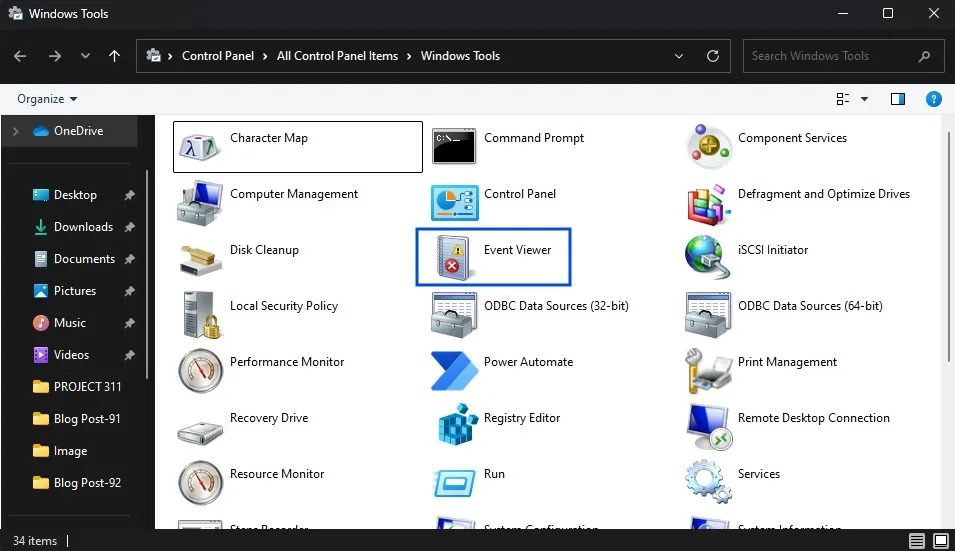
2. Using Control Panel: Open control panel > choose the option for Windows Tools> Event Viewer.
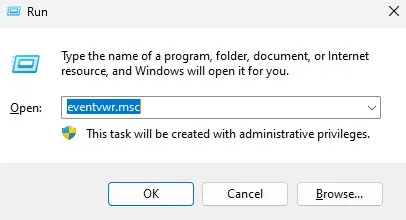
3. Using Run: Press Win + R on keyboard and type eventvwr.msc, and hit Enter.
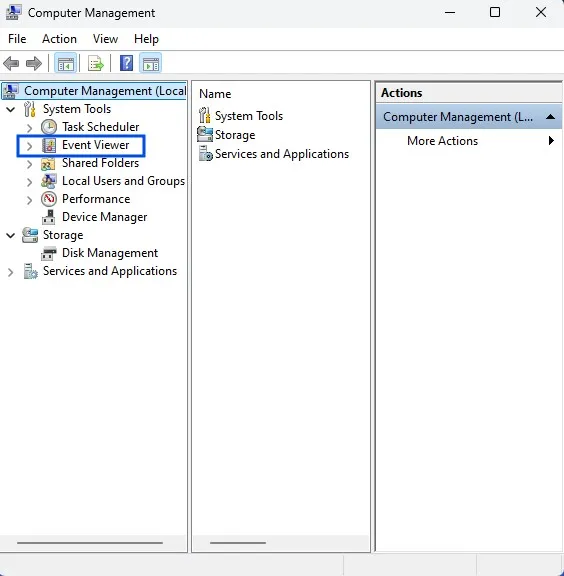
4. Using Computer Management: Right-click on “This PC” and select “Manage”, then find Event Viewer in the left pane.
Once opened, you’ll see a three-pane interface with navigation options on the left, a summary view in the middle, and action items on the right.
Breaking down the main Event Viewer Layout
When you first open Event Viewer, it may look intimidating — lots of numbers, logs, and warnings. Don’t worry! Here’s a quick breakdown:
The interface has three main panels:
- Left panel: This is your navigation tree. You’ll find different categories like Windows Logs, Applications and Services Logs, and Subscriptions.
- Middle panel: This shows your list of events for whatever category you’ve selected in the left panel.
- Right panel: Here you’ll find Actions related to whatever you’re currently viewing.
The Windows Logs folder contains the five most important logs you’ll use:
- Application: Tracks events logged by programs
- Security: Records login attempts and security-related events
- Setup: Contains events related to application installation
- System: Tracks events logged by Windows system components
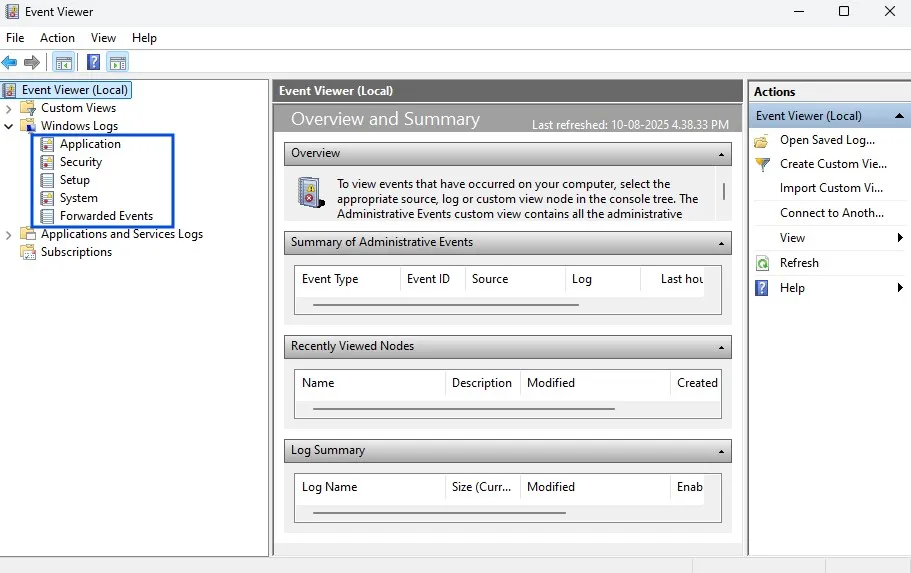
Understanding event severity levels
Each event in Event Viewer has an associated severity level that allows you to quickly determine how substantial a problem might be.
| LEVEL | ICON | WHAT IT MEANS |
| Information | Blue “i” | Normal operation, no action needed |
| Warning | Yellow triangle | Something that might cause problems later |
| Error | Red “X” | A significant problem that needs attention |
| Critical | Red “X” (more severe) | Serious failure requiring immediate action |
| Verbose | Grey (when enabled) | Detailed debugging information |
These levels of severity allow you to separate the signal from the noise and to prioritize accordingly. Most of the time you will only want to focus on error and critical events event while troubleshooting.
How to Use Windows Event Viewer for Troubleshooting
Here’s a step-by-step example of using it:
Step 1:
Let’s say your PC froze at 4:18:44 PM yesterday. Open Event Viewer and go to Windows Logs → System.
Step 2:
Look for events around that time with a red error icon.
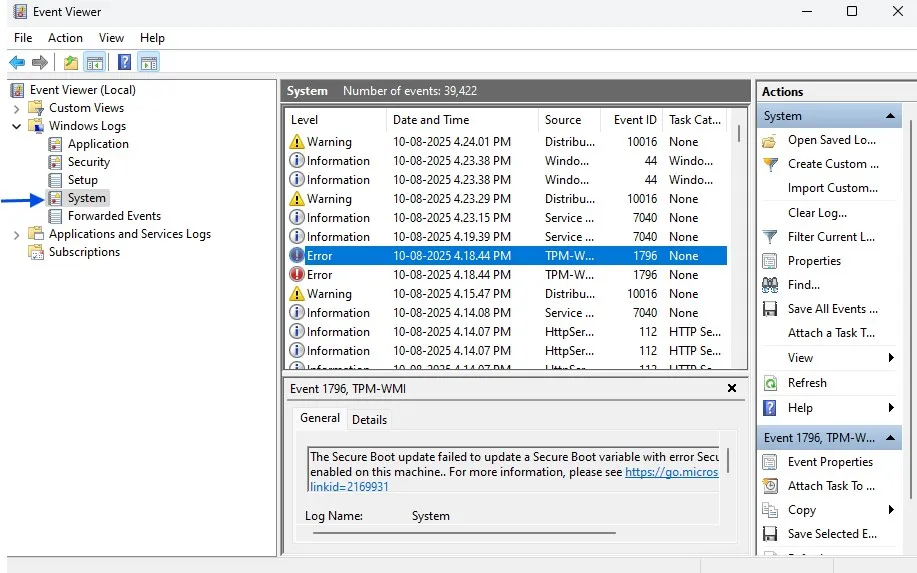
Step 3:
Click on an event to see the description. This will usually tell you what caused the issue — like a faulty driver, missing file, or overheating.
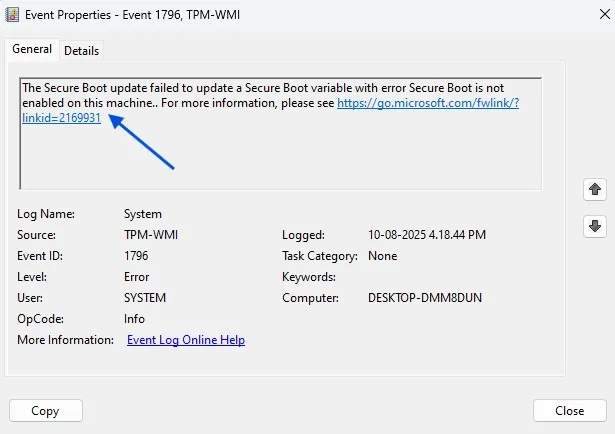
If you need help decoding an error, you can copy the Event ID and search for it on any trusted sites.
Saving and exporting event logs
There are times where you will be asked to share your logs with others, or save them for later.
To export logs:
- Select the log you want to export
- Click “Save All Events As…” in the right actions panel
- Choose your format (EVT, EVTX, CSV, or XML)
- Select whether to include all events or just filtered ones
For quick documentation, you can also:
- Right-click any specific event and select “Save Selected Events”
- Use “Copy” to paste event details into an email or document
- Create a custom view with your filters and export just those events
Common Event Logs You’ll See in Windows Event Viewer
In this part of our Windows Event Viewer guide, let’s go over the main logs you’ll find:
- Application – Logs from programs like browsers, Office, or antivirus.
- Security – Shows login attempts and user permission changes.
- Setup – Related to software installations.
- System – Hardware, drivers, and system services.
- Forwarded Events – Events from other PCs (in a network).
Final Thoughts
In this guide, we covered the basics of Windows Event Viewer — an indispensable diagnostic tool included with your operating system. So next time your computer has problems, just open the event viewer and take a look at those logs.
Related Reading:
- What Is Problem Steps Recorder & Why You Should Use It in Windows 11
- Common Windows 11 Issues and How to Fix Them
Frequently Asked question (FAQ)
Is Windows Event Viewer safe to use?
Yes. You can view all the logs without harming your system.
Can Windows Event Viewer fix problems?
Not directly. It’s a diagnostic tool — it tells you what went wrong so you can take action.
How often should I check Windows Event Viewer?
You don’t need to check it daily, but it’s good to review when you notice unusual behavior.
Do all warnings mean something is wrong?
No. Some warnings are just informational.