
Google Chrome is among the most popular web browsers worldwide. For most, we use it daily for everything from browsing to videos to checking emails and working online.
But what many users don’t know is that Chrome has a number of hidden settings to speed things up and increase privacy. These settings are not complicated to use — you just have to know where they are.
This guide will share the Top 10 Hidden Chrome Settings That Improve Speed & Privacy that makes your browser faster, safer and efficient.
1. Turn On Hardware Acceleration
Hardware acceleration is one of the most valuable hidden Chrome settings. When enabled, this feature makes Chrome utilize your computer’s graphics processor (or GPU) for videos, animations and heavy WebPages.
This enhances your Chrome browser performance, especially if you watch videos or use web apps.
How to enable it:
Open Chrome and click the three dots in the top-right corner.
Click Settings.
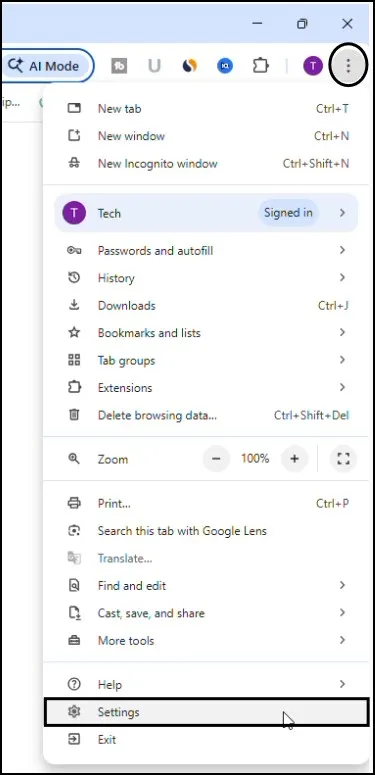
Scroll down and open System.
Turn on Use Graphics /hardware acceleration when available.
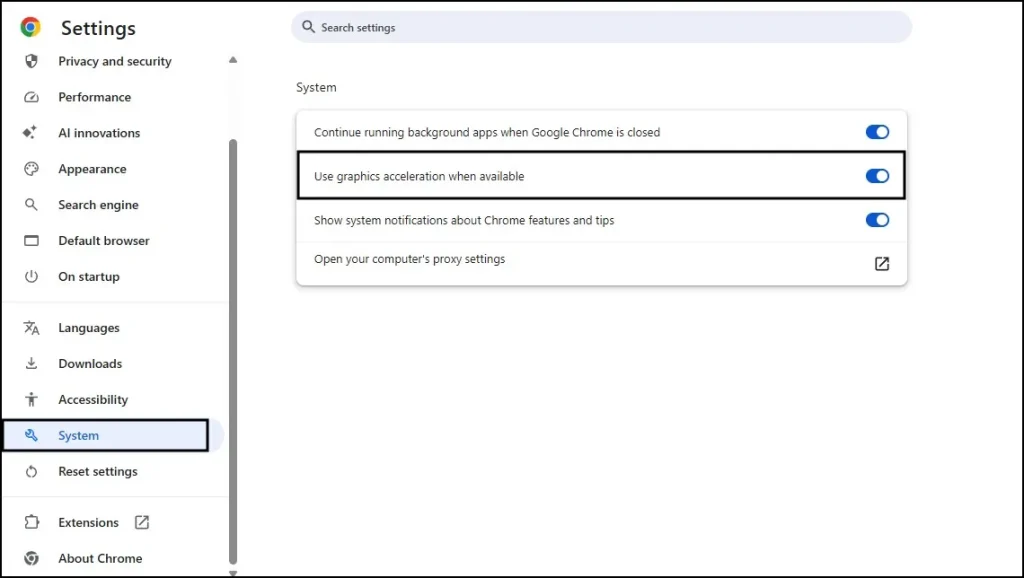
After enabling it, restart Chrome for the change to take effect.
2. Enable Memory Saver
If you find yourself often keeping a lot of tabs open, Chrome could be consuming a lot of the memory. The Memory Saver feature addresses this issue by putting inactive tabs to sleep.
Steps to enable:
Open Settings in Chrome.
Click Performance from the left side menu.
Turn on Memory Saver.
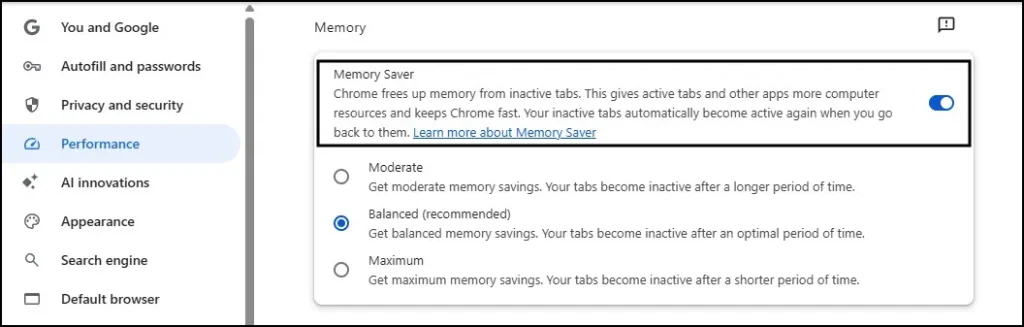
Inactive tabs will even simply be paused and reloaded when opened again. This is one of the easiest methods to increase Google Chrome performance.
3. Enable Enhanced Safe Browsing
Your browser is the entry point to the internet, so it’s important that security issues be addressed.
One of these features is Enhanced Safe Browsing to better protect against manifestly unsafe websites and downloads.
How to enable:
Open Settings.
Click Privacy and Security.
Select Security.
Choose Enhanced Protection.
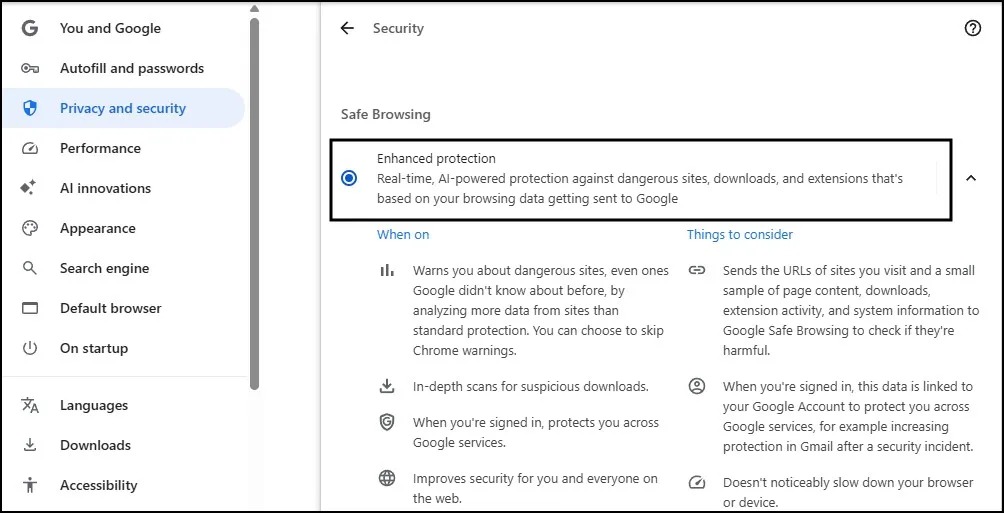
This setting helps warn you faster if a website looks suspicious.
4. Remove Unused Extensions
Chrome extensions can be useful additions. But too many extensions can slow down your browser, and even compromise privacy.
A good habit is to check your extensions occasionally.
How to check:
Type chrome://extensions in the address bar.
Press Enter.
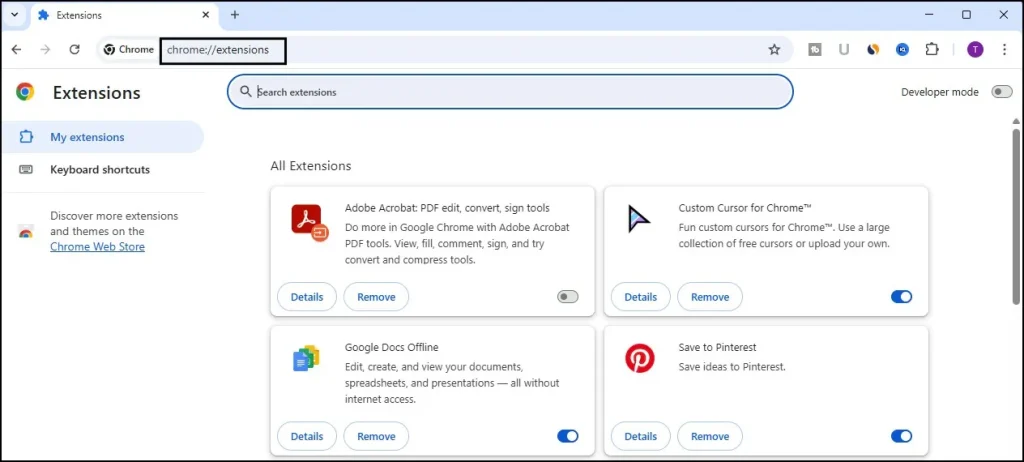
Disable or remove extensions you don’t use anymore.
Keeping only essential extensions can noticeably improve Chrome performance.
5. Enable Page Preloading
Chrome can load websites faster by preloading pages that it predicts you might visit.
Steps:
Go to Settings.
Click Privacy and Security.
Open Cookies and other site data.
Enable Preload pages for faster browsing and searching.
This small change can help websites open a bit faster.
In some newer versions of Chrome, the Preload Pages option may not appear because Chrome manages this feature automatically in the background.
6. Clear Cache Occasionally
Chrome keeps temporary files known as cache to help load websites faster. But too many of the files can make the browser sluggish.
Clearing cache every few weeks can help maintain Chrome speed optimization.
How to clear cache:
Press Ctrl + Shift + Delete.
Select Cached images and files.
Click Delete data.
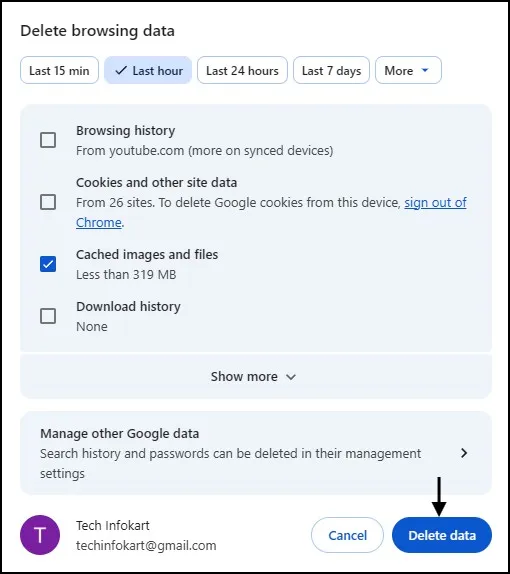
This simple step often makes Chrome feel faster.
7. Disable Background Apps
Many users may not know that even after closing the browser, some Chrome apps will still run in the background.
This could waste system resources unnecessarily.
Steps:
Open Settings.
Click System.
Turn off Continue running background apps when Google Chrome is closed.
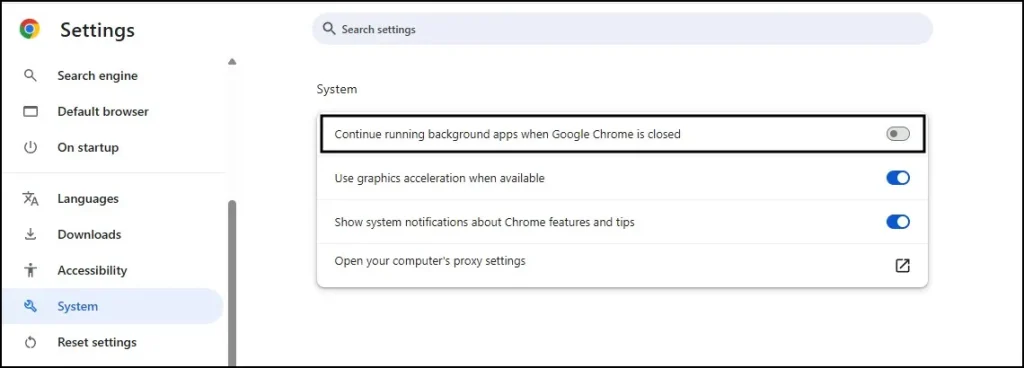
This setting helps improve both privacy and system performance.
8. Use Chrome Safety Check
Chrome has its own built-in tool, called Safety Check, to scan your browser for security problems.
How to run it:
Open Settings.
Click Privacy and Security.
Select Safety Check.
Click Go to Safety Check.
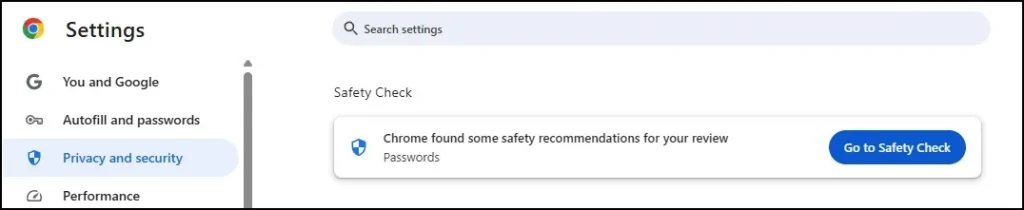
It checks for harmful extensions, compromised passwords, and outdated browser versions.
9. Enable Do Not Track Request
Another privacy-friendly option is Do Not Track request.
When this feature is turned on, Chrome requests that websites not monitor your browsing activity.
How to enable:
Open Settings.
Click Privacy and Security.
Then click on Third-parties cokkies
Under Advanced turn on Send a “Do Not Track” request with your browsing traffic.
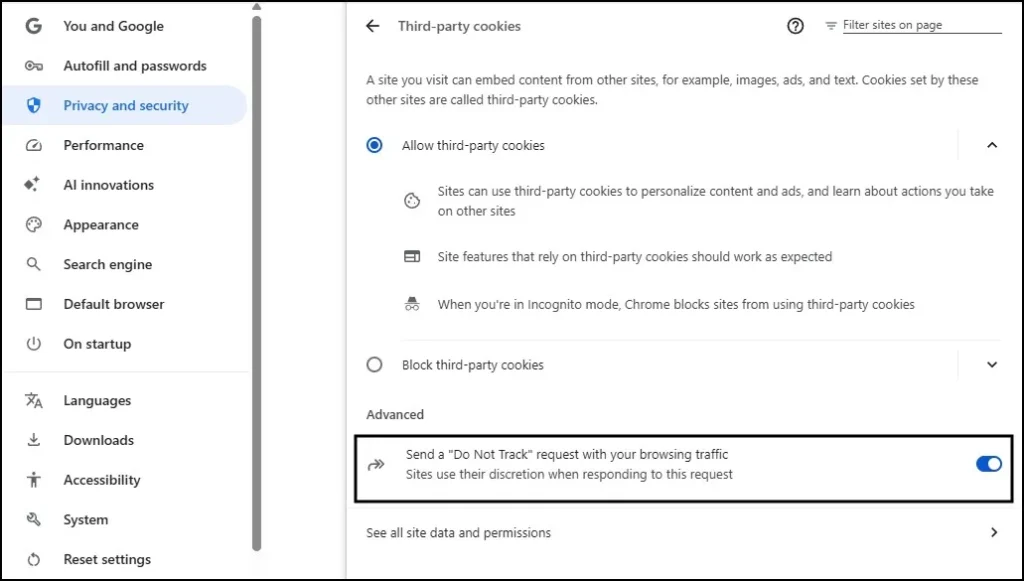
Not all websites respect this request, but it still adds an extra layer of online privacy protection.
10. Keep Chrome Updated
Though this may seem basic, a lot of users fail to update their browser.
Updates usually come with performance improvements, bug fixes, and security patches.
How to update Chrome:
Click the three-dot menu.
Navigate to Help → About Google Chrome.
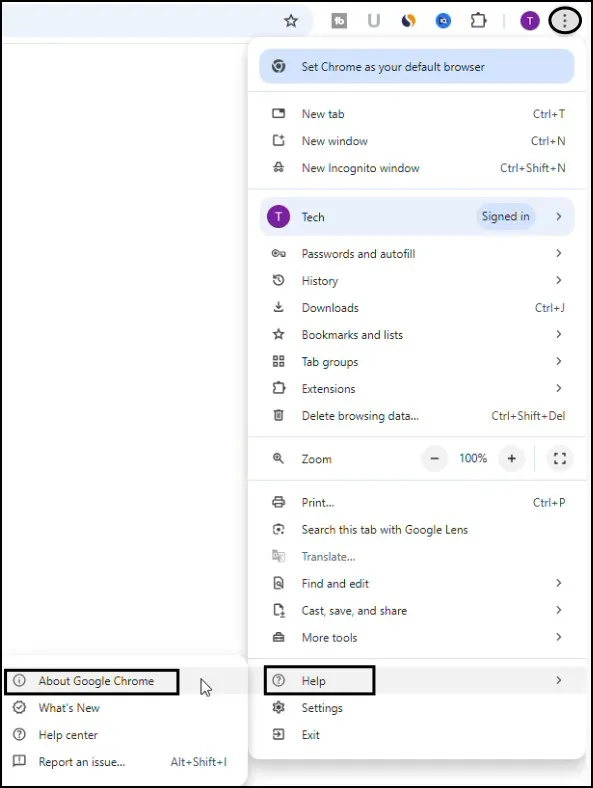
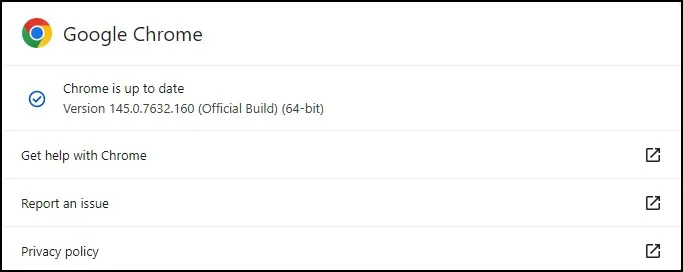
Chrome will then check for updates automatically.
The most recent version will always give the fastest, safest browsing experience.
Best tips to improve the performance of Chrome
Here are a few simple habits will help Chrome keep running smoothly:
- Avoid installing too many extensions.
- If you use Chrome all day, restart it periodically.
- Limiting the number of open tabs.
- Look for heavy tabs in Chrome Task Manager (Shift + Esc).
You may notice some difference in daily browsing with these little changes.
Final Thoughts
We are seeing that most people only use Chrome with basic settings and never check what the browser can actually do.Basically, you can change some hidden Chrome settings to make it faster and use less memory, plus get the same better privacy online.
Spend a few minutes testing these same settings. Small changes can surely improve your daily internet browsing experience. Moreover, these adjustments make your online activities both smoother and safer.
Also Read: How to Enable Always Use HTTPS in Google Chrome
Frequently Asked Questions (FAQs)
Why does Chrome become slow over time?
Chrome may slow down because of too many tabs, heavy extensions, or large cache files.
Does clearing cache delete passwords?
No. Clearing cached files does not remove saved passwords unless you select that option.
Are Chrome extensions safe?
Most are safe, but always install extensions from trusted developers.
How often should I clear Chrome cache?
Clearing cache once every few weeks is usually enough for most users.
Can Chrome settings really improve speed?
Yes. Adjusting a few hidden Chrome settings can noticeably improve browsing speed and privacy.