
Ever looked at Chrome’s library of extensions and wished you could bring them to Edge? You’re not alone. Thousands of Edge users struggle daily with extension envy, missing out on productivity tools they love.
But here’s the thing – you actually can add Chrome extensions to Edge with just a few clicks. No coding required.
The secret lies in Edge’s compatibility with Chrome extensions, allowing you to bring your favourite tools across browsers without the headache.
Why You Might Want to Add Chrome Extensions to Edge
Why add Chrome Extensions to Edge
Ever stuck with Chrome extensions you can’t live without? Microsoft Edge now supports these same tools without compromise. Changing browsers doesn’t have to mean losing your favourite ad blockers, password managers or productivity add-ons. Edge based on Chromium ensures a smooth transition, so you can keep the extensions that make your browsing experience your own.
Benefits of Microsoft Edge’s compatibility with Chrome extensions
Chrome’s massive extension library is now your playground in Edge. You get the best of both worlds – Chrome’s extensive add-on ecosystem with Edge’s superior performance and battery life. No more choosing between favourite extensions and Microsoft’s enhanced privacy features. And, Edge’s stricter extension vetting often means more security without giving up similar functionality you rely on as part of your own workflow.
Method 1: Add Chrome Extensions to Edge via Chrome Web Store
This is the easiest and most popular way to add Chrome extensions to Edge
Step 1 – Open Microsoft Edge
Launch your Microsoft Edge browser. If you haven’t downloaded Edge yet, you can get it from the official Microsoft website.
Make sure you’re using the latest version of Edge so that all extension features work properly.
Step 2 – Allow Extensions from Other Stores
By default, Edge only allows extensions from the Microsoft Edge Add-ons store. But don’t worry—you can easily unlock the Chrome Web Store.
Here’s how:
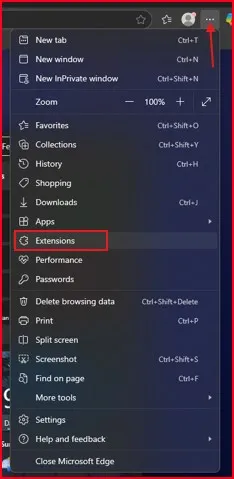
- In Edge, click the three dots (…) in the top-right corner.
- Select Extensions from the dropdown menu.
- At the bottom-left of the Extensions page, toggle ON the option that says:
“Allow extensions from other stores”
- A small confirmation pop-up will appear. Click Allow.
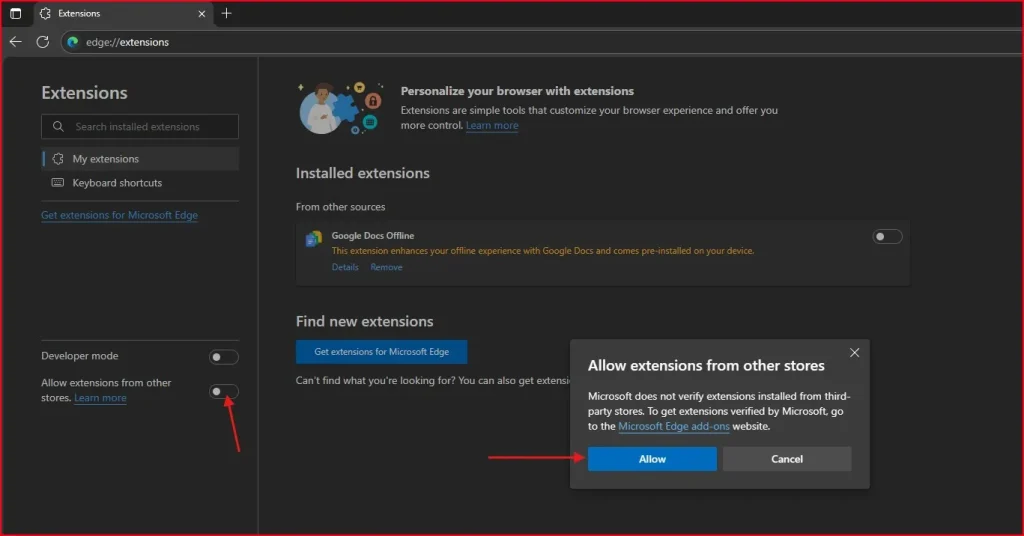
That’s it! Now Edge is ready to accept Chrome extensions. This magic switch breaks down the walls between browsers and lets Edge install goodies straight from Chrome’s Web Store. Microsoft really made this simple!
Step 3 – Visit the Chrome Web Store
- Go to https://chrome.google.com/webstore in Edge’s address bar
- Browse or search for the extensions you already use in Chrome.
- Click on your desired extension and hit the “Add to Chrome” button.
- A popup will appear—click “Add extension”.

Method 2: Add Chrome Extensions to Edge Using Edge’s Settings
If you don’t want to go to the Chrome Web Store manually, you can also import Chrome extensions to Edge directly from your Chrome browser data. Here’s how:
- Open Microsoft Edge.
- Click the three dots (top right) and go to Settings.
- Click on the Profiles tab on the left.
- Under your profile, select Import browser data.
- In the dropdown that says “Import from”, choose Google Chrome.
- Sign in to the same profile if prompted.
- Now you’ll see a list of items you can import—check the box for Extensions.
- Click Import
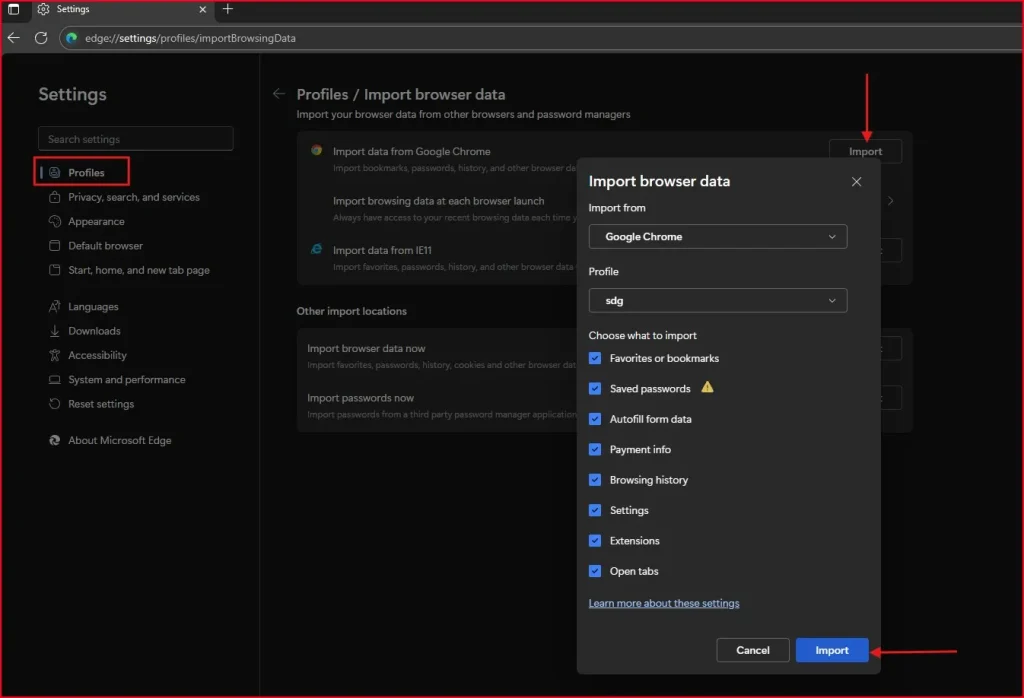
Edge will automatically bring in your compatible Chrome extensions. A progress indicator shows each extension being installed. When your transfers are done, you’ll see a success message letting you know. Edge may need to restart for all your freshly imported extensions to be up and running — not a big deal, and only requires a quick refresh to accomplish.
This is great if you’re setting up Edge for the first time and want everything when you carry out the action—bookmarks, history and extensions too!
Final Thought: Add Chrome Extensions to Edge
So, that’s it!whether you prefer browsing the Chrome Web Store or using Edge’s built-in import settings,it’s super easy to add Chrome extensions to Edge.
There’s no need to change everything you had set up, or say goodbye your old tools. A couple of clicks and you’re comfortably browsing again.
And hey—be sure to check out Edge’s own extension store as well. You could find some sweet add-ons there too.
P.S. Want to go a step further? Take a look at our guide on the Top 5 Chrome Flags to instantly boost your browser’s performance—even Edge shares some of them!
FAQ: Add Chrome Extensions to Edge
Can I add Chrome extensions to Edge?
Yes! Microsoft Edge is based on Chromium, which means it supports Chrome extensions natively.
Do I have to install them manually from the Chrome Web Store?
No. You can also go to Edge settings → Profiles → Import browser data → Select “Extensions” from Google Chrome.
Will all Chrome extensions work in Edge?
Most will, but a few that rely on Chrome-specific APIs might have limited functionality.
Do Chrome extensions auto-update in Edge?
Yes, they update automatically just like they do in Chrome
Is it safe to use Chrome extensions in Edge?
Generally yes—especially if installed from the official Chrome Web Store. But always check ratings and reviews first.