
Find out the 5 best Chrome Flags that will make your web browsing faster, smoother and more effective. These settings in Chrome are quite easy to turn on and that will save time when working, doing research, or something like any other business on the web.
Imagine this scenario- Chrome suddenly slows down, causing you to wait between clicks while having a cup of coffee before actually starting work or reading the news. Frustrating, right? Here’s the good news—Chrome Flags can help fix that! I’ve tried several flags over the years, and a handful have genuinely enhanced my browsing experience. Now let’s explore the five Chrome Flags I suggest for a more efficient and quick browsing experience. Here is a little introduction to Chrome Flags for those who are unfamiliar with it.
What Are Chrome Flags?
Chrome Flags are experimental features in the Chrome browser that Google lets us test before they become standard. These settings can improve speed, visuals, or even enable new functions. Accessing them is very simple: type chrome://flags into your address bar, and you’ll see a long list of options. Just remember, as these are experimental, they may not always work perfectly. But don’t worry—turning a flag off is as easy as turning it on.
How to Enable Chrome Flags
Turning on Chrome Flags is super easy! Open Google Chrome and in the address bar type “chrome://flags”. Search for the flag name (that I will discuss later). When you find it, click the dropdown menu and select “Enabled”. After that restart Chrome to apply the change.

Once you’ve enabled any or all of these flags, Chrome will usually prompt you to relaunch the browser. Don’t worry—it’s a quick restart, and your tabs will reopen right where you left off.
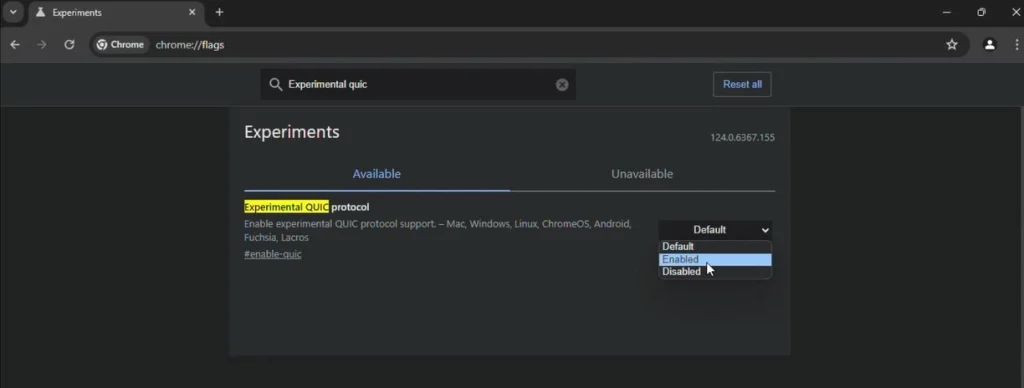
1. Enable Experimental QUIC Protocol
The first one on our list is Experimental QUIC Protocol. Chrome starts to speed up your browsing experience when this flag is activated. QUIC (Quick UDP Internet Connections) is a transport protocol developed by Google, designed to make websites load faster. It’s like getting a faster lane on a crowded highway.
To give you an idea of its benefits, imagine you’re watching videos on YouTube or loading pages with lots of images. With QUIC enabled, these pages load noticeably quicker. I used to dread those long buffer times, but after enabling QUIC, things felt snappier, especially when loading content-heavy websites.
How to enable:
Go to chrome://flags, search for “Experimental QUIC Protocol,” and select “Enabled” from the dropdown.
2. Parallel Downloading
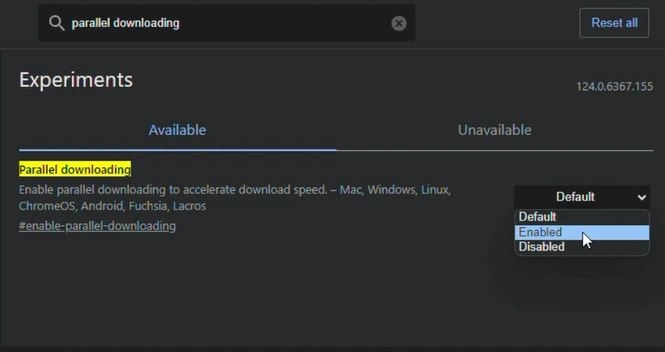
Ever downloaded a large file, only to watch it crawl along at a snail’s pace? Enabling Parallel Downloading can help with that. This flag splits files into smaller parts and downloads them simultaneously, making big downloads finish faster.
I often download software and large files for work, so this feature is a lifesaver. Without it, some downloads took ages, but Parallel Downloading made a noticeable difference. It felt like having an extra boost whenever I needed to get large files without losing precious time.
How to enable:
Go to chrome://flags, search for “Parallel Downloading,” and set it to “Enabled.”
If you prefer a video guide, watch the complete step-by-step tutorial here! This video will show you exactly how to enable each of these flags.
3. Smooth Scrolling
Have you ever scrolled down a long article or social media page, only to feel the screen stutter or lag? Smooth Scrolling solves that by making the scrolling experience feel fluid and natural. This one might seem small, but the difference is real.
I noticed that everything was considerably smoother when I was scrolling through lengthy pages after I turned on Smooth Scrolling. It elevates and streamlines browsing, particularly while viewing a large number of articles. No more jerky scrolling motions— just pure, smooth gliding.
How to enable:
Head to chrome://flags, search for “Smooth Scrolling,” and turn it on by selecting “Enabled.”

4. GPU Rasterization
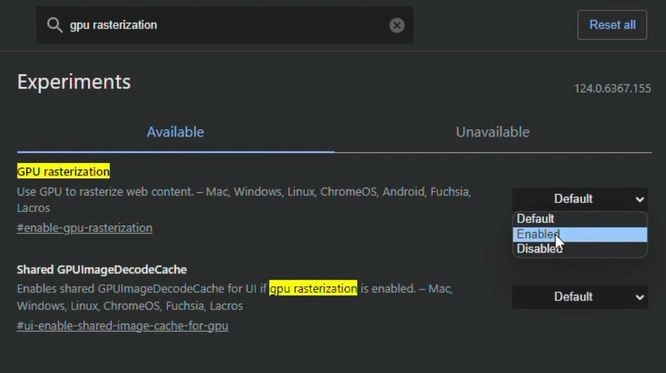
This flag is all about improving visuals and speeding up loading times. By turning on this flag, Chrome will use your computer’s graphics card (GPU) instead of its main processor (CPU) to load images. And the result gives faster load times and better graphics, especially if you’re on a laptop or desktop.
When I turned on GPU Rasterization, I noticed the graphics-heavy sites I visit for work loaded faster, and the visuals appeared crisper. It’s especially beneficial for anyone using a more powerful computer, as this feature really lets Chrome tap into the extra processing power.
How to enable:
In chrome://flags, search for “GPU Rasterization” and switch it to “Enabled.”
5. Back-Forward Cache
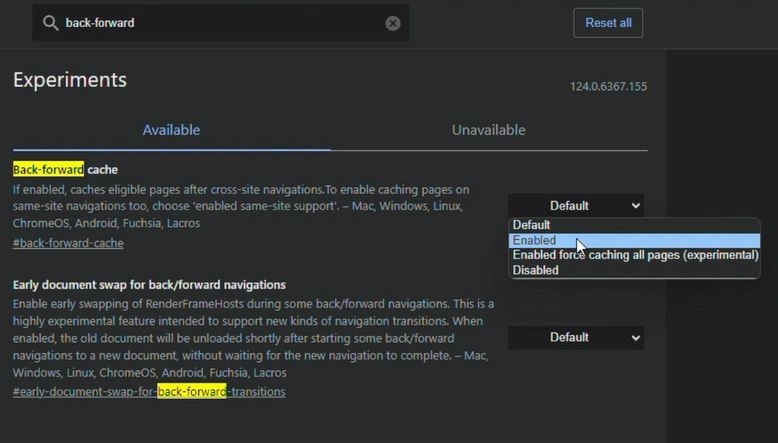
Last but definitely not least is the Back-Forward Cache. Ever clicked the back button on your browser and found yourself waiting for the page to reload? The Back-Forward Cache solves this by keeping your previous pages cached, so they’re instantly available when you hit “back” or “forward.”
This feature is a game-changer for anyone who frequently switches between pages. I constantly click between tabs when researching, and Back-Forward Cache has saved me from waiting through needless reloads. It’s like having a memory button for pages, making navigation a lot more seamless.
How to enable:
Go to chrome://flags, find “Back-Forward Cache,” and select “Enabled.”
A Quick Word of Caution
Chrome Flags are experimental, so they might have unexpected side effects. For example, some flags could interfere with certain websites or extensions. But if you ever encounter an issue, simply return to chrome://flags and set the flag back to “Default” or “Disabled.” It’s always a good idea to try these flags one at a time and see how they impact your browsing.
Wrapping It All Up
These five Chrome Flags are powerful ways to elevate your Chrome experience without needing a new laptop or fancy software. Whether you’re boosting speed with the QUIC protocol, enabling faster downloads, or just enjoying the smooth scrolling, these little tweaks can make a world of difference.
Take a few minutes today, enable these Chrome Flags, and see the improvements for yourself. It’s a simple and free way to improve your browsing experience.
So, give them a shot and share your thoughts with me!
And remember, if you’d like a visual guide on how to enable these flags, check out my video tutorial here. Happy browsing!
By enabling these Chrome Flags, you’ll create a smoother and faster browsing experience. Remember, optimizing your technology goes beyond just browsing; for those interested in improving their virtualization setup, don’t forget to check out my guide on How to Easily Install VMware Workstation Pro on Windows 11.
What are Chrome Flags?
Chrome Flags are experimental features in Chrome that can be enabled to test new functionalities and improve browsing.
How do I access Chrome Flags?
Type chrome://flags in the Chrome address bar, and you’ll be taken to the Flags page.
Is it safe to enable Chrome Flags?
Generally, yes, but since they’re experimental, they may occasionally cause minor bugs.
Does enabling Chrome Flags improve browsing speed?
Yes, certain flags like QUIC Protocol and Parallel Downloading can boost browsing speed.
Can Chrome Flags make my browsing faster?
Yes.
Are Chrome Flags available on mobile Chrome?
Yes.
Is it safe to enable multiple Chrome Flags at once?
Yes, but it may increase the chance of minor bugs.
Do Chrome Flags work on other browsers?
No, they are specific to Chrome.
Does parallel Downloading speed up all downloads?
Yes, for most downloads.
Can I disable Chrome Flags anytime?
Yes, by revisiting chrome://flags.