
Forgetting a system password is something almost everyone experiences at least once. You are on your Ubuntu system — perhaps running it in VirtualBox or as the whole system of your machine — and realize you have forgotten your login password. It doesn’t work and after several tries, the system just locks you out.
The good news? You don’t need to reinstall Ubuntu or lose your data. In this guide, I’ll show you how to reset Ubuntu login password easily, even if you’re a complete beginner.
Why You May Need to Reset Ubuntu login Password
Many users install Ubuntu for learning, testing, or daily work. But after some time, especially if the system is used occasionally, passwords are easy to forget.
This situation commonly happens when:
- Ubuntu is installed in Oracle VM VirtualBox
- Multiple user accounts exist
- Password auto-login was disabled
- The system hasn’t been used for a long time
Step-by-Step: Reset Ubuntu Login Password
Step 1: Start or Restart Ubuntu
Start your Ubuntu machine normally.
Press and hold the Shift key immediately after the system starts to boot. This will open the GRUB menu that has recovery options.
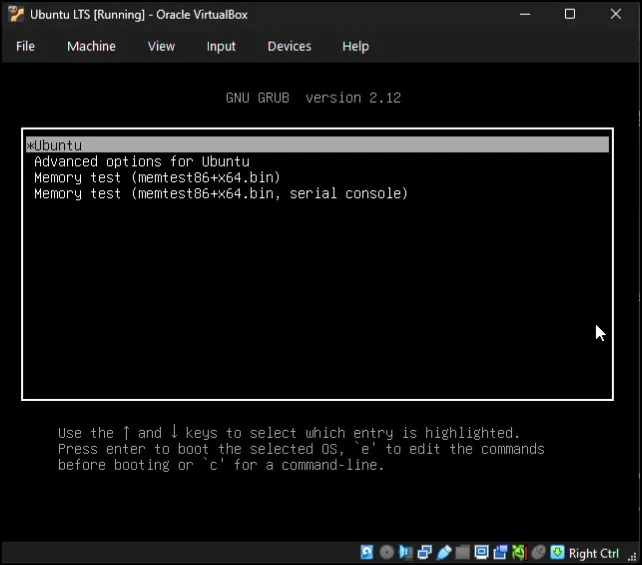
If Ubuntu boots normally, restart and try again.
Step 2: Open Advanced Options
Once the GRUB menu appears:
- Select Advanced options for Ubuntu
- Press Enter
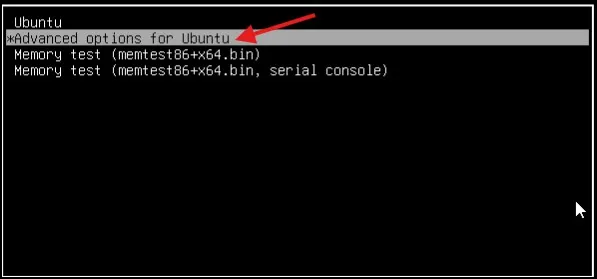
You will now see several boot options.
Step 3: Choose Recovery Mode
Select the option that contains:
Ubuntu with Linux (recovery mode)
Then press Enter.
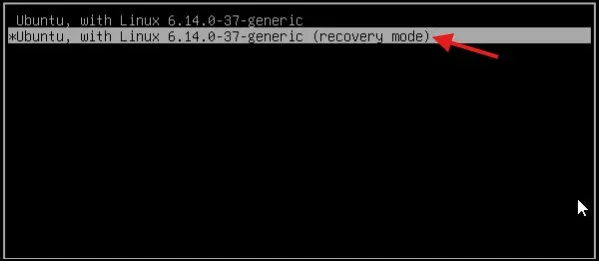
After a few seconds, a recovery menu will appear.
Step 4: Access Root Shell
From the recovery menu, choose:
root – Drop to root shell prompt
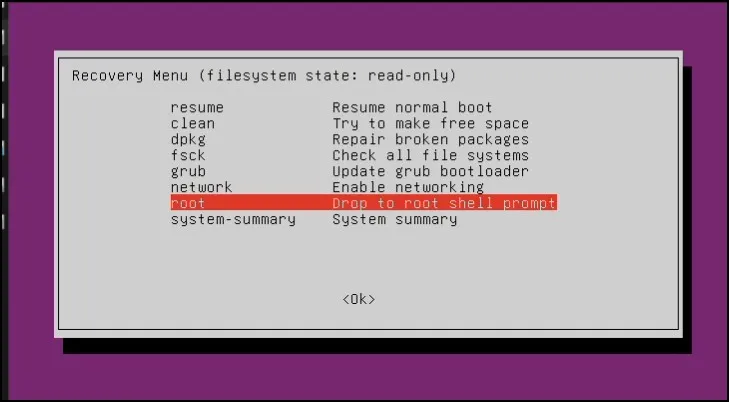
This opens a command-line interface with administrator access.
Don’t worry — you only need to type one or two commands.
Step 5: Enable System Write Access
By default, Ubuntu opens in read-only mode.
Type the following command:
mount -oremount,rw /
Press Enter.
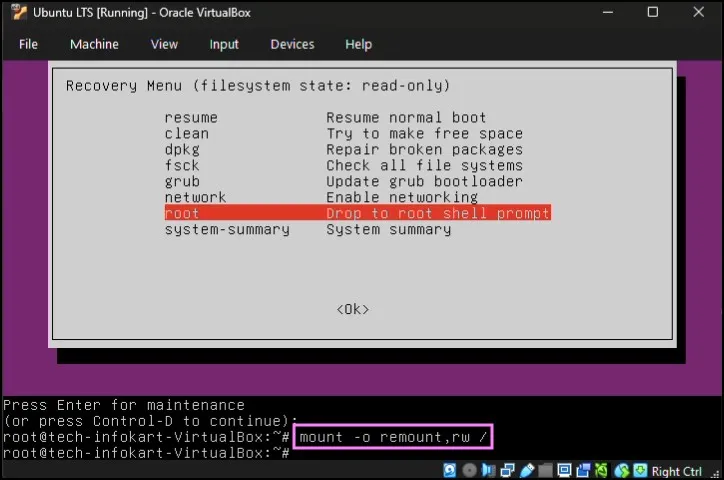
Now the system allows password modification.
Step 6: Reset Ubuntu Login Password
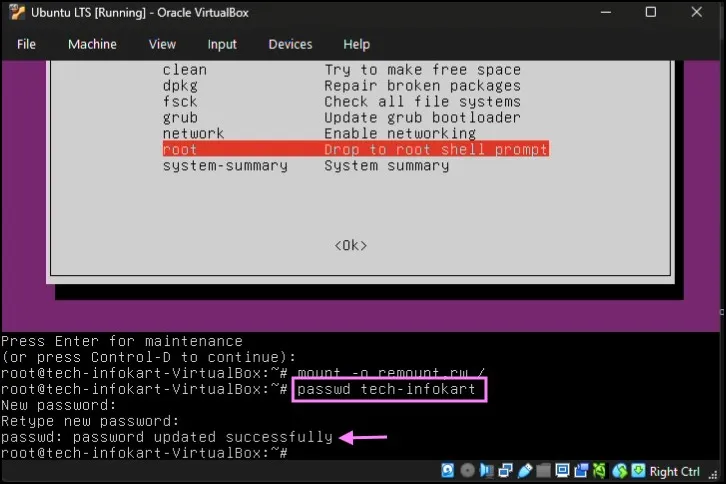
Next, type:
passwd username
Replace username with your actual Ubuntu username.
Example:
passwd tech-infokart
Now enter your new password.
You won’t see characters while typing — this is normal in Linux.
Re-enter the password to confirm.
If successful, you’ll see a confirmation message.
Step 7: Restart Ubuntu
Finally, restart the system using:
Reboot
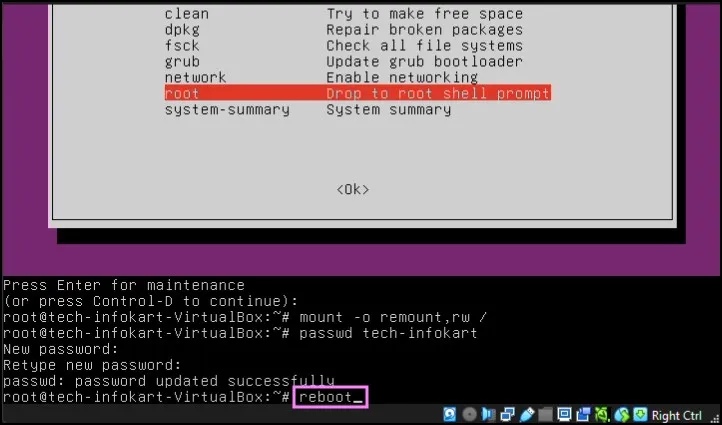
After reboot, log in using your newly created password.
That’s it — you’ve successfully reset your Ubuntu login password.
What You Should See After Reset
Once Ubuntu restarts:
- Login screen appears normally
- New password works instantly
- All files and applications remain unchanged
No reinstall. No data loss.
Final Thoughts
For beginners, it can feel stressful getting locked out of your system. But as you’ve already seen, Ubuntu has a simple recovery option that makes the password reset quick and safe.
Now you know how to reset ubuntu login password without reinstalling Operating System or losing Important Data.
Keep exploring, keep learning, and don’t worry — for the most part, tech problems always have an easy fix if you know where to find it.
Also Read: How to Install VirtualBox 7.2.4 on Windows 11
Frequently Asked Questions (FAQs)
Will resetting Ubuntu password delete my data?
No. This method only changes the login password. Your files remain safe.
Can I reset Ubuntu login password in VirtualBox?
Yes. The same steps work perfectly inside VirtualBox environments.
What if GRUB menu does not appear?
Restart again and press Shift continuously during boot.
Can I reset the root password using this method?
Yes, administrator-level access allows password changes for system users.
Does this work on all Ubuntu versions?
Yes, this method works on most modern Ubuntu releases.