
Have you seen a laptop turn on automatically after opening the lid, even though you didn’t press the power button?
Many users assume that their laptop has a problem. But the simple fact is — most of the time, there isn’t anything wrong at all. This behaviour is often the result of a feature that is built in to speed up booting and generally make laptops feel more convenient.
You can actually control this feature easily or definitely disable it completely. In this guide will show you why it is happening and what steps you can take to prevent your laptop from booting automatically.
Why Does My Laptop Turn on Automatically After Opening the Lid?
If your laptop turns on automatically after opening the lid, it basically for a feature called Lid Open Power On is enabled.
This setting allows the laptop to start automatically when the lid is lifted, without pressing the power button. Manufacturers include this feature to provide quick access — similar to waking up a smartphone screen.
It’s completely normal and can be disabled anytime if you prefer manual control.
Why Laptop Turn on Automatically After Opening the Lid
Your laptop has a small lid sensor — it can either be magnetic or mechanical in nature — that detects when this lid is opened and closed.
When you open the lid, this sensor sends a signal to wake or power on the system.
Lid Open Power On is a feature available in modern laptops, it allows users to get started immediately without the need for hitting extra buttons. HP, Dell, Lenovo, ASUS and many other laptops support this feature.
But some users like to have this feature disabled because:
- Battery may drain unnecessarily
- Laptop can start inside a backpack or bag
- System boots even when not required
- Possible for privacy or security concerns
How to Check Whether Hardware or Software Is Causing the Issue
Sometimes your laptop will wake up automatically due to activity from connected hardware or software. You can find out almost instantly what the last wake up source was.
Follow these steps:
- Click on the Windows Search icon
- Type Command Prompt
- Right-click it and select Run as administrator
- Type the command below and press Enter: powercfg -lastwake
You can check detailed information about Windows power troubleshooting commands from the official Microsoft documentation.
Windows will now show what last woke your laptop.
- If you see Lid or Power Button, the laptop’s lid sensor (hardware feature) is responsible.
- If devices like network adapter, USB device, or scheduled task appear, then software settings are waking your system.
- If the command shows Wake History Count – 0, it means your laptop is powering on directly through BIOS hardware settings rather than waking from sleep. In this case, disabling the Lid Open Power On option in BIOS is the correct solution.
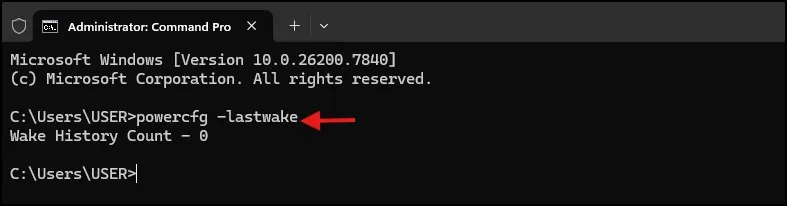
This gives you a simple check to see if this is a BIOS setting, or perhaps it’s one of those Windows wake options.
How to Stop Laptop from Turning on When Opening the Lid
Now that you are aware of what’s causing the problem, let us go ahead and disable this feature step by step.
Step 1: Restart Your Laptop and Enter BIOS Settings
Restart your laptop normally. When you see the system boot again, keep pressing BIOS access key like F2, Delete, F10 or ESC (the key varies from laptop to laptop). This will open the BIOS or UEFI settings menu that controls hardware-related options.
Step 2: Find and Disable the Lid Open Power Option
On the BIOS menu, find something like Lid Open Power On/Power on Lid Open/Wake on Lid/Flip to Boot. This option is often found under Power Management, Advanced Settings, or Boot Configuration. Find the option, click on it and set value as Disabled for stopping your laptop from turning on automatic, when you open lid.
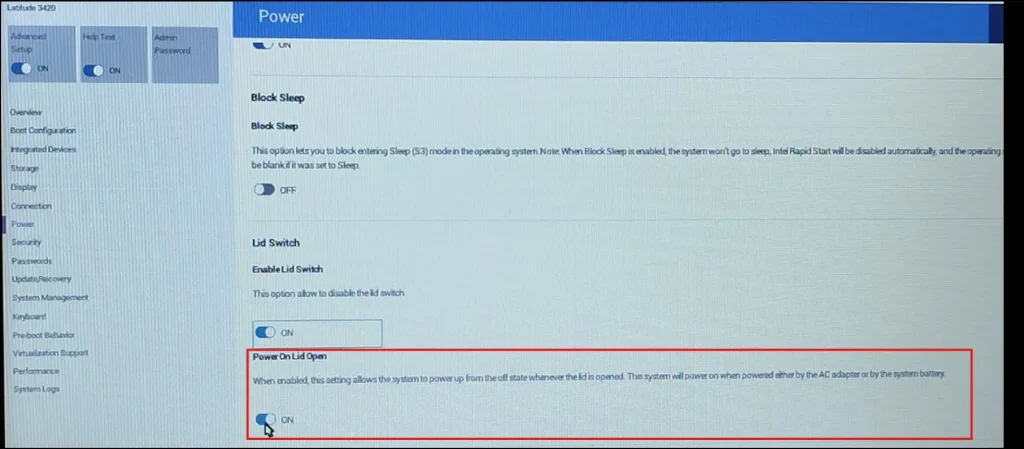
Step 3: Save Changes and Exit BIOS
Be sure to save and exit the BIOS screen after disabling Lid Open Power On.
On most laptops that just means hit the F10 key on your keyboard. This will prompt a confirmation message asking if you want to save the changes. Select Yes and press Enter.
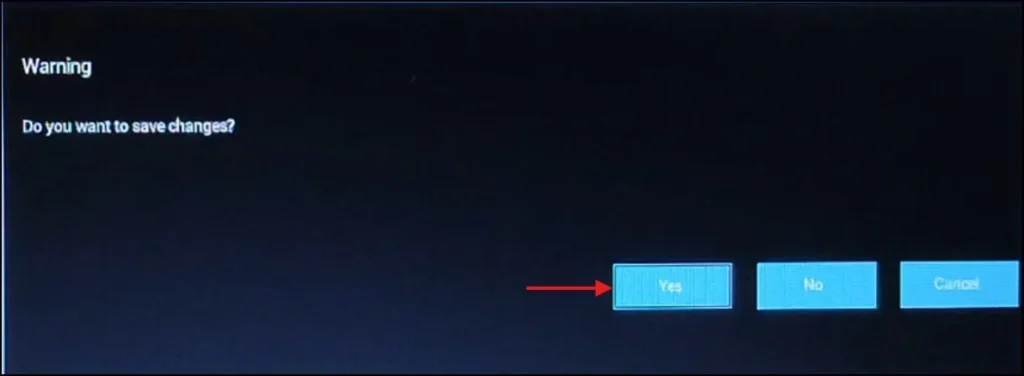
Now, your laptop will restart automatically with the new settings.
After the system powerups, shut the laptop’s lid completely and wait for seconds. Then lift the lid again to inspect the result.
If everything is set up correctly, your laptop should not turn on automatically when opening the lid, so you’ll need to press the power button manually to turn it back on. This ensures that the power on lid is disabled successfully
Final Thoughts
If your laptop turn on automatically after opening the lid, it’s most likely just a convenience feature — not a hardware problem.
With a simple thought through change in the BIOS, you can take back full control over when your laptop gets powered on, conserve battery life & prevent unintentional startups.
Just follow the steps carefully, only change what is necessary and your laptop will start running in the exact way that you like.
If you found this guide helpful, you can also watch the complete step-by-step tutorial on my YouTube channel for a practical demonstration.
Frequently Asked Questions (FAQs)
Is it normal for a laptop turn on automatically after opening the lid?
Yes. Many modern laptops enable this feature by default for faster startup.
Will disabling Lid Open Power On affect performance?
No. It only changes how the laptop starts, not performance.
Why can’t I find this option in BIOS?
Some laptop manufacturers hide or lock this feature in certain models.
Does Windows 11 cause automatic power-on?
No. This behaviour is mainly controlled by BIOS or firmware settings.
Can I enable automatic power-on again later?
Yes. You can re-enable the setting anytime from BIOS.