
Have you ever needed to enter BIOS from Windows, but found yourself costing at pressing the correct key at the right time when it restarted? Maybe your PC boots so quickly you don’t have time to hit the right key, or maybe that staggered boot process is making it tough for you to do so. You’re in luck, because today I’m going to show you a simple (and beginner friendly) way of reaching your BIOS directly from Windows by just using a command prompt command. Also, I will demonstrate you how you can create a handy desktop shortcut to directly open BIOS whenever you need in just one-click.
What is BIOS and its Significant Role
The BIOS (Basic Input/output System) is the firmware that runs your computer’s hardware during startup and makes sure all of it is functioning together. When you go into BIOS from Windows command line, you are at the level of deep system settings such as boot options, hardware settings and security.
Benefits of using command-line access over traditional methods
Using Windows BIOS access commands offers significant advantages over repeatedly pressing function keys during boot. You can access BIOS without restart interruptions, schedule automated BIOS entry through batch files, and execute the shutdown command BIOS method remotely. This approach saves time and provides more control over when your system enters firmware setup mode.
Why you might want to enter BIOS from Windows
It’s usually to check settings or make changes to your PC’s hardware or boot options.
You might want to:
- Enable or disable virtualization or TPM for Windows updates.
- Change the boot order (say you’re installing a new OS).
- Tweak hardware settings like fan curves or storage mode.
- Or simply check a firmware setting that you can’t access from inside Windows.
Traditionally you reboot, smash a function key at just the right moment, and hope you hit it. But what if your PC boots too fast? Or your manufacturer uses a weird key? That is where our little command trick comes in.
Step 1: Open Command Prompt as Administrator
- Click the Search baror press Windows key.
- Type:
cmd - In the results presented, right-click on Command Prompt and choose Run as administrator.
- When the User Account Control dialog is prompted, click on Yes.
Now you have the black command window open and ready for the next step.
Step 2: Enter the command to enter BIOS from Windows
In the administrator Command Prompt window type the following:
shutdown /r /fw /t 0

Here’s what each part means:
/r= restart your PC/fw= tells Windows to go to the firmware interface (i.e., BIOS/UEFI) on next boot/t 0= no delay; it happens immediately
When you hit Enter, your pc should reboot, and the BIOS/UEFI setup screen should appear without any devices forced to press F2 or something during startup.
Tip: Make sure you save any work before you hit the command—your PC will restart immediately.
Step 3: But wait… what if you need this often?
Here’s the thing: you might be thinking, “Cool trick, but I’ll forget the command later.” Or maybe you need to enter the BIOS from Windows multiple times (for installing OSes, changing settings, etc.). Memorizing that line every time? Meh. That’s why we’ll create a desktop shortcut. One clicks and you’re done.
Step 4: Create a desktop shortcut for instant BIOS access
Let’s make things easy. Follow these steps:
- Right-click on an empty spot on your Desktop.
- Choose New → Shortcut.
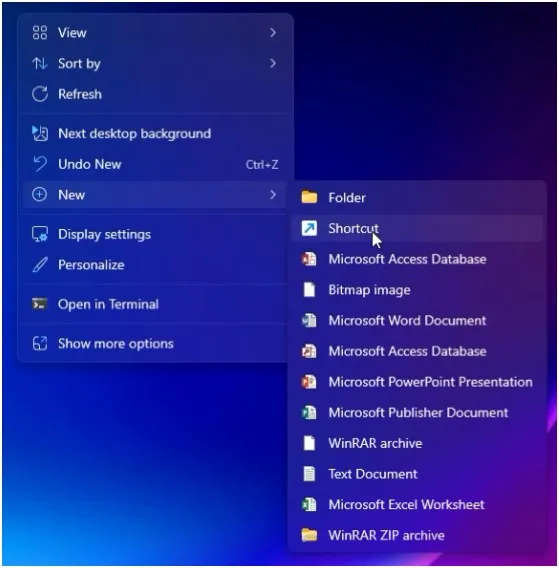
- In the “Type the location of the item” field, paste: shutdown /r /fw /t 0
- Click Next.

- In the “Type a name for this shortcut” box, give it a name like: Enter BIOS.
- Click Finish.

Whenever you want to enter bios from windows, you’ll get a shortcut on your desktop, just double-click it and click Yes on the UAC prompt if it appears.

Step 5: (Optional) Customize the shortcut icon
Want to make it look slick? Let’s change the icon:
- Right-click your new Enter BIOS shortcut and select Properties.
- On the Shortcut tab, click Change Icon…
- You may get a warning—click OK.
- Pick an icon you like (perhaps a gear icon or something firmware related).
- Click Apply, then OK.
Now it not only works great—it also looks like it belongs on your desktop.
Final Thought
So, there you have it: You now know how to enter BIOS from Windows using a command and a desktop shortcut so you won’t have to learn the command.No more racing to hit F2, no more missing the boot-window.
If you prefer seeing this in action, check out the companion YouTube video I made where I walk through every step visually.
Give it a try next time you need to access your firmware settings, and you’ll see just how smooth it can be.
Frequently Asked Question (FAQ)
Can I enter BIOS from Windows without pressing F2 or Delete?
Yes! You can easily enter BIOS from Windows using a simple Command Prompt command.
Which Windows versions allow me to enter BIOS from Windows?
You can enter BIOS from Windows on Windows 10 and Windows 11, as long as your system uses UEFI firmware.
Is it safe to enter BIOS from Windows using a command?
Absolutely! Using the command to enter BIOS from Windows only restarts your PC into the firmware interface—it won’t harm your files.
Can I make a shortcut to enter BIOS from Windows?
Yes! You can create a desktop shortcut so you can enter BIOS from Windows in one click without typing the command each time.
Why would I want to enter BIOS from Windows instead of pressing keys?
It’s easier and faster, especially if your PC boots too quickly. You can enter BIOS from Windows anytime without worrying about missing the boot key.