
We all use Microsoft Edge only for basic browsing regarding opening websites, watching videos, or checking emails. Basically, browsers have many powerful tools but we never notice the same.
People who use internet daily can only make their work faster and safer by learning some hidden browser tricks.
This article will actually show you 8 hidden Edge features that can definitely make your browsing better.
1. Sleeping Tabs (Save Memory Automatically)
One of the most helpful Edge features that most people have no idea exists is Sleeping Tabs.
Opening so many tabs at once can cause your computer to slow down, as every tab takes up memory. Edge solves this by putting inactive tabs to sleep.
How to Enable Sleeping Tabs
- Open Microsoft Edge
- Click the three dots (⋯) in the top-right corner
- Click Settings
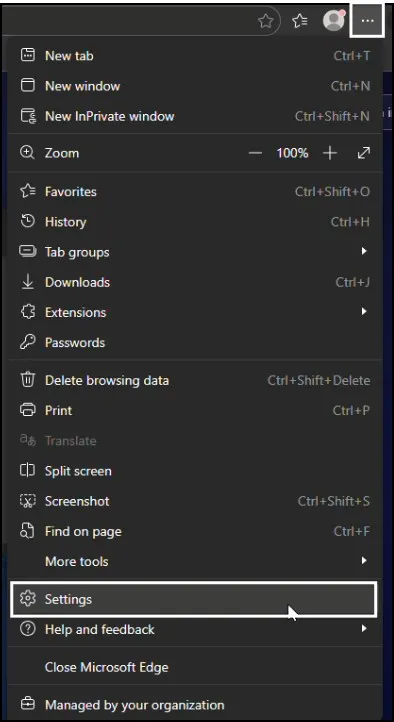
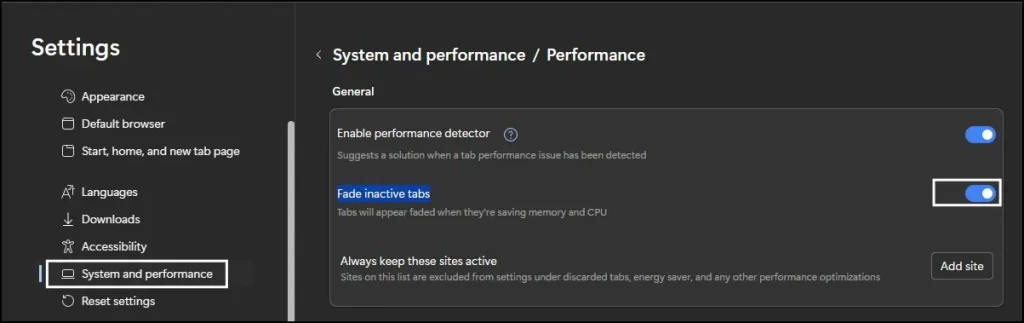
- Select System and performance
- Turn on Save resources with sleeping tabs
Now Edge will automatically suspend and release RAM from unused tabs.
Tip: This will be particularly useful on laptops and PCs with low available RAM.
In newer versions of Microsoft Edge, you may see “Fade inactive tabs” instead of the older **“Sleeping Tabs” setting. This feature visually dims unused tabs, while Edge may still automatically put inactive tabs to sleep to save memory.
2. Built-in Screenshot Tool
Did you know that Edge has a built-in screenshot tool?
No additional extensions are required for capturing web pages.
How to Take a Screenshot in Edge
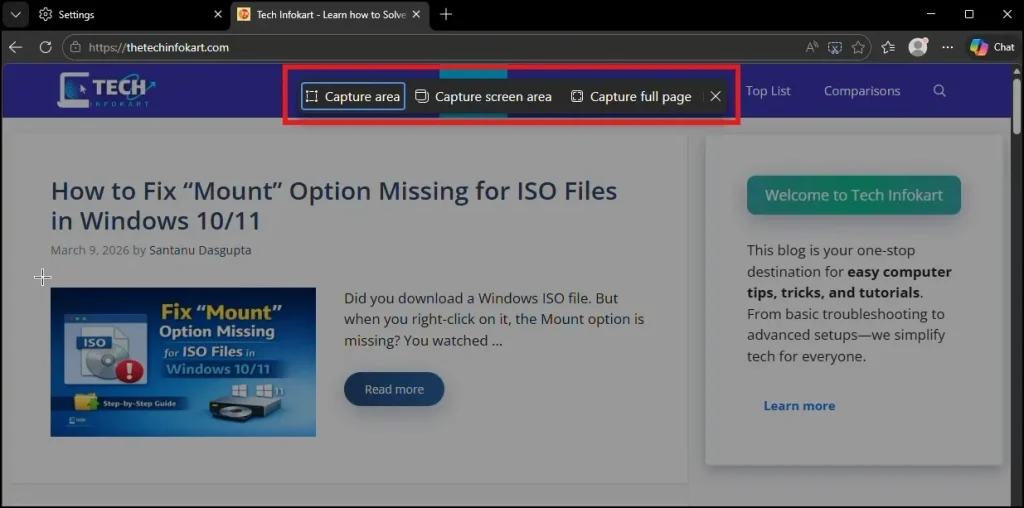
- Press Ctrl + Shift + S
- Select Capture area or Capture full page
- Save or copy the screenshot
This feature is perfect if you write notes, create tutorials, or share website information.
3. Vertical Tabs for Better Organization
If you tend to open lots of tabs in a browsing session, Vertical Tabs can help get things looking a lot cleaner.
Instead of having tabs at the top, Edge puts them on the left side of the screen to make their management easier.
How to Enable Vertical Tabs
- Open Microsoft Edge on your computer.
- Click the three dots (⋯) in the top-right corner of the browser.
- From the menu, select Settings.
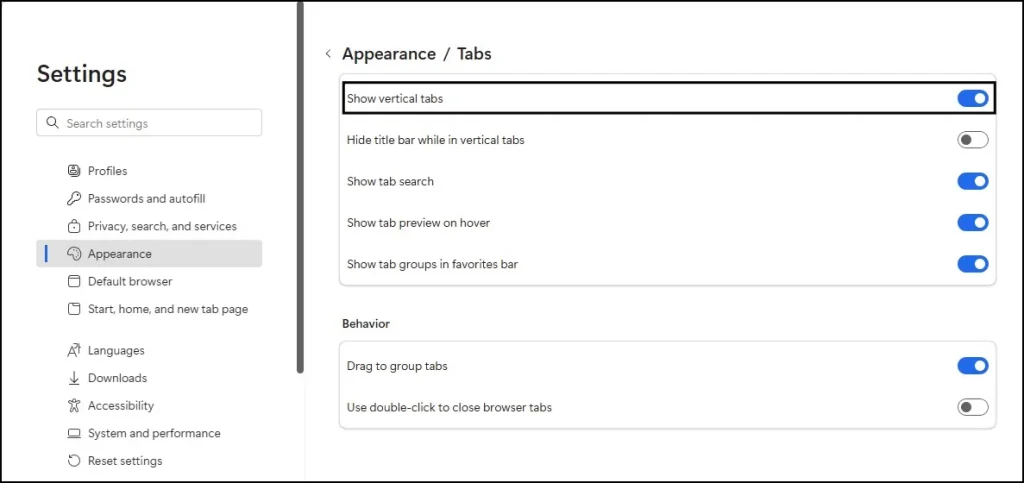
- In the left sidebar, click Appearance.
- Scroll down to the Other Appearance Settings section.
- Under that click on Tabs.
- Turn on Show Vertical Tabs button.
This feature is great for multitasking and improves browser productivity.
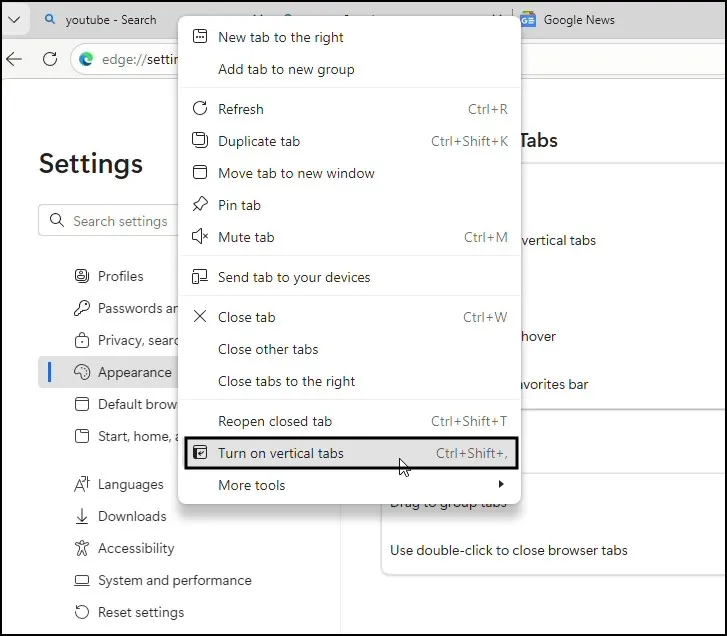
If you don’t see the Vertical Tabs button in the toolbar or settings, simply right-click on any tab and select “Turn on vertical tabs.” This method works in most Microsoft Edge versions.
4. Read Aloud Feature
Microsoft Edge has a built-in Read Aloud tool that you can use to read out webpages.
This is great when you want to hear articles while doing something else.
How to Use Read Aloud
- Open any article or webpage
- Right-click on the page
- Click on More Tools
- Click Read Aloud
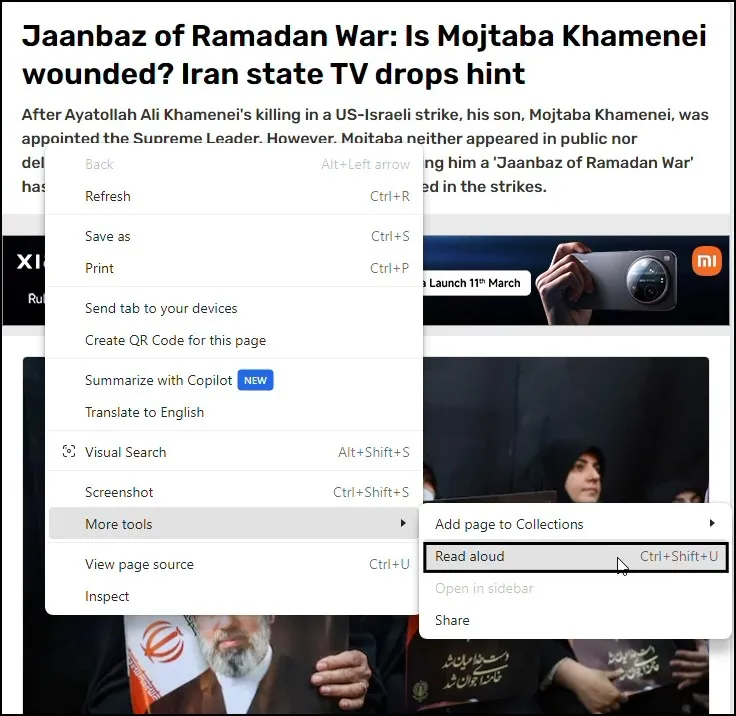
Edge will start reading the page using a natural voice.
This feature is especially useful for students, researchers, and long articles.
5. Immersive Reader for Distraction-Free Reading
Some websites are cluttered with advertisements, popups, and distracting elements.
Edge solves this issue with Immersive Reader, which converts any article into a clean reading page.
How to Enable Immersive Reader
- Open a supported article
- Click the book icon in the address bar

The page will instantly switch to a simplified reading layout.
You can also:
- Change text size
- Adjust background color
- Highlight nouns, verbs, and adjectives
This makes reading much easier.
6. Collections for Saving Useful Pages
If you do a lot of online research on topics, the Collections feature is incredibly useful.
It lets you save websites, images and notes all in one place.
How to Use Collections
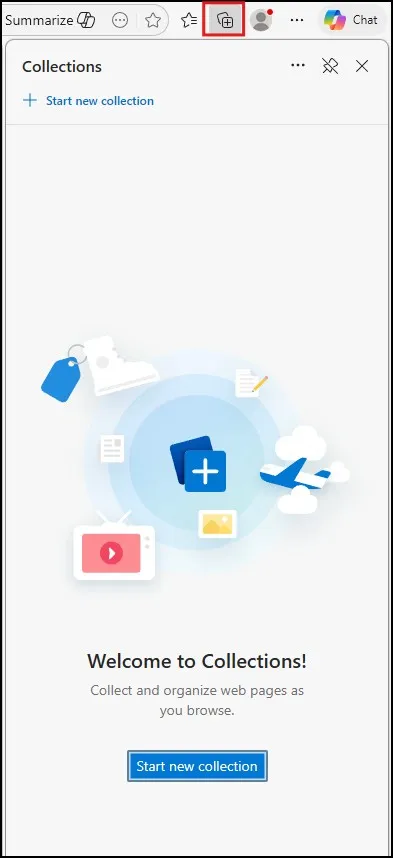
- Click the Collections icon in the top-right corner
- Click Start new collection
- Add webpages, images, or text notes
Many users use this feature for:
- Research projects
- Online shopping comparisons
- Travel planning
Sometimes the icon is not pinned to the toolbar.
Steps:
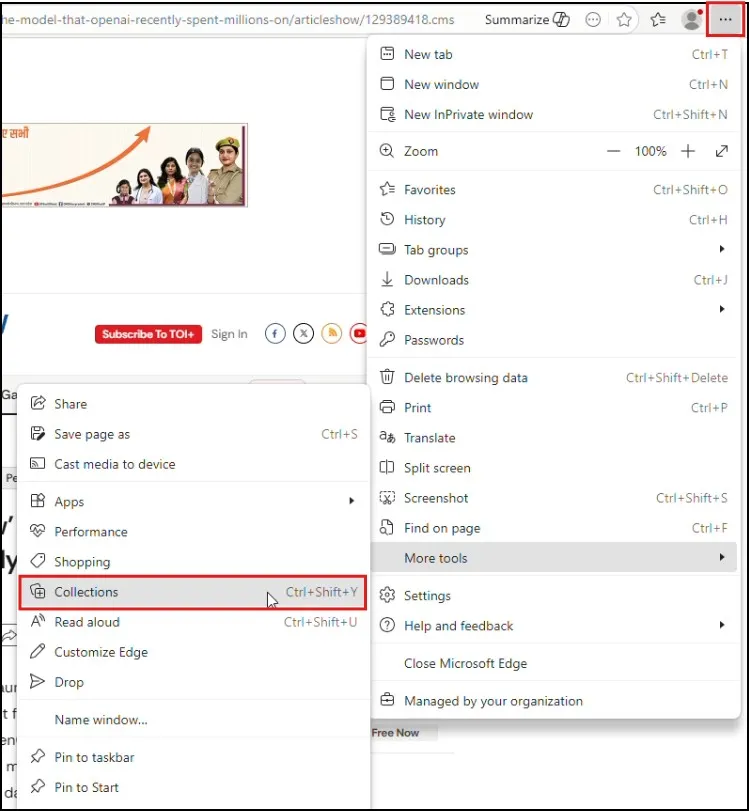
- Open Microsoft Edge
- Click the three dots (⋯) in the top-right corner
- Expand More Tools
- Look for Collections in the menu list
- Click it
This will open the Collections panel on the right side of the browser.
7. Built-in Coupon Finder
Edge includes a shopping assistant that automatically finds discount coupons.
When you visit a supported shopping website, Edge will check for available promo codes.
How to Use It
- Visit an online store
- Look for the coupon icon in the address bar
- Edge will suggest available discounts
This hidden tool can help you save money while shopping online.
8. Edge Security and Password Monitor
Online security is important, and Edge includes a Password Monitor feature.
It checks if your saved passwords appear in known data breaches.
How to Enable Password Monitor
- Open Microsoft Edge
- Click the three dots (⋯) in the top-right corner
- Click Settings
- Go to Passwords and autofill
- Click Microsoft Password Manager
- Look for Password security check
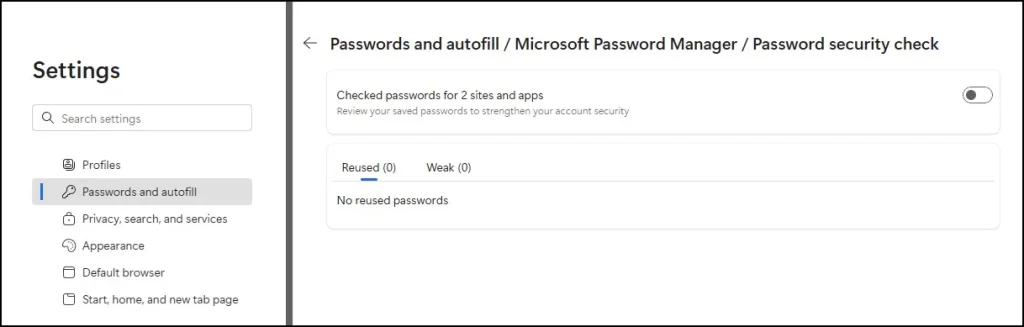
This section checks your saved passwords against known data breaches and warns you if any password is unsafe.
Edge compares your saved passwords with databases of leaked credentials and alerts you if a password has been compromised so you can change it quickly.
This makes browsing safer and more secure.
Practical Tips for Using Edge More Efficiently
Here are a few quick tips to get the most out of these hidden Edge features:
- Keep Edge updated to access the latest tools
- Use Sleeping Tabs if your PC has limited RAM
- Try Collections when researching topics
- Use Immersive Reader for distraction-free reading
- Enable Password Monitor for better online security
These small changes can make your browsing experience faster and more productive.
Final Thoughts
Many people use Microsoft Edge for simple browsing, but it has the same powerful tools that make online work much easier.
These hidden Edge features are actually unknown to most users, but they definitely help you browse faster and stay organized. You can actually improve your online security too with these simple tools.
Spend some time exploring these hidden tools further—you might find features that change how you use your browser itself.
Also Read: How to Add Chrome Extensions to Edge (2 Easy Ways)