
If we already join a WiFi network, we definitely do not write the password again once connect our computer. All this convenience also means that few of us ever remember what these passwords are after the fact. Windows saves it automatically so we are seeing that the device connects again only when the network is there.
Most users forget their password because the computer itself saves it automatically, and this further creates problems when they need to remember it. This guide shows you how can easily show saved WiFi passwords in Windows 11 using a few simple steps.
Method: Show Saved WiFi Password in Windows 11
You need to follow these simple steps carefully. This will definitely help you complete the task properly.
Step 1: Open the Control Panel
First, open the Control Panel on your Windows 11 computer.
You can do this easily:
- You need to click the Start menu. This will definitely open the main system options
- Type Control Panel further opens the system settings itself
- Click Control Panel from the search results
This will open the classic Control Panel window.
Step 2: Go to Network and Sharing Center
Inside the Control Panel:
- Click Network and Internet
- Then select Network and Sharing Center
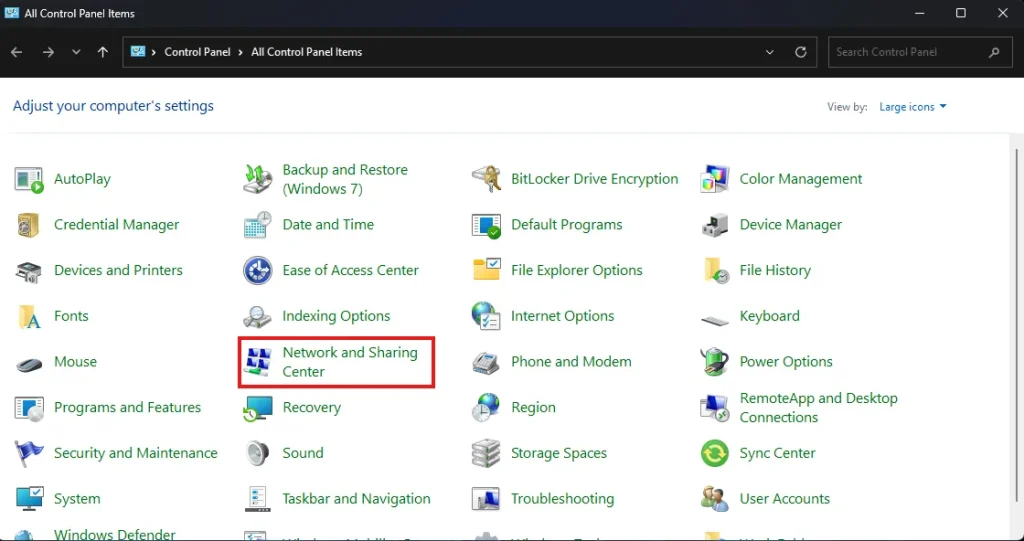
Here you will see information about your active network connection.
Step 3: Click Your WiFi Network Name
In the Network and Sharing Center, find your active WiFi connection for further steps.
We are seeing the WiFi network name next to Connections only.
Click on that WiFi network name.

A new window called WiFi Status will appear.
Step 4: Open Wireless Properties
In the WiFi Status window:
- Click the Wireless Properties button

This will open another settings window where you can view network details.
Step 5: Show the WiFi Password
Now follow these final steps:
- Click the Security tab
- Look for the Network security key field
At first, the password will appear as hidden dots.
To reveal it:
Check the box Show characters
You will instantly see the saved WiFi password in Windows 11.

Now you can copy or share it if needed.
If you want to learn more about how Windows manages WiFi networks, you can also check these helpful resources: Microsoft official guide
Alternative Situation: If You Are Not Connected to the Network
Sometimes you need to recover the password of a WiFi network that your Computer was previously connected but currently not connected.
This could be due to the router being off, you being out of reach from the network or your computer getting connected to a different WiFi.
While in those situations, Windows 11 retains the saved WiFi information within the system. If you’ve previously connected to a network, you can find the password through Command Prompt.
Final Thoughts
Actually, show saved WiFi passwords in Windows 11 is is quite useful when you have to connect new devices or require assisting other people to join your network. The process is surely simple and takes only one minute if steps are followed carefully. Forgetting WiFi passwords surely creates time-consuming problems for many users. Moreover, this simple trick can effectively solve such difficulties.
Frequently Asked Questions (FAQs)
Can I show saved WiFi password without Command Prompt?
Yes. You can show saved WiFi password in Windows 11 from the Control Panel using the Network and Sharing Center.
Why would I need to see the saved WiFi password?
You may need it to connect another device or share the network with someone.
Can Windows 11 store WiFi passwords automatically?
Yes. Once you connect to a network, Windows 11 saves the WiFi password for future connections.
Can I find saved WiFi password for old networks?
Yes. Windows keeps previously connected networks, and you can find saved WiFi password in Windows 11 using Command Prompt.
Is it safe to show the saved WiFi password?
Yes, but only share it with trusted people to keep your network secure.