
As per common situations, you may want your Mac to finish a download, backup, or video rendering overnight. Regarding this, you do not need to stay awake just to switch it off. Actually, automatic shutdown on Mac is definitely very useful for this only. As per the latest macOS versions, Apple has removed the old scheduling option, but regarding automatic shutdown, you can still use the built-in tools to set it up.
Surely, this guide presents practical methods to schedule shutdown on Mac, covering both one-time and recurring options. Moreover, these approaches are straightforward and easy to apply.
Why Would You Want to Schedule Shutdown on Mac?
As per daily usage, not everyone needs this regularly, but regarding certain situations, it can be quite useful.
For example, you may be downloading a large game or copying files to an external drive, or the system itself may be busy with further tasks like video exporting or backup. As per the better approach, you can let your Mac finish the work and shut down by itself. No need to keep checking it again and again regarding its progress.
As per the study, power saving is also an important reason regarding this matter. As per good practice regarding electricity usage, keeping your Mac on all night without any work is simply a waste of power. Actually, a scheduled shutdown will definitely handle all of that on its own.
Method 1: Schedule Shutdown on Mac Every Day Using Terminal
Basically, Terminal is the best and most reliable way to shut down your Mac at the same time every day.
First, open Terminal. You can do this by press Command + Space, type Terminal, and press Return.
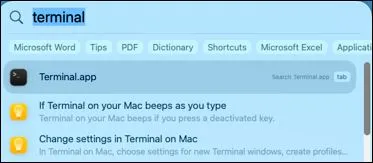
You can also find it by opening Finder, then going to Applications, then Utilities, then Terminal.
Once Terminal is opening, type only this command there:
sudo pmset repeat shutdown MTWRFSU 23:00:00
Press Return.
your Mac will ask for the admin password, which is the same as your login password. Type it further and press Return itself. Actually, the password will definitely not show on the screen while you are typing, and this is completely normal.
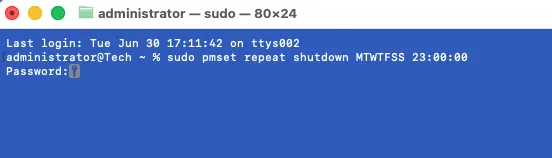
Here’s what the command means:
- sudo runs the command with administrator privileges.
- pmset is Apple’s built-in power management utility.
- repeat creates a recurring schedule.
- shutdown tells your Mac to power off.
- MTWRFSU means Monday through Sunday, or every day.
- 23:00:00 is the shutdown time in 24-hour format (11:00 PM).
If you’d rather shut down your Mac at 10:30 PM, simply replace the time with 22:30:00. Surely, one may select any time that suitably fits into their daily routine; moreover, this flexibility allows for convenient personal scheduling.
This method itself is the easiest way to set automatic shutdown on Mac daily. No further effort is required once it is set.
Schedule Shutdown on Mac Only on Specific Days
As per your preference, you may not want your Mac to shut down daily. That’s perfectly fine.
For example, if one works only from Monday to Friday, the shutdown can be scheduled for weekdays by using this command:
sudo pmset repeat shutdown MTWRF 23:00:00
The letters represent the days of the week:
- M = Monday
- T = Tuesday
- W = Wednesday
- R = Thursday
- F = Friday
- S = Saturday
- U = Sunday
Simply include the days you want in the command.
Basically, this works best when your weekend routine is not the same as your weekday schedule.
Method 2: Schedule a One-Time Shutdown on Mac
As per your requirement, you may only need your Mac to shut down one time.
You may be downloading a game overnight or further waiting for a backup to complete itself. Actually, you can definitely set a one-time shutdown instead of making a full repeat schedule.
open Terminal and type the same command:
sudo shutdown -h 23:00
You can replace 23:00 with whatever shutdown time you are preferring only.
After entering your administrator password, your Mac will automatically shut down at the specified time.
Unlike the previous method, this command only works once. If you need another scheduled shutdown later, you’ll have to run the command again.
How to Check Your Scheduled Shutdown
If there is doubt about whether the schedule has been created correctly, one can further verify it itself.
Open Terminal and type the command:
pmset -g sched
Press Return.

you will definitely see all the scheduled power events listed there, including any shutdown schedules you have set up before.

How to Cancel an Automatic Shutdown on Mac
Changed your mind? No problem. One may revise their choice without any difficulty
To remove the recurring schedule, open Terminal and run this commabd:
sudo pmset repeat cancel
As per the process, once you enter your administrator password, the recurring shutdown schedule will be deleted immediately.
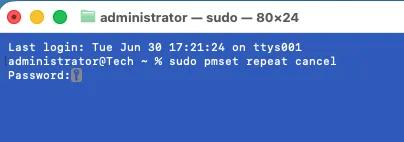
If you only created a one-time shutdown using the shutdown command, you can cancel it by running:
sudo killall shutdown
This stops the pending shutdown before it happens.
For more details about managing scheduled power events on your Mac, refer to Apple’s official guide on scheduling startup, shutdown, and sleep in Terminal.
Final Thoughts
Actually, setting up automatic shutdown on Mac is definitely not that much difficult as people are thinking. Apple has actually removed the easy scheduling option in newer macOS versions, but the Terminal commands are definitely still there to get the work done quickly.
As per your preferred schedule setup, you will not have to manually shut down your Mac every night regarding the automatic process handling it for you. As per the setup process, it takes only one minute to configure; and further it runs in the background itself.
Also Read: How to Check Running Apps and Background Processes on Mac
Frequently Asked Questions
Can I schedule an automatic shutdown on Mac without using Terminal?
On recent versions of macOS, Apple has removed the graphical scheduling option. Terminal is the built-in method for creating scheduled shutdowns.
Can I schedule shutdown on Mac every day?
Yes. You can use the pmset repeat command to create a recurring daily or weekly shutdown schedule.
Does the Mac shutdown timer close open apps?
Yes. macOS will close running applications during shutdown. Make sure you save your work beforehand.
How do I check if my shutdown schedule is active?
Open Terminal and run:pmset -g sched
This displays all scheduled power events.
Is it safe to use Terminal commands for automatic shutdown?
Yes. Both pmset and shutdown are official Apple command-line utilities included with macOS.