
If your Mac suddenly feels slow, starts getting very warm or makes a lot of noise from the fan spinning faster than normal, you’re not alone. I’ve seen that many times, especially on MacBook’s that are a year old or more.
Most of the time, the problem isn’t serious. It’s usually because too many apps or background processes are running quietly without you noticing. That’s why it’s important to know how to check running apps on Mac as well as background processes.
What Are Running Apps and Background Processes on Mac?
Let me try to make a simple explanation of this.
Running apps are the apps that you access and use directly. Such as Safari, Chrome, Notes, Finder or Photos.
Background processes on Mac are tasks that run silently in the background. You won’t see them on your screen, but they help macOS function properly. Some handle updates, some manage security, and others support apps you’ve installed.
When too many of these are active, your Mac may feel slow.
Why Checking Running Apps Matters
From my experience, beginners usually don’t realize how much is running in the background. Checking it can help you:
- Improve Mac performance
- Identify apps slowing down your Mac
- Save battery life on MacBooks
- Find frozen or unresponsive apps
- Understand CPU and memory usage
Once you know where to look, things make a lot more sense.
Quick Way: Check Running Apps on Mac Using Force Quit
This is the easiest method and works well if an app is stuck.
Steps:
- Press Command (⌘) + Option + Escape
- A small window called Force Quit Applications will open
- You’ll see all currently running apps
- Apps marked “Not Responding” are usually the problem
If needed, select an app and click Force Quit.
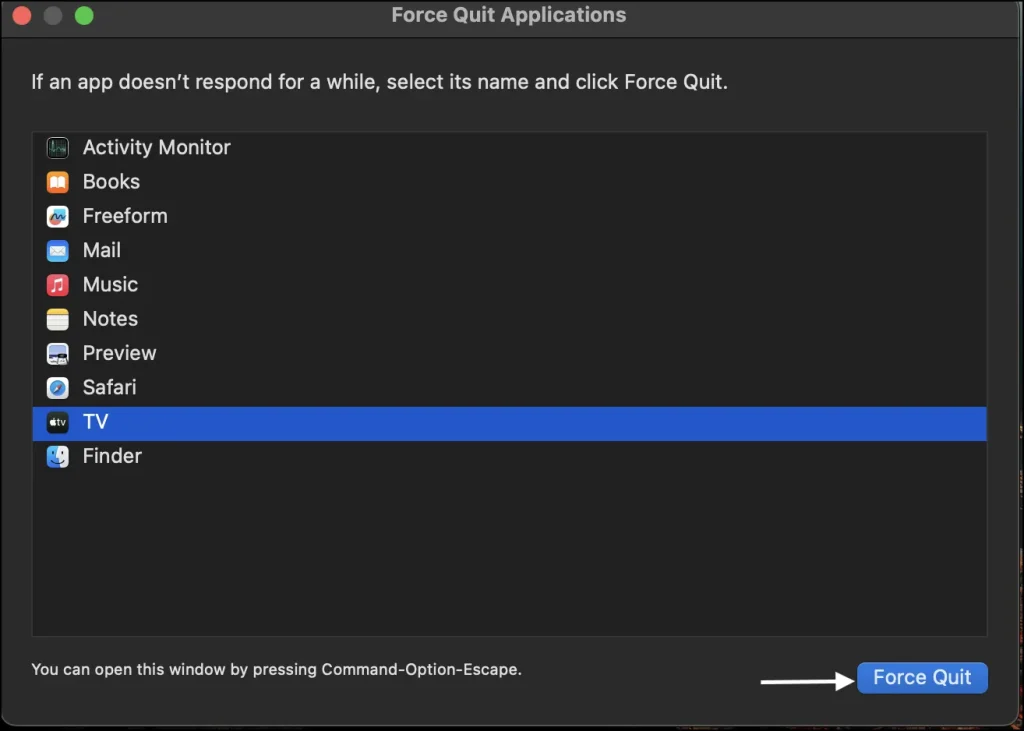
I personally use this when a browser freezes or an app refuses to close.
Best Method: Check Background Processes Using Activity Monitor
If you want a complete picture, Activity Monitor is the tool you should use. It’s built into macOS and very reliable.
How to Open Activity Monitor:
- Open Finder, click on Go then select Application
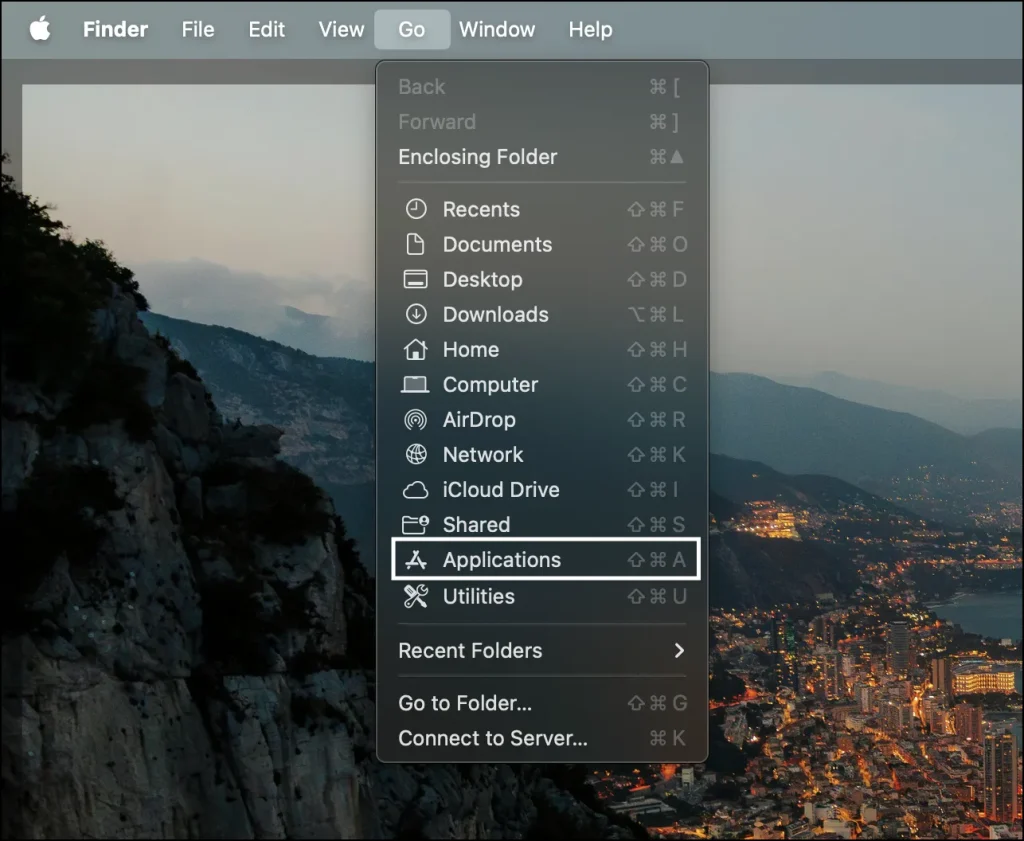
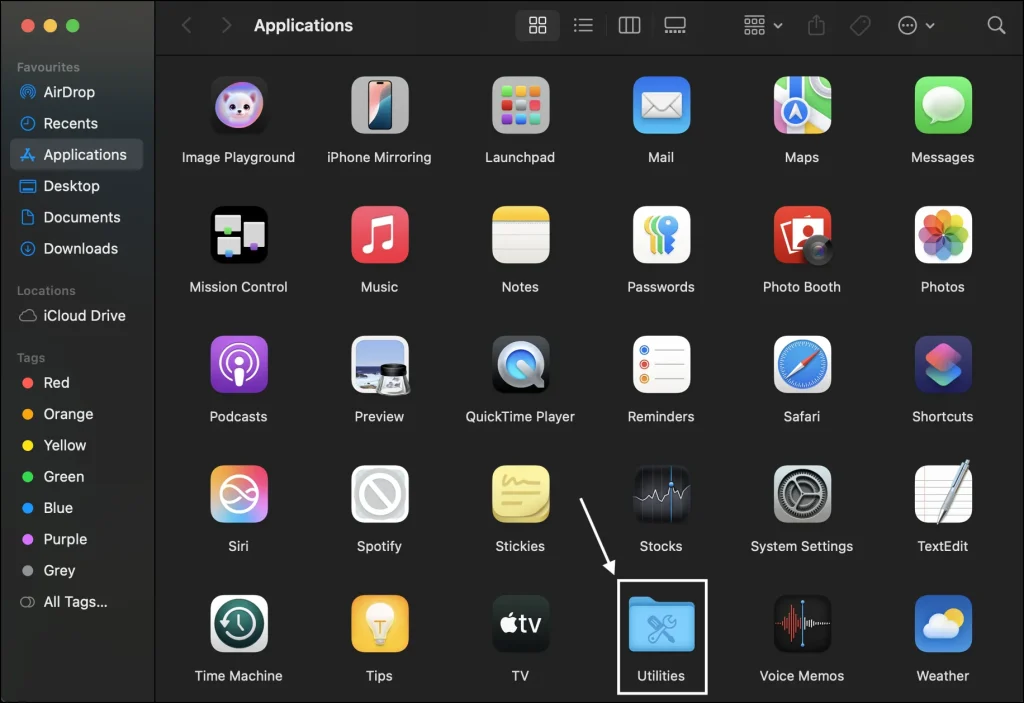
- Click on Utilities
- Click on Activity Monitor
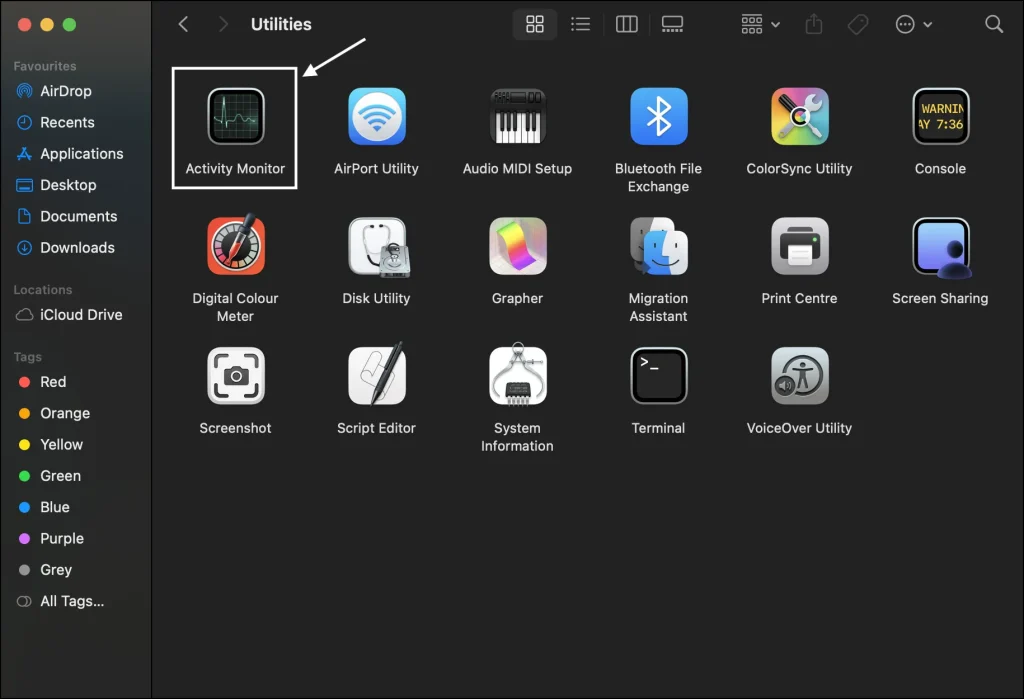
Or simply press Command + Space, type Activity Monitor, and press Enter.
Understanding Activity Monitor
When you first open Activity Monitor, it may look a bit scary. Don’t worry—most people feel the same way at first.
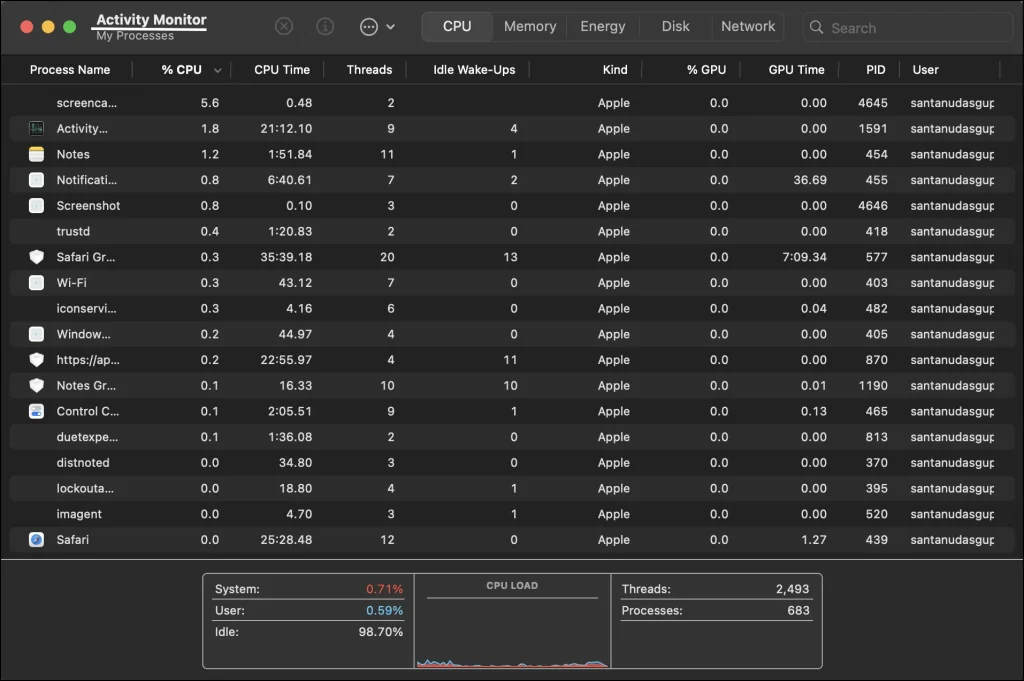
Here’s what really matters for beginners:
Important Tabs Explained Simply
CPU Tab
Shows which apps or processes are using your processor.
If something is using too much CPU, your Mac may slow down.
Memory Tab
Shows RAM usage.
High memory usage can cause lag and app freezing.
Energy Tab
Very useful for MacBook users.
It shows which apps are draining your battery.
Honestly, you can ignore Disk and Network tabs unless you’re curious.
If you want to learn more about Activity Monitor directly from Apple, you can check Apple’s official guide here: https://support.apple.com/guide/activity-monitor/welcome/mac
How to Spot Problem Apps or Processes
To improve Mac performance, look for:
- Apps using high CPU when you’re not using them
- Apps consuming too much memory
- Old or unused third-party apps
If you recognize the app and don’t need it, you can stop it.
How to Stop a Process:
- Click the process once
- Click the X (Stop) button at the top
- Choose Quit or Force Quit
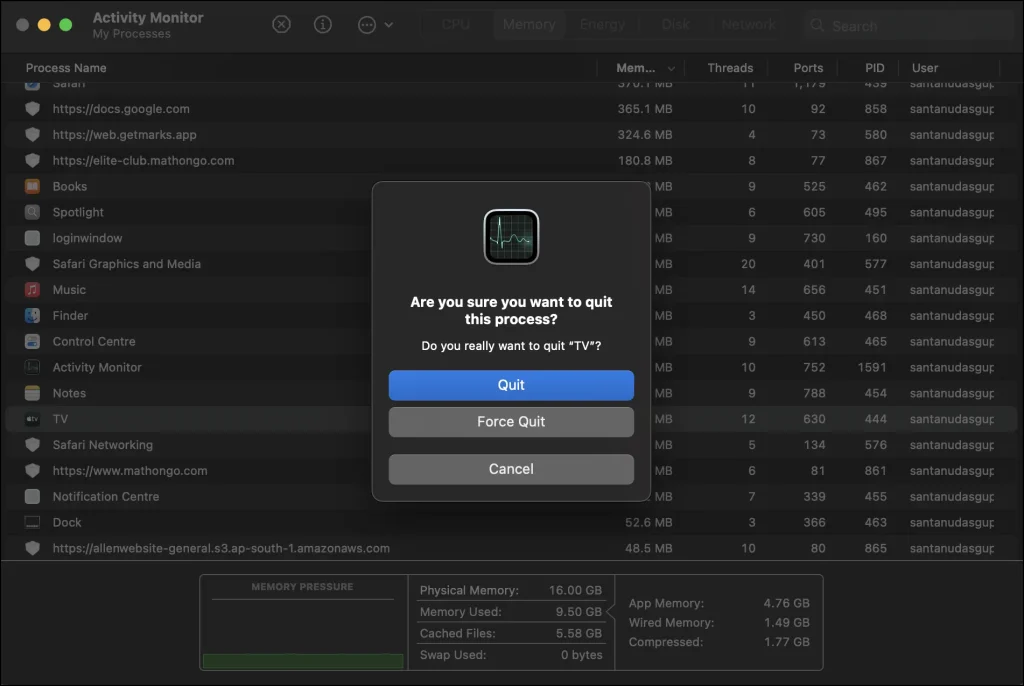
Important warning:
If you don’t recognize a process name, don’t close it. Many system processes are essential for macOS.
Practical Tips from Real Usage
- Restart your Mac once every few days
- Remove apps you no longer use
- Avoid force quitting system processes
- Check Activity Monitor only when something feels wrong
Small habits like these keep your Mac running smoothly.
Final Thoughts
Knowinghow to check running apps and background processes on Mac gives you better control over your system. You don’t need to be a tech expert— just knowing where to look already gives you an edge over the average user.
If your Mac is running slowly, don’t panic. Give it a quick scan, close what you don’t need, and often your system will feel better instantly.
Also Read: How to Check Your MacBook’s Battery Health
Frequently Asked Question (FAQ)
Is it safe to close background processes on Mac?
Only close processes from apps you recognize. System processes should not be touched.
Why does my Mac show so many background processes?
macOS runs many services to maintain stability, security, and performance.
Can checking running apps help battery life?
Yes. Closing heavy apps can significantly reduce battery drain.
How do I know which app is slowing my Mac?
Check the CPU tab in Activity Monitor and look for high usage.
Is Activity Monitor safe to use?
Absolutely. It’s a built-in Apple tool and completely safe.