
If you use a Mac at home or at work or for school, your login password is the most important password you have. It is the lock that safeguards your files, photos, emails and personal information. A lot of people set one password once and just don’t think about it again for years.
Here in this guide, I will show you how to change login password on Mac easily so that even beginners can perform the action without assistance.
Why Changing Your Mac Login Password Is Important
Your Mac login password is not just for logging in. It’s also used when you install apps, change system settings, or access saved information.
You should consider changing your Mac login password if:
- Your password is too simple
- Someone else might know it
- You haven’t changed it in a long time
- You recently shared your Mac with someone
Regularly updating your macOS password helps keep your system safe and under your control.
Before You Change Your Login Password on Mac
Before starting, make sure of these small things:
- You remember your current password
- Your keyboard language is correct
- Caps Lock is turned off
That’s all you need. Let’s move to the steps.
How to Change Login Password on Mac (Step-by-Step)
This method works on most modern macOS versions and is the safest way to change your password.
Step 1: Open System Settings
- Click the Apple logo in the top-left corner
- Choose System Settings
(On older Macs, this may say “System Preferences”)

Step 2: Open Users & Groups
- Scroll and click on Users & Groups
- You’ll see your user account listed there
- Select your account by press i-icon beside this account name

Step 3: Click on “Change Password”
- Look for the Change Password option
- Click on it to continue
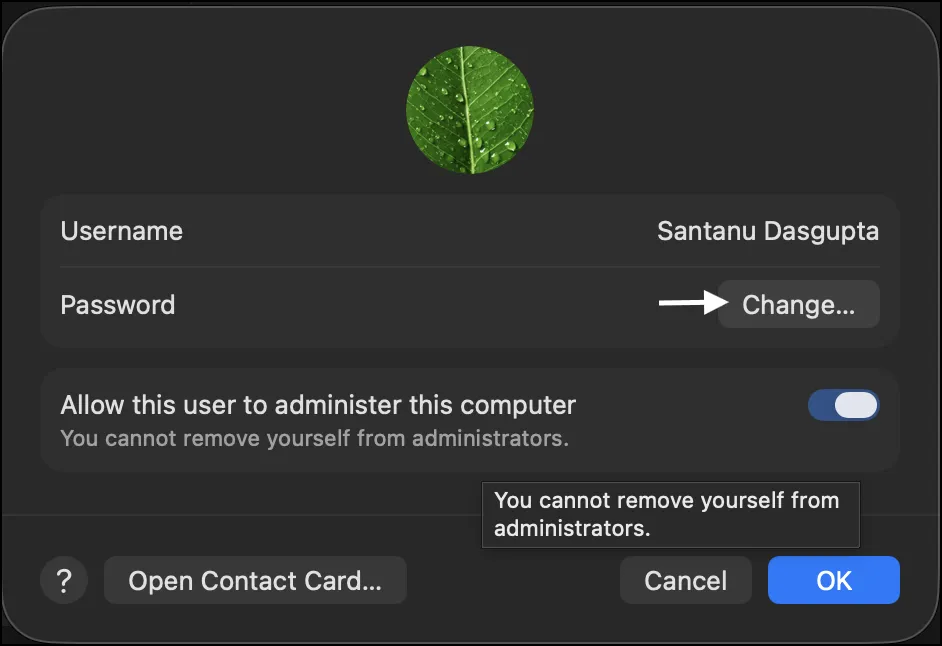
Step 4: Enter the Required Details
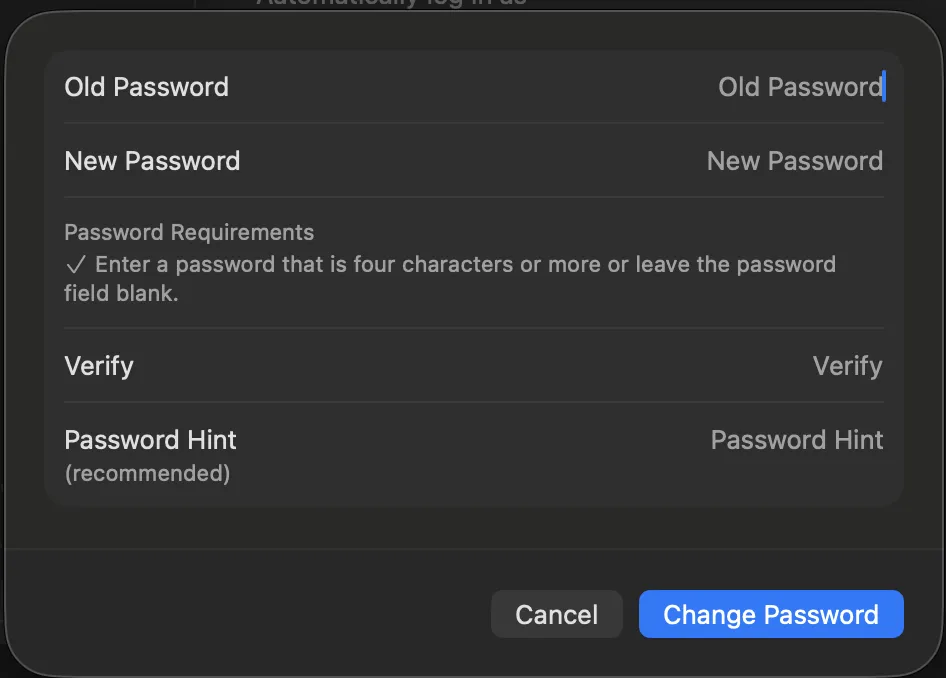
Now you’ll see three boxes:
- Current Password – your existing Mac password
- New Password – the new one you want to set
- Verify Password – type the new password again
You can also add a password hint, but keep it simple and not too obvious.
Step 5: Save the New Password
- Click Change Password
- Your Mac login password is now updated
Next time you log in or wake your Mac, you’ll use the new password.
Apple also provides an official guide on how to change login password on Mac, which you can check on their support website.
What If You Forgot Your Mac Login Password?
It happens more frequently than people are willing to admit, so don’t panic.
In case you forget your password there are recovery options provided by macOS they include:
- Resetting the password through your Apple ID
- Using macOS Recovery Mode
- Resetting from a different admin account on the same Mac
The exact option varies depending upon how your Mac was set up in the past. Assuming you do them right, these methods won’t delete your files.
You can follow Apple’s official instructions on what to do if you forgot your Mac login password and regain access safely.
Tips to Create a Strong Mac Password
A good password makes your Mac secure but easy to remember.
Here are some simple tips:
- A minimum of 8 to 12 characters is required
- Mix letters, numbers, and symbols
- Do not use names, birthdays or common words
- Don’t use passwords from other sites
A strong password protects your macOS system from unauthorized access.
Final Words
So now you know how to change login password on Mac with no confusion. Simple but makes a huge difference in keeping your personal data safe.
If your password is old, or can be easily guessed, take just a few minutes to update it today.” Simple security measures like this can help keep your Mac secure and anxiety-free.
Also Read: How to Check Your MacBook’s Battery Health
Frequently Asked Question (FAQ)
Can I change my Mac login password without knowing the old one?
Yes, but only through recovery options like Apple ID or macOS Recovery.
Will changing my password delete my files?
No. Changing your login password does not affect your data.
How often should I change my Mac password?
Every 6–12 months is a good practice for security.
Is Mac login password same as Apple ID password?
Not always. They can be different unless you chose to sync them.
What happens if I forget my new password?
You’ll need to reset it again using recovery methods.