
You may find a process named AggregatorHost when you open Task Manager in Windows 11. exe. If you don’t know it, your first thought would, of course, be whether it is a virus or some kind of unwanted program that is running on your computer.
So, what is AggregatorHost.exe? Is it a legitimate Windows process or some malware coming into your machine?
In this tutorial, we will discuss AggregatorHost.exe is, where you typically see it on your computer system, how to determine if the file is valid and what to do whenever you encounter excessive CPU or RAM usage.
What Is AggregatorHost.exe?
AggregatorHost.exe is a Windows system process which runs in the background — on Windows 10 and Windows 11, as well.
It is linked to Windows system components and typically runs in the background without user interaction. You might have seen it while checking in Task Manager’s Processes or Details tab.
AggregatorHost.exe — Just another Windows processes filename.exe might not be very descriptive This can definitely make it suspicious looking, mainly if it is something you have never seen before.
However, seeing AggregatorHost.exe Just because an exe is running does not mean you have a virus on your PC.
The key here is to see where the executable file comes from and ensure that it is the original Windows file.
Is AggregatorHost.exe Safe?
Yes, the genuine AggregatorHost.exe is an authentic Windows process.
The file is in a regular windows system folder and has a valid digital signature from Microsoft — no cause for alarm.
In some cases, malware uses the same or a similar name as an ordinary Windows process to disguise itself. This is why simply inspecting the process name in Task Manager does not help.
In case, you are sceptical that the process on your PC could be spyware then you can quickly check its file location.
How to Check the AggregatorHost.exe File Location
You can check where AggregatorHost.exe is stored directly from Task Manager.
- Press Ctrl + Shift + Esc to open Task Manager.
- If Task Manager opens in the simplified view, click More details.
- Look for AggregatorHost.exe under the Details tab.
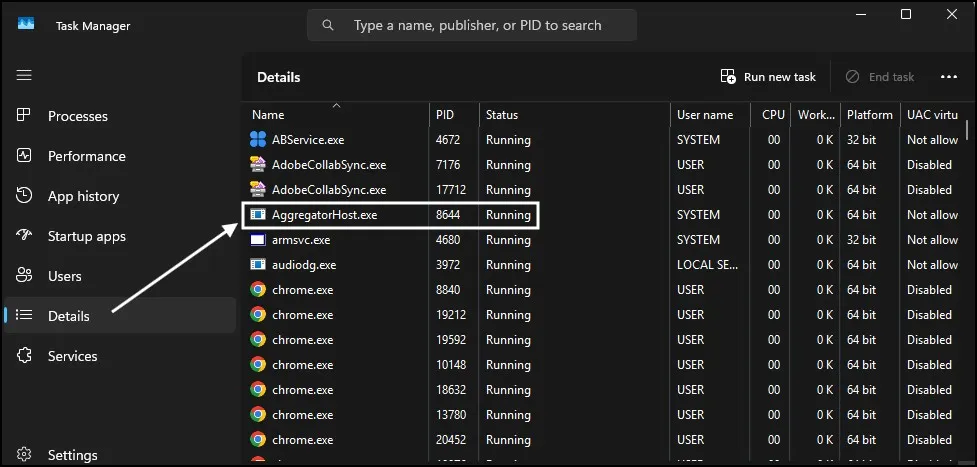
- Right-click AggregatorHost.exe and select Open file location.
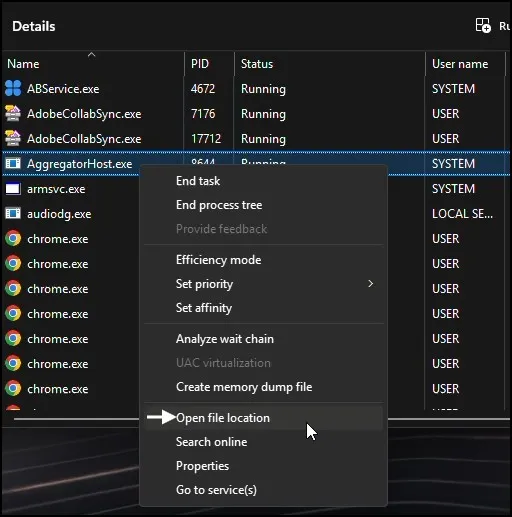
Windows will open the directory where that executable file is located.
On a real installation of Windows, the file is exactly where it should be — in one of the Windows system folders (usually System32 directory).
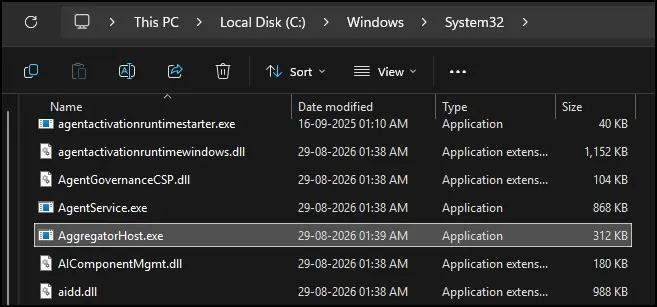
If you find an AggregatorHost.exe file in a non-standard path like the temp folder, Downloads folder or in some obscure program directory, it should be looked into further.
How to Check If AggregatorHost.exe Is a Microsoft File
Checking the file location is useful, but you can take one more step and check its digital signature.
- Right-click AggregatorHost.exe in Task Manager.
- Select Open file location.
- Right-click the executable file and select Properties.
- Open the Digital Signatures tab.
- Look for a valid signature from Microsoft.
A valid Microsoft signature is a good indication that you are dealing with the genuine Windows file.
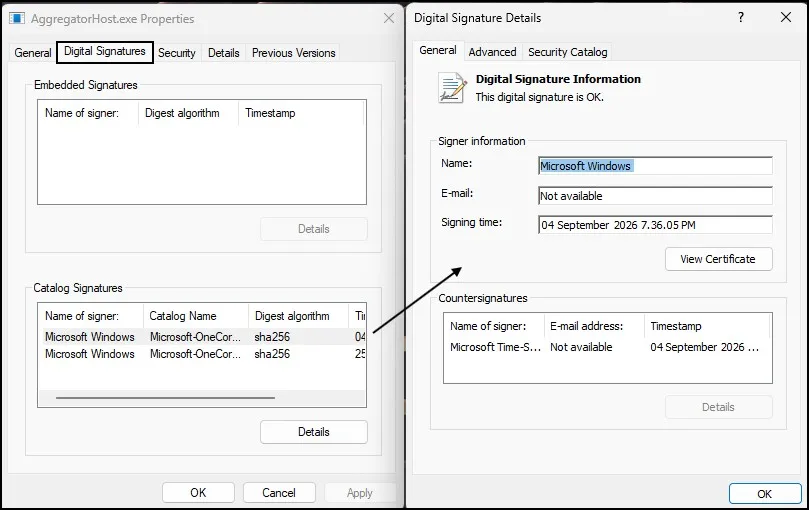
If the Digital Signatures tab is missing or the file has an unknown publisher, don’t immediately delete it. Instead, scan the file with Windows Security or another trusted security program.
Is AggregatorHost.exe a Virus?
AggregatorHost.exe is not a virus as long as it is the real Windows file.
The issue is that some malware uses the name of legitimate Windows processes.
For example, a malicious program could create a file named AggregatorHost.exe and place it somewhere outside the normal Windows directories. Even if the file wasn’t real, its name would make it seem legitimate then.
That is why the digital signature and location of a file, or a security scan are much more helpful than simply looking at the filename.
If your AggregatorHost.exe file is located where it should be on a Windows machine and has been signed by Microsoft, there should be no reason to remove it.
Why Is AggregatorHost.exe Using CPU or Memory?
You may also notice AggregatorHost.exe will take up some CPU or memory in Task Manager.
That is not a big deal by using a fraction of the resources. By default, the Windows operating system runs a lot of background processes using up memory resources and the utilization of them may vary depending on what your system is doing at that time.
However, if AggregatorHost.exe is continuously using a large amount of CPU or memory, you should do is reboot your computer and see if the issue persists.
You also have the option to run a Windows Security scan which ensures that no other program is responsible for the unusual behaviour.
If the process still normally consumes high resources, ensure Windows is fully up-to-date and see whether other Windows components are using resource.
Can I Disable or Delete AggregatorHost.exe?
My advice is do not delete, or disable AggregatorHost manually just because you might not know what it is. Removal of system files may introduce unpredictable issues since it is a component of the Windows system.
If you see a problem with that process running, it would be much better to scan it first instead of manually removing it.
What Should You Do If AggregatorHost.exe Looks Suspicious?
In case you are not able to determine it is genuine or fake copy on your PC, check out these:
- Check its file location.
- Check the Digital Signatures tab.
- Check the publisher you see is Microsoft.
- Run a Windows Security scan.
- See if the file is consuming unusually high CPU or memory.
- Don’t delete the file simply because its name is strange.
These basic checks will help you determine whether you’re actually dealing with the legitimate Windows process or something that requires further investigation.
Final Thoughts
So, what is AggregatorHost.exe in Windows 11?
This is a genuine windows background task, and finding it in Task Manager does not mean that your PC is infected.
If you are worried, it is convenient to check its file location and verify that it is the expected Windows system file. You can also verify its Microsoft digital signature and perform a security scan.
In short, don’t delete AggregatorHost.exe because you see it running. Just leave it alone, as long as this file is valid and bother nothing.
Frequently Asked Questions
What is AggregatorHost.exe in Windows 11?
AggregatorHost.exe is a legitimate Windows background process that may appear in Task Manager.
Is AggregatorHost.exe safe?
Yes, the genuine AggregatorHost.exe is a legitimate Windows process. You can verify its location and Microsoft digital signature.
Is AggregatorHost.exe a virus?
No, the genuine file is not a virus. However, malware can use similar filenames, so checking the file location is important.
Can I delete AggregatorHost.exe?
No. You should not manually delete the genuine AggregatorHost.exe file because it is a Windows system component.
Why is AggregatorHost.exe using CPU?
Some resource usage can be normal. If it constantly uses high CPU or memory, restart Windows, check for updates, and run a security scan.