
when your Windows PC begins to act unusual and you definitely want to check for any security problem, you may have heard about Microsoft Malicious Software Removal Tool. But many users do not know what it does or how to run it further, and the process itself is not clear to them.
Now let’s quickly see how to use MSRT in Windows 11, step by step.
What Is Microsoft Malicious Software Removal Tool (MSRT)?
The Microsoft Malicious Software Removal Tool (MSRT) is a free security tool from Microsoft.
It is designed to:
- Scan your system for common malware
- Remove specific malicious software families
- Work silently in the background via Windows Update
👉 Important: MSRT is NOT a full antivirus.
It is only a secondary malware removal tool, which works along with Microsoft Defender.
How to Run MSRT in Windows 11
You can run MSRT directly from Windows using a simple command.
Step 1: Open Run Command
Press Windows + R on your keyboard.
Type the following command: mrt
Then press Enter.
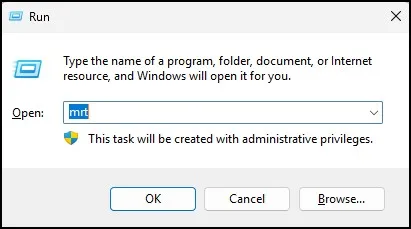
Step 2: Welcome Screen Appears
The Microsoft Malicious Software Removal Tool will open.
Click Next to continue.

Step 3: Choose Scan Type
You will see three options:
- Quick Scan (recommended)
- Full Scan (deep scan)
- Customized Scan
Select Full Scan for best results and click Next.

Step 4: Scan Starts
MSRT will now scan your system for malware.
Wait until the process completes.

Step 5: View Results
After the scan is complete, MSRT will show the result:
- No malware found OR
- Malware removed successfully

How to Download and Run MSRT Manually
In most cases, Windows automatically installs MSRT through updates. But if you want the latest version manually, follow these steps:
Step 1: Open Microsoft Download Page
Search for MSRT on Microsoft’s official website. Select the correct version (32-bit or 64-bit) and download it.

Step 2: Run the File
Double-click the downloaded file.
Click Next → Next → Scan Now
How to Check MSRT Scan Results
If you want to check past scan results:
Method 1: Using Run Command
- Press Windows + R
- Type: mrt
- Press Enter
- Click on View a list of malicious software that this tool detects and removes

- After that you will see a details information of specific malicious software.

Method 2: Check the MSRT Log File
If you want to view details of a previous scan, you can open the log file created by MSRT.
Step 1: Open the Windows Debug Folder
Press Windows + R, type the following command, and press Enter:
%windir%\debug

Step 2: Open the mrt.log File
Inside the Debug folder, look for a file named mrt.log and double-click it to open it with Notepad.

Step 3: Review the Scan Details
The log file will show information such as:
- Date and time of the scan
- Scan type used
- Whether any threats were detected
- Whether malware was removed successfully

MSRT vs Microsoft Defender (Comparison)
| Feature | MSRT | Microsoft Defender |
| Real-time protection | ❌ No | ✅ Yes |
| Manual scan | ✅ Yes | ✅ Yes |
| Malware removal | Limited | Advanced |
| Background protection | ❌ No | ✅ Yes |
| Update method | Monthly Windows Update | Continuous updates |
Note: Defender is your main antivirus, MSRT is an extra cleanup tool.
Conclusion
The Microsoft Malicious Software Removal Tool is one simple but very useful security tool only, and we are seeing it comes built-in with Windows 11.
It removes specific malware and further works as an additional layer of protection alongside Microsoft Defender itself.
As per your requirement, you can run it anytime using the mrt command. Regarding automatic running, Windows will handle it through updates.
Basically, MSRT and Microsoft Defender SmartScreen work the same way together to give you better protection overall. Further details on how to enable or disable Microsoft Defender SmartScreen in Windows 11 itself can be found here.
Frequently Asked Questions
Is Microsoft Malicious Software Removal Tool safe?
Yes, it is 100% safe and officially provided by Microsoft.
Do I need to install MSRT manually?
No, it usually comes with Windows Update automatically.
What is MRT.exe in Windows 11?
MRT.exe is the executable file that runs the MSRT tool.
Can MSRT replace antivirus software?
No, it cannot replace Microsoft Defender or any antivirus.